About
This article covers capabilities that were either unavailable in the standard legacy Video Portal or have been substantially enhanced in Content Hubs.
It focuses on functional differences - what end-users, content owners, and administrators can do - rather than detailed configuration steps. Related articles linked throughout the article provide usage, and enablement information where applicable.
- New means that the capability was not available in the standard legacy Video Portal.
- Enhanced means that the capability existed in legacy but provides additional functionality or a more streamlined workflow in Content Hubs.
Feature availability depends on site configuration and the modules enabled for the account.
Site design and navigation
Theme Builder (new)
The Theme Builder lets administrators create and manage site themes by configuring colors, typography, shapes, and other visual settings.
Admins can preview and apply themes without relying exclusively on custom CSS.

For more information, see Customize your Content Hub with Theme Builder.
In-page login (new)
Users can sign in from supported Content Hubs pages without being redirected to a separate login page.
The login panel supports configured authentication methods, password recovery, and registration options.

For more information, see Configure landing page hero banners.
User theme selection (new)
Administrators can let logged-in users choose an alternate display mode from the user menu. Depending on the configuration, this can include light, dark, or browser-matched modes.

For more information, see Theming module.
Configurable footer (enhanced)
The legacy Video Portal provided a basic text footer. Content Hubs provides an enhanced configurable footer that can include social media links, multiple text and link items, additional bottom text, and background styling.

For more information, see Footer module.
Site pages
Template pages (new)
Template pages let administrators build homepages and landing pages by arranging reusable components instead of creating pages with code.
Components can display elements such as text, banners, playlists, registration options, groups, HTML, individual videos, and more.

For more information, see Create a custom page in Content Hubs using template pages and Templatepages module.
Custom pages (new)
Custom pages let administrators create additional pages for specific audiences, topics, campaigns, or site areas. Each page can have its own URL, permissions, publishing status, and navigation link.
For more information, see Custompages module.
Group pages (new)
Group pages display members of a selected group of people on a dedicated page. Users can search for group members, view promoted users, and open user profiles.
Administrators can also add a Groups component to a template page to display group members in a grid or carousel.
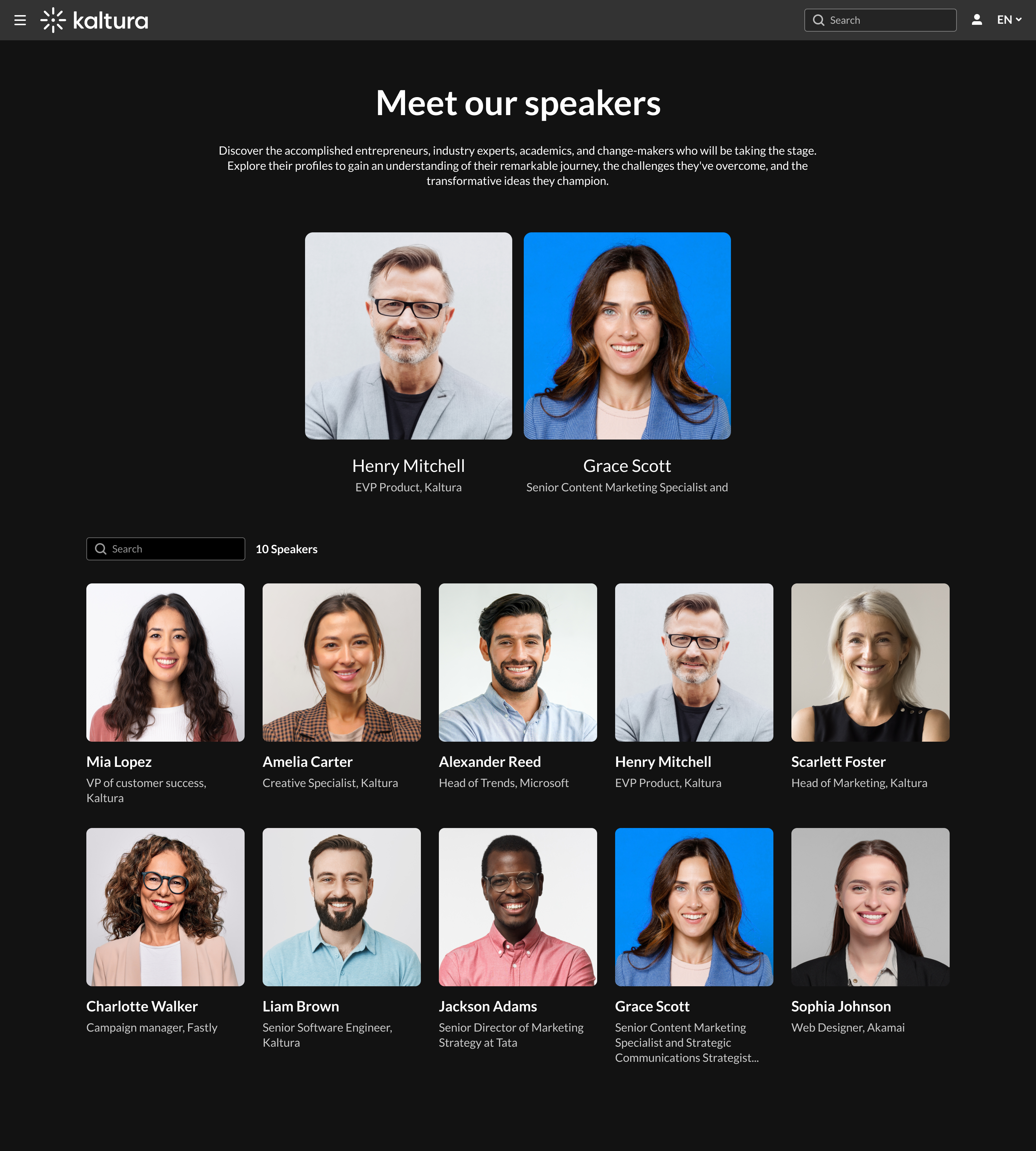 Group page with two promoted users at the top
For more information, see Group page in Content Hubs.
Help page (new)
Content Hubs provides a standalone Help page for presenting help content organized by topic. Administrators can also configure contact options that open a URL or email address.

For more information, see Helppage module.
My Media
Folders (new)
Folders provide a way to organize content in My Media independently of channels and galleries. Users can create and rename folders, add media to them, view their contents, and delete folders.
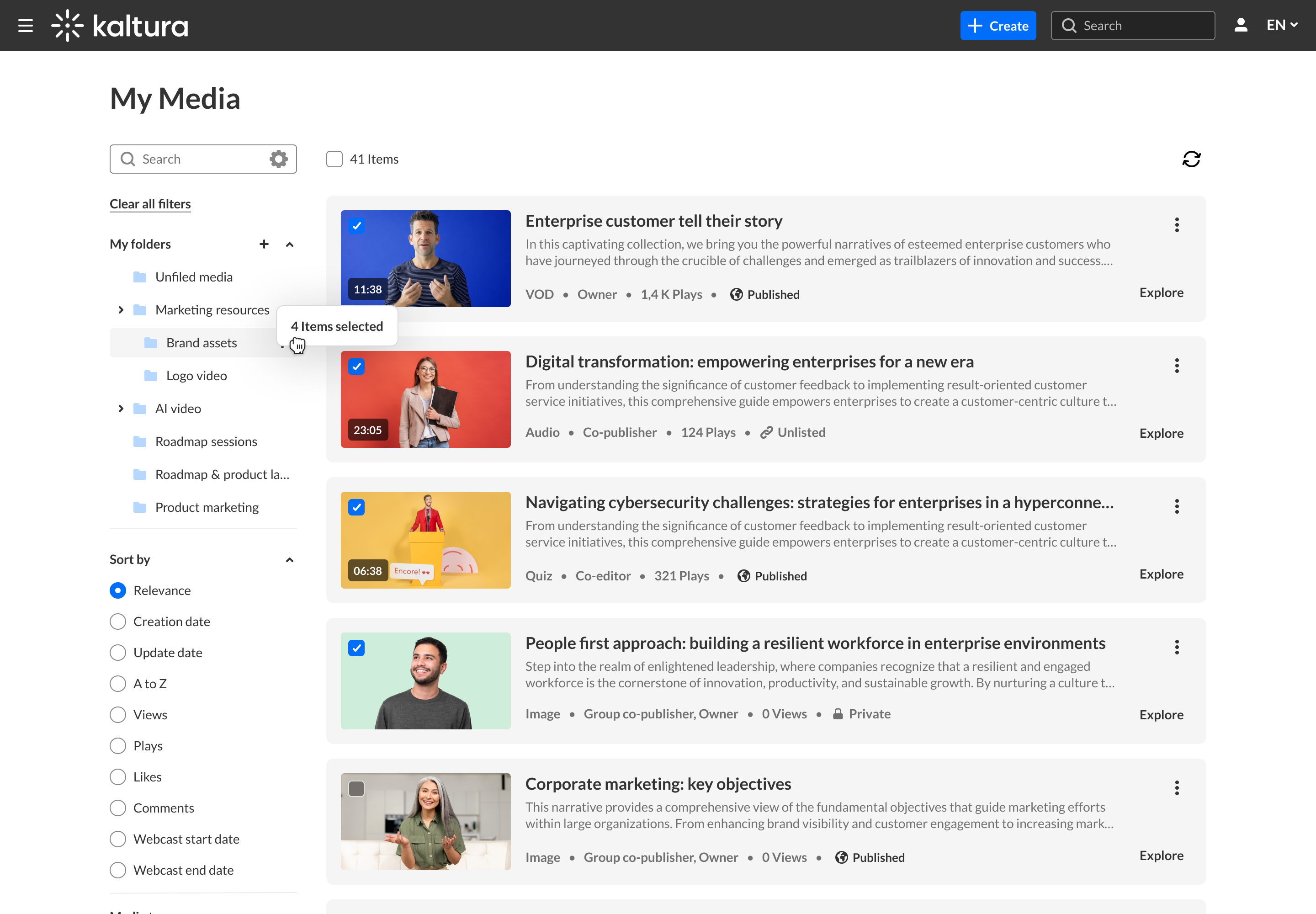 Dragging and dropping multiple items into a folder
For more information, see Create and manage folders in Content Hubs.
Manage collaborators in bulk (new)
Content owners can select multiple media entries and add or remove users or groups as co-editors, co-publishers, or co-viewers in one action.
For more information, see My Media in Content Hubs.
Transfer ownership in bulk (new)
Content owners can transfer ownership of multiple selected entries to another user or group. They can also choose to remain a collaborator on the transferred entries.
For more information, see My Media in Content Hubs.
Media creation, upload and import
Import from URL (new)
Import from URL lets users add a video, audio file, or image from a publicly accessible URL. The option is available from the +Create menu when enabled by an administrator.

For more information, see Import media from a URL in Content Hubs.
Upload media (enhanced)
Content Hubs expands the upload workflow with bulk uploading, editing and publishing capabilities. Users can update information for multiple uploaded items in one workflow and publish them together without waiting for processing to finish.

For more information, see Upload media in Content Hubs.
Create a draft entry (enhanced)
Selecting Draft Entry from the +Create menu opens a modal for entering the name, description, and tags instead of taking the user to a separate creation page.
After creating the draft entry, the user is taken directly to its media page, where media can be added and the entry completed later.

For more information, see Create and edit draft entries in Content Hubs.
Import from YouTube (enhanced)
Selecting YouTube from the +Create menu opens a streamlined import window instead of taking the user to a separate page. Users can paste a public YouTube link and then edit its metadata and publishing status.

For more information, see Add a YouTube video in Content Hubs.
Create a Kaltura Room (enhanced)
Selecting Kaltura Room from the +Create menu opens a modal for entering the room’s name, mode, and availability.
After creating the room, the user is taken directly into the open room instead of being redirected to the Edit Media page.

For more information, see Create a Kaltura Room and start a meeting in Content Hubs.
Create a Town Hall (enhanced)
Selecting Town Hall from the +Create menu opens a modal for entering the essential Town Hall details instead of displaying the full legacy creation form.
After creating the Town Hall, the user is taken to its media page, where the remaining settings can be configured.

For more information, see Create a Town Hall in Content Hubs.
Channels
Channel collections (new)
Channel Collections let administrators create curated pages containing selected groups of channels. Each collection can have its own URL, permissions, filters, and sorting options.
Unlike the legacy All Channels page, which provides a general list of channels, multiple collections can be created for different audiences or purposes.
 List view
For more information, see Introduction to channel collections in Content Hubs.
Default Sessions view (new)
Administrators can choose whether View All Sessions or Upcoming Sessions opens by default in the Sessions tab on channel pages. Users can switch between the two views.

For more information, see Channel sessions tab in Content Hubs.
Create a channel (enhanced)
Selecting Channel from the +Create menu opens a modal for entering the essential channel details instead of taking the user to the full legacy creation page.
After creating the channel, the user can configure its remaining settings from the Edit Channel page.

For more information, see Create a channel in Content Hubs.
Channel subscriber management (enhanced)
Content Hubs removes the legacy 5,000-subscriber limit. Users with the required permissions can search and browse the complete subscriber list from the Subscribers tab and download the list.
For more information, see Manage channel subscribers.
Playlists
Create a playlist (enhanced)
Selecting Playlist from the +Create menu opens a modal for entering the playlist name and description instead of taking the user to a separate creation page.
After creating the playlist, the user can add media and configure its remaining settings from the Edit Playlist page.

For more information, see Create a playlist in Content Hubs.
Media pages
Guest link (new)
Guest links let media owners create dedicated links for external participants who do not have site accounts.
Guests enter through a branded access experience before viewing the media. Media owners can manage or revoke the links when access is no longer required.
For more information, see Share a guest link to specific media in Content Hubs.
Responsive embed codes (new)
Users can generate embed codes that automatically adapt to responsive website layouts. The embedded player adjusts to the size of its container instead of using only fixed dimensions.
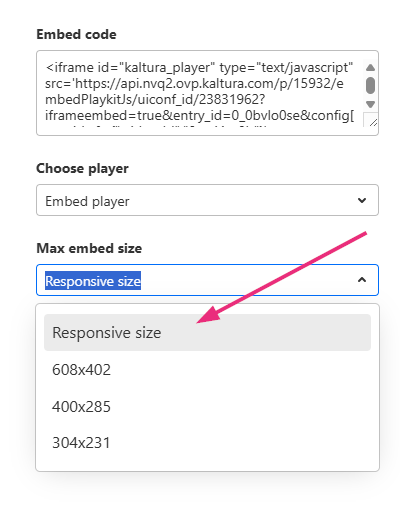
For more information, see Share and embed media in Content Hubs.
Document entries (new)
Content Hubs supports documents as media entries. Viewers can switch between vertical and horizontal layouts to make longer documents easier to read and navigate.

For more information, see Document entries in Content Hubs.
"Created from" indicator (new)
The media page can identify the original media from which a clip or video quiz was created. Users can follow the indicator to view the source media when they have permission.

For more information, see Media page in Content Hubs.
Configurable sharing options (enhanced)
Administrators can enable or disable individual sharing and embed options. The Share window displays only the options that are enabled.
If no sharing or embed options are available, the Share button is hidden from the media page.
For more information, see Share and embed media in Content Hubs.
Comments (enhanced)
Comments now open in a panel alongside the media. Viewers can upvote comments and filter the discussion, including by comments they created or participated in.
After a live session ends, the discussion can remain available on the recording so viewers can continue participating.

For more information, see Use the comments feature in media in Content Hubs.
Edit media
Custom speaker information per entry (new)
Media owners and co-editors can customize a speaker’s image, title, and biography for an individual media entry without changing the speaker’s main profile.
They can also unlink the speaker from their profile so that no profile link appears for that entry.

For more information, see Add and manage speakers in Content Hubs.
Audio track management (new)
Content owners can add audio tracks for dubbing and audio descriptions from the Edit Media page.
For more information, see Manage accessibility settings in Content Hubs.
Export user lists (new)
Administrators and content owners can export user lists from the Roles & Permissions tab on the Edit Media, Edit Channel, and Edit Gallery pages.
 Export list on edit media page
For more information, see:
- Manage media roles and permissions in Content Hubs
- Manage channel roles & permissions in Content Hubs
- Manage gallery roles & permissions in Content Hubs
Media appearance controls (enhanced)
Content Hubs gives media owners and co-editors additional control over the appearance of individual media pages.
Depending on the site configuration, they can:
- Select and preview a player made available by an administrator
- Choose a separate player for embedded media
- Show or hide specific page elements independently, such as the description, tags, custom data, and speakers
These options extend the controls provided by the legacy EntryDesign module by adding separate embed-player selection and more granular page-element controls.

For more information, see Configure media page theme and layout in Content Hubs.
Media thumbnail management (enhanced)
Content owners can maintain multiple thumbnails for a media entry.
The Thumbnail tab displays information about each version and provides options to preview, download, delete, or set it as the default. New thumbnails can also be imported from a URL.

For more information, see Edit media thumbnails in Content Hubs.
Profile page
Media tab (new)
The Profile page can include a Media tab displaying content created by the profile owner. The content shown depends on the viewing user’s permissions.
When configured, selecting a creator’s name elsewhere in the site can open the creator’s Profile page directly on the Media tab.
For more information, see Profile page in Content Hubs.
My Agenda tab (new)
Users can view the sessions they have RSVPd to from the My Agenda tab on their Profile page. Upcoming and in-progress sessions appear first, with an option to view earlier sessions.
For more information, see Profile page in Content Hubs.

Sessions
Session RSVP (new)
Users can RSVP to supported scheduled entries, including Kaltura Rooms, live and simulive sessions, and scheduled VOD.
Depending on the site configuration, RSVP is available from session cards, after registration, or both. Users can cancel their response and may also receive or download a calendar invitation.
For more information, see RSVP to a session in Content Hubs.
Differences from the legacy Video Portal
Some legacy capabilities may work differently or may not yet be available in Content Hubs.
For the current list of differences, see Gap analysis: Moving from legacy Video Portal to Content Hubs.
