About
The Templatepages module lets you build custom pages for your site, such as landing pages, from a set of ready-made sections.
Each template page has its own navigation bar, hero unit (the large banner at the top of the page), and components, so you can design each page for its purpose.
After you configure a template page, use the CustomPages module to give it its own URL and permissions. For more information, see Create a custom page in Content Hubs using template pages.
Applies only to Content Hubs. Requires Theming to be enabled on your site.
Configure the module
1. Go to your Configuration Management console, locate the Templatepages module in the left panel, then select it. You can also navigate directly using a link: https://{your_site_url}/admin/config/tab/templatepages
The Templatepages page displays.
2. Configure the following:
- enabled - Set to Yes to enable the module.
- previewPlayerId - The player ID used for the hero unit and single player components on all pages. The player is created automatically when you enable the module.
- heroPlayerAnalytics - Player analytics for the hero unit on template pages are off by default, because the player runs in a GIF-like mode. To turn on analytics for the hero carousel player, set to Yes.
Next, create your template pages on the same page. You save everything at the end.
Create a template page
- Click +Add TemplatePage.

- Configure the following:
- pageName - Enter the internal page name. Other modules, such as the Custompages module, show this name when you select a template page.
- pageTitle - Enter the title shown in the browser tab.
- pageHeader - (Optional) Enter the header shown on the page when it has a hero unit.


Each template page has three main elements: a navigation bar, a hero unit, and components. The following sections explain how to configure each one.
Configure the navigation bar
Each template page includes a navigation bar. Choose one of these navigation types:
- Site navigation
- Clean navbar

Site navigation
Shows your site's standard navigation, as configured in the Navigation module. It's the same on every page of your site.
Clean navbar
Shows a simplified navigation bar with:
- Custom logo
- Call-to-action (CTA) button
- Optional language selector
If you select Clean navbar, more fields appear.
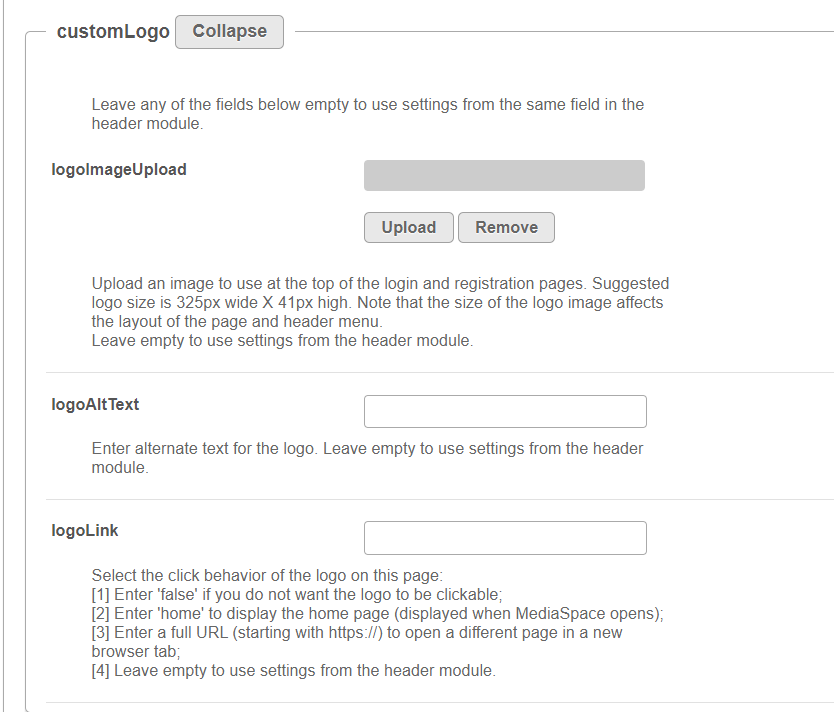
Configure the following:
- logoImageUpload - Upload your own logo, or use the site's logo.
- logoAltText - Enter alt text for the logo.
- logoLink - Select what happens when someone clicks the logo.
To add a CTA button, fill in the callToAction section.
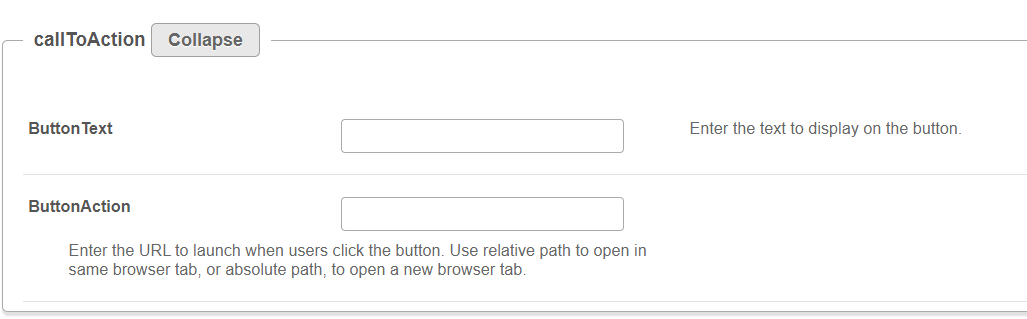
To show the language selector, set showLanguageSelector to Yes. This works only if the language selector is available on your site.

Configure a hero unit
The hero unit is the top area of a template page, and the first thing users see when they open it. To set it up, go to the heroUnit section, and select one of these types from the HeroType dropdown:
- Player carousel
- Text & counter
For more information, see Configure hero units for landing pages.
Configure landing page components
Components fill the body of the page with media, text, playlists, banners, registration flows, interactive content, custom HTML, single videos, and Conversational Agents.
For more information, see Configure components for landing pages.
Save the template page
After you configure your template pages, click Save at the bottom of the page. This saves the module settings and your template pages, and clears the site and module cache.
Configure page URLs and permissions
After you create a template page, use the CustomPages module to:
- Assign a page URL
- Configure permissions
- Control page visibility
- Configure page access behavior
To set up a homepage using a template page, see Set up a homepage in Content Hubs.
