About
Template pages are custom pages that you build for your site, such as your homepage, or landing pages for events, campaigns, and showcases.
You build them from components: ready-made sections that show media, text, banners, playlists, registration flows, interactive content, custom HTML, single videos, and Conversational Agents.
You add and configure components in the components section of the Templatepages module.
Applies only to Content Hubs. Requires Theming to be enabled on your site.
Access component settings
- Go to your Configuration Management console, locate the Templatepages module in the left panel, then select it. You can also navigate directly using a link:
https://{your_site_url}/admin/config/tab/templatepages
The Templatepages page displays.
- Click Edit next to an existing template page, or click +Add TemplatePage to create a new one.
- In the TemplatePage section, scroll down to the components section, and click +Add "components".
- In the
typedropdown, select the component type you want, and then configure it as described in the following sections.

For more information about creating and publishing a template page, see Templatepages module.


Shared component settings
All component types share these fields, unless the component's section says otherwise:
- order - Enter a number for the component's position on the page. Lower numbers appear higher on the page. This field is required. We recommend leaving gaps between the numbers, such as
10,20, and30, so you can add components in between later. - allowedGroups - Select the user groups that can see the component. Leave empty to show the component to all users.
You can add more than one component of the same type to a page. Adding a lot of components can make the page load more slowly.
Component types
The following component types are available.
| Component | What it does |
|---|---|
| Text only | Shows centered text, with the text color and background you choose. |
| HTML | Adds your own HTML, CSS, JavaScript, or iframe content. |
| Single video | Shows one video, with optional header, title, and description text. |
| Single playlist | Shows a playlist or channel content in a carousel. |
| Two images side by side | Shows two images next to each other, each with an optional link. |
| News images | Shows images and text in a carousel. Each item opens an article. |
| Registration | Shows a registration button that opens registration in a side panel. |
| Collection of channels | Shows your channel collections, with a link to your channel collection page. |
| Banner & CTA | Shows a banner with text, a background image, and a call-to-action button. |
| Group of users | Highlights a group of people, such as speakers, with their bios and sessions. |
| Sessions | Shows scheduled sessions as interactive cards that users can add to their calendar and join. |
| Agent (Genie) | Adds a Conversational Agent that answers users' questions. |
Text only
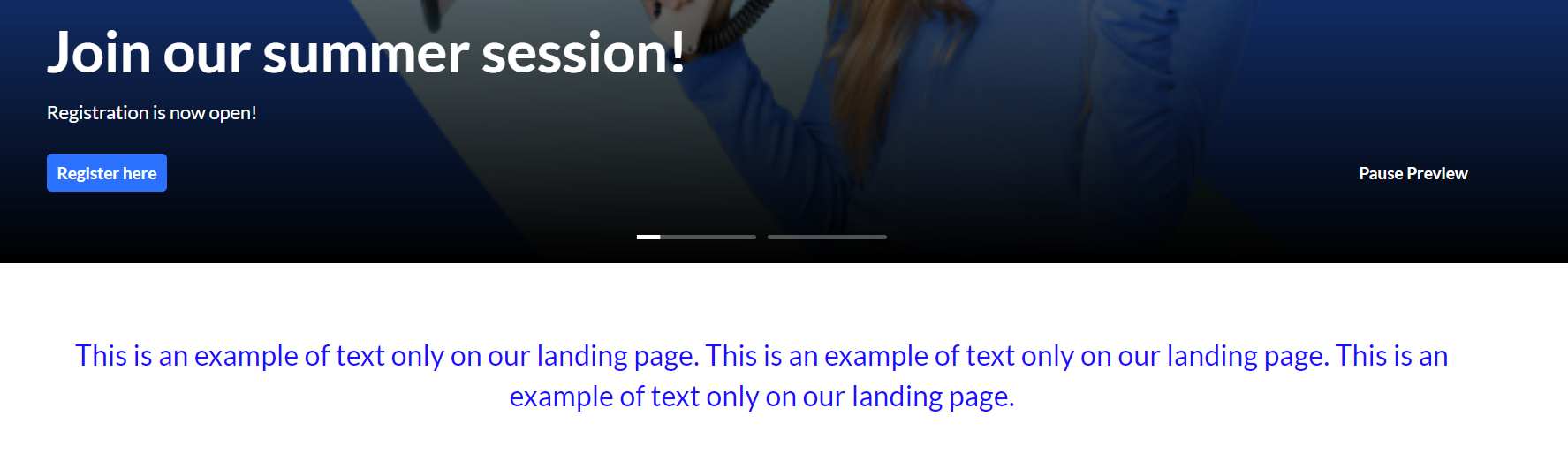
This component shows centered text on the template page. You can set the text color and the background, as in the following example.
You can add rich text using basic HTML only: div, br, strong, em, u, a, ul, ol, li. body or footer tags break the component. For more complex HTML, use the HTML component. If you paste content from another tool, remove any extra formatting and HTML before you save.
Example settings.

The result on the page.
HTML
This component lets you add custom HTML to a template page. You can include HTML, CSS, JavaScript, and iframe content.
- htmlCode - Enter the HTML code for the component.
- isFullWidth - Select Yes to show the component across the full width of the browser. Select No to use the site's standard content width.
- maxHeight - Enter the maximum height of the component in pixels. Leave empty to use the default of 250 px.
The HTML is shown exactly as you enter it. Make sure it's responsive, so it displays correctly on different screen sizes.
Single video
This component shows a single video on the template page, with optional header, title, and description text.
The video is available to everyone who visits the page, including guests, regardless of media entitlements.
- headerText - Enter the text for the component header.
- titleText - Enter the title to show with the video.
- description - Enter a description of the video. Links and basic HTML are supported.
- textBoxColor - Enter the background color for the text section.
- entryId - Enter the ID of the video.
- videoSide - Select whether the video appears on the left or right side of the component.
- videoPlayback - Select how the video starts:
- Auto play - The video starts playing automatically. For accessibility, it starts muted.
- Click to play - The video starts when users click it.

Single playlist
This component shows media in a carousel.
- headerText - Enter the title shown above the playlist.
- headerLinkText - Enter the link text shown on the right side of the playlist. Leave empty to use the default text, See all.

In the playlist section, select the content for the playlist.
- If you select Custom playlist, see Custom playlist settings.
- If you select Channel content, see Channel content settings.
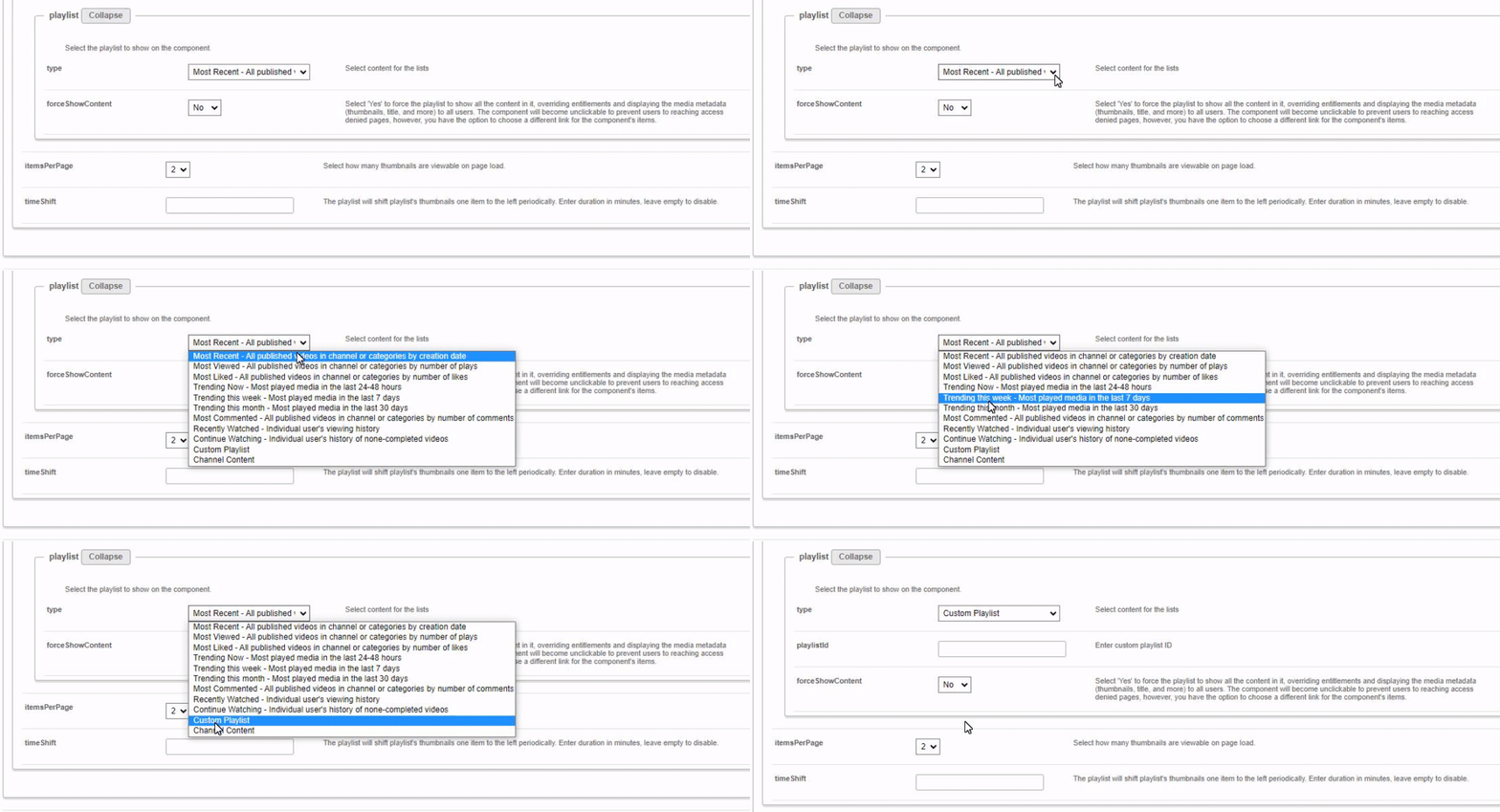
Then configure the following:
- forceShowContent - Select whether to show the content to everyone:
- No - Respects entitlements. The content isn't clickable, and the See all link is removed or opens the URL in the
headerLinkActionfield. - Yes - Shows media metadata to all users, including guests. When you select Yes, the
clickableThumbsfield appears. Use it to make thumbnails clickable, so users can go directly to media pages.
- No - Respects entitlements. The content isn't clickable, and the See all link is removed or opens the URL in the
Yes is often used for public landing pages, for users who aren't logged in.
- itemsPerPage - Select how many thumbnails to show on the page.
- Time Shift - Enter how often the playlist thumbnails shift to the left. Leave empty to turn off automatic shifting.
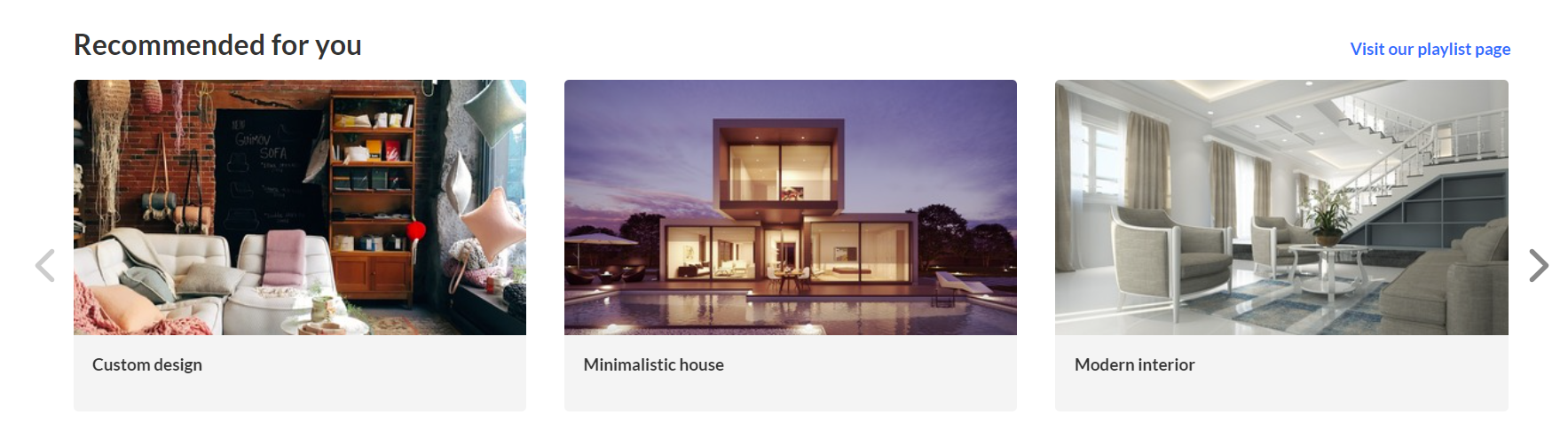 Playlist configuration with three thumbnails
Custom playlist settings
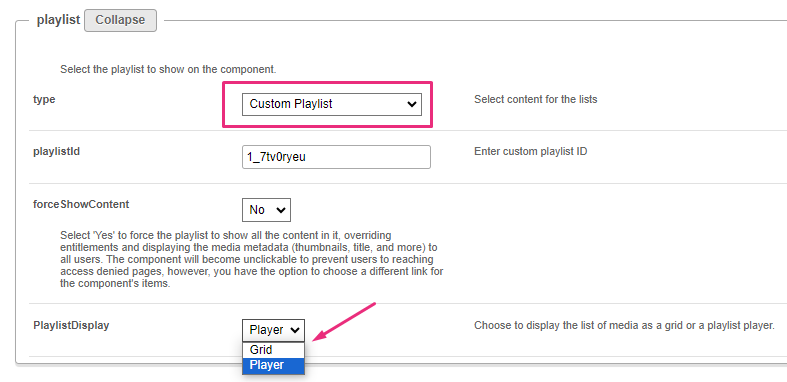
If you select Custom playlist, configure the following:
- playlistID - Enter the ID of your custom playlist.
- PlaylistDisplay - Select how the playlist opens when users click See all.
Channel content settings
If you select Channel content, the contentType field appears. Use it to filter the channel content, for example to show only VOD.

Select one of the drop-down options.

If you select Choose from list, the mediaType field appears. Select the types of media to show in the list.

What happens when users click
- Channel content: See all opens the channel page. A thumbnail opens the video in the single entry player.
- Custom playlist: See all opens grid view or player view, depending on
PlaylistDisplay. A thumbnail opens the playlist player or the media page, depending on theThumbLinkfield in the Playlistpage module. - Dynamic playlists (except Recently Watched and Continue Watching): See all opens grid view. A thumbnail opens its media page.
Two images side by side
This component shows two images next to each other. Add each image using one of these options:
- Image entry ID
- Image URL
- Image upload
For best results, use images with a 16:9 aspect ratio.
- callToActionUrl - Enter the URL that opens when users click the image. The link opens in a new tab. Leave empty if you don't want the image to be clickable.
- AnalyticsString - Enter the
data-analyticsvalue that's added to the image tag. Use a keyword or a short description, for example,tools. - Alt Text - Enter alt text for the image, for accessibility.
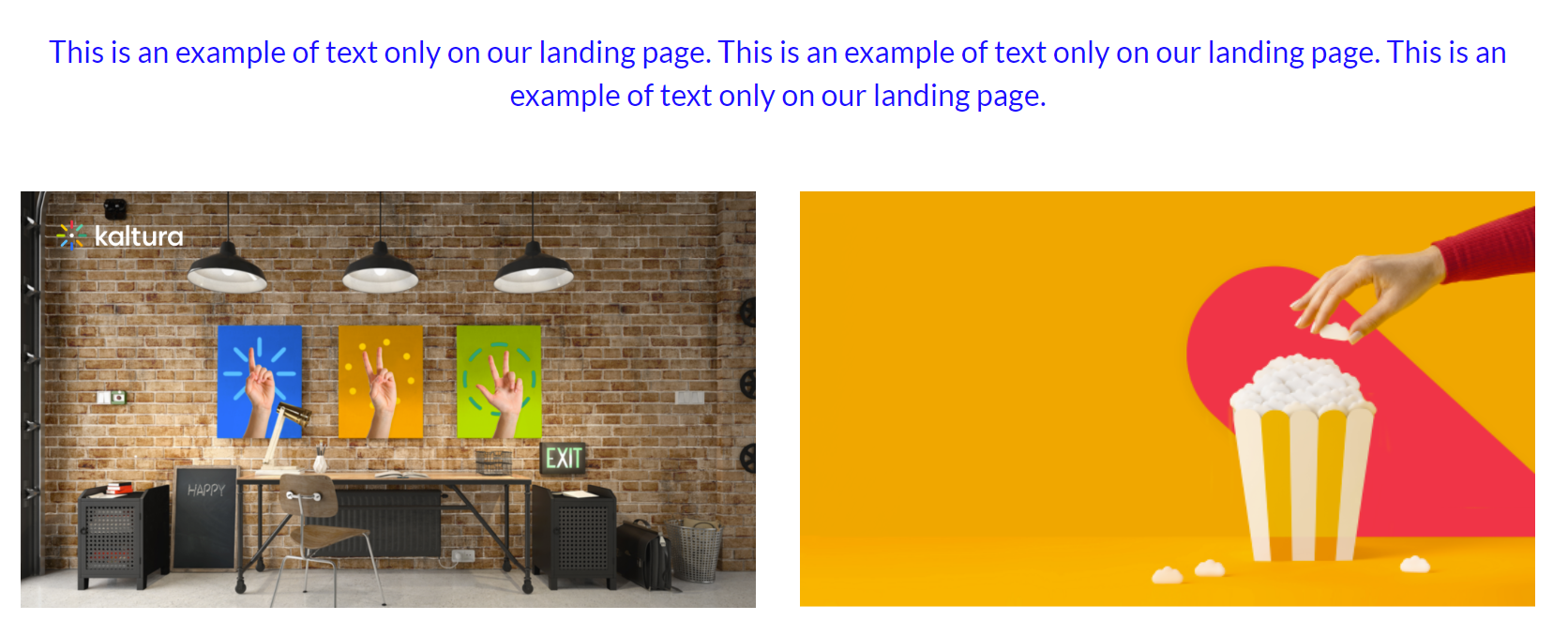 Two images side by side
News images
This component shows images and text in a carousel. Each item in the carousel opens an article. For information about creating news images, see News images playlist in Content Hubs.
- playlist ID - After you create a News Images playlist, enter its ID.
- modalBoxMaskColor - Enter the background color.
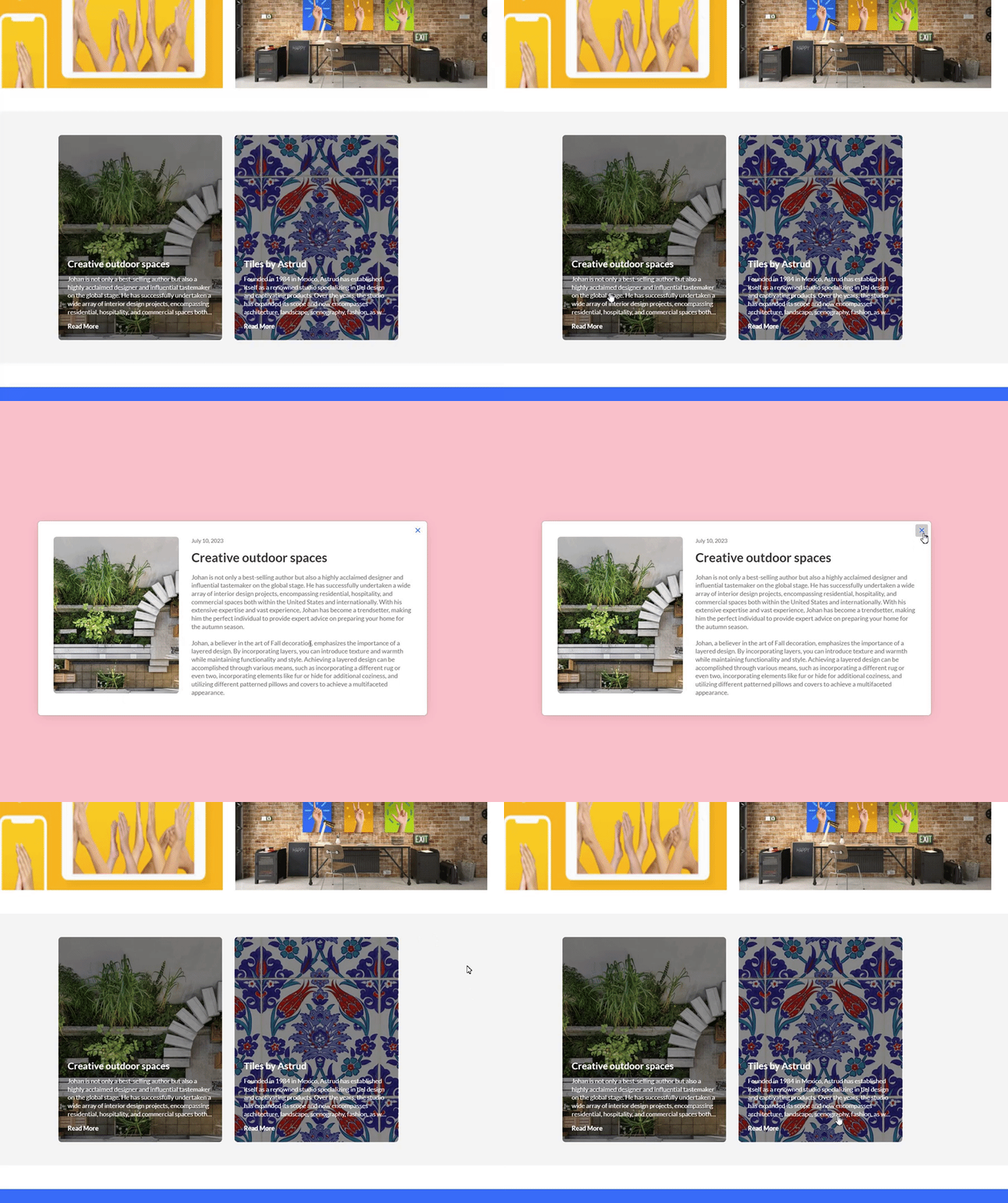 Example of two News images
Registration
This component shows a registration call to action (CTA) that opens registration in a side panel.
If the Siteregistration module is disabled, or its registrationClosed setting is set to Yes, users don't see this component.
- title - Enter a title for the registration, for example, Register for the event.
- buttonText - Enter the button text. Leave empty to use the default text, Register.
- scheduleTimeFrom - Enter the time registration opens, in Unix time. Leave empty if you don't want to show a time.
To convert a time to Unix time, you can use an online tool such as EpochConverter.
- scheduleTimeTo - Enter the time registration closes, in Unix time. Leave empty if you don't want to show a time.
- inScheduleText - Enter the text to show while registration is open.
- outofScheduleText - Enter the text to show after registration closes.
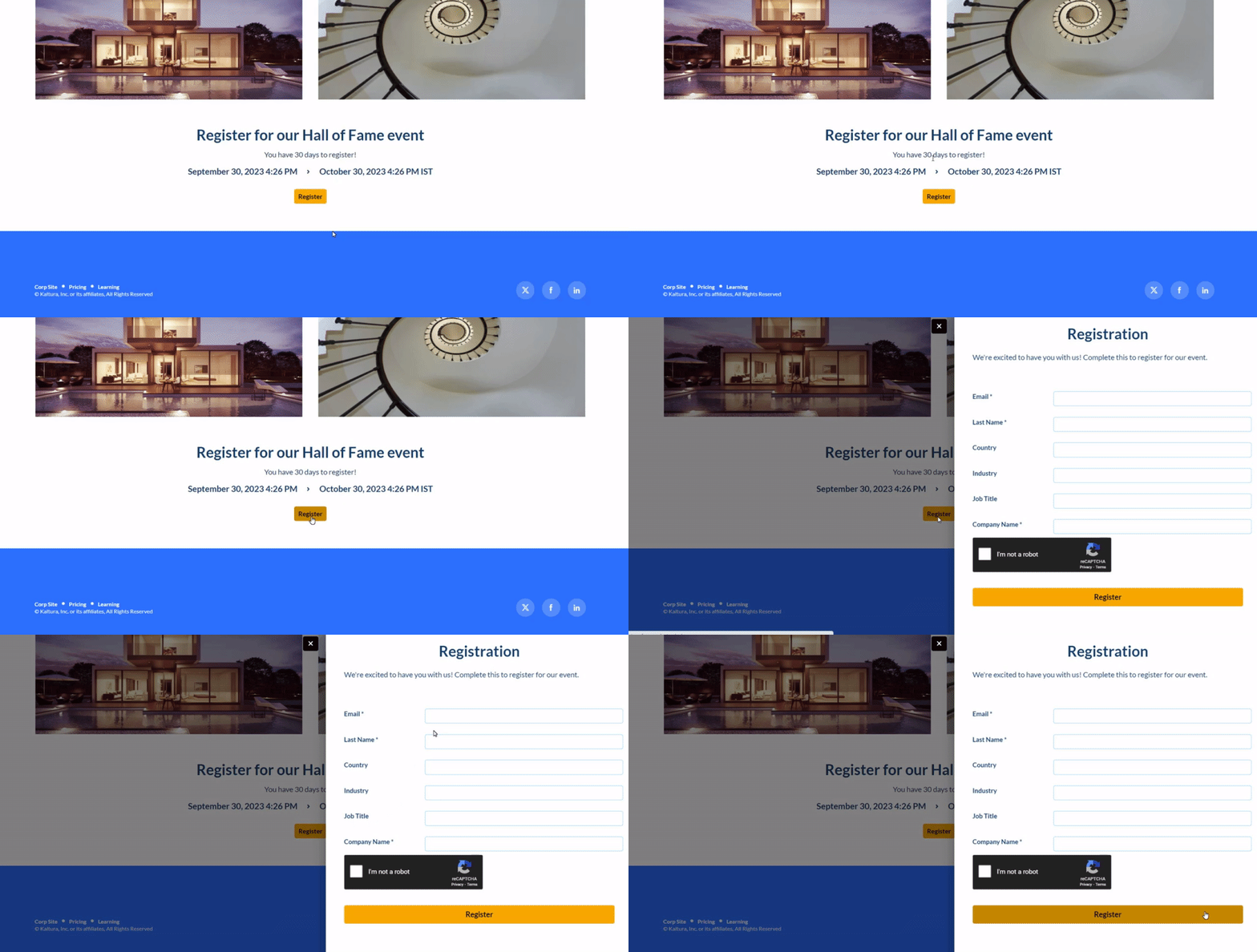 Example of the Registration component
Collection of channels
This component shows channel collections on the template page. When users click See all, your channel collection page opens.
If you don't have any channel collections yet, set them up in the ChannelCollections module.
If the ChannelCollections module is disabled, users don't see this component.
- headerText - Enter a name for the component header, for example, Our channel collections.
- headerLinkText - Enter the text for the header link. Leave empty to use the default text.
- timeShift - Enter how often, in minutes, the channel thumbnails shift to the left. Leave empty to turn off shifting.
Channels appear in the order set in the sortBy field of the ChannelCollections module, which is the default sort for your channel collection. Time shift makes sure all channels are shown over time.
Updated channels appear after the page is refreshed.
- collection - Select the channel collection to show on the page. All your channel collections appear in the dropdown.
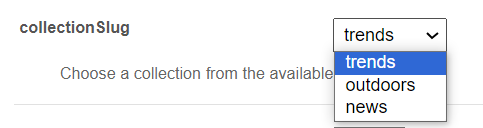
- forceShowContent - Select Yes to show all the collection content to every user, regardless of entitlements. The items in the component then aren't clickable, but you can set a different link for them. For example, use this if the template page is a public landing page that everyone can see.
- headerLinkAction - Enter the link to the page that the header link opens.
- channelsInLine - Select how many channels to show on one line: 6 or 8. With 8, each circle is smaller.
- maxLinesNumber - Select how many lines of channels to show. The default is 2.
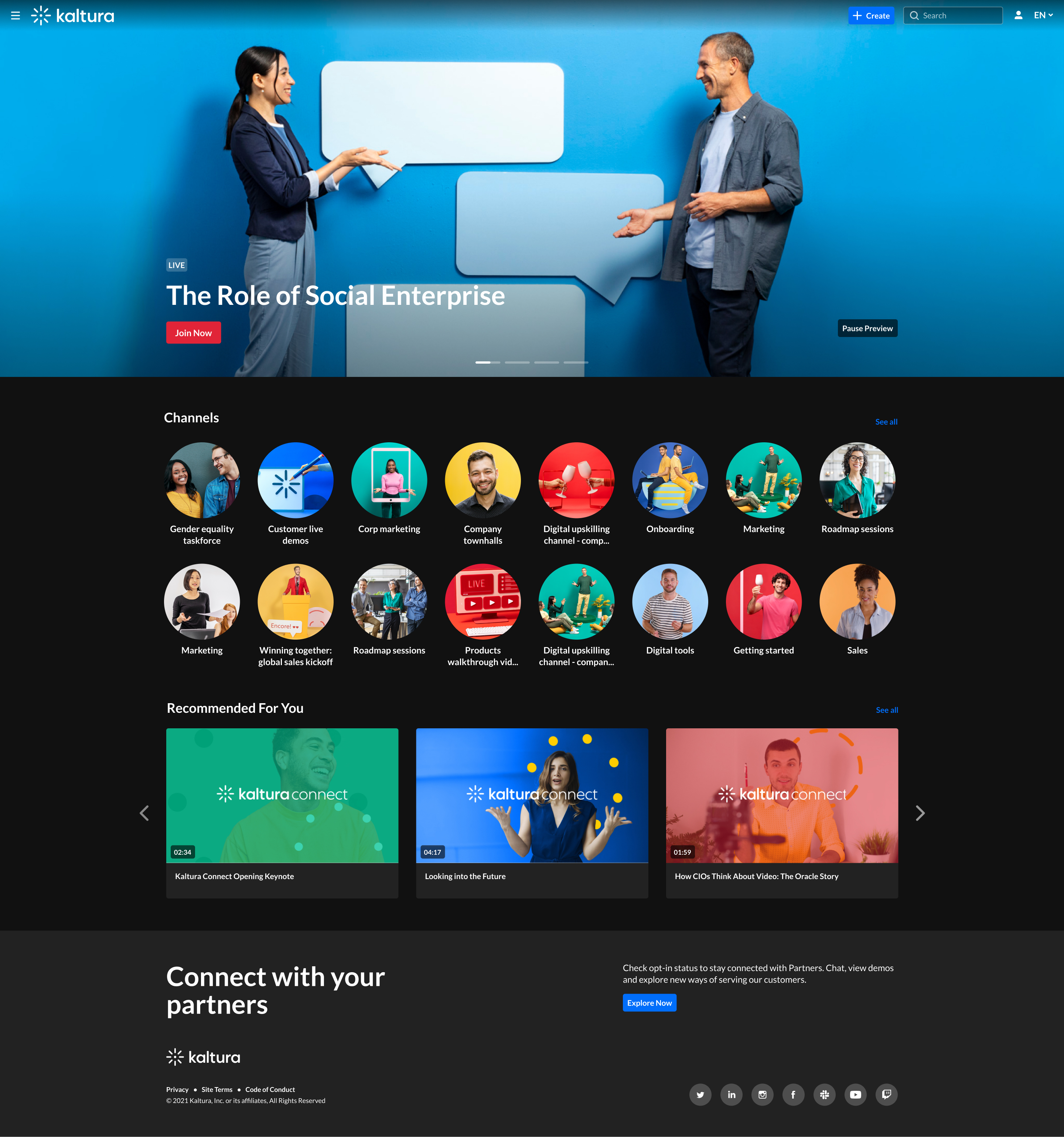
The thumbnails come from your channels. If a channel has a banner icon, it's used as the thumbnail. Otherwise, the thumbnail uses the center of the channel's banner background. For more information, see Edit channel settings & layout in Content Hubs.
The following example shows the Collection of channels component in two rows of eight.
Banner & CTA
This component shows a banner with text, a call-to-action (CTA) button, and a background image.
All fields are optional. If you don't add an image, the banner uses your design system colors.
- HeaderText - Enter the title shown on the banner.
- DescriptionText - Enter the text shown below the header.
The more text you add, the taller the banner gets.
Use images without text. Text in an image can be cut off on different screen sizes, so atmospheric, text-free images display best.
- Banner image - Add an image using one of these options: entryID, imageURL, or imageupload. Uploaded images are resized automatically to fit the component.
- Button - Enter the text for the CTA button and the
URLit opens. If you enter text but no URL, the button doesn't appear. - OpenLinkInNewTab - Select Yes to open the button link in a new tab, or No to open it in the same tab.
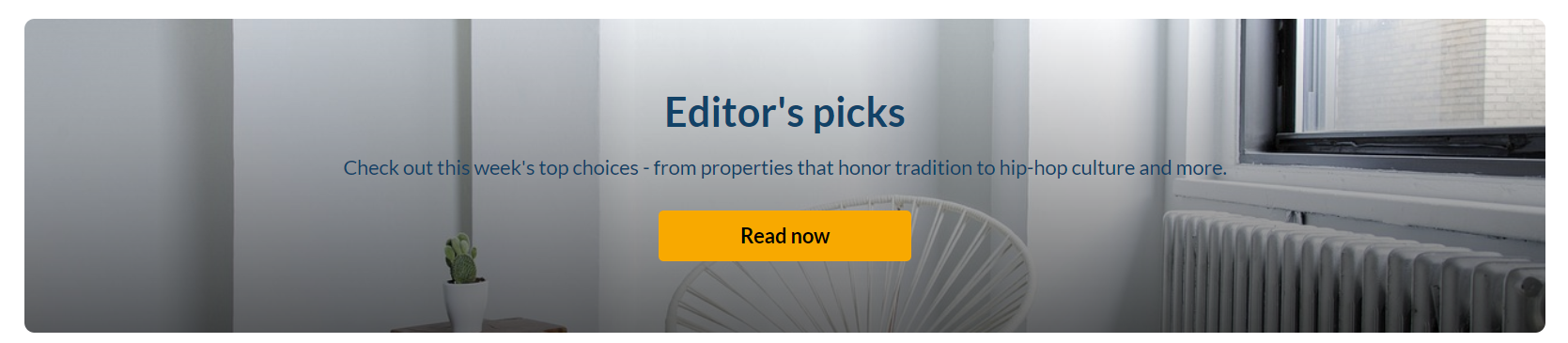 Banner with a short description
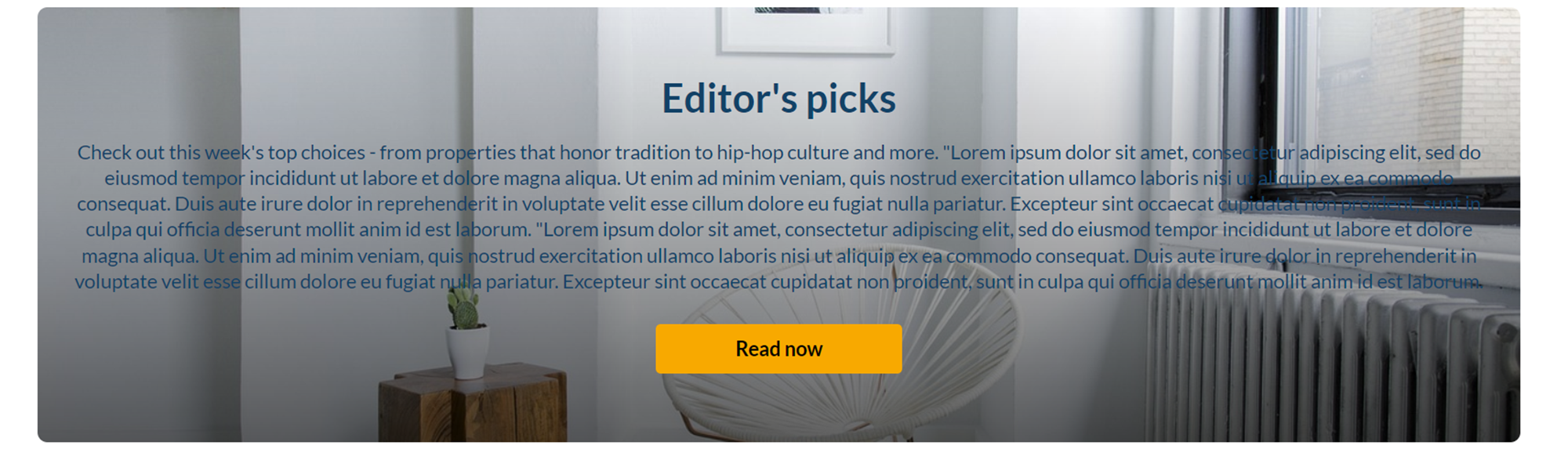 Banner with a long description
Group of users
This component highlights a group of people, such as speakers or presenters, on the template page. It shows a row of thumbnail images, or initials if there's no image.
When users click a thumbnail, a window opens with the person's bio and their past and upcoming sessions. From there, users can go to the person's profile page or to a session page.
This component requires the Grouppage module and the Personalprofile module to be enabled.
- headerText - Enter the title, for example, Meet our speakers.
- headerLinkText - Enter the link text shown on the right. Leave empty to use the default text, See all.
- group - Select a group from the allowed groups in the Grouppage module. Only the first 20 people in the group are shown.
If you don't select a group, the component is empty and doesn't appear on the page.
- uiType - Select how to show group members:
- Carousel (default) - People are shown in a carousel, with left and right arrows. Users can scroll left to reach the last person in the list.
- Side by side - People are shown next to each other, without a carousel.
- usersToShow - Select an option:
- Group list - Shows the first 20 people in the group, sorted by name (A–Z).
- Promoted users only - Shows only the promoted people in the group, in the order set on the group page.
- timeShift - Enter how many minutes to wait before the people shown shift. Leave empty to turn off automatic shifting. Updated users appear after the page is refreshed.
Time shift works only when Group list is selected in the usersToShow field.
In the following example of a Group of users component, clicking See all opens the group page, which you configure in the Grouppage module.

Sessions
This component shows scheduled sessions as interactive session cards.
The Add to calendar button changes to Join now a set number of minutes before a session starts (15 minutes by default). To change this timing, use the SessionCardJoinNowIndication setting in the Widgets module.
This component requires the Eventplatformcore module to be enabled.
- Content - Select the source of the content. When you select it, more fields appear.
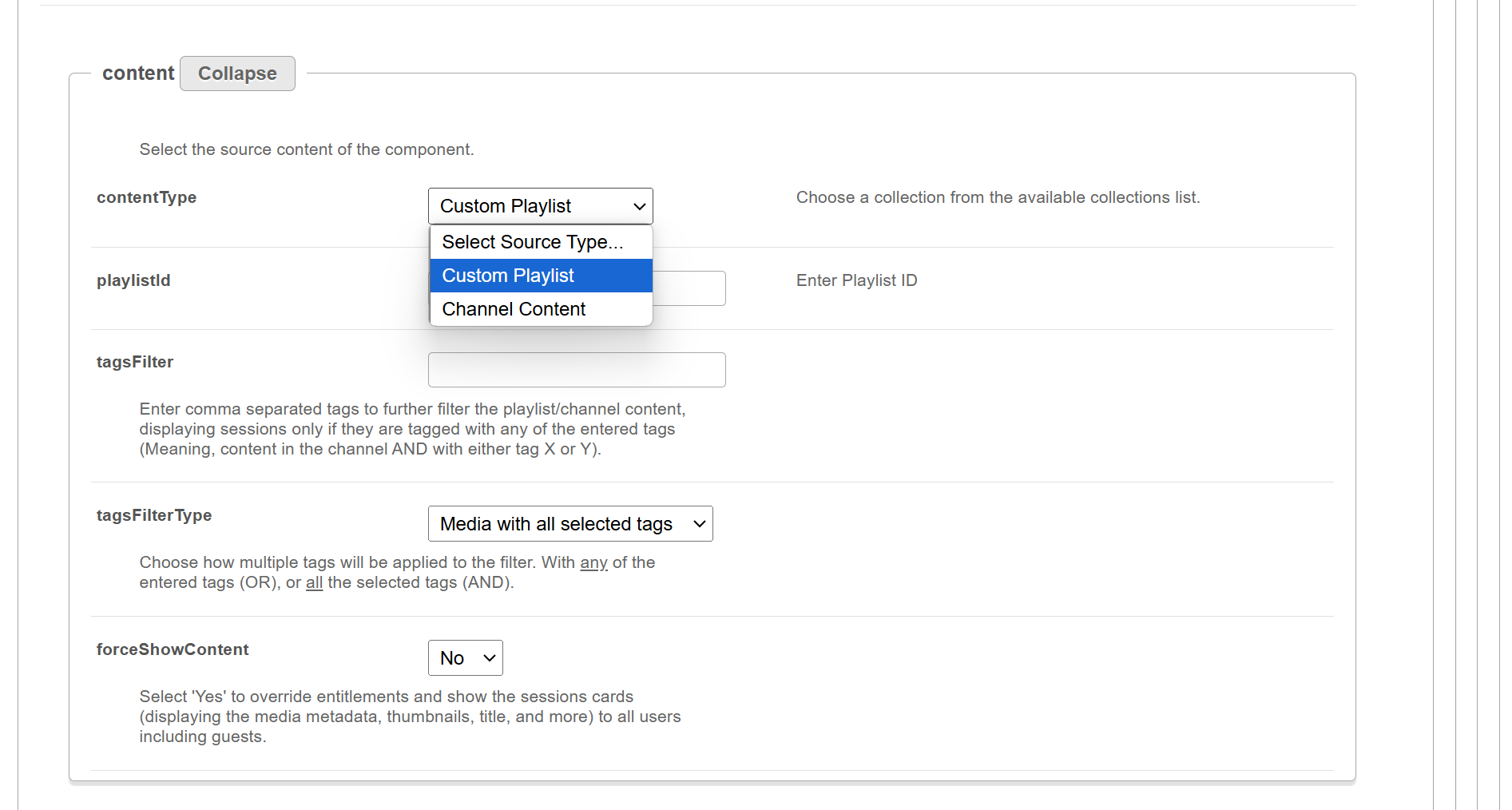
- contentType - Select Custom playlist or Channel content, and then enter the playlist ID or search for the channel.
- tagsFilter - Enter tags, separated by commas, to filter the playlist or channel content further. Only sessions with the tags you enter are shown.
- tagsFilterType - Select how multiple tags are applied: show media with any of the tags, or only media with all of them.
- forceShowContent - Select Yes to ignore entitlements and show session cards, including media metadata, thumbnails, and titles, to all users, including guests. Select No to respect entitlements.
For guests, session links are disabled.
- headerText - Enter the title shown at the top left, for example, Agenda.
- LinktoSessionsText - Enter the text to show at the top right of the component. To make it a link, enter a URL in the
LinktoSessionsUrlfield. Leave empty to hide it. - LinktoSessionsUrl - Enter the link to show at the top right of the component. It opens in a new tab.
- scheduleOrder - Select how sessions are sorted: Earliest to latest or Latest to earliest.
The component shows up to 50 session cards.
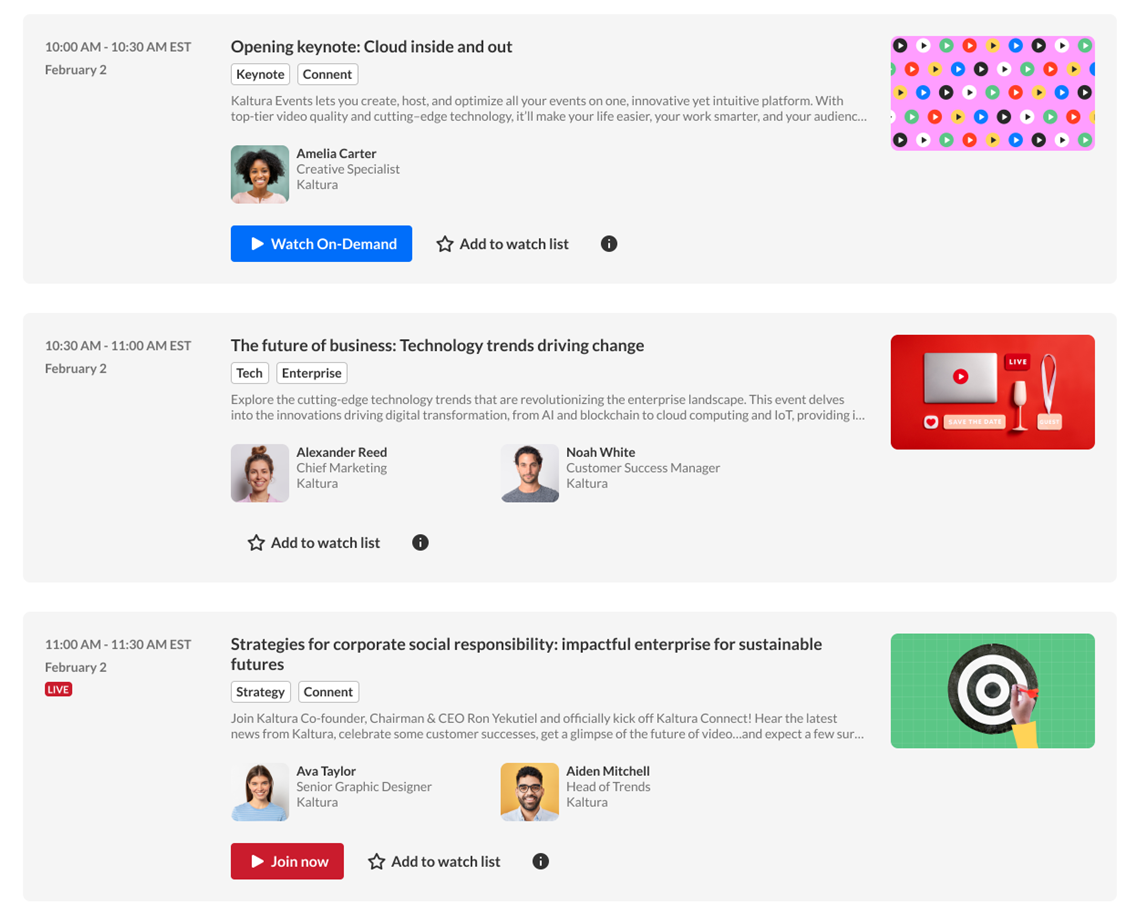 Example of interactive session cards
- displayType - Select which sessions to show:
- Show all (default) - Shows all sessions.
- Upcoming only - Shows only future sessions. If there are no upcoming sessions, the component doesn't appear.
- Toggle upcoming & past sessions - Shows upcoming sessions first. Users can switch between upcoming sessions and all sessions.
Agent (Genie)
This component puts a Conversational Agent (formerly Genie) directly on the template page. The agent answers users' questions using the context you choose for the component. Only users with access to Conversational Agents can use it.
This component requires the Genieai module to be enabled. If the module isn't enabled, Agent (Genie) doesn't appear in the type dropdown.
This component doesn't have the allowedGroups setting.
- scope (in the context section) - Select the context the agent uses when it answers questions. The default is Global site.
- Global site - The agent answers using content from your whole site.
- Specific category - The agent answers using content from the category you choose. When you select this option, the
categoryIdfield appears. Click Select category, and then choose the category. - Specific entry - The agent answers using a single document or VOD media entry. When you select this option, the
entryIdfield appears. Enter the entry ID.
- componentMaxHeight - Enter the maximum height of the component in pixels. Leave empty to use the default of 600 px.
After you save the page, the agent appears on the page in the position you set in order. If the template page itself is included as context, users can remove it from the conversation.

Save your changes
After you configure your components, click Save at the bottom of the page. This saves your template page and clears the site and module cache.
To set up a homepage for your site, see Set up a homepage in Content Hubs.
