About
The hero unit is the large banner at the top of a template page, and the first thing users see when they open it.
Use it to highlight featured content, show event messaging, add a countdown timer, promote registration or login, or send users to featured destinations.
There are two types of hero unit: Player carousel and Text & counter. The hero unit always appears at the top of the page, because it works together with the navigation bar and the page's transparent styling.
For more information, see Create a custom page in Content Hubs using template pages.
Applies only to Content Hubs. Requires Theming to be enabled on your site.
Access hero unit settings
- Go to your Configuration Management console, locate the Templatepages module in the left panel, then select it. You can also navigate directly using a link:
https://{your_site_url}/admin/config/tab/templatepages - Click Edit next to an existing template page, or click +Add TemplatePage to create a new one.
- In the heroUnit section, select a type from the HeroType dropdown: Player carousel or Text & counter. The default, Do not use hero, means the page has no hero unit.
The Templatepages page displays.


For more information about creating and publishing a template page, see Templatepages module.


Then configure the hero unit as described in the section for its type.
Configure a player carousel
The player carousel shows live media, playlists, or images in an animated carousel at the top of the page. While a live session is scheduled, the carousel shows it. When nothing is live, it shows your fallback content.
Analytics are off by default for the hero carousel player. To turn them on, set heroPlayerAnalytics to Yes at the top of the module.
In the HeroType dropdown, select Player carousel.

Configure live media
In the liveCategory field, select the category that contains your live sessions. Leave it empty if you don't want to show live media in the hero unit.
When you select a category by name or ID, entitlement rules can hide media that isn't published to the site.
- Click Select category. The category selector opens.
- Enter a category name or ID, and then select the category from the results.

Configure fallback content
In the fallbackOption dropdown, select what the carousel shows when there's no live media: VOD playlist or Images & CTA list.
VOD playlist
In the vodPlaylist section, select the playlist content from the type dropdown.

You can select:
- A custom playlist
- Channel content
- A dynamic playlist, such as Most Recent, Most Viewed, or Trending

Scheduled Room media isn't supported.
Images & CTA list
Scroll down to the imageList section and click +Add "imageCarousel".


For each image, configure the following in the imageCarousel section:
- uploadHeroImage - Upload the image.
- imageAlt - Enter alt text for the image.
- Title - Enter the title shown on the image.
- Description - Enter the text shown on the image.
- callToActionUrl - Enter the URL that the CTA button opens.
- callToActionText - Enter the CTA button text.
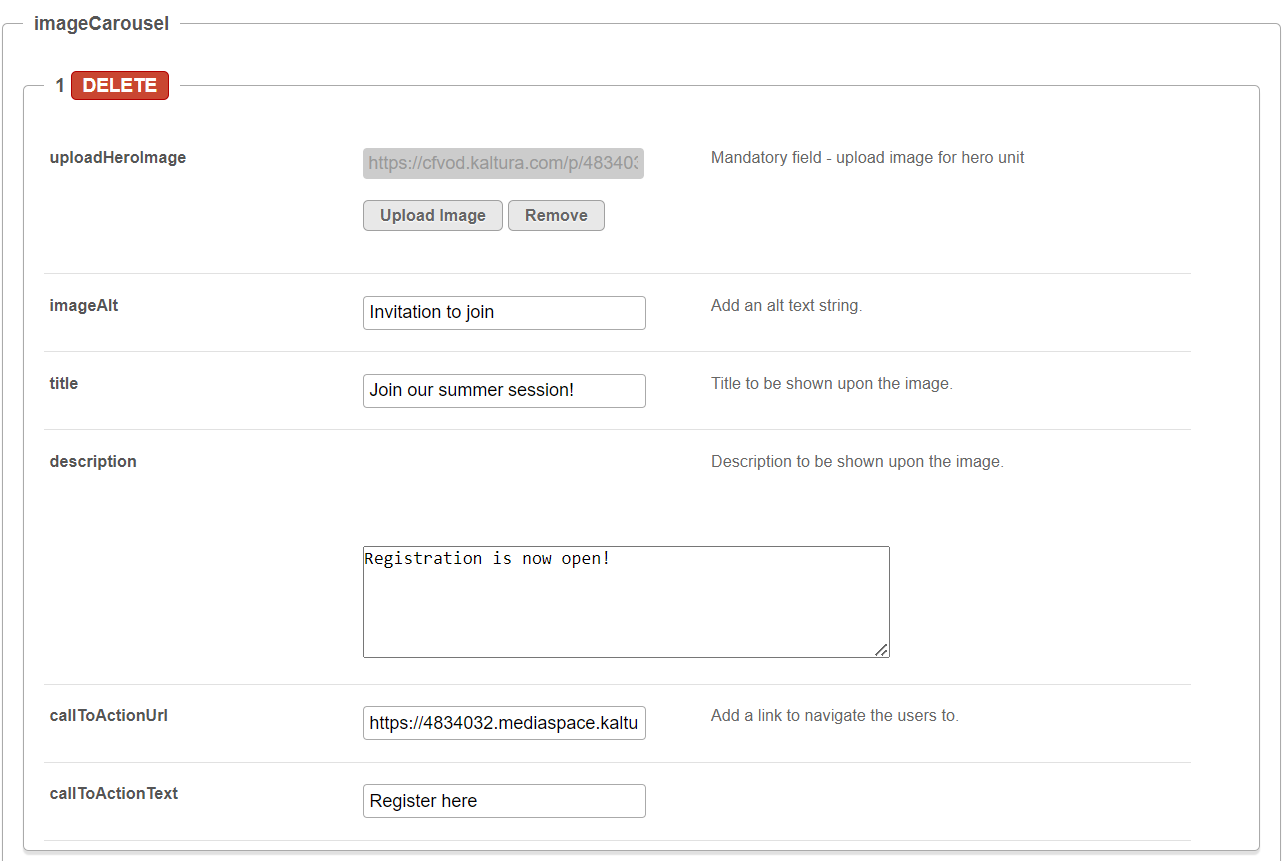
To add more images, click +Add "imageCarousel" again. You can add up to eight images.
To remove an image from the carousel, click Delete.
Configure carousel timing
In the carouselInterval field, enter the time between carousel items, in seconds. We recommend more than 5 seconds. For best results, use 30 seconds.
Users can pause the carousel or move between items themselves.
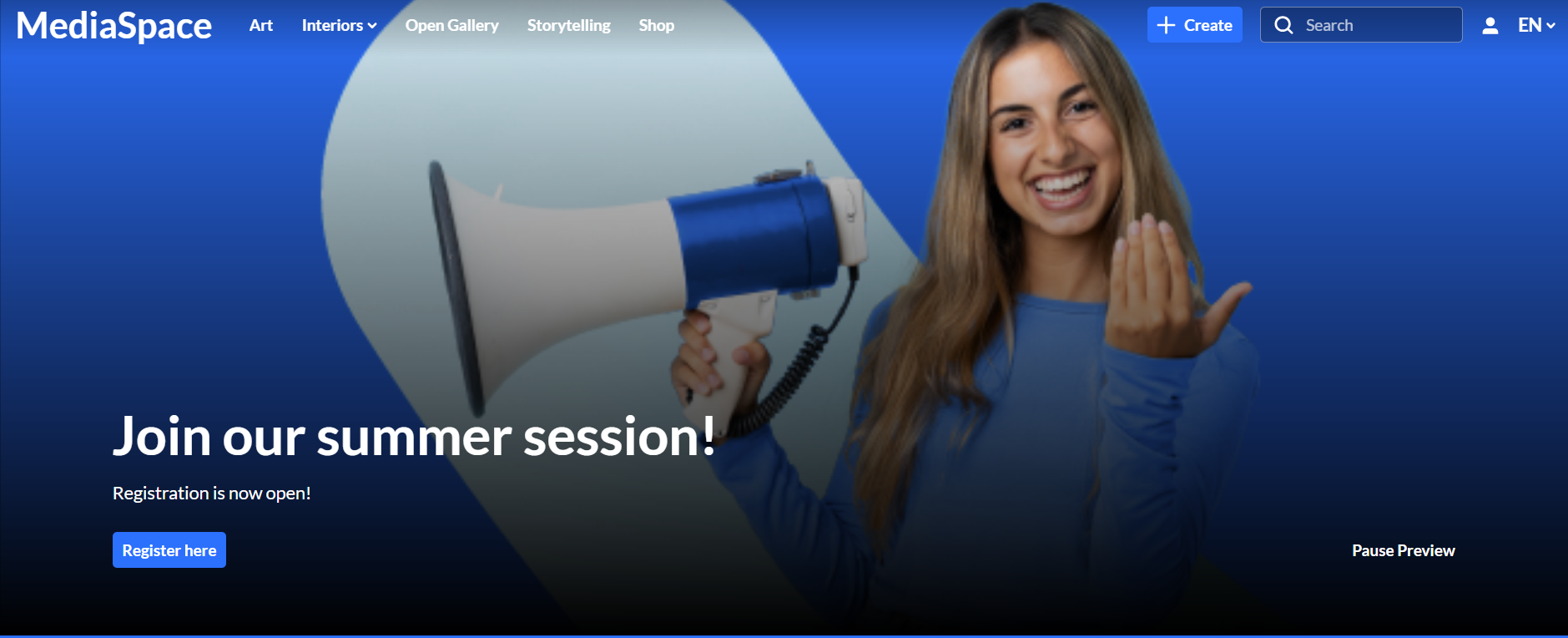 Hero configured with an image carousel
Configure a text and counter hero unit
The Text & counter hero unit shows text, CTA buttons, a countdown timer, and a background image.
In the HeroType dropdown, select Text & counter.

All elements are optional. To hide an element, leave its fields empty.
Configure the text and dates
- Title - Enter the title shown at the top of the hero unit.
- Description - Enter the text shown below the title.
- DateStart and DateEnd - Enter a date range to show below the description. Fill in both fields to show the range. Use one of these formats:
- Unix timestamp, for example,
1580518923 - UTC date string, for example,
2026-02-01T01:02:03
- Unix timestamp, for example,
Configure CTA buttons
You can add up to two call-to-action (CTA) buttons. In the PrimaryCTAType and SecondaryCTAType fields, select a type for each button:
- URL - A button that links to a URL you enter.
- Registration - A registration button, based on your Siteregistration module settings.
- Enter site - A login button that opens the login form on the same page. For more information, see Enter site login flow.

For the primary button, configure the following:
- PrimaryCallToActionText - Enter the button text.
- PrimaryCallToActionLink - Enter the URL that the button opens.
- PrimaryCallToActionUrlParams - Enter any URL parameters to add to the button's link.
For the secondary button, configure the following:
- SecondaryCallToActionText - Enter the button text.
- SecondaryCallToActionLink - Enter the URL that the button opens.
Configure the countdown timer
In the CounterDate field, enter the date and time to count down to. The timer disappears when it reaches this date. Use one of these formats:
- Unix timestamp, for example,
1580518923 - UTC date string, for example,
2020-02-01T01:02:03
Configure the background image
In the BackgroundImage field, upload a background image for the hero unit. The image is cropped automatically to fit the layout.
For best results:
- Use an image that's 1920 x 1080 pixels.
- Use an image without text.
- Use a high-resolution image that looks good on large screens.
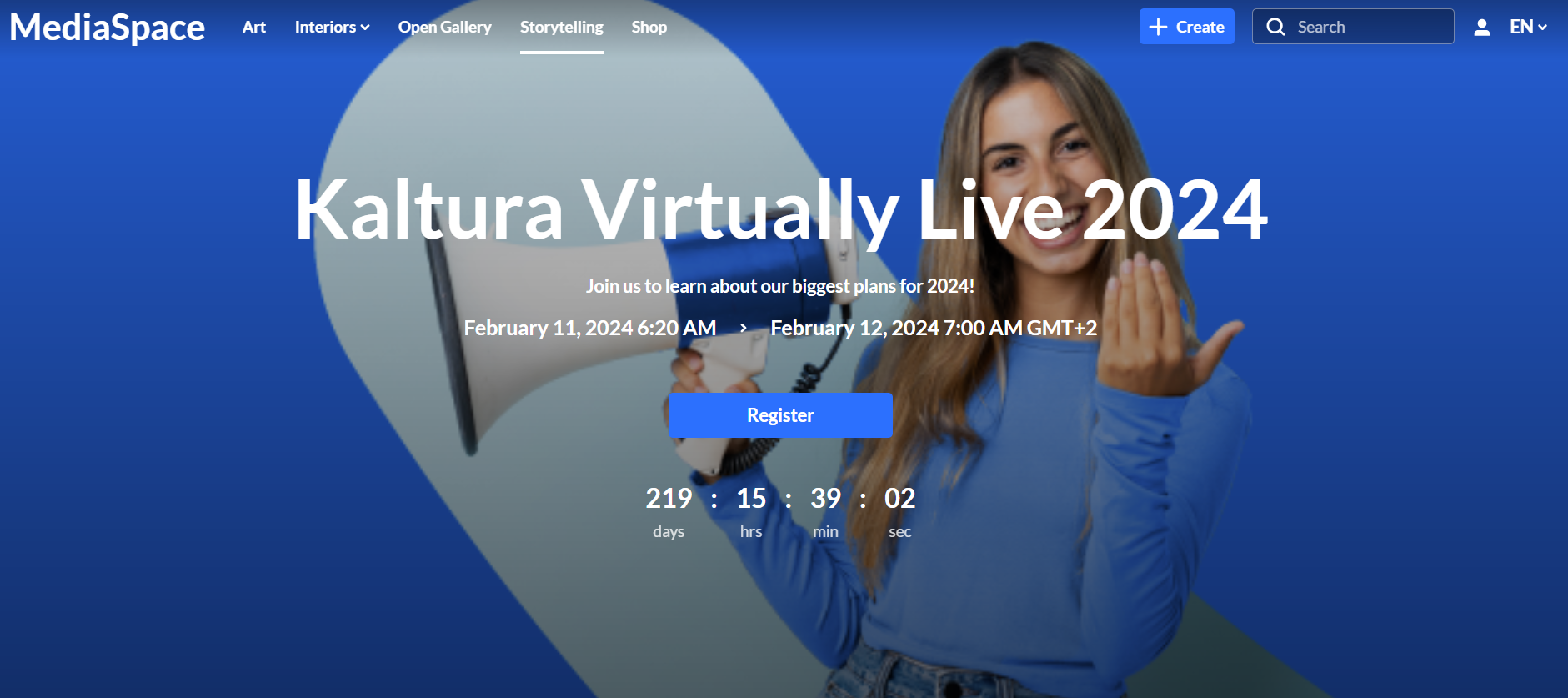 Hero with 'Text & Counter'
Enter site login flow
This feature requires the Login module to be enabled.
When a primary or secondary CTA button's type is Enter site, users can log in right from the template page, without going to the site's login page. The login form opens in a side panel on the same page.

How the login panel works
The login panel uses the same login flow and settings as your site's login page, including:
- Login text and labels
- Authentication providers
- The forgot password flow
- Multi-authentication selection
- SSO and SAML authentication
- Alternative login methods
- The registration flow, when it's configured
These flows open in the same side panel. If the showCallToAction feature in the Login module is enabled, its extra CTA section appears below the login form.
Registration
If the linkURL field in the additionalLink section of the Emaillogin module is set to /register, the registration form opens in the same side panel.
SSO and SAML
- With a single authentication provider, the page redirects after login.
- SSO providers set up as part of multi-authentication appear inside the panel, and the page refreshes after authentication.
Alternative login methods
If showAlternativeLogin is enabled in the Emaillogin module, alternative login methods also open in the same side panel.
 Login drawer opened from the landing page using the 'Enter Site' CTA option.