About
Sharing lets you send media from your Content Hubs site to other people, for example as a link, by email, or on social networks. You can also give specific people access to media with an invite link or a guest link.
- You need permission to share media.
- This feature requires the Theming module to be enabled, with the 'mediapage' feature set to 'Yes'.
- The share options available depend on how your administrator configured the Share module.
To place media on another website or page, see Embed media in Content Hubs. For information about sharing playlists, see Share and embed playlists.
Share from the media page
- Go to the media page of the media you want to share.
- Click Share under the player.
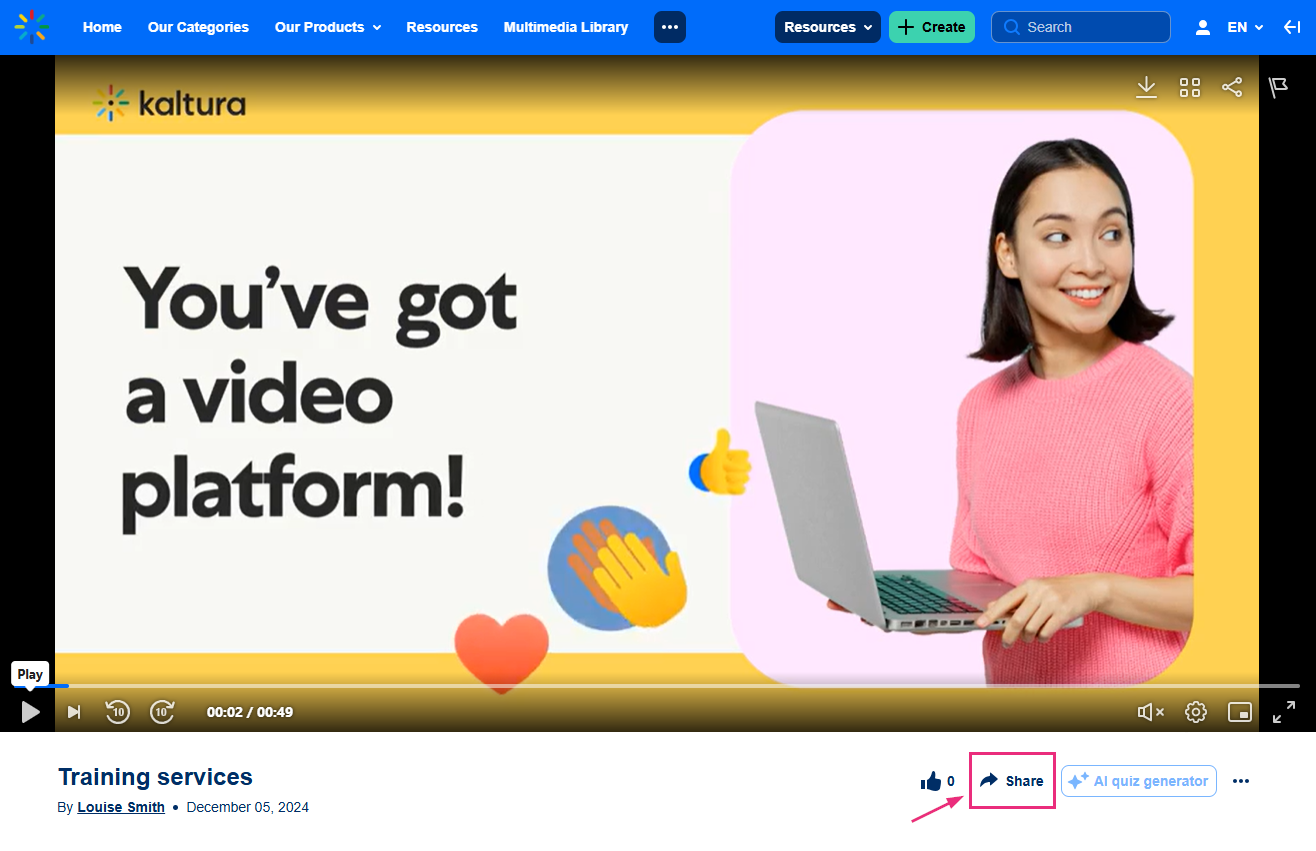
The Share window opens.

- Select a share method.

Direct link
- Click Copy next to the link. The message Link copied to clipboard appears at the top of the screen.
- Paste the link where you want to share it.
Social networks
Click the icon for the platform you want to share on. The platforms available depend on your administrator's configuration.
- Click the email icon. An email page opens.
- Enter the recipient in the To box, and click Send.
Invite users
Click the invite icon to invite specific people to access the media. The role you can give them depends on the media type. For instructions, see Invite people to access media in Content Hubs.

Invite links require the Invitetomedia module to be enabled.
Guest access
Click the guest access icon to create a link that guests without a Kaltura account can use to access the media. For instructions, see Share a guest link to specific media in Content Hubs.

Guest links require the Invitetomedia module to be enabled.
Embed code
Click the embed icon to get an embed code for another website or page. For instructions, see Embed media in Content Hubs.
oEmbed link
Click the oEmbed icon (the link icon) to get a link that sites that support oEmbed turn into an embedded player. For instructions, see Embed media in Content Hubs.

Start the video at a specific time
To start the video at a specific point, select the Start video at checkbox, and enter the time in the format given (00:00:00). For example, to start the video at 1 minute and 30 seconds, enter 00:01:30.

Share from the player
If your player is set up for sharing, you can also share media from Share in the player, wherever the player appears. For instructions, see Share and embed plugin.
