About
Embedding lets you place media from your Content Hubs site on another website or page, using an embed code. Embedding works in one of two ways, depending on how your administrator set it up:
- Regular embed: Viewers can watch the video without logging in or having special permissions.
- Secure embed: Viewers might be asked to log in, and only authorized users can watch the video. Your administrator manages these settings in the Embed module.
You can also share an oEmbed link: a regular link that sites that support oEmbed, such as blogs and WordPress sites, turn into a player automatically.
- You need permission to embed media.
- This feature requires the Theming module to be enabled, with the 'mediapage' feature set to 'Yes'.
- This feature requires the Share module and the Embed module to be enabled.
- To use Kaltura videos with H5P Interactive Video, you need a direct video file URL (for example, an MP4 or streaming URL), not the iframe embed code. To generate video URLs in different formats, see playManifest API.
For all the places you can get an embed code, see Introduction to embedding Kaltura media. For information about embedding playlists, see Share and embed playlists.
Get an embed code from the media page
- Go to the media page of the media you want to embed.
- Click Share under the player.
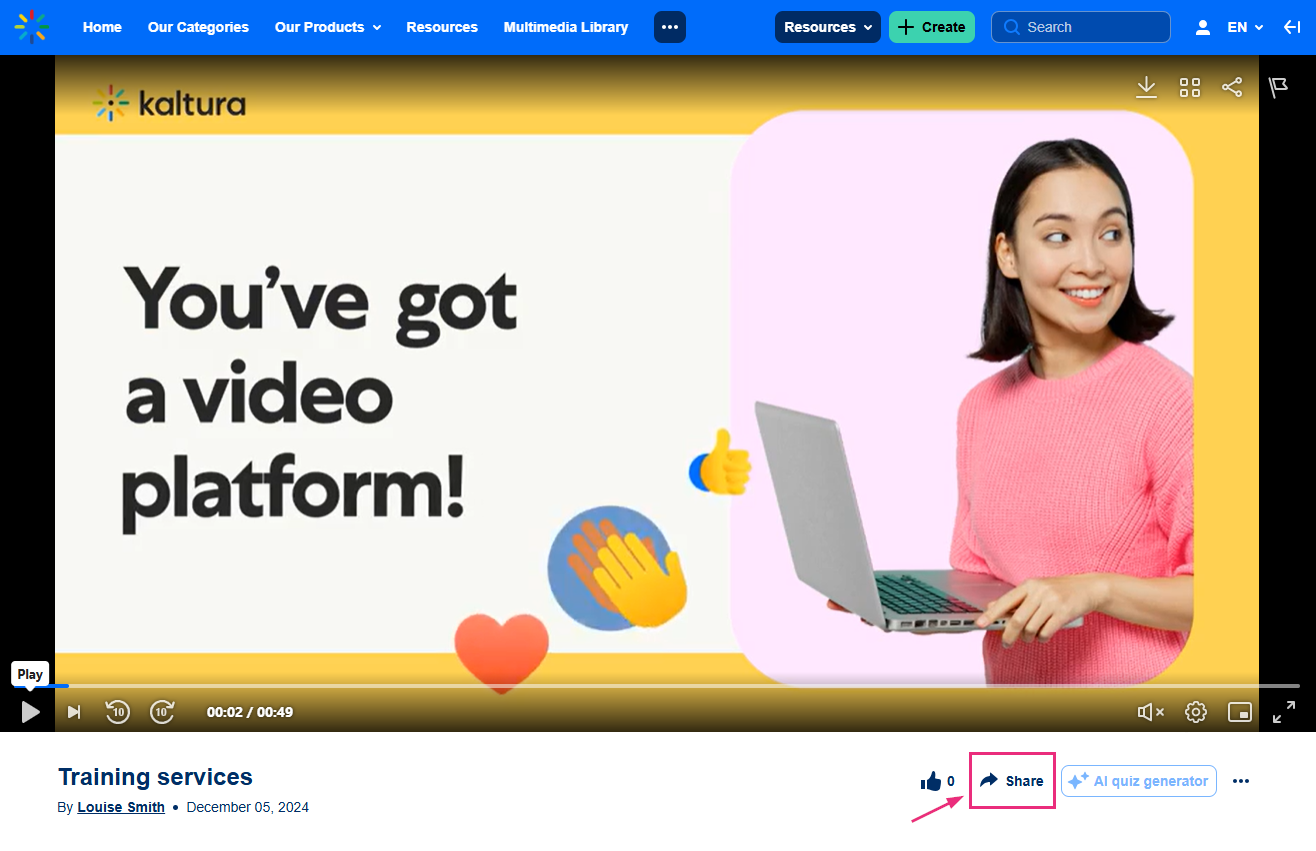
The Share window opens.
- Click the embed icon.
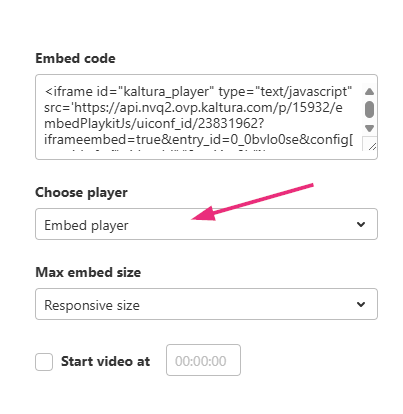
- Select a player from the Choose player menu.
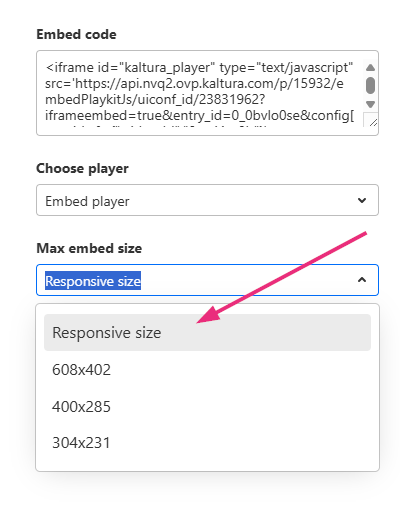
- Select a size from the Max embed size menu.
If your administrator enabled it, the menu includes Responsive size. A responsive embed adjusts to the size of its container, so the video scales with the page layout.
- (Optional) To start the video at a specific point, select the Start video at checkbox, and enter the time in the format given (
00:00:00). For example, to start the video at 1 minute and 30 seconds, enter00:01:30. - Click Copy embed.
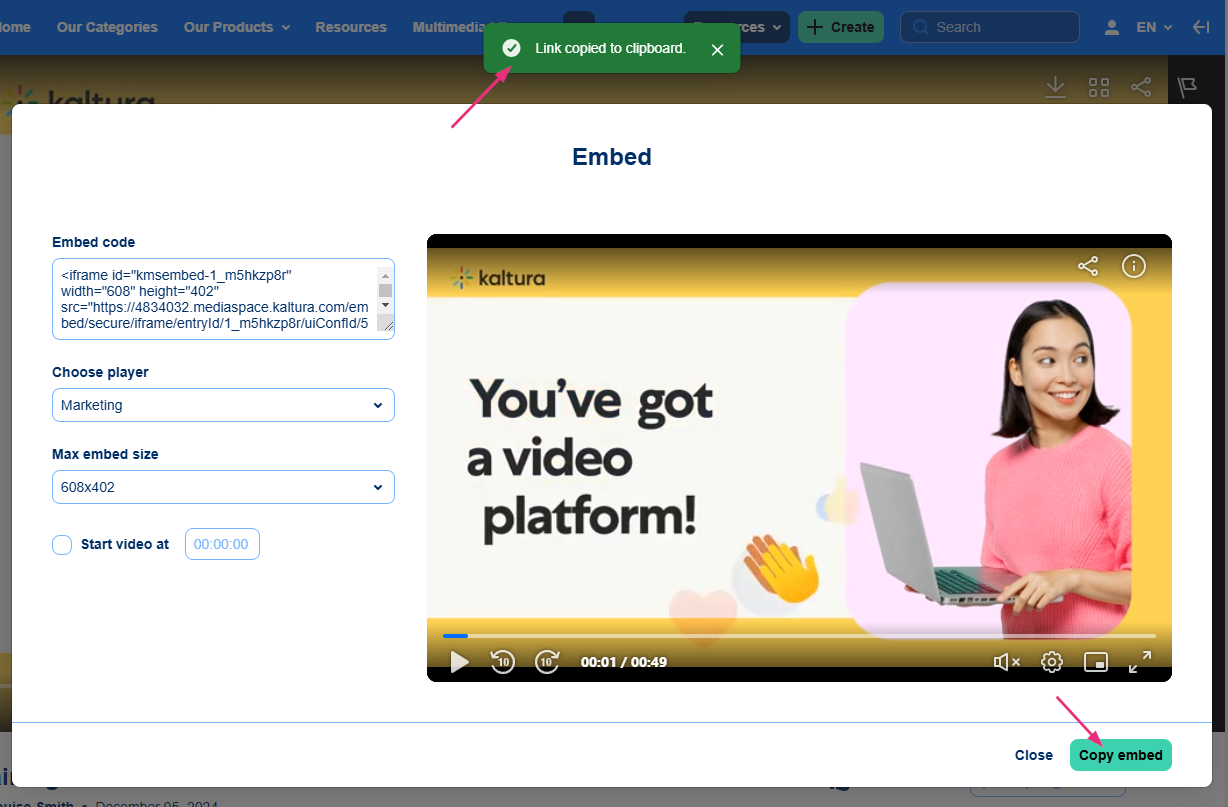
The message Link copied to clipboard appears at the top of the screen.
- Click Close, and paste the embed code where you want to embed the video.

The Embed window opens.

You can also embed Kaltura media using a referenceId, but you must also include the entryId or the widgetId.
Get an oEmbed link
An oEmbed link is a regular link to your media. When you paste it into a site that supports oEmbed, such as a blog or a WordPress site, the site turns it into a player automatically, so you don't need to paste any code.
This option is available only if your administrator has enabled the Oembed module.
- Go to the media page of the media you want to share.
- Click Share under the player. The Share window opens.
- Click the oEmbed icon (the link icon).
- (Optional) If player and size options appear, select a player from the Choose player menu, and a size from the Max embed size menu.
- (Optional) To start the video at a specific point, select the Start video at checkbox, and enter the time in the format given (
00:00:00). - Click Copy embed.
- Click Close, and paste the link into a site that supports oEmbed.

The oEmbed link window opens, with a preview of the player.

Get an embed code from the player
If your player is set up for sharing, you can also get an embed code from Share in the player, wherever the player appears. For instructions, see Share and embed plugin.
Troubleshoot YouTube embeds
If you add a YouTube video and see an error, the video owner might have disabled embedding on other websites. To check, open the video on YouTube, select Share, and then select Embed.
If you see a message such as Video unavailable: Playback on other websites has been disabled by the video owner, the video can't be embedded or played in Kaltura.
If a video worked before, the video owner might have changed its privacy or embed settings.

