About
The Embed module lets users embed media from Content Hubs and the legacy Video Portal in websites, HTML pages, and other online tools. Users get the embed code from the Share button on the media page.
The module supports two embed methods:
- Regular embed: Generates a standard iframe embed code that doesn't enforce access restrictions.
- Secure embed: Requires users to log in and checks their entitlements before the embedded media plays.
The Share button (Embed button in your LMS) only appears on media pages if the Share module is enabled.
Configure
1.
Go to your Configuration Management console, locate the Embed module in the left panel, then select it. You can also navigate directly using a link: https://{your_site_url}/admin/config/tab/embed
The Embed page displays.
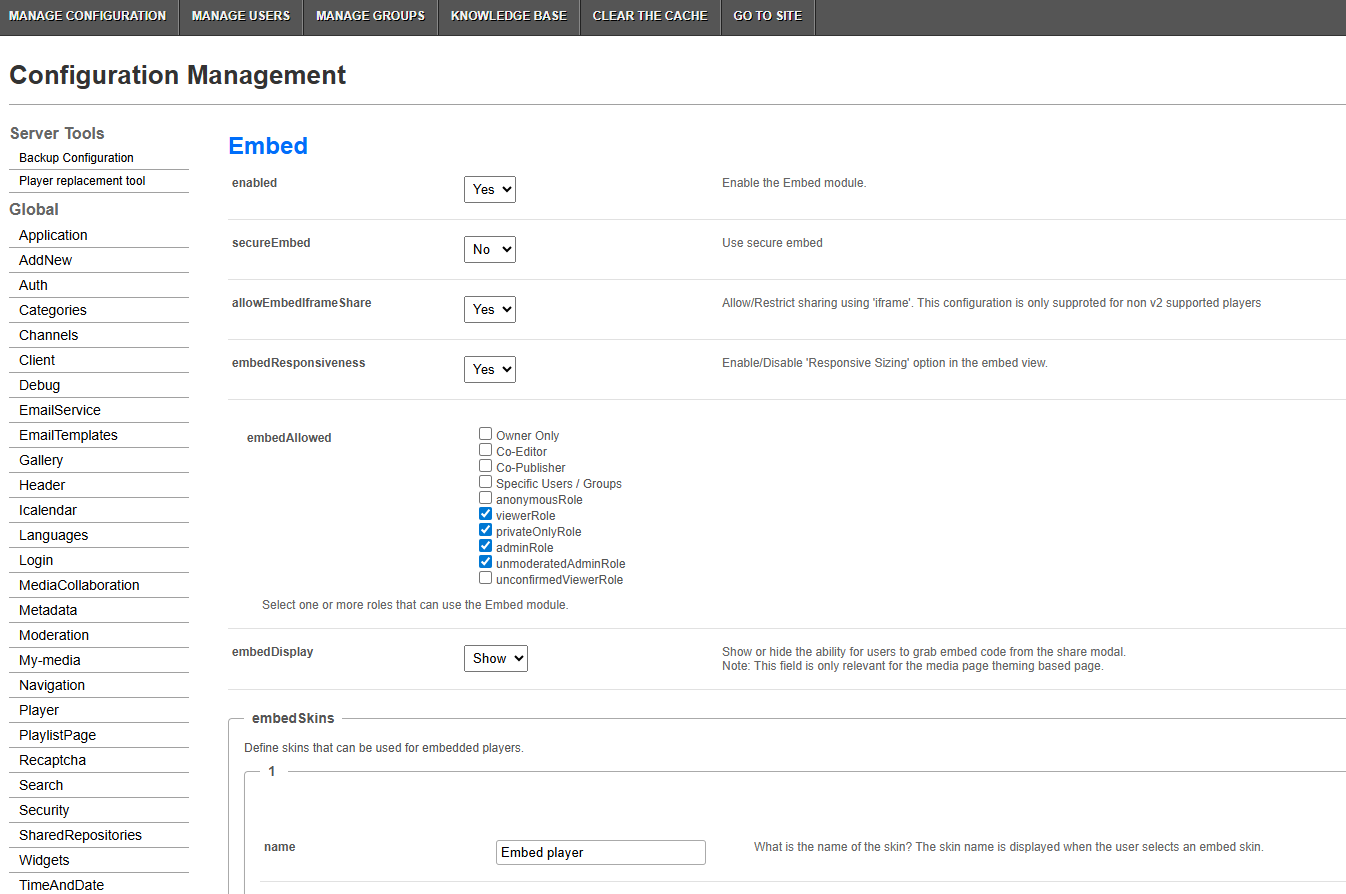
2. Configure the following:
- enabled - Set to Yes to enable the module.
- secureEmbed - Set to No for regular embed, or Yes for secure embed. When set to Yes, more fields appear. For details, see the secure embed section below.
- allowEmbedIframeShare - Set to No to remove the iframe embed option. This setting isn't supported for V2 players.
- embedResponsiveness - Set to Yes to let users select Responsive size in the Max embed size menu. A responsive embed code adjusts to the size of its container.
 Responsive option displayed in the Max embed size menu
- embedAllowed - Select one or more roles that can get embed codes. Choose from the following options:
- Owner Only
- Co-Editor
- Co-Publisher
- Specific Users / Groups
- anonymousRole
- viewerRole
- privateOnlyRole
- adminRole
- unmoderatedAdminRole
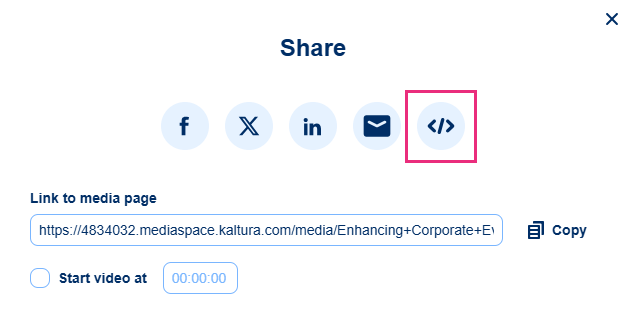
- embedDisplay - Select Show or Hide to control whether users can get the embed code from the Share window. This setting only applies if Theming is enabled on your site. In the following example, embedDisplay is set to Show.
- embedSkins - Define the players users can choose from in the Choose player menu. For each player, configure the following:
- name - Enter the name that appears in the Choose player menu. If you leave this field empty, the option appears blank.
- imgFile - Enter the relative path to an image file on the server that shows how the player looks.
- uiConfId - Enter the player ID to use in the embed code.
- embedSizes - Define the sizes users can choose from in the Max embed size menu, in the format
{width}x{height}. The default sizes are:- large:
608x402 - medium:
400x285 - small:
304x231
- large:
3. Click Save.
Configure secure embed
Secure embed controls how media from your site is embedded and accessed on external sites. Users must log in, and their entitlements are checked before the media plays. Secure embed includes:
- Authentication through a pop-up, which works even on browsers that block third-party cookies.
- Embedding controls, including category-level restrictions.
1. Enable the module, then set secureEmbed to Yes.

More fields appear.
2. Configure the following:
Authentication settings
- autoRedirect - Set to Yes to redirect users who aren't authenticated to the SSO login page. Users who are authenticated globally return to the video page. Users who aren't see a sign-in page. Set to No to show a message that asks users to log in manually.
- autoRedirectIframe - Set to No (default) to open the login page in a pop-up when autoRedirect is set to Yes. This lets users whose browsers block third-party cookies log in from the page where the media is embedded.
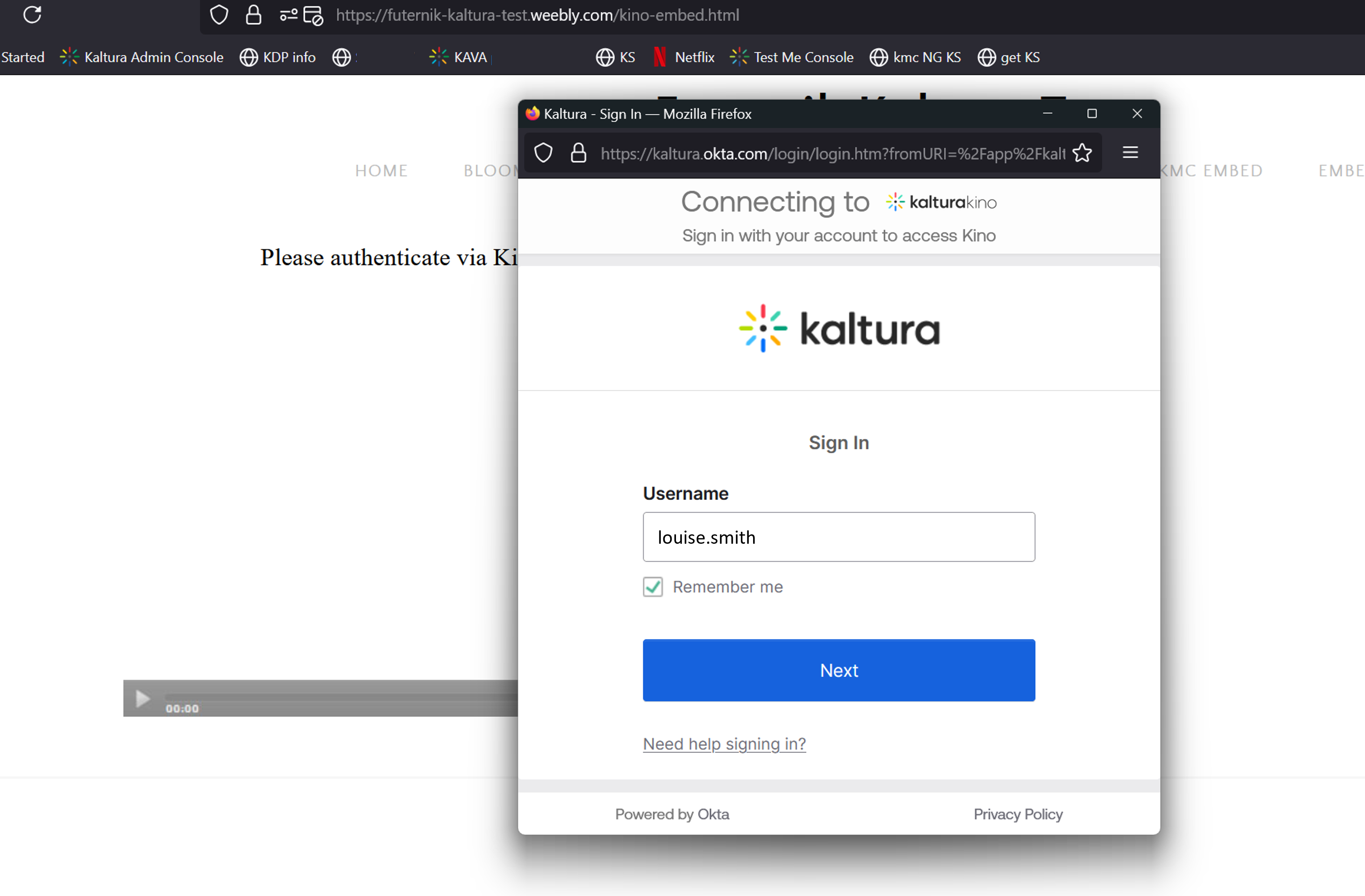
Set to Yes to open the login page inside the iframe.
- autoRedirectMessageHTML - Enter the HTML text that appears while users are redirected to the login page. Example: "Please login with your credentials."
For details on how these settings affect authentication, see Authentication behavior for secure embed.
Messages
- notAuthenticatedHTML - Enter the message (can include links) that appears inside the iframe when autoRedirect is set to No. Example: "Not authenticated."
- notAuthorizedHTML - Enter the message (can include links) that appears when a user fails the entitlement check. Example: "You are not authorized to view this media."
To stop users who aren't logged in from viewing media on your site, set allowAnonymous to No in the Auth module.
Category-level restrictions
- categoryLevelEmbed - Set to Yes to let gallery and channel managers restrict embedding and playback of media from specific categories. This requires the CategoryEmbed or ChannelEmbed module to be enabled.
-
requireCategoryContext - Set to Yes (with categoryLevelEmbed set to Yes) so users can only get embed codes from a channel or gallery. Embed codes from pages outside a channel or gallery, such as My Media, aren't allowed.
Setting requireCategoryContext to Yes can block playback of existing secure embeds that don't have a category context. Only enable it if secure embed isn't already in use on your site.
- noCategoryEmbedAccessHTML - Enter the message (can include links) that appears when a user can't get an embed code because of a failed category-level check, when requireCategoryContext (above) is set to Yes.
- noCategoryPlayAccessHTML - Enter the message that appears when playback is blocked by category-level settings. Example: "Playback of this content is only allowed on its original publishing destination."
You can localize and customize these messages in the Languages module, like other text on your site.
Other settings
- overrideCSSURL - Enter the URL of a custom CSS file to match the iframe design to your branding.
- allowLocalNetworkAccess - Controls whether the
local-network-accessdirective is added to theallowattribute of iframe embeds. Choose from the following options:- Off (default): The directive isn't added.
- On: The directive is added with your site's URL.
- On (All): The directive is added with
*, so any site that loads the iframe can access the local network.
Only enable this if your SSO isn't publicly available and is hosted on your organization's local network.
The settings under Configure above (allowEmbedIframeShare through embedSizes) also apply to secure embed.
3. Click Save.
Authentication behavior for secure embed
| Browser | autoRedirectIframe | User state | Result | Is it new behavior? |
| Chrome (allows third-party cookies) | Yes | Logged in | The player loads normally. | No |
| Chrome | Yes | Not logged in | Redirects to authentication in the iframe, then returns to the player. | No |
| Chrome | No | Logged in | The player loads normally. | No |
| Chrome | No | Not logged in | Opens a pop-up for authentication, then refreshes the iframe to load the player. | Yes. Previously, authentication redirected users away from the current page (for example, a SharePoint page) using window.top, then back to the original page. |
| Safari (blocks third-party cookies) | Yes | Logged in | Opens a pop-up that closes right away (the user is logged in), then refreshes the iframe and loads the player. | Yes. Previously, a message said third-party cookies were blocked. |
| Safari | Yes or No | Not logged in |
Opens a pop-up for authentication, then refreshes the iframe and loads the player. The next time the page loads, the pop-up opens and closes right away (the user is logged in to your site). |
Yes. Previously, a message said third-party cookies were blocked. |
| Safari | No | Logged in | Opens a pop-up that closes right away (the user is logged in), then refreshes the iframe and loads the player. | Yes. Previously, a message said third-party cookies were blocked. |
| Safari, playlist partly available to anonymous users | Yes or No | Logged in | Shows part of the playlist. Clicking the login link opens a pop-up that closes right away, then the full playlist loads. | Yes. Previously, clicking the link sent users to authenticate, but blocked third-party cookies stopped the full playlist from loading. |
| Safari, playlist partly available to anonymous users | Yes or No | Not logged in | Shows part of the playlist. Clicking the login link opens a pop-up for authentication. After login, the iframe refreshes and the full playlist loads. | Yes. Previously, clicking the link sent users to authenticate, but blocked third-party cookies stopped the full playlist from loading. |
