About
The Player module controls the default player used in Content Hubs and KAF applications. You can configure the default player, player display, autoplay behavior, and players used for specific workflows.
Player IDs come from the Player Studio in the Rich Media CMS. See Introduction to the Player Studio to learn more.
Configure
1. Go to your Configuration Management console, locate the Player module in the left panel, then select it. You can also navigate directly to https://{your_site_URL}/admin/config/tab/player.
The Player page displays.
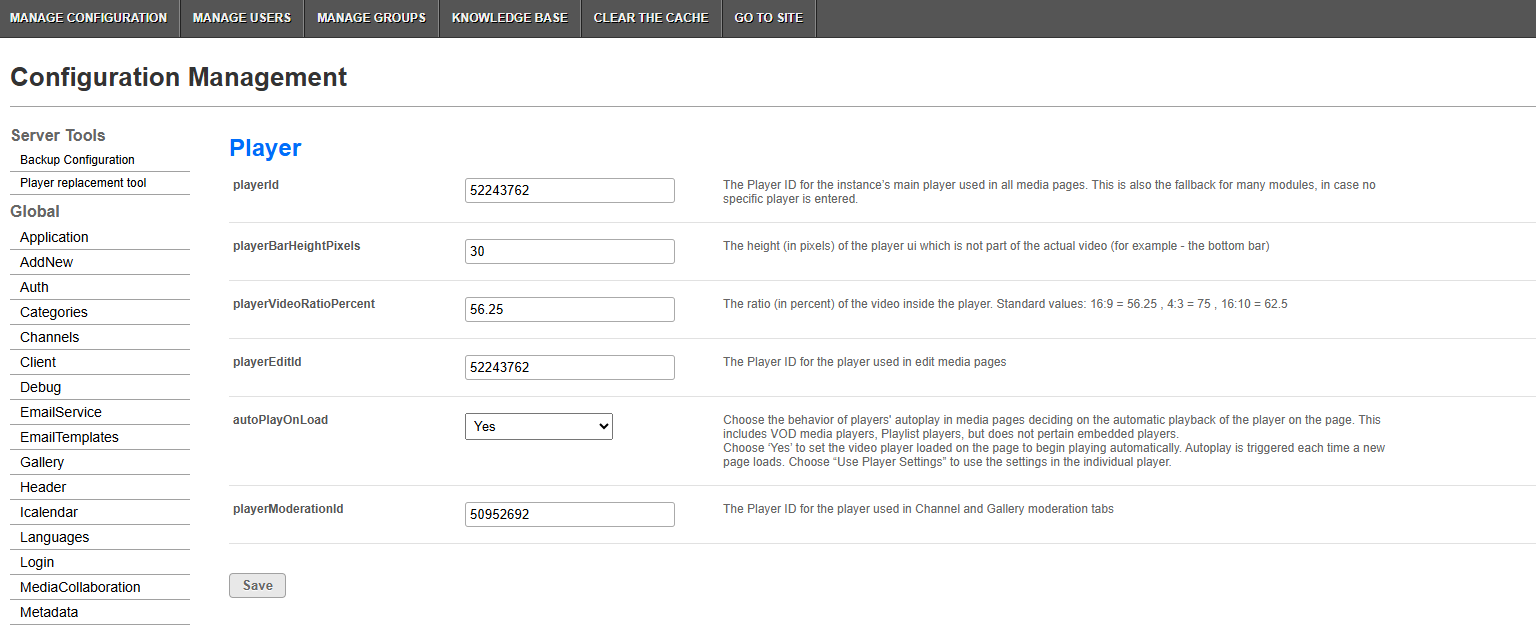
2. Configure the fields as needed.
playerId - Enter the player ID (uiConf ID) for the default player used on media pages. This player is also used as the fallback when a specific player isn't configured in another module.
Set the player display
Use the following fields to configure the player's display:
- playerBarHeightPixels - Enter the height, in pixels, of the player UI that isn't part of the video, such as the bottom bar.
- playerVideoRatioPercent - Enter the video ratio as a percentage. Standard values include:
- 16:9 = 56.25
- 4:3 = 75
- 16:10 = 62.5
Set a player for editing
playerEditId - Enter a player ID to use when editing entries. If this field is empty, the default playerId is used.
Configure autoplay
autoPlayOnLoad - Controls whether VOD and playlist players start playing automatically on media pages. This setting doesn't apply to embedded players.
Select one of the following:
- Yes - The player starts playing automatically when the page loads. This overrides the autoplay setting configured in Player Studio.
- No - The player doesn't start playing automatically. This overrides the autoplay setting configured in Player Studio.
- Use Player Settings* - Uses the autoplay setting configured for the player in Player Studio.
*If you've configured autoplay in the player itself, select Use Player Settings; otherwise, the player's autoplay configuration will be overridden by the setting selected here.
- Autoplay runs when a user first opens the site and when a new page loads.
- When a user clicks a video in a gallery, the video starts playing regardless of the
autoPlayOnLoadsetting.
Set a player for moderated content
playerModerationId - Enter the player ID to use in Channel and Gallery moderation tabs. If this field is empty, the default playerId is used. For more information about moderation in Content Hubs, see Channel moderation.
Where can you set player IDs for different types of media?
Players are created and configured in the Player Studio tab in the Rich Media CMS. You can use the same player throughout the application or configure different players for specific media types and workflows.
See Introduction to the Player Studio to learn more.
The following fields can override the default player:
- Video - Uses playerId from the Player module.
- Quiz - Uses quizPlayerId or BSEPlayerId from the Quiz module.
- Audio - Uses customPlayerId from the Audioentry module.
- Playlists - Uses playerId from the PlaylistPage module.
- Image - Uses customPlayerId from the Imageentry module.
- Webcast/Live - Uses PlayerUiconfId from the Kwebcast module.
- Rapt Media - Uses playerId from the Raptmedia module.
- YouTube - Uses previewPlayer from the Youtube module.
- Twitter - Uses tPlayerId from the Twitter module.
- Facebook - Uses fPlayerId from the Facebook module.
- Oembed - Uses PlayerId from the Oembed module. For more information, see MediaSpace oEmbed Integration.
- Embed - Uses uiConfId from the Embed module.
- Browseandembed - Uses BSEPlayerId from the Browseandembed module.
