About
The Player Studio lets Rich Media CMS administrators create and manage players. From the players list, you can find player IDs, search and sort players, manage favorites, and create, edit, duplicate, update, or delete players.
To learn how to configure an individual player's behavior, appearance, and integrations, see Introduction to Kaltura's player settings.
Looking for your player ID? You can find it in the ID column of the players list.
Access Player Studio
- Log into your Rich Media CMS.
- Click the Studio tab in the top navigation bar.

Player Studio opens and displays the players available in your account.


Player types
Depending on your account configuration, Player Studio can display the following tabs:
- Customized Players
- Default Players
If your account doesn't contain default players, these tabs aren't displayed and all players appear in a single list.
Default players
Default players are created automatically by the system. Click the three-dot menu next to a default player to access the Edit and Duplicate options. Default players can't be deleted.

Customized players
Customized players are created by Rich Media CMS administrators. Click the three-dot menu next to a customized player to access the Edit, Duplicate, and Delete options.

Players list
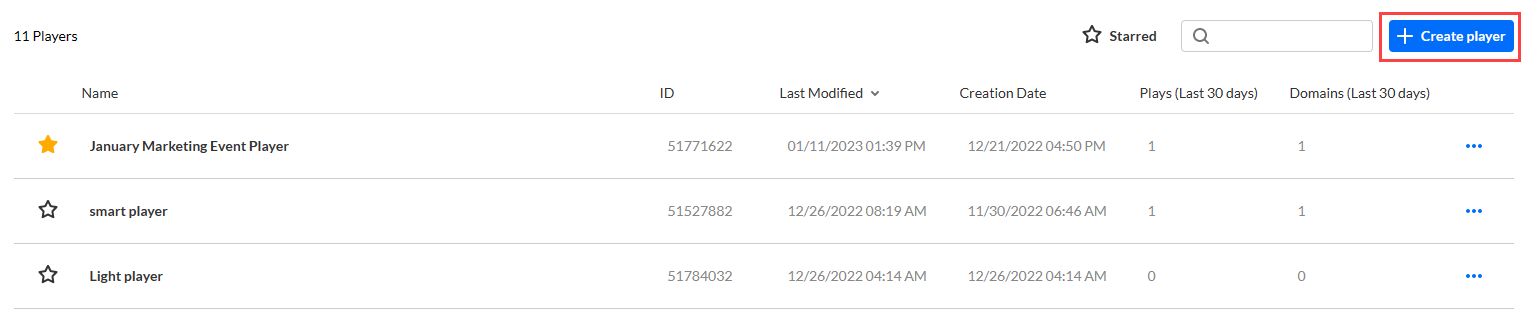
The players list includes the following information:
- Name - The name of the player.
- ID - The ID automatically assigned to the player when it's created. Use this ID when another configuration or integration requires a player ID.
- Last Modified - The last time the player was modified.
- Creation Date - The date the player was created.
- Plays (Last 30 days) - The number of times the player was played in the last 30 days.
- Domains (Last 30 days) - The number of domains where the player was played in the last 30 days.
From the players list, you can also search, sort, and favorite players, view their top domains, and manage players.
Search for a player
Use the search box to find a player by name or ID.
Enter all or part of the player name or player ID in the search box, then press enter.
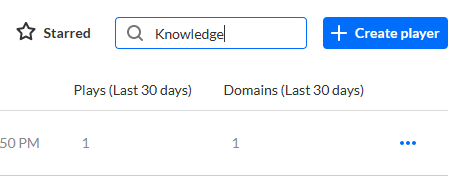
Matching results display in the currently selected Customized Players or Default Players tab.

Mark players as favorites
Mark frequently used players as favorites to make them easier to find.
You can mark a player as a favorite in either of the following ways:
- In the players list, click the star icon to the left of the player's name.
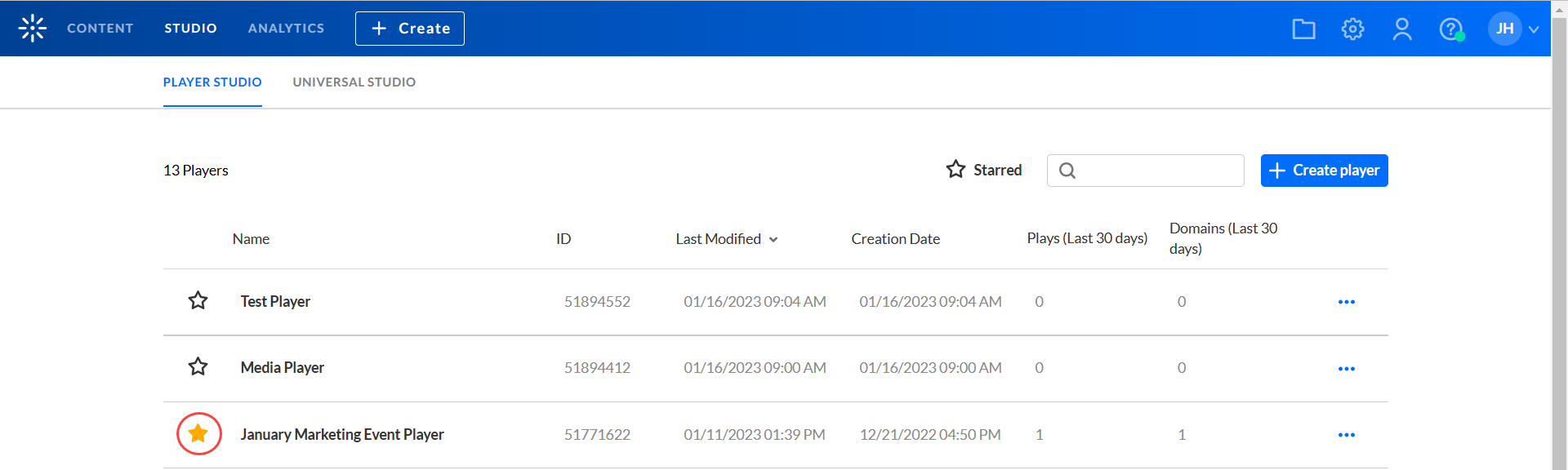
- Open a player and click the star icon in the upper-right corner.
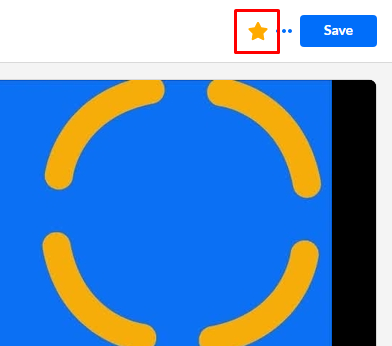
The star turns yellow when the player is marked as a favorite.
Sort and filter players
You can sort players by:
- Name
- ID
- Last Modified
- Creation Date
Click the Starred filter to display only players marked as favorites.

View the top five domains
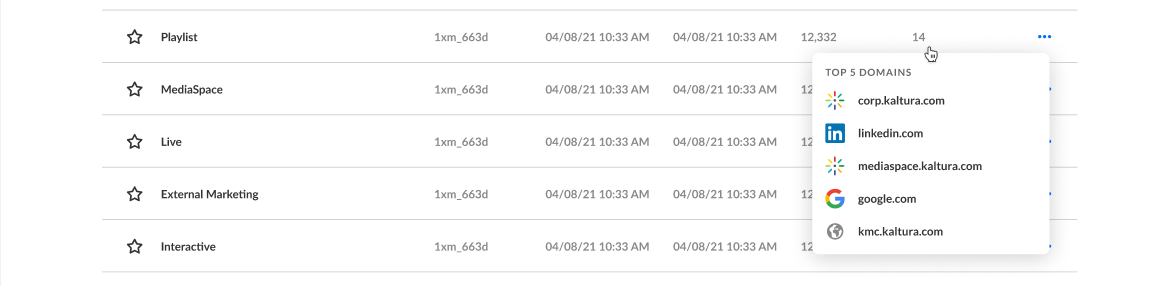
Hover over the number in the Domains column to view the top five domains where the player was used in the last 30 days.
Create a player
Click + Create player at the top right.
See Create a player for instructions.
Edit a player
You can open a player for editing in either of the following ways:
- Click the player in the players list.
- Click the three-dot menu next to the player and select Edit.
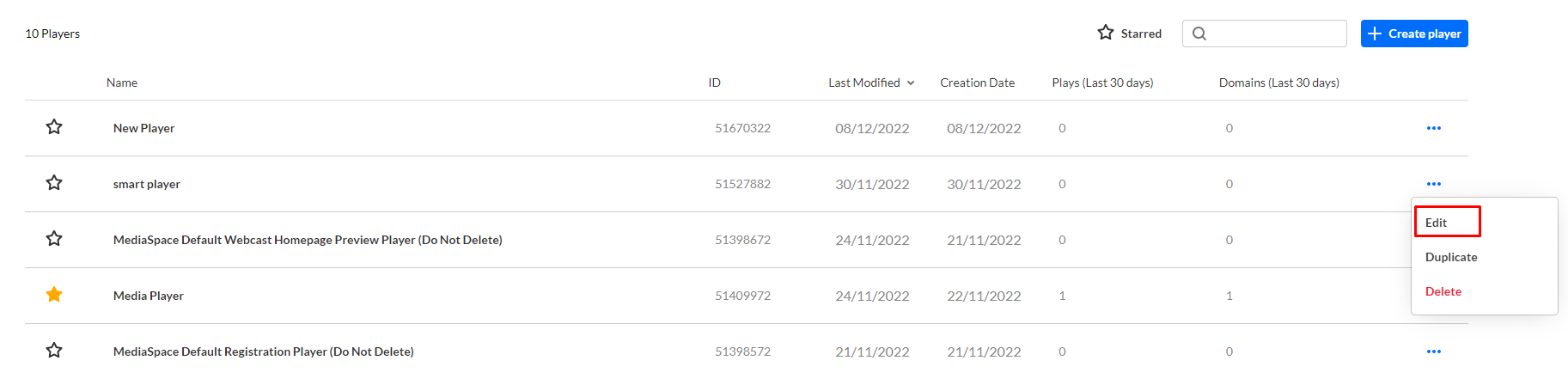
The player settings open.

See Edit and manage players for more information.
Duplicate a player
Duplicate a player when you want to use an existing player as the starting point for a new one.
- Click the three-dot menu next to the player and select Duplicate.

The Duplicate window opens.
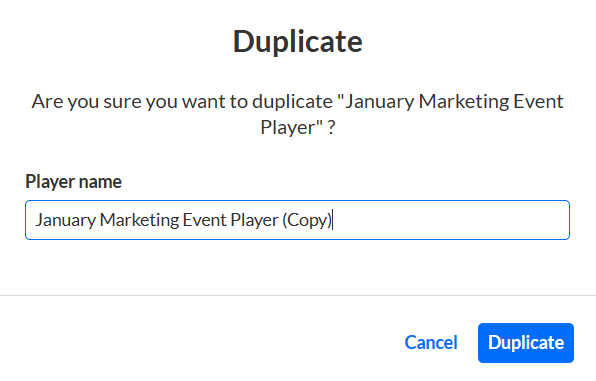
- Enter a name for the new player.
- Click Duplicate.

The duplicated player is added to the players list.
Update a player
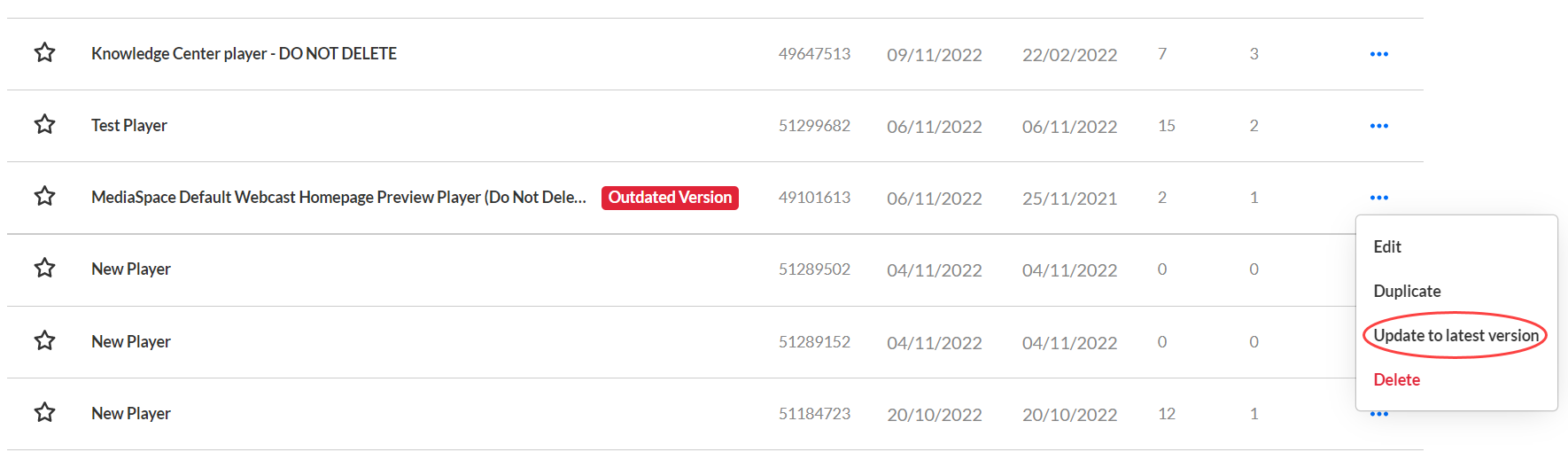
If a player is set to remain on its current version and a newer version becomes available, the Outdated Version label displays in the players list.

You can update the player from the Outdated Version label or the three-dot menu.
Update from the Outdated Version label
- Hover over the Outdated Version label.
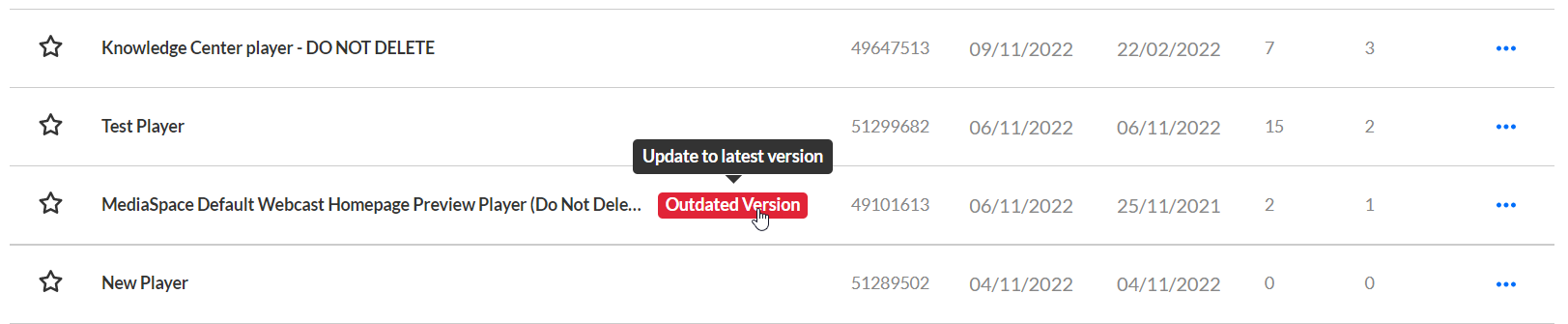
- Click the update tooltip.
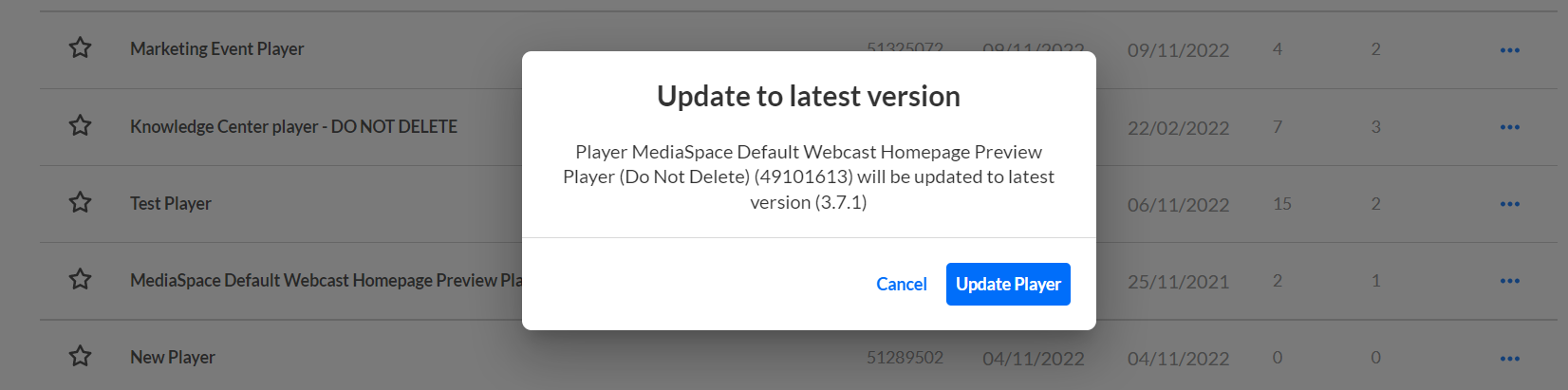
- Click Update Player.
Update from the three-dot menu
- Click the three-dot menu next to the player and select Update to latest version.
This option is available when the player isn't set to the latest version.
- Review the player name, ID, and version.
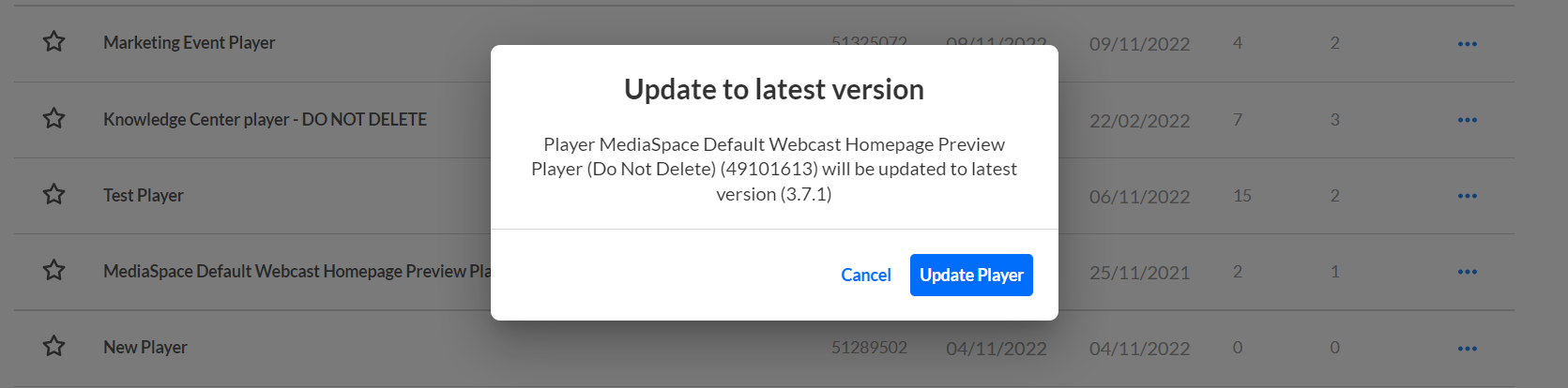
- Click Update Player.
Updating the player to the latest version clears the Keep on Current Version setting in Studio.
Delete a player
You can delete Customized players. Default players can't be deleted.
- Click the three-dot menu next to the player and select Delete.

A confirmation message displays.
- Click Delete to confirm.
