About
Content Hubs is the next evolution of the legacy Video Portal. Built on Kaltura's Theming design system, it provides a modern user experience with flexible page building, centralized branding, and customizable layouts.
This article introduces the main capabilities of Content Hubs and links to articles that explain how to configure each feature.
Watch the following video for an overview of the Theming design system.
Content Hubs capabilities
Content Hubs offers customization and page-building capabilities powered by the Theming design system:
- Centralized branding – Define your site's colors, typography, and other visual settings in one place using the Theme Builder.
- Custom pages – Create homepages and landing pages by combining reusable components.
- Site-wide navigation – Configure a consistent header, footer, navigation menus, and call-to-action buttons that appear across your site.
- Built-in page types – Use ready-made pages such as My Media, Channels, Galleries, and Playlists, each with customizable layouts and configuration options.
- Accessibility – Support accessible navigation and usability for a wide range of users.
Theme Builder
Content Hubs includes a Theme Builder which centralizes site-wide styling. Instead of configuring individual elements separately, you can define a theme and apply it across your site.
You can select a light theme, a dark theme, or create a custom theme.
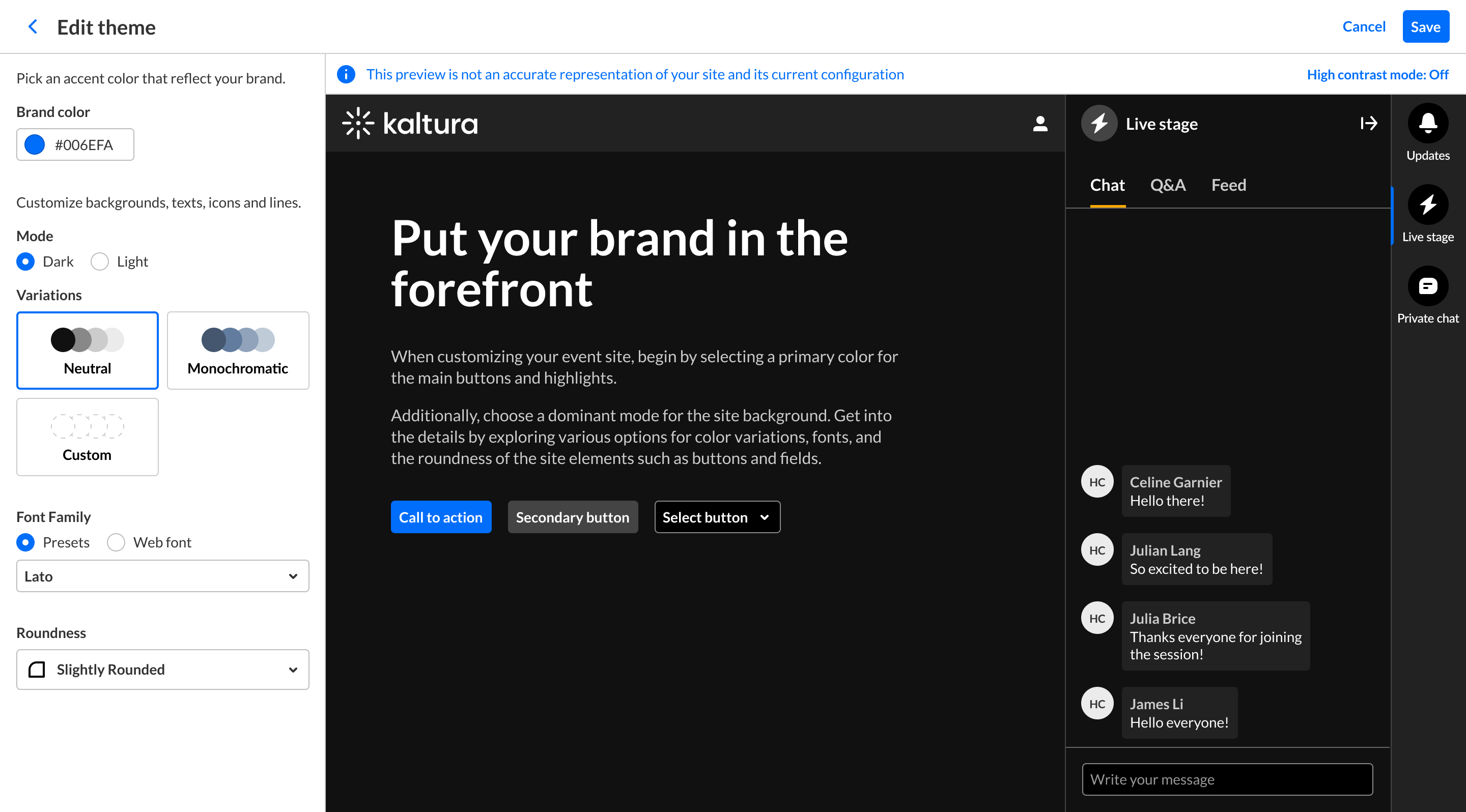
For more information, see Theme Builder.
Site-wide elements
Header
The header provides consistent navigation across your site. It includes your logo, navigation menu, CTA buttons, and the +Create menu, all of which can be customized to match your site's branding and navigation needs.
To customize the site's header, see the following:
- Header module - Set your site logo and basic header appearance
- Navigation module - Choose the navigation layout (horizontal or vertical)
- AddNew module - Configure the +Create menu and its order
- Headermenu module - Add call-to-action (CTA) buttons and links
Footer
The footer provides a consistent location for branding, navigation links, and supporting content across your site.
To customize the footer, see the Footer module.
Core pages
Content Hubs includes a set of built-in pages for managing, organizing, and presenting your content. Many of these pages include enhanced layout and customization options powered by the Theming design system.
My Media page
Upload, organize, edit, publish, and manage your personal media.

For more information, see My Media in Content Hubs.
Media page
Watch media, view metadata, and perform actions such as sharing and publishing.

- For more information, see Media page in Content Hubs.
- For editing options, see the updated Edit media page experience.
Upload media page
Upload, edit, publish, and bulk upload media.
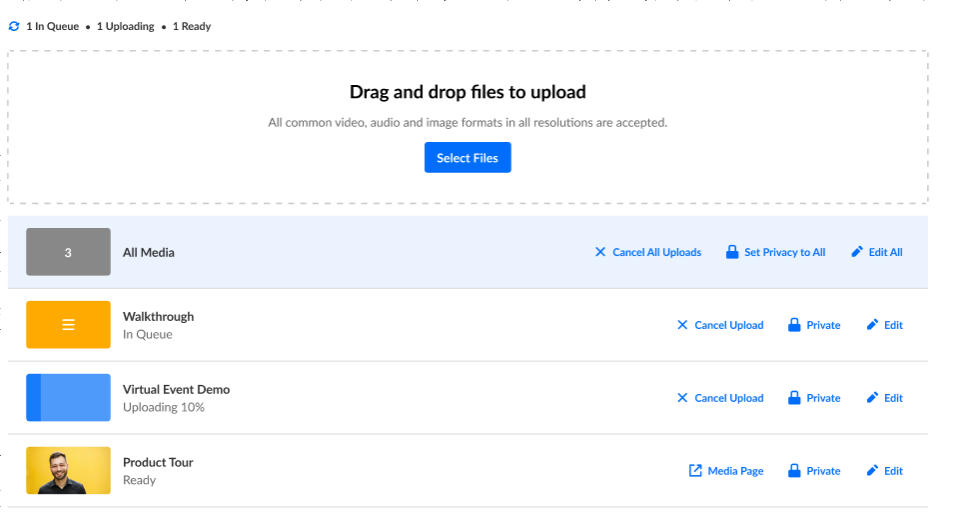
For setup instructions, see Upload media in Content Hubs.
Channels page
Browse and manage channels with customizable layouts, branding, channel images, and welcome videos.

- For more information, see Channels page in Content Hubs.
- For editing options, see the updated Edit channel experience.
Gallery page
Organize and showcase media collections using sub-galleries, tabs, search, and filters.

- For more information, see Gallery page in Content Hubs.
- For editing options, see the updated Edit gallery experience.
Playlists page
Present curated media collections using flexible playlist layouts.

- For more information, see My Playlists page in Content Hubs.
- For editing options, see the updated Edit playlist experience.
Additional pages
Channel collections page
Group channels into collections displayed in grid or list views, with support for filtering and manual sorting.

For more information, see Introduction to channel collections in Content Hubs.
Help page
Create a Help page with FAQs or Q&A content organized by topic.
The page can include:
- Section titles
- Contact Us button linked to a URL
- Contact Us button linked to email
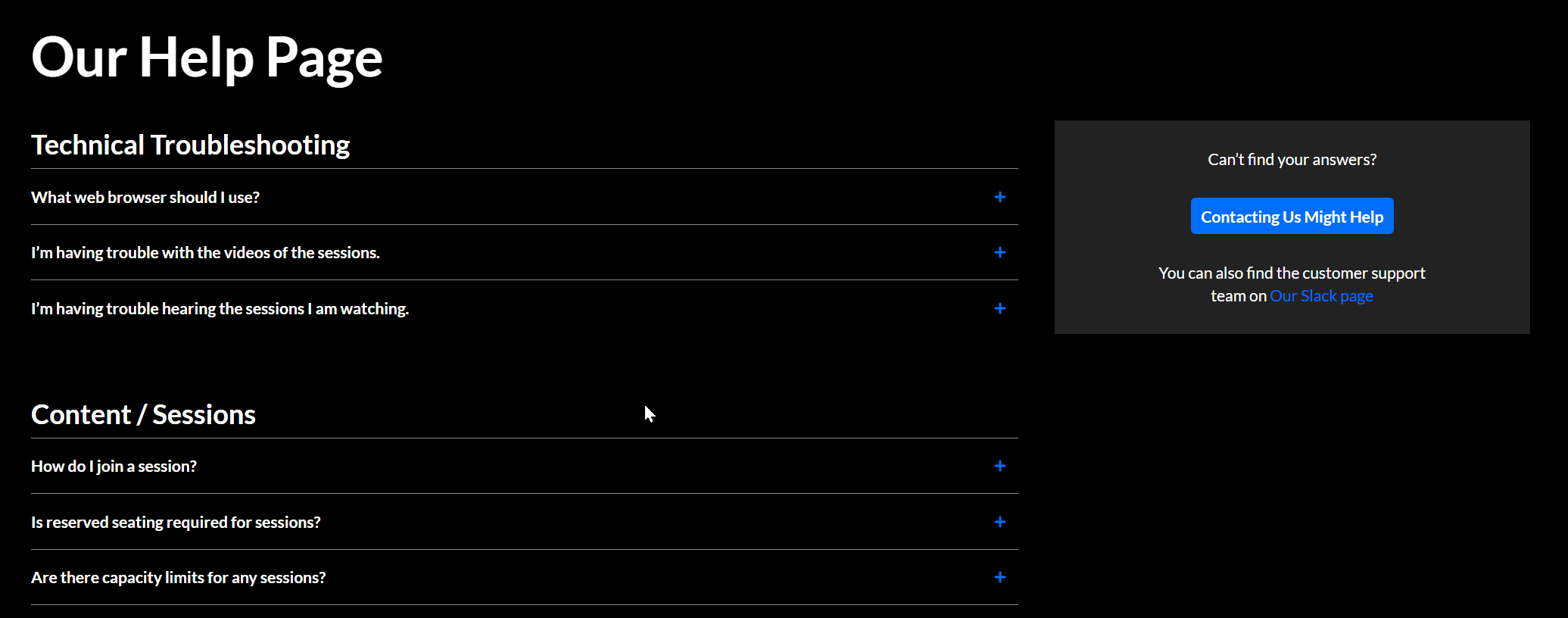
For setup instructions, see Helppage module.
Login page
Configure a branded login experience, including text and logo.
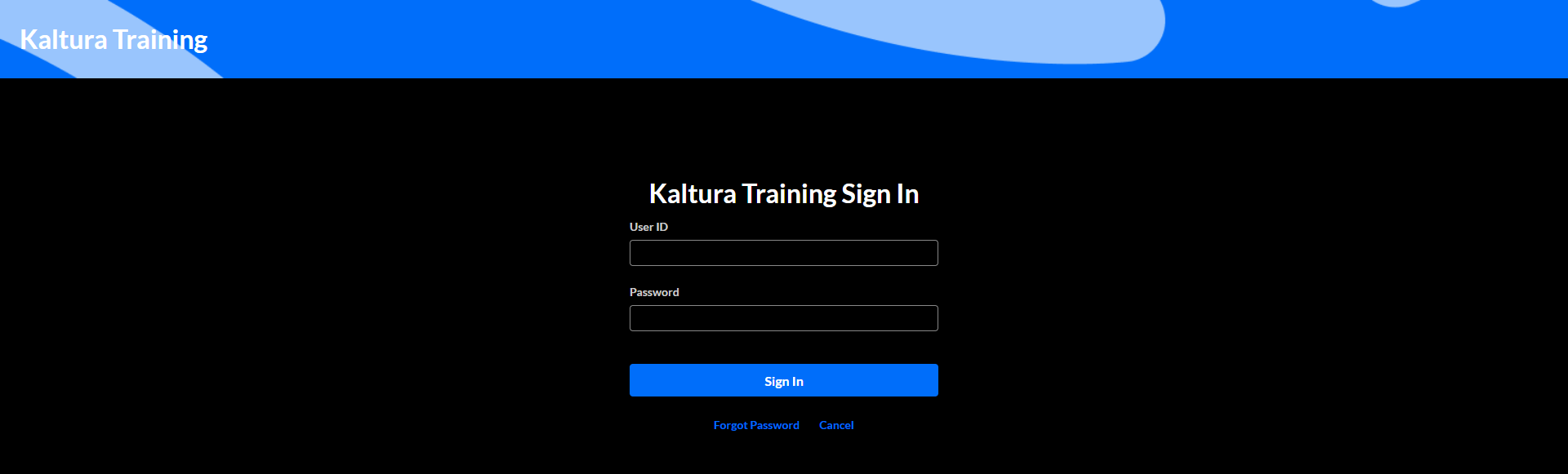
For setup instructions, see Login module.
List page
Create a list of links to highlight featured topics, resources, or destinations.
You can configure:
- Titles
- Descriptions
- Thumbnails
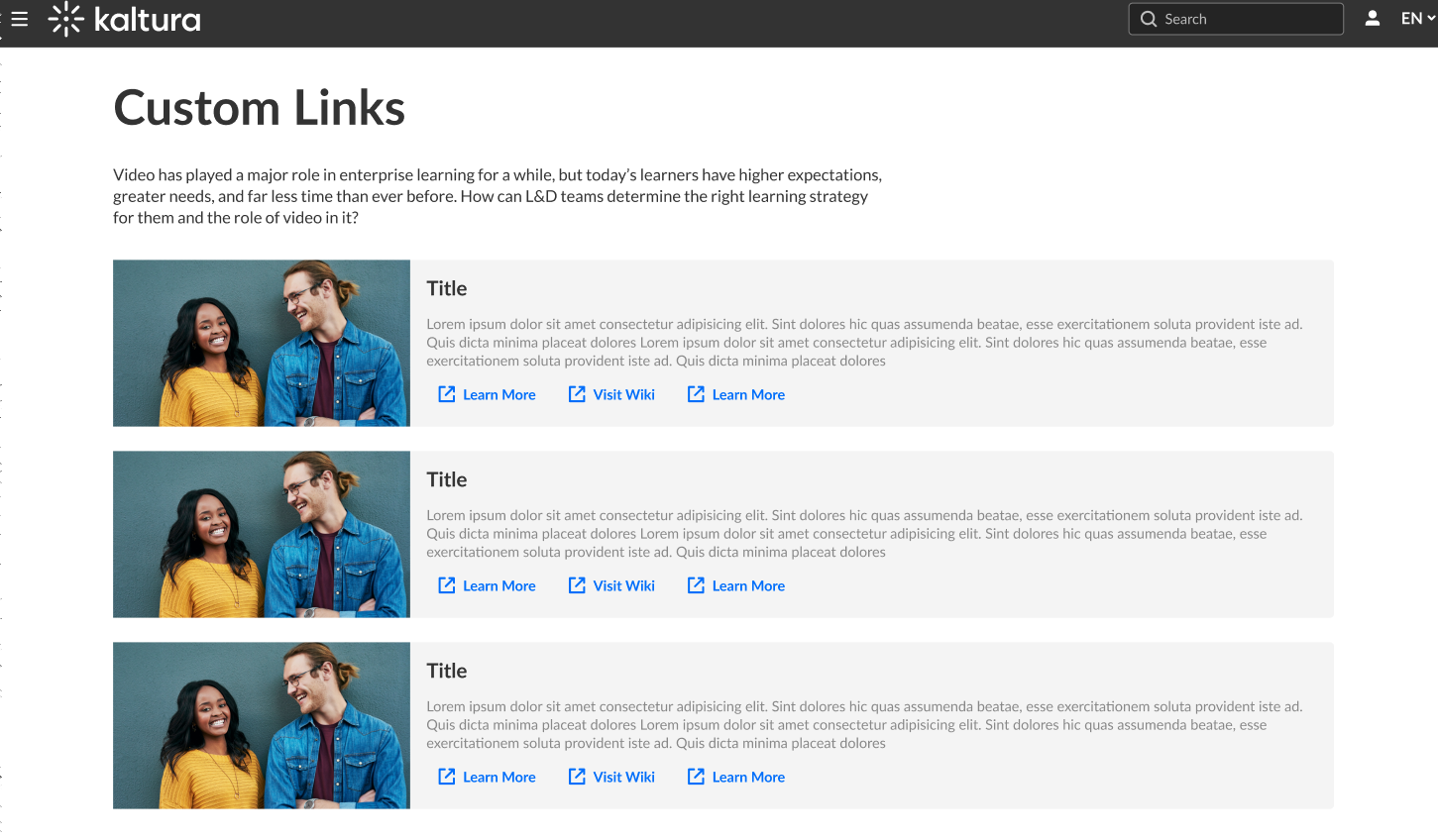
For setup instructions, see Listpage module.
My Profile page
Provide users with profile pages that include:
- Biography
- User content
- Profile design elements
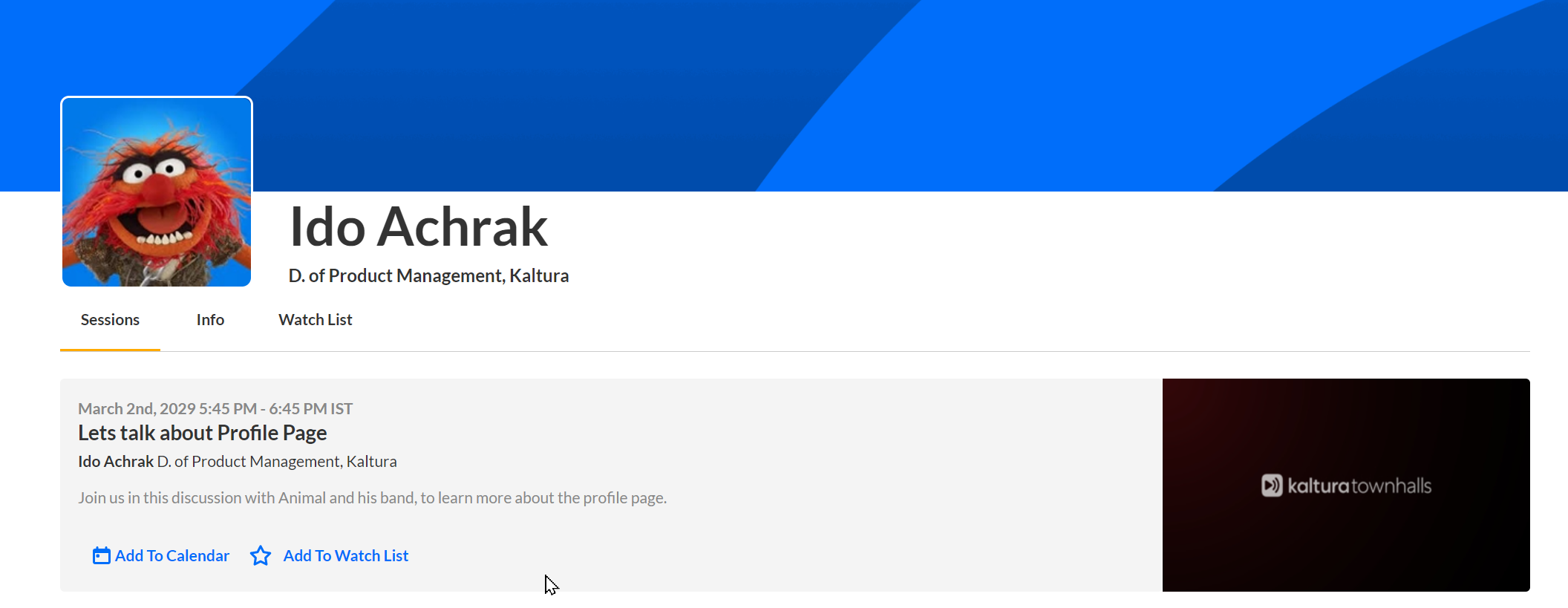
For more information, see My Profile page in Content Hubs.
Build your homepage and custom pages
Content Hubs lets you create homepages and custom pages using a variety of reusable components.
You can combine different components to create landing pages, department pages, campaign pages, and other custom experiences that match your site's structure and branding.
For setup instructions, see the Page and site configuration in Content Hubs category.
Example of a homepage
The following example shows a homepage built using page builder components.

