About
The gallery page offers a clean, flexible layout for showcasing and managing media in your Content Hub.
Key features
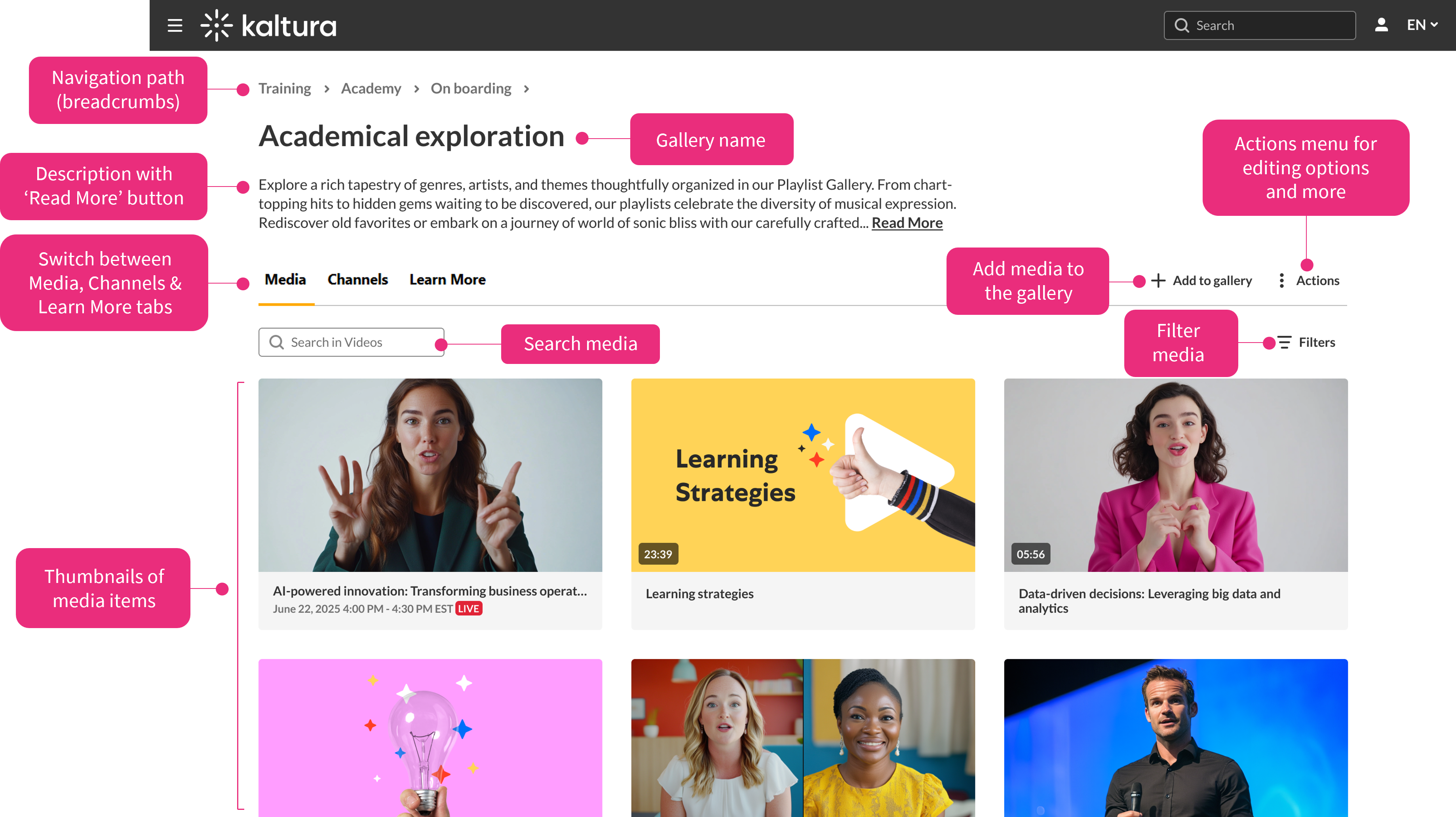
- Navigation path - This breadcrumb path appears when viewing sub-galleries and helps you navigate back through the gallery hierarchy. Learn more in our article Create a sub-gallery.
- Gallery title - The gallery name is displayed at the top of the page. To change the title, edit the gallery settings. For more information, see Edit a gallery for information.
- Description - This area displays the gallery description. Long descriptions are trimmed by default, and a Read More link appears when the Learn More tab is enabled in the gallery settings. Selecting 'Read More' opens the full description. To add or edit the description, see Edit a gallery.
- Tabs -Tabs let you switch between different sections of the gallery. Depending on how the gallery is configured, you may see:
- Media - shows all media from the gallery and its sub-galleries
- Channels - shows related channels you're allowed to access
- Learn More - displays the full gallery description
- 'Add to gallery' - Users with the appropriate permissions, such as contributors, moderators, or managers, can add media to the current gallery. Selecting 'Add to gallery' opens a window where you can:
- select existing media from your My Media library
- upload new media from your device Learn more in Add media to a gallery article.
- 'Actions' menu - This menu gives you quick access to the following management tools:
- Configure – Edit gallery settings like name, description, and privacy options. See Edit a gallery for more information.
- Create sub-gallery – Create a new sub-gallery under the current one. See our article Create a sub-gallery for more information.
- Analytics – View engagement and performance data for the gallery. See Gallery analytics for more information.
- Search bar - Use this to search for media or channels within the current gallery. Results are filtered in real time based on your search term and any additional filters you've applied. Learn more in Search in galleries.
- Filters - Narrow down the content shown in the gallery by applying filters such as entry type, date, ownership, or membership. Learn more in Search in galleries.
- Thumbnails - Each media item appears as a thumbnail with a title and duration. Click a thumbnail to open and play the media.
If only one tab is enabled, the tab bar is hidden to keep the layout clean. Learn how to set up your tabs in the edit gallery page.
The Actions menu is only visible to users with the appropriate permissions.
