About
This guide explains the administrative configuration available for the Kaltura Connector for AEM (Adobe Experience Manager) after it has been deployed.
The Kaltura Connector for AEM requires a KAF (Kaltura Application Framework) instance that is provisioned by Kaltura Professional Services. This setup must be completed before any administrative configuration can be performed.
Configure settings for an AEM site
Administrators can configure which Kaltura features are available for each AEM site, including media uploads, access to the Shared Repository, and Video Versioning.
For instructions, see Configure Kaltura settings for an AEM site.
Configure KAF features
Additional features used by the Kaltura Video component are configured in the Configuration Management console.
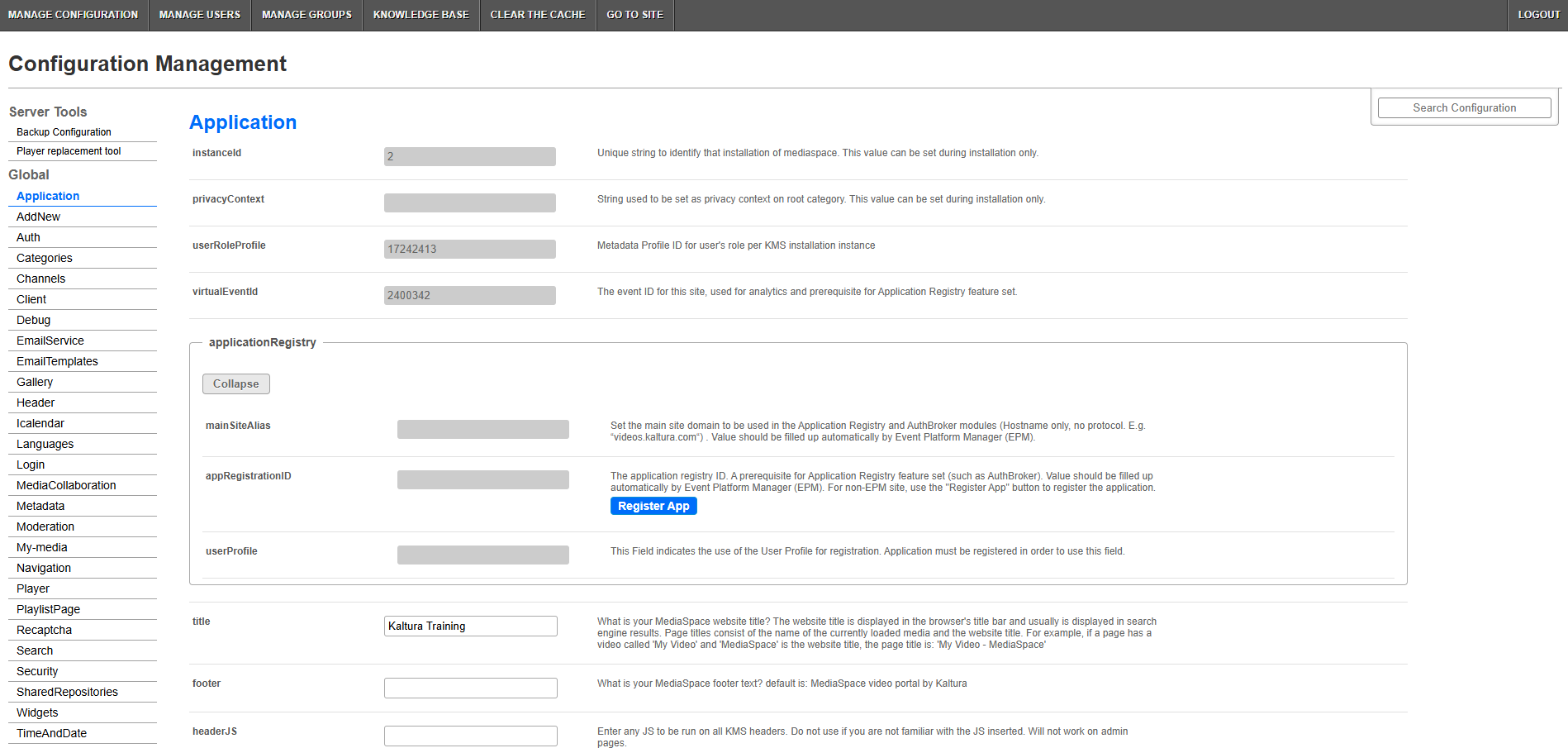
The Configuration Management console controls features such as:
- Available players
- Media browsing and selection
- Media uploads and recording
- Embed options
To learn more about the platform behind these capabilities, see About the Kaltura Application Framework (KAF).
Modules used by the AEM connector
The following modules support the authoring workflows exposed in AEM through the Kaltura Video component:
Core and system modules
- Hosted module – Authentication and session handling
- Hostnames module – Domain and hostname configuration
- Hostedrelated module – Related services (entry pages are not used in the initial AEM connector version)
Browse and embed
- Browseandembed module – Media browsing, search, and selection experience used when embedding media in AEM
Media creation
- Uploadmedia module – Uploading new media
- Recorder module – Recording media directly from the browser
Check with Kaltura or your implementation partner before changing these modules if the KAF instance is shared with other applications.
Configure player availability
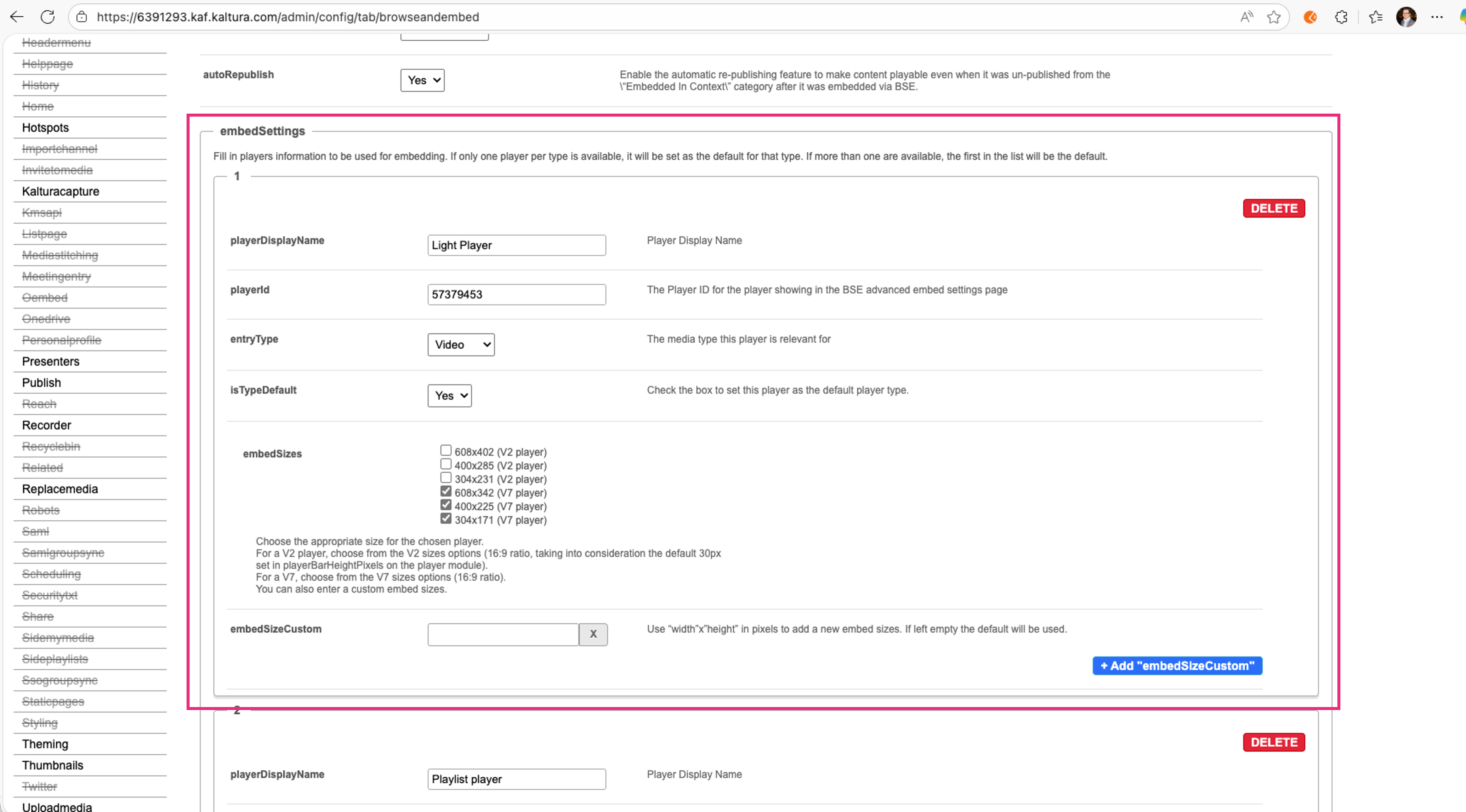
To provide AEM authors with a choice of players, administrators must first create their players in the Kaltura Player Studio and then add them to the Browseandembed module in their Configuration Management console.
In the embedSettings section, add the Player ID and Player Display Name for each player you want to make available.
For step-by-step instructions, see the Browseandembed module article.
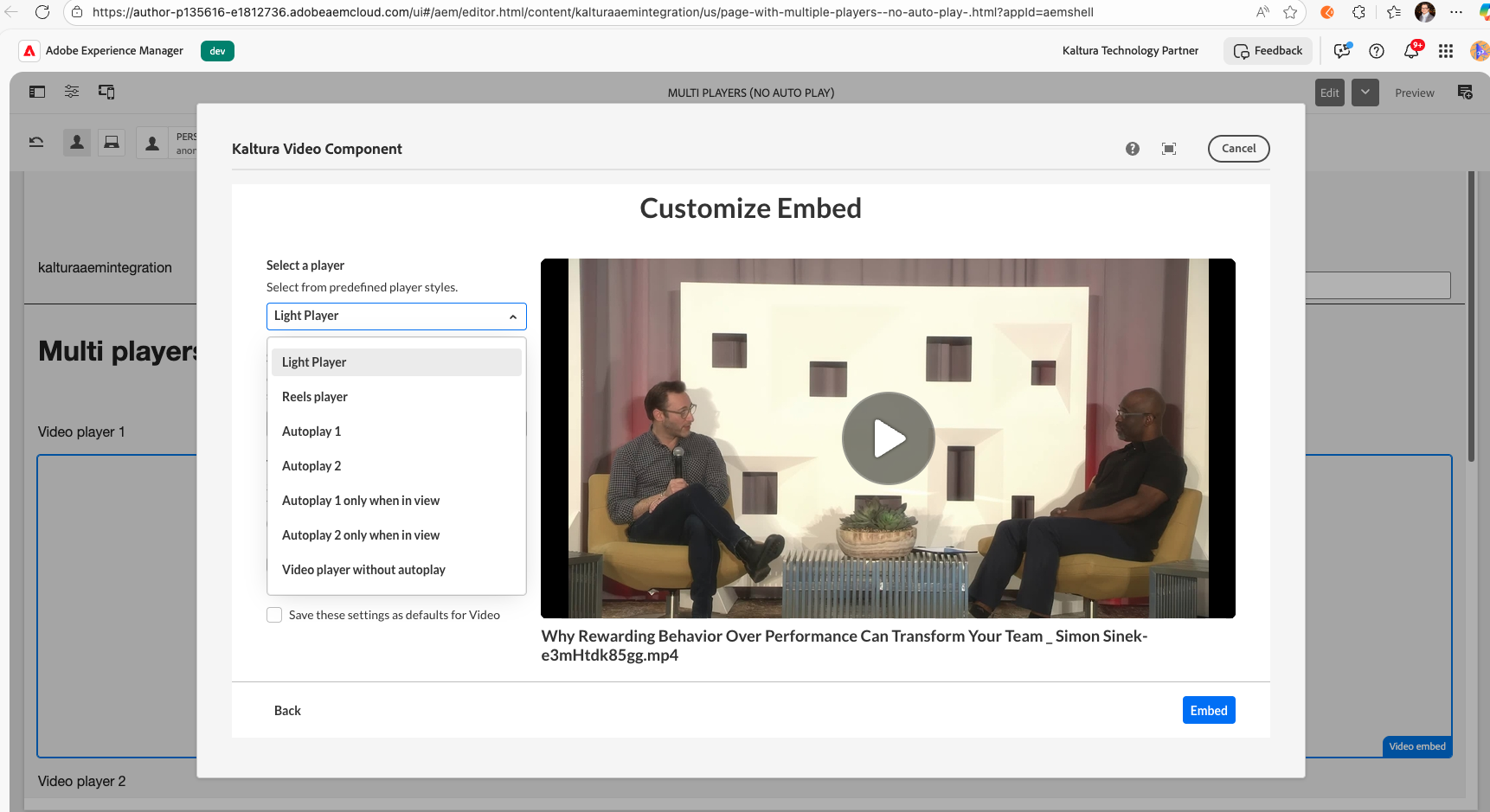
The configured players appear in the Select a player dropdown when AEM Authors customize an embed.
Playlists are not supported.
