About
This article explains how administrators can configure Kaltura settings for an Adobe Experience Manager (AEM) site after the Kaltura Connector for AEM has been deployed.
You can configure which Kaltura features are available to AEM Authors, including media uploads, access to the Shared Repository, and Video Versioning.
For connector deployment instructions, see Deploy the Kaltura connector for Adobe Experience Manager.
Before you start
Before configuring Kaltura settings, make sure:
- The Kaltura Connector for AEM is deployed in your AEM environment.
- You have administrator access to the AEM Author environment.
- A Kaltura Application Framework (KAF) instance has been provisioned by Kaltura Professional Services.
Configure Kaltura settings
1. In your AEM Author environment, open the Tools menu and select Cloud Services.
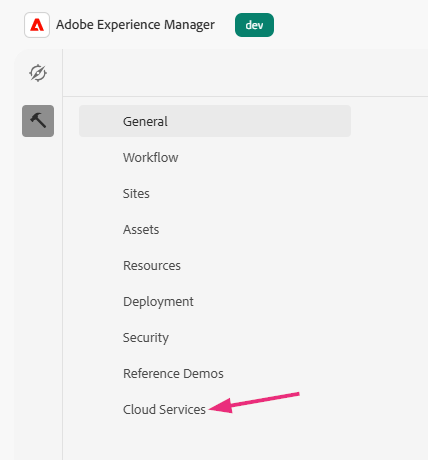
2. On the 'Cloud services' page, select Kaltura Configuration.

The Kaltura Configuration page displays.
3. In the left panel, select the checkbox next to the site you want to configure.

4. At the top of the panel, click Properties.

The properties display.

5. Review the Kaltura configuration settings and configure the following options as needed:
- Upload - Select Enabled or Disabled to control whether authors can upload media from the Kaltura Video component.
- Shared Repository - Select Enabled or Disabled to control whether authors can access media from the Shared Repository.
- Video Versioning - Select Enabled or Disabled. When enabled, changes to a video's source file don't automatically affect the version already published on an AEM page.
Video Versioning is disabled by default and only affects new embeds. Changing this setting doesn't affect existing embeds.
6. Click Save.
The settings are saved for the selected AEM site.
Make the Kaltura Video Component available to authors
Adding the component follows Adobe’s standard AEM authoring workflow. For step-by-step instructions, you can refer to Adobe’s documentation, or you can follow the instructions below:
1. Go to the AEM page where you want to make the Kaltura Video component available, and select Edit Template from the drop-down menu.

2. On the edit template page, click the Policy button.
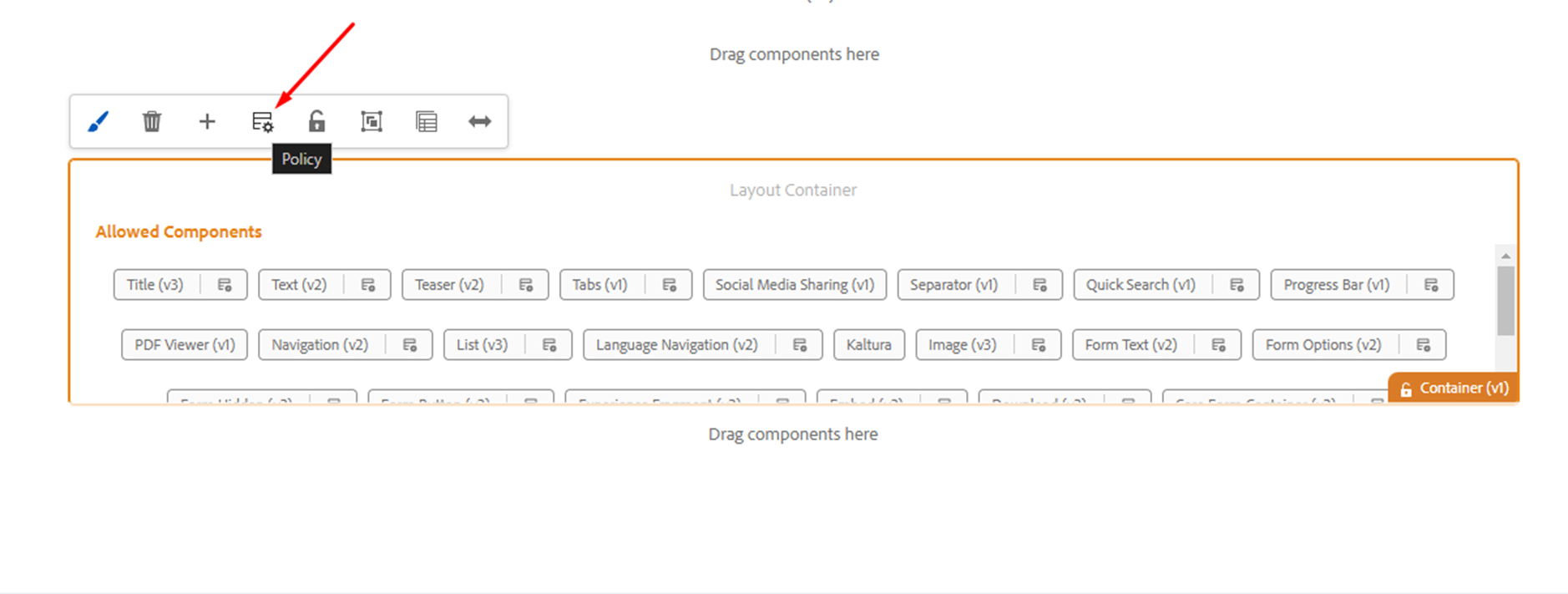
3. On the policy page under Allowed components, select the Kaltura component from the list.
4. Check Video embed and save the properties.

After the component is enabled, authors can add the Kaltura Video component to pages that use this template.
For instructions on using the Kaltura Video component, refer to AEM author's guide to using the Kaltura Video component.
Player setup
Kaltura players control how videos appear and behave on your site. Administrators configure which players are available to AEM Authors.
Available players appear in the Select a player dropdown when authors customize an embed.
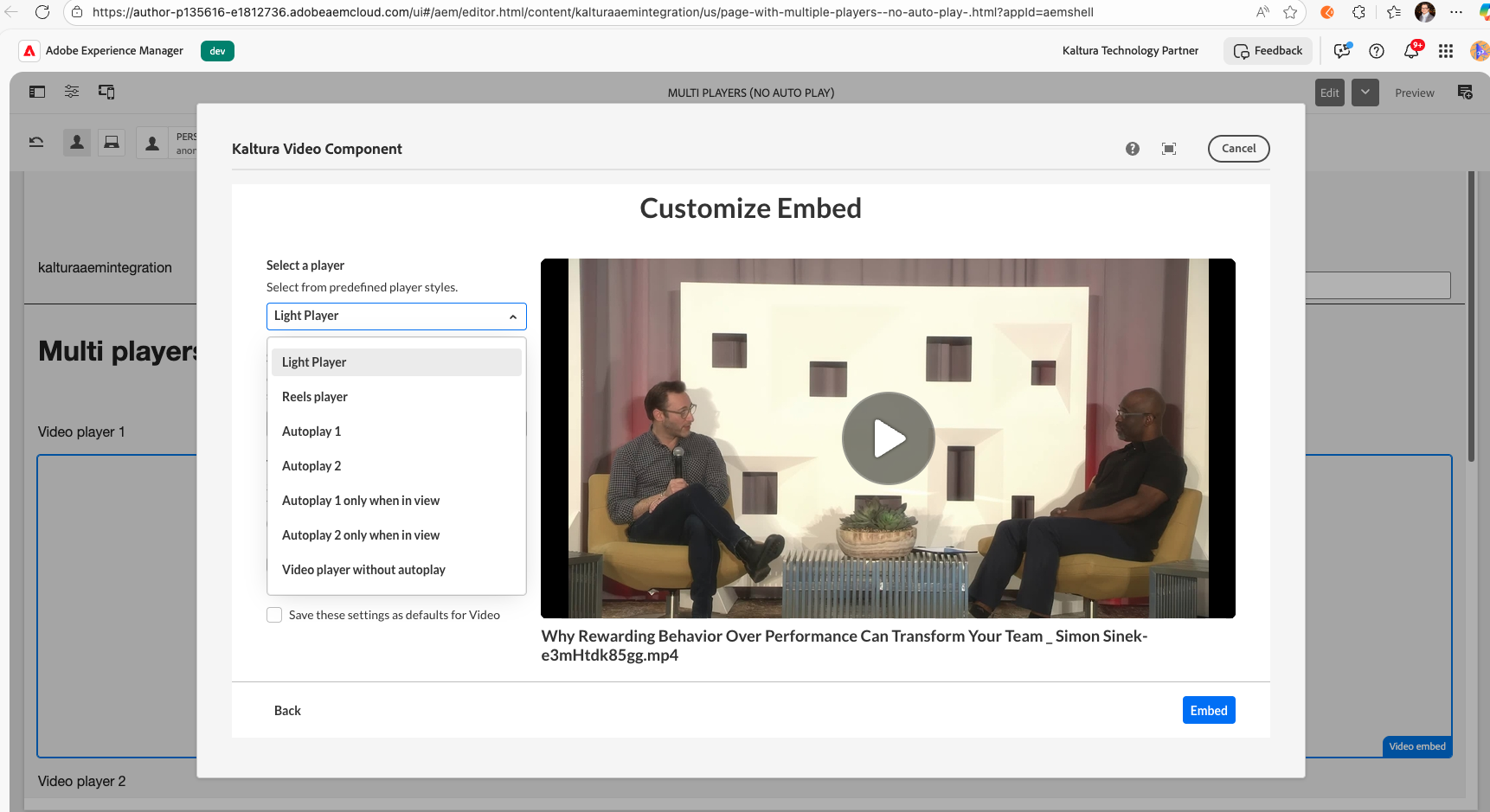 Available players appear in the Select a player dropdown when embedding media
For details on configuring players, see Admin guide for AEM (Adobe Experience Manager) connector.
Additional resources
See the following guides for role-specific AEM workflows:
- Set up media sharing between Content Creators and AEM Authors
- AEM Content Creator's guide to uploading media
- AEM author's guide to using the Kaltura Video component
