About
This article explains how to configure an Interactive room session in a multi-session event.
This article applies only to multi-session events.
Access session settings
There are two ways to reach session settings:
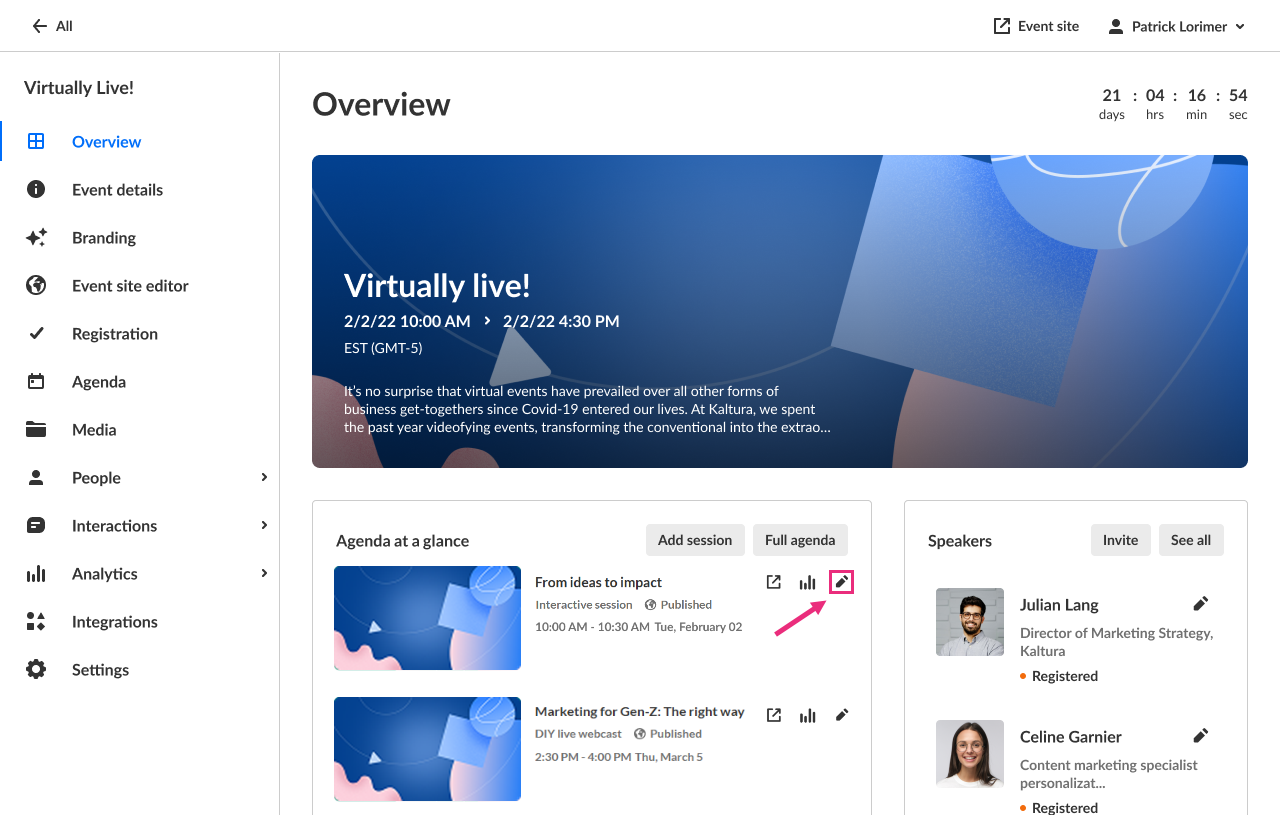
- On the Overview page, in the Agenda at a glance section, click the pencil icon next to the session.
- On the Agenda page, click the three dots to the right of the session and choose Edit.

The session settings open in a side panel with the Basics tab selected by default.

When a tab is open, you’ll also see a three-dot menu. This menu is available across all tabs. For details, see Global actions below.
Basics tab
Use the Basics tab to configure the main session details:
- Visit session page and copy session page link to share
- Edit session details
- Activate AI assistant
- Set site visibility
- Control screen sharing and stage access during the session
Depending on your account settings, the ability to control screen sharing and stage access may not be enabled.
Attachments tab
Use this tab to add downloadable files to your sessions. For details, see Upload and manage attachments.
Global actions
The following actions appear in every tab.
Click the three-dot menu.

- View analytics - See Session analytics for details.
- Publish on Video portal - See Session publishing capabilities for details.
- Duplicate - See Duplicate session for more details.
- Delete - Permanently delete the session.
Finished editing and ready to launch your session? Click here.
