About
Attachments let you add downloadable files to your event. Attendees can access these files on either the session page or the event site in the section below the session details.
Use attachments to share supporting materials such as:
- slides and presentations
- documents and spreadsheets
- images
- additional audio or video files
Upload and manage attachments via the Attachments tab in the session settings panel.
Supported file types
- Video & audio: mts, mov, mpeg, avi, mp4, vob, flv, f4v, asf, wmv, m4v, 3gp, mkv, arf, webm, mxf
- Documents: doc, docx, xls, xlsx, ppt, pptx, pdf, and other common office formats
- Images: jpg, jpeg, bmp, png, gif, tif, tiff
Single-session events
Access session settings
- From the Events homepage, click the event you want to manage.
- In the Event controls area, select the edit icon next to Attachments.

The Overview page displays.


Multi-session events
Access session settings
There are two ways to reach session settings:
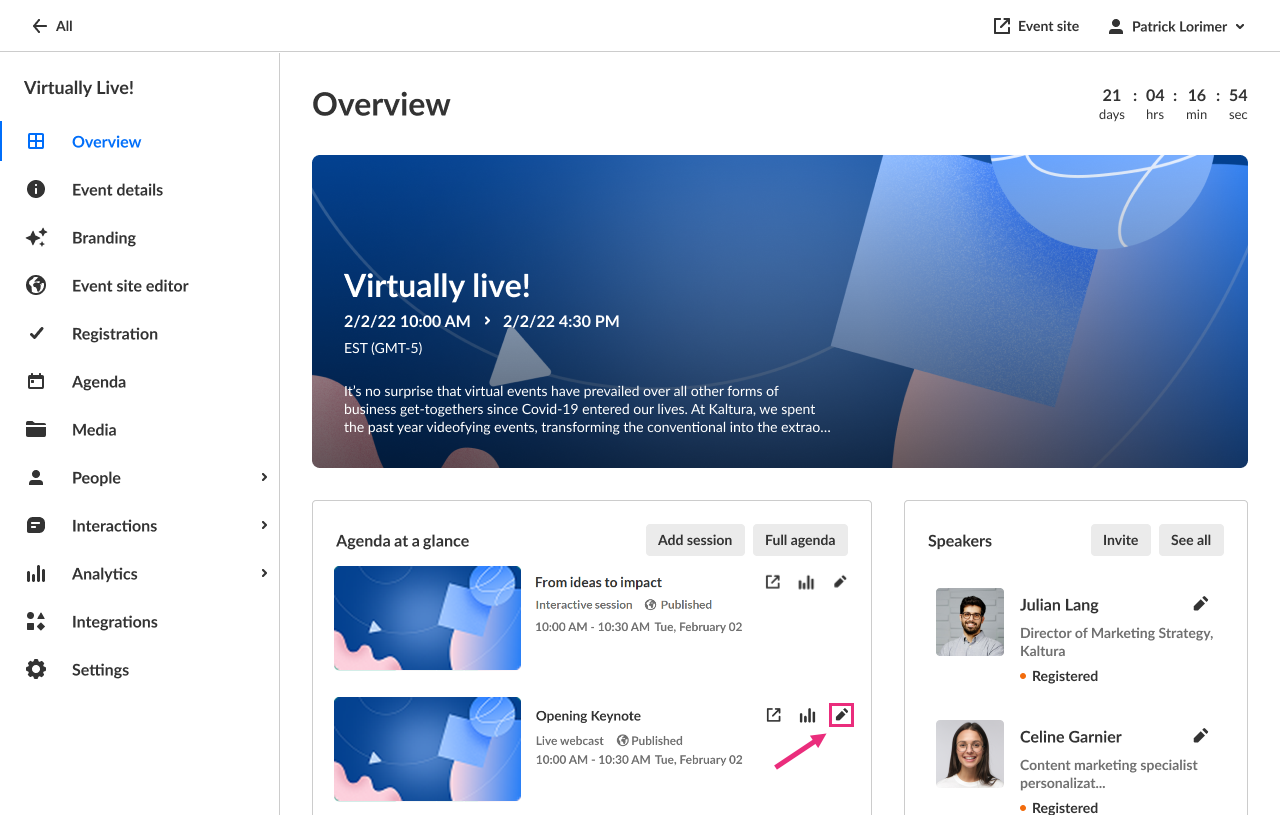
- On the Overview page, in the Agenda at a glance section, click the pencil icon next to the session.
- On the Agenda page, click the three-dot actions meu to the right of the session and choose Edit.
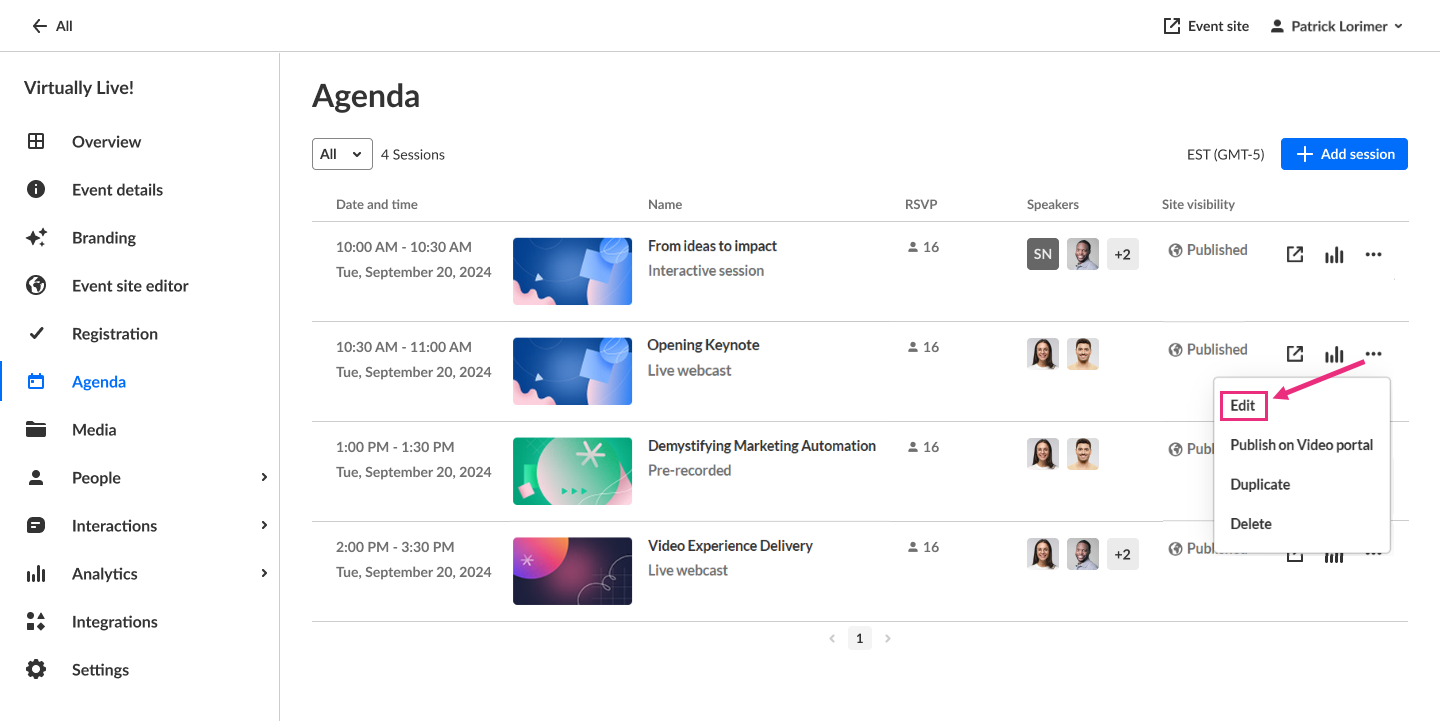
The session settings open in a side panel with the Basics tab selected by default.
Click Attachments.

Upload attachments
- Click Upload.
- Select one or more files from your computer.

The upload progress displays.
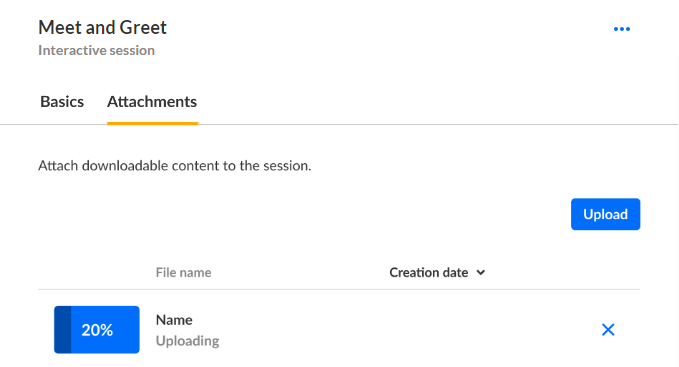
When the upload is complete, a confirmation message appears.
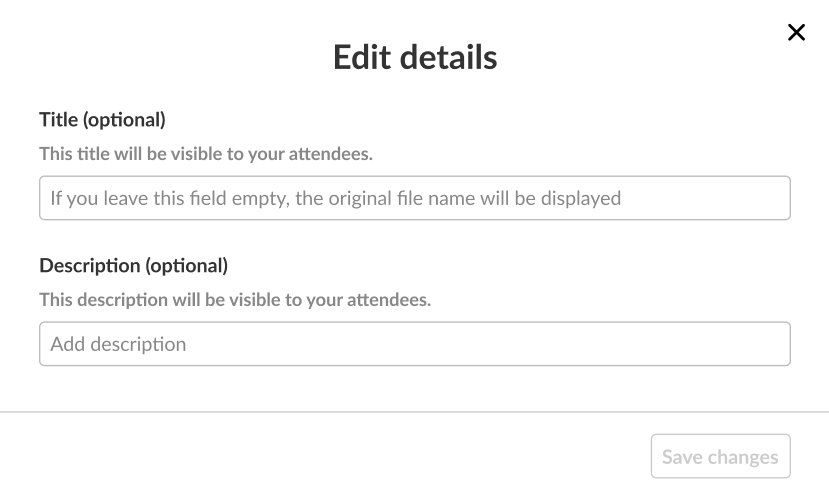
Edit attachment details
- Click the three-dot action menu next to the file and choose Edit.
- Type the title and description (optional). The title helps attendees understand the file, and the description adds context.
- Click Save changes.
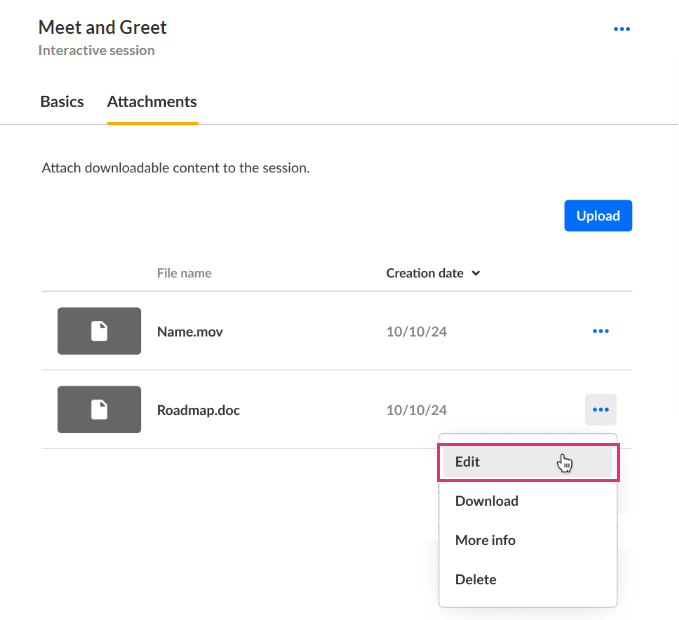
The Edit details screen displays.
Download an attachment
On the Attachments tab, click the three-dot action menu next to the file and select Download.
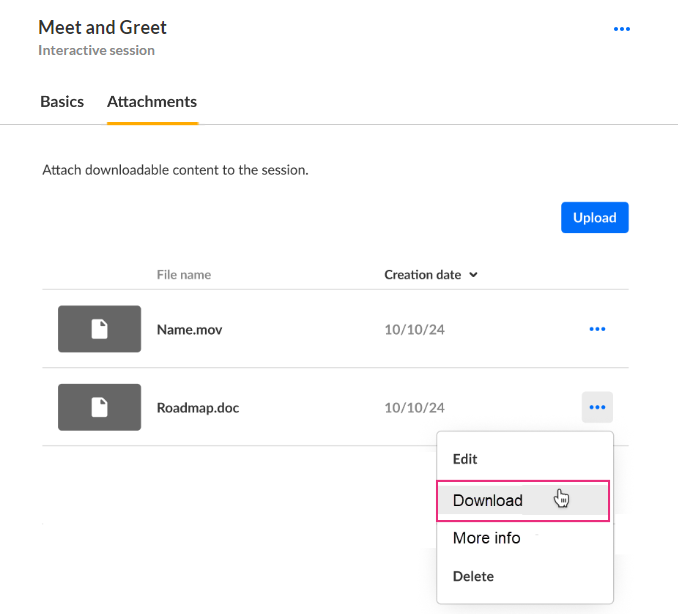
The attachment downloads to your device.
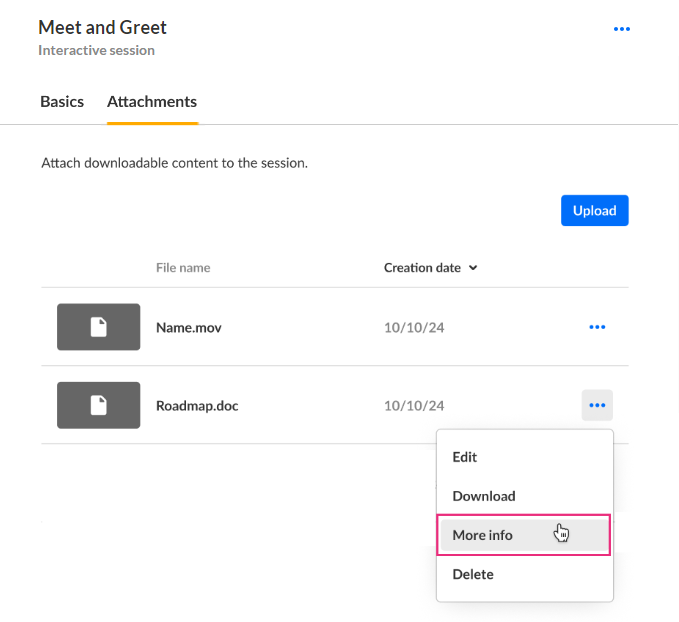
View attachment information
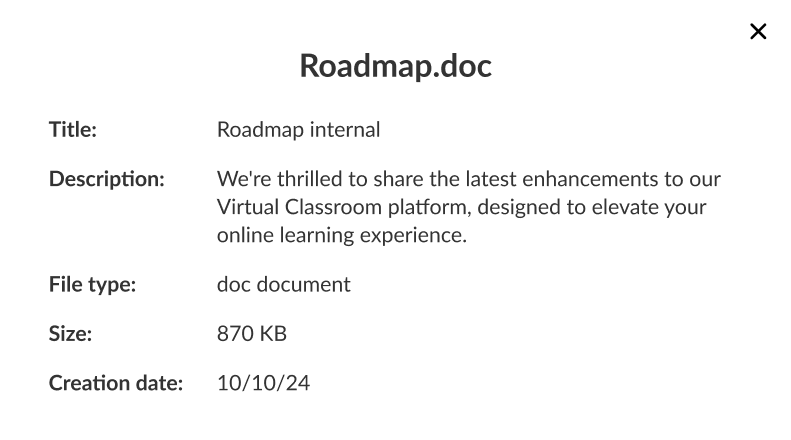
- Click the three-dot action menu next to the file and select More info.
- Click X to close.
Addition information displays about the attachment.
Delete an attachment
- Click the three-dot action menu next to the file and select Delete.
- Click Delete to continue.
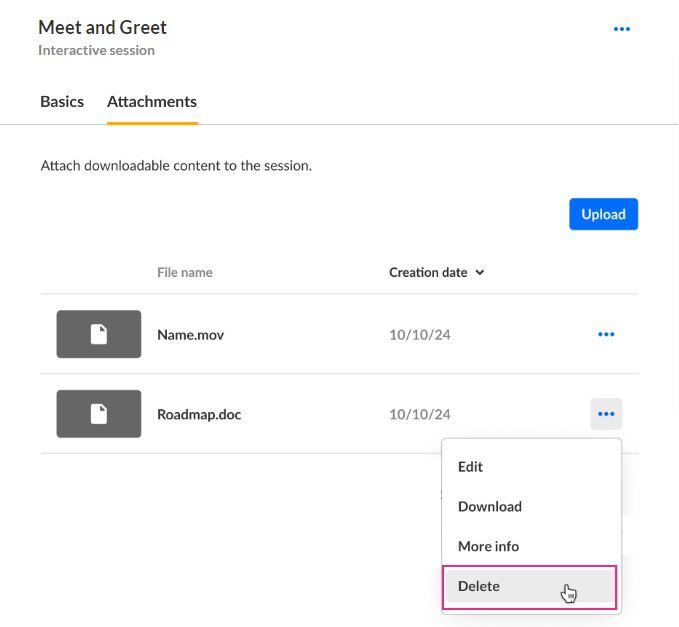
A confirmation message appears.
