About
The Genieai module lets administrators enable and configure Conversational Agents (formerly known as 'Genie'), Kaltura’s AI-powered knowledge assistant.
By default, this module enables GenieEverywhere, which makes the conversational agent available from every page through an Ask Anything button or a side panel. The agent uses the current page (for example, a channel, gallery, or media page) as context when it answers questions, and it respects user permissions.
The agent uses your site’s root category as its knowledge base. After you create the agent, you can see which category it uses in the Knowledge Source area at the top of the module page.
If your site’s root category changes, the agent is no longer connected to its knowledge base. Contact your Kaltura representative to reconnect the agent to the correct category.
Configure
1. Go to your Configuration Management console, locate the Genieai module in the left panel, then select it. You can also navigate directly using a link: https://{your_site_url}/admin/config/tab/genieai
The Genieai page displays.

2. Configure the following:
- enabled - Set to Yes to enable the module.
- allowedRole - Select which user roles can access the conversational agent. Choose from the following options:
- Guest role
- Unconfirmed viewer role
- Viewer role
- Private only role
- Admin role
- Unmoderated admin role
- Specific users / groups
If you select Guest role, the
allowAnonymousfield in the Auth module must be set to Yes. If it isn’t, access falls back to theunconfirmedViewerRole.If you select Specific users / groups, another field displays.

Click +Add "allowedUsers" at the lower right. In the new field that opens, click Select users / groups.

In the window that opens, enter the user ID or name, then click Submit.

- GenieEverywhere - This setting is set to Yes by default. In this mode, a conversational agent is available from every page through the Ask Anything button or a side panel. It uses the current page (for example, a channel, gallery, or media page) as context when it answers questions. The legacy per-page settings below are hidden.
- GlobalSiteGenie - Set to On to add a conversational agent page for the whole site. This standalone page returns answers based on the site’s published content, according to user entitlements (available for Content Hubs and the legacy Video Portal only). The page is available at
https://{your_site_url}/genieto all users with access. - GenieOnCategory - Select where and how the conversational agent is available on contextual pages, such as channels, galleries, and media galleries. Choose from the following options:
- Off – Disables conversational agents for all channels and galleries.
- Available to all (On by default) – Enables conversational agents by default for all channels and galleries.
- Available to all (Off by default) – Makes conversational agents available but turned off by default. Channel and gallery owners can turn them on.
- Available for specific categories – Enables conversational agents by default only for the channels or galleries you choose. This option works well for a gradual rollout or for testing.
If you select Available for specific categories, a field opens. Enter the category IDs, separated by commas.

On channels and galleries where a conversational agent is available, owners can turn it on or off from their edit page, on the Genie tab.
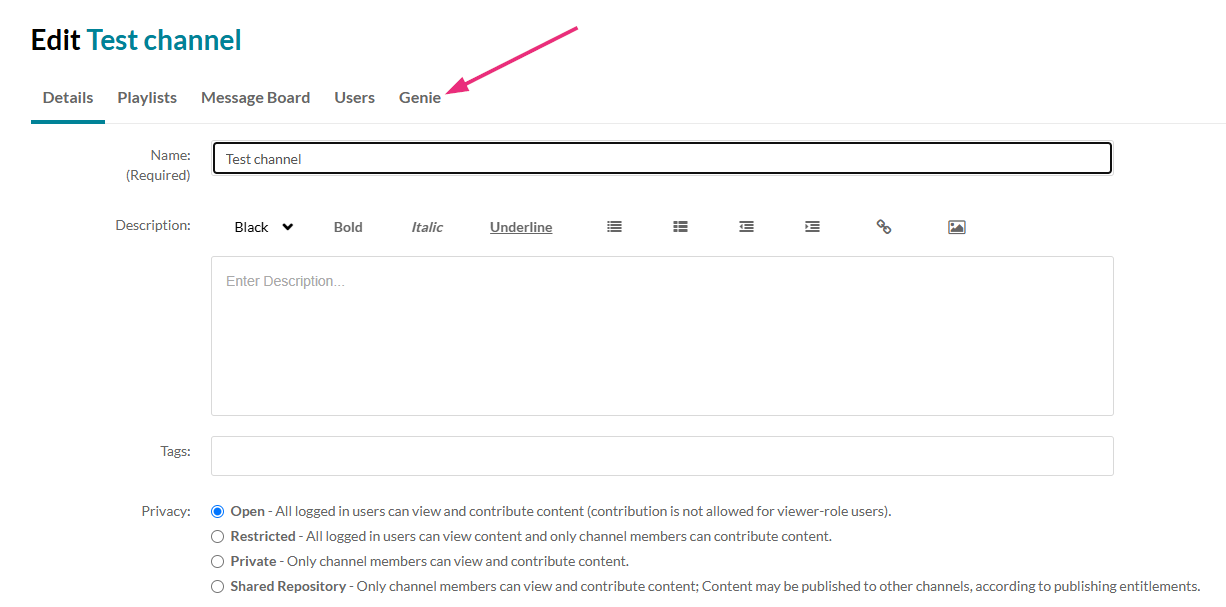 Channel edit page showing Genie tab
For more information, see Add Genie to specific channels and Add Genie to specific galleries.
In LMS sites, if course owners select Display embedded media in this media gallery in their gallery settings, the conversational agent also includes related subcategories in its results. For more information, see Add Genie to a specific media gallery.
- GenieOnEntry - Set to On to show the conversational agent on individual videos. Users you’ve given access in the
allowedRolefield see it on every video they can watch, including private and unlisted videos. This also requires the Genie plugin to be enabled on your site’s main player in Player Studio. - langAgents - Use a dedicated agent for each language. Click +Add "langAgents", then configure the following:
- agentLangId - Select the language. The language must be enabled in the Languages module.
- langAgentId - Enter the ID of the agent to use for that language.
Languages without a dedicated agent use the default agent. To find or create agents, contact your Kaltura representative.
GenieEverywhere isn’t available on LMS sites.
Set to No to choose where the conversational agent appears on your site. The following fields become available:

3. Click Save.
Create and customize the agent
After you enable the module, you can create your site’s agent and customize it in Agentic Avatar Studio, which opens inside the Configuration Management console.
The Open studio button appears only on sites where the conversational agent hasn’t been set up before. If your site already used Genie, contact your Kaltura representative to move to the new setup.
1. On the Genieai page, click Open studio.

Agentic Avatar Studio opens on the Overview tab.

The first time you open it, the agent is created and starts indexing your site’s content. Indexing can take an hour or longer, depending on how much media your site has.
2. Customize the agent using the tabs at the top of the page: Overview, Knowledge, Playbook, Experience, Analytics, and Advanced.
On the Overview tab, you can edit the agent’s name, Role, and Targeting, and see its activity from the last week. To test the agent, use the preview on the right. Click Start conversation to talk to the avatar, or enter a question in the Ask me anything box.
3. Click Back to return to the Genieai page.
If Open studio is grayed out, the message To enable this feature, please contact your Kaltura representative. appears below it. Contact your Kaltura representative to complete your account setup.
