About
The v7 player includes a set of controls to help you watch and navigate videos. It is designed to meet accessibility standards and provide a consistent viewing experience.
The features available in the player may vary depending on how it is configured by your administrator.
Bottom control bar
The bottom control bar appears when you move your mouse over the player.
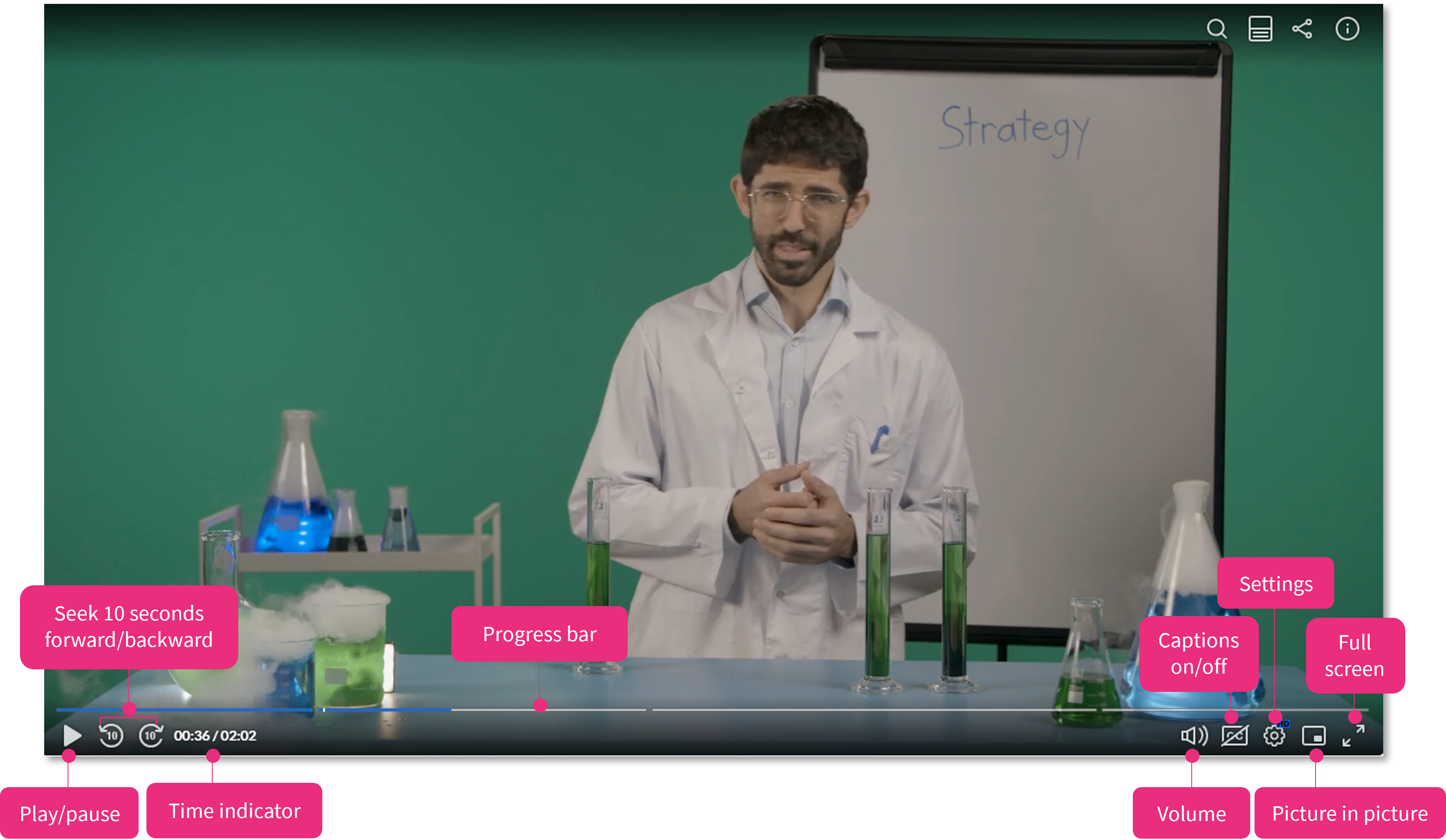
Progress bar
The progress bar (also called the scrubber) lets you move to any point in the video.
- Click anywhere on the bar to jump to that point
- Hover over the bar to see a preview thumbnail and timestamp (web only)
Bottom left controls
The controls on the left help you manage playback:
- The play/pause button pauses or plays the recording. You can also click on the video and it will pause or play the recording. When the recording is over the Reply button will appear instead of the play/pause button.
- The seek backward button rewinds the video for 10 seconds and replays it. This is helpful if you miss a small phrase or word and need it to be repeated.
- The seek forward button progresses the video for 10 seconds and replays it. This is helpful if you want to skip a small part of the video.
- The time indicator displays the current time and the duration of the video. [Time Display format=current/total]
Bottom right controls
The controls on the right let you adjust your viewing experience:
- The volume control allows you to control the player's volume using mute/unmute button and a volume slider.
Captions (CC) – Turn captions on or off
- The settings icon opens a menu with additional playback and accessibility options:
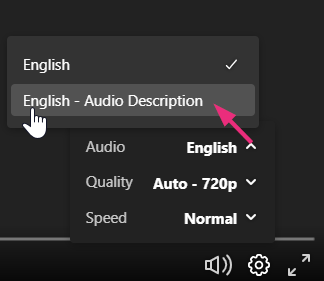
- Audio – If your video includes an audio description track, you can access it from the audio menu.
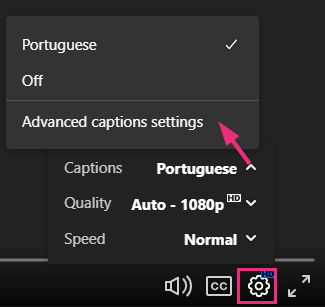
- Captions – Click the arrow next to 'Captions' to open the Advanced Captions settings (CVAA). For information about styling captions, see Customize how captions look in the player.
- Quality – Choose a playback resolution from the Quality menu.
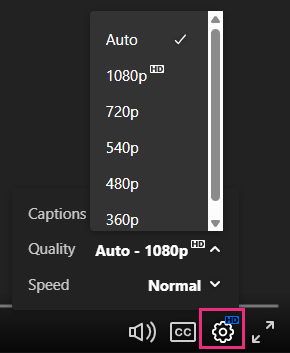
In Safari, the Quality option may be missing because Safari uses adaptive bitrate streaming (HLS). Admins can enable manual resolution selection by adding the 'preferNative' setting in the player’s Advanced Settings
- Speed – Select the playback speed that works best for you.
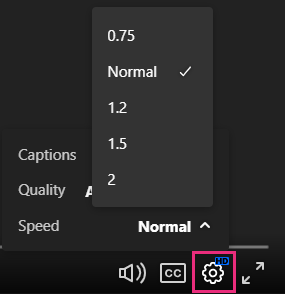
- Picture-in-picture – Pop the video out into a floating window so you can keep watching while working in other tabs or apps
- The fullscreen control allows you to watch videos that take up your entire screen.
Top controls
The top right of the player includes additional controls for navigation and interaction.

These may include:
- The navigation displayed as a magnifying glass on your screen indicates that the video has been enriched with metadata to help you navigate and discover the content in addition to the video itself.
- The transcript widget displays the captions file in a transcription window alongside or underneath the player, and allows searching and jumping to specific times when a word was spoken.
- The Share button allows sharing content via different options, such as via URL, Email, embed code, and social media.
- The info icon provides information about the video. For example the video’s Name, Description, and Creation Date.
- A three-dot menu will reveal a drop-down with the additional plugins if they are available on your player.
