About
The Kaltura player lets you customize how captions look using the Advanced captions settings option. This option appears in the player whenever captions are available.
- To learn about ordering captions, read our Captioning & enrichment services articles.
- To learn how to set the captions default display on the player, see Set captions to display by default in the ayer.
Choose a caption style
To choose a pre-set caption style:
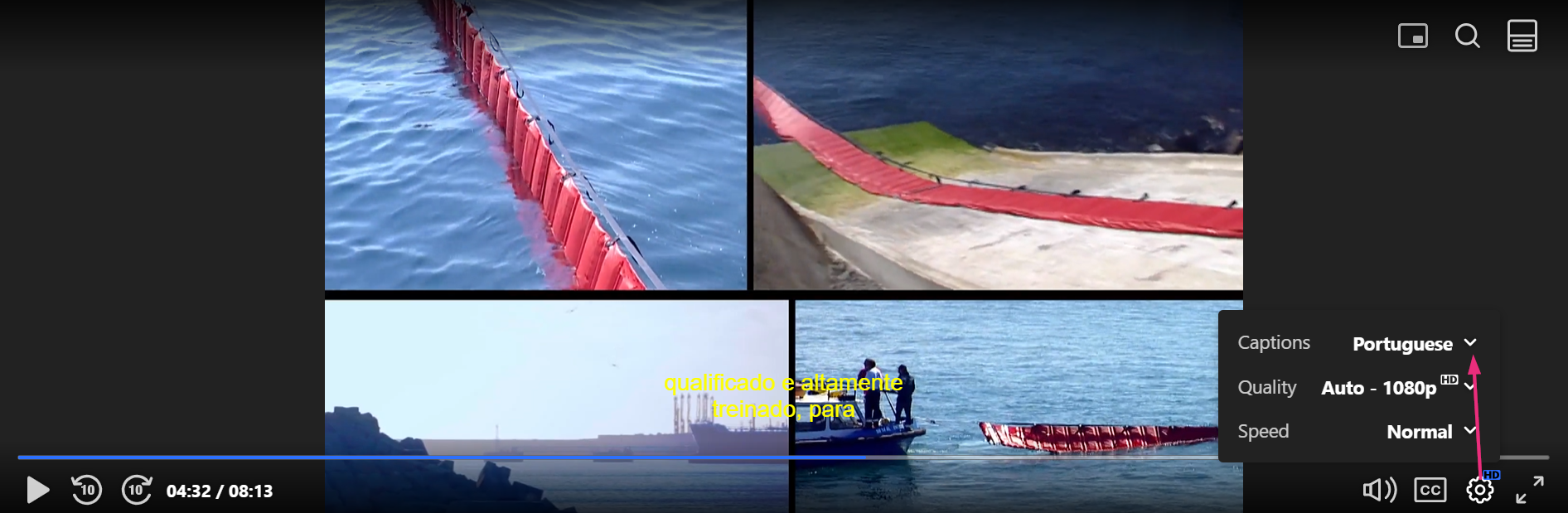
- Click the gear icon at the bottom right of the player to open the settings menu.
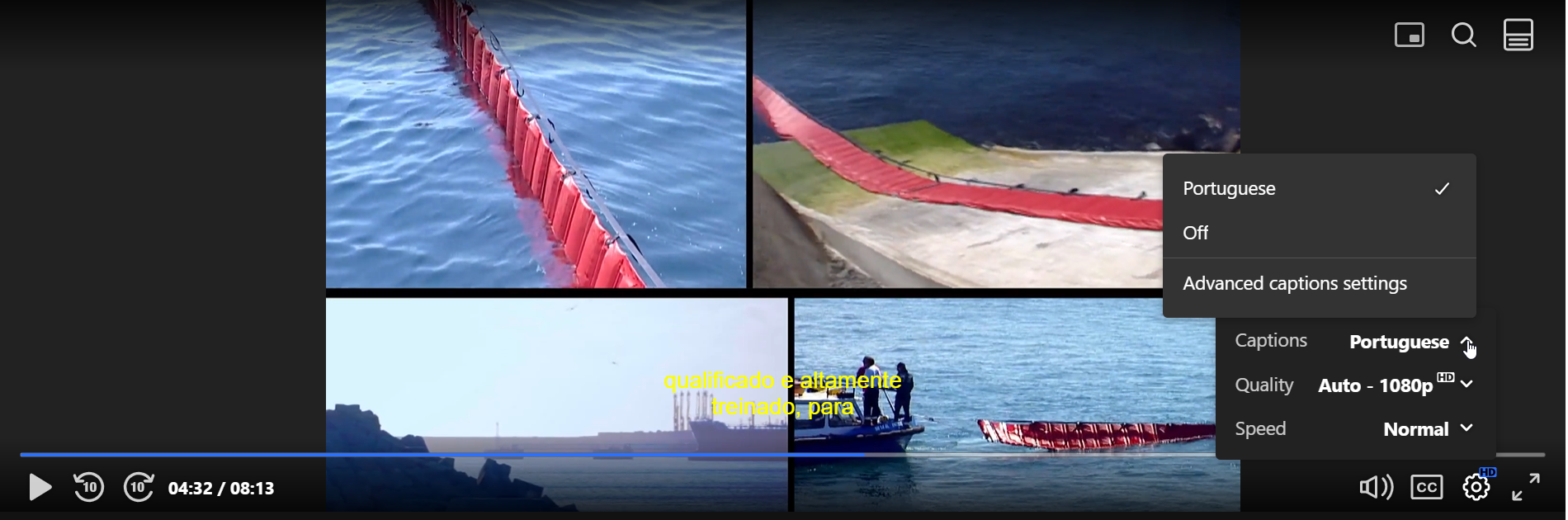
- Click the arrow next to the captions label to open the advanced captions settings option.
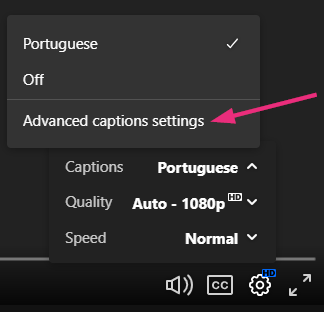
- Click Advanced captions settings.
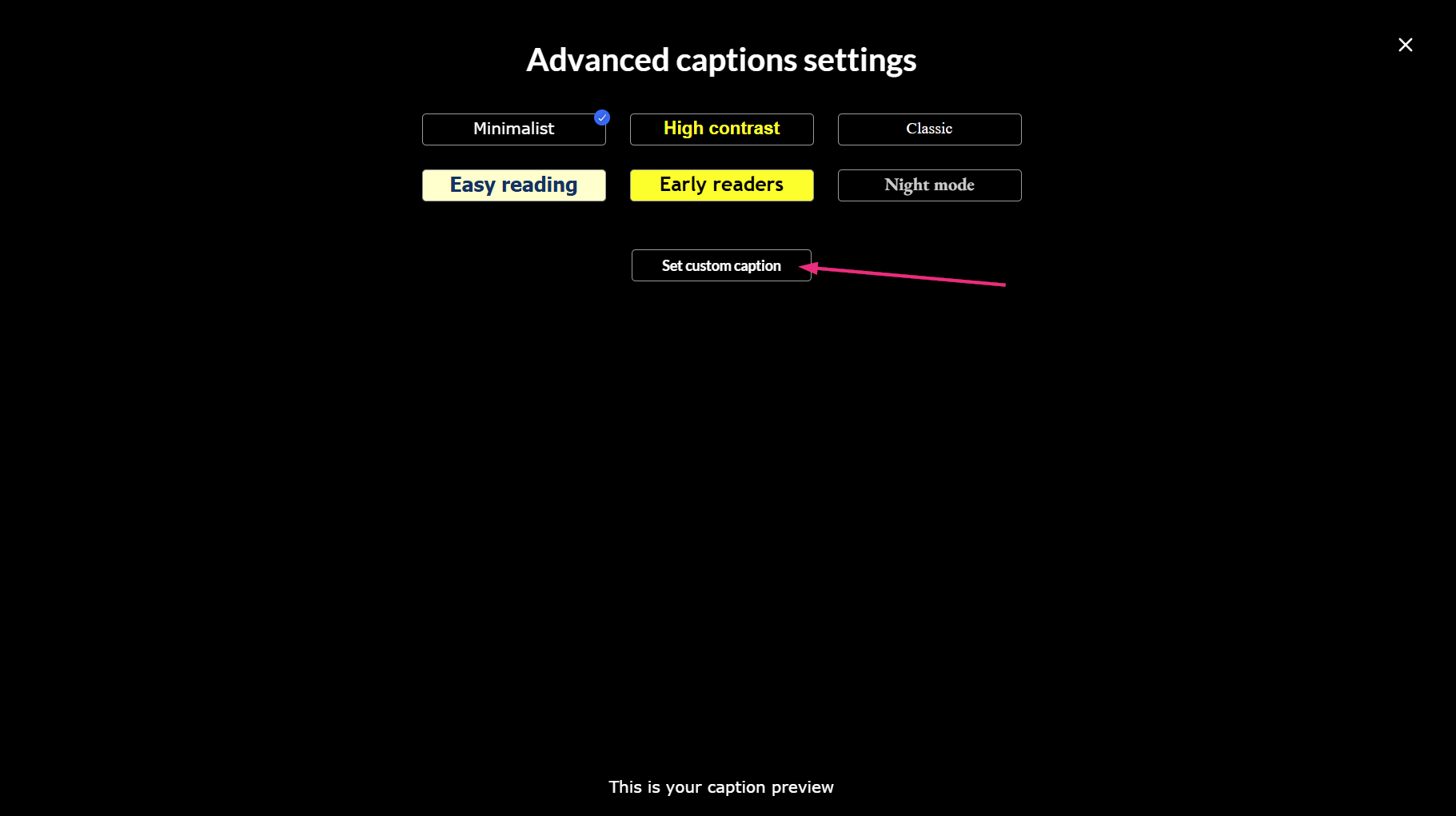
- Choose one of the pre-set caption styles:
This opens the Communications and Video Accessibility Act (CVAA) screen.
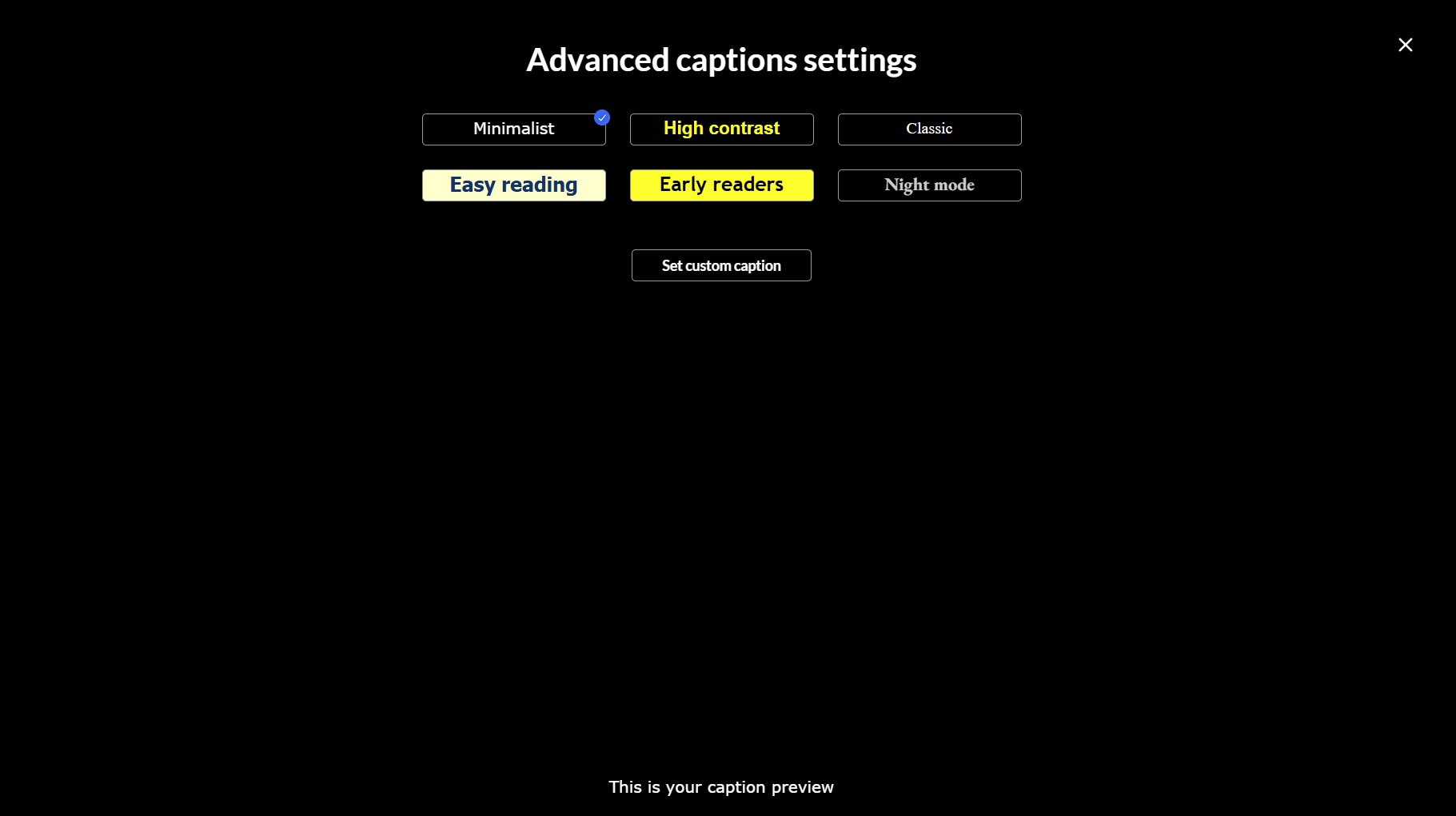
- Minimalist: (default) for a subtle look
- High contrast (accessibility enhanced): for viewers with low vision or contrast sensitivity
- Classic: for a traditional caption format
- Easy reading: for easier reading, with clear letter shapes
- Early readers: for young viewers and early readers
- Night mode: for dark viewing environments
When you select a style, a check mark appears on that button and a preview displays on the CVAA screen.
For information on pre-set options, see the table below.
Customize captions
You can create your own caption style using the Set custom caption option.
- On the CVAA screen, click Set custom caption.
- Choose from the customization options.
If you’ve already selected a pre-set style, the window opens with that style’s settings. If no custom style is saved, the window loads the Minimalist pre-set as the starting point.
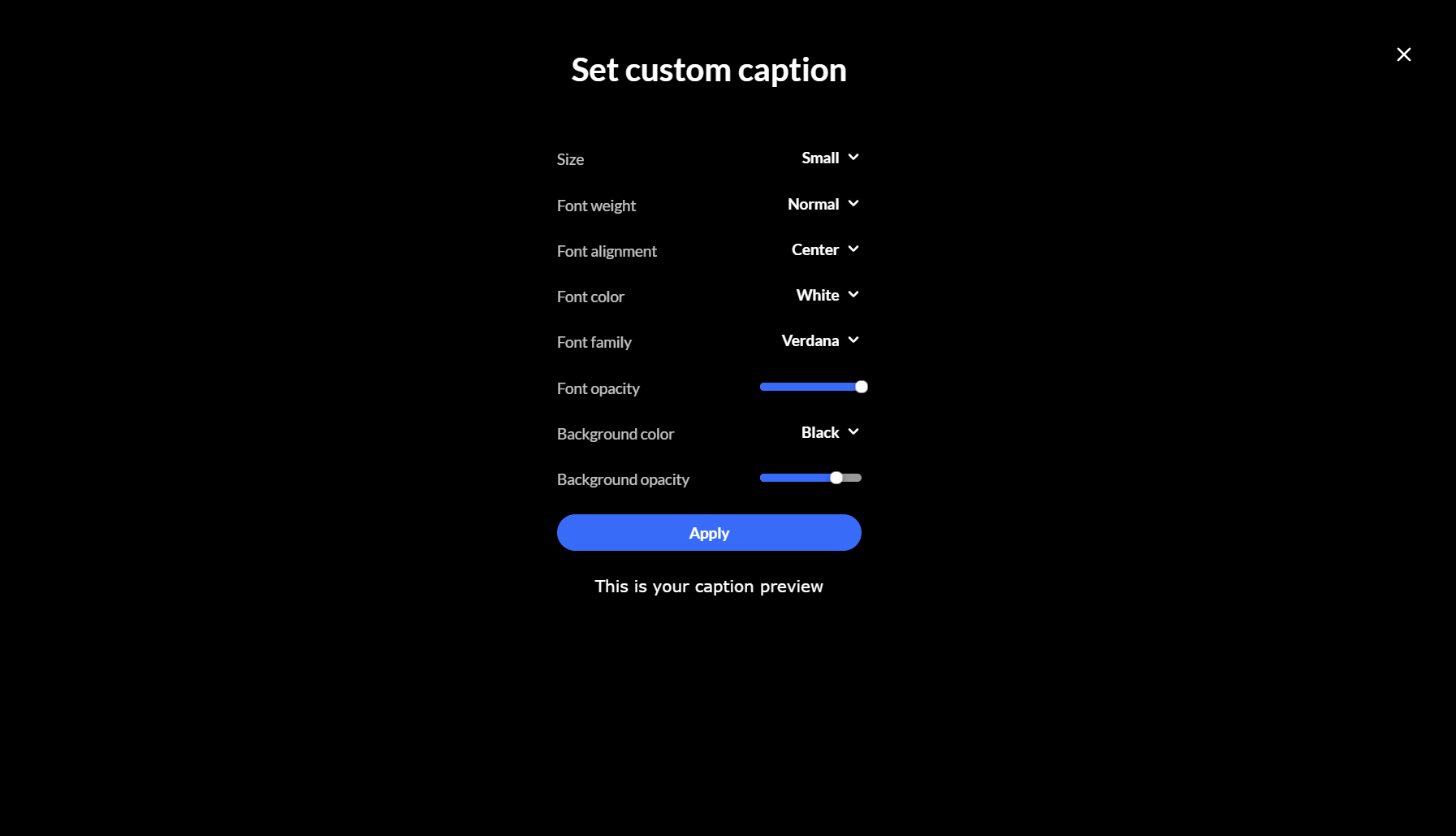
After selecting your options, a preview appears just below the settings list, showing how your captions will look in the example sentence.
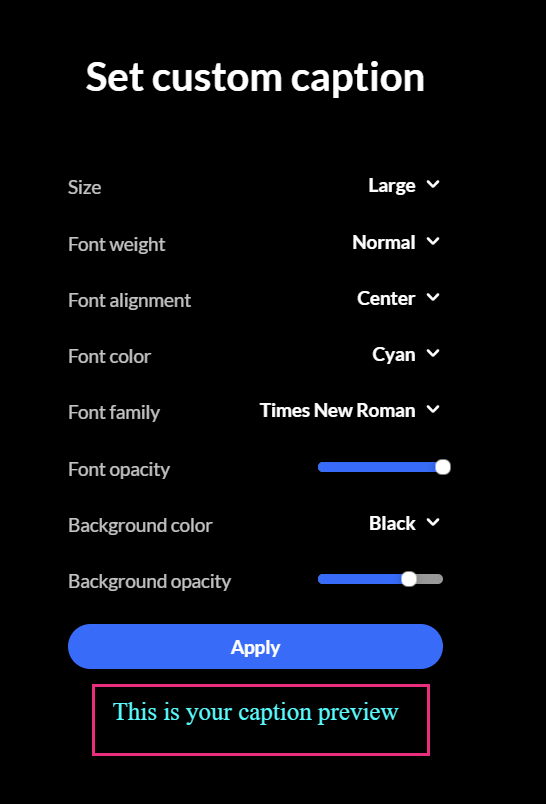
3. Click Apply to save your settings and return to the 'Advanced captions settings' screen.
- Size: choose from Small (16), Medium (18), or Large (20)
- Font weight: Light (300), Normal (400), Semibold (600), Bold (700)
- Font alignment: left, center, or right
- Font color: choose the color for the caption text
- Font family: Arial, Helvetica, Verdana, sans-serif, Times New Roman, Tahoma, Trebuchet MS, EB Garamond
- Font opacity: control how transparent the caption text appears (100% = solid, lower values make the text more see-through)
- Background color: Choose a background color for the caption text box.
- Background opacity: Control the transparency of the background (100% = solid, lower values make the background see-through).
- Custom styles are saved as the 'Custom' option and stored in your browser’s local storage. When a custom style is saved, a Custom button appears in the list of caption styles.
- When using Safari in full-screen playback, the browser may switch to native video controls. In this case, caption styling configured in the player isn’t applied.
- If custom styles do not render correctly in Safari after being enabled, administrators can configure the V7 player to render captions instead of the browser. See Advanced player setting: Control how captions are rendered for details.
Preset details
| Setting | Minimalist
|
High contrast | Classic | Easy reading | Early readers | Night mode |
|---|---|---|---|---|---|---|
| Size | Medium | Medium | Small | Large | Large | Medium |
| Font weight | 400
|
700 | 400 | 700 | 700 | 700 |
| Alignment | Center
|
Center | Center | Left | Center | Center |
| Font color | White (#FFFFFF)
|
Yellow (#FFFF00) | White (#FFFFFF) | Dark Blue (#003366) | Black
(#000000) |
Light Gray
(#CCCCCC) or Cyan |
| Font family | Sans Serif | Arial | Times New Roman | Tahoma | Trebuchet MS | EB Garamond |
| Font opacity | 100%
|
100% | 100% | 100% | 100% | 100% |
| Background color | Black (#000000)
|
Black (#000000) | Black
(#000000) |
Light Yellow (#FFFFCC) | Bright Yellow (#FFFF00) | Black
(#000000) |
| Background opacity | 100%
|
100% | 100% | 100% | 100% | 75% |
Keyboard and accessibility
- Use Tab and Shift+Tab to move between controls.
- Use arrow keys to navigate options within lists.
- The player uses ARIA labels to announce style descriptions to screen readers.
