About
Use this option to redirect v2 player embeds on external websites to a v7 player. When someone opens a page with one of these embeds, the browser requests the v2 player URL and the server redirects the request to the v7 player URL.
This lets you update many embeds without editing each one. You can test the redirect before applying it.
When to use this option
- You need to update many v2 player embeds across external websites or platforms.
- You want to redirect existing embeds to a v7 player without editing each embed.
Important to know
- You may still need to replace some embeds manually. Specific plugins or custom configurations might not be supported by the redirect.
- Kaltura recommends using the application-level player replacement option when possible. For more information, see Upgrade v2 players to v7 in your Kaltura application.
- The redirect applies only to players that are still configured as v2. It doesn't apply to players that you already upgraded to v7 using another method.
Test the redirect before applying it
Some v2 players might not transition smoothly and could need manual changes.
Kaltura provides a Chrome extension that simulates the redirect in preview mode. Use it to check how the v7 player looks and works, including support for custom API calls and plugins, before enabling the redirect for all users.
For instructions, see Test with the preview extension.
Before you start
- Create one or more v7 players to redirect your v2 players to. You can redirect multiple v2 players to one v7 player. For instructions, see Create a player.
- Install the Kaltura v2 to v7 preview extension to test the redirect before applying it.
Watch this video for an overview of the v2 to v7 player transition tool.
Access the tool
- Log in to Rich Media CMS.
- Click the Studio tab.
- Click the v2 to v7 transition tool tab.

The Player Studio page displays.


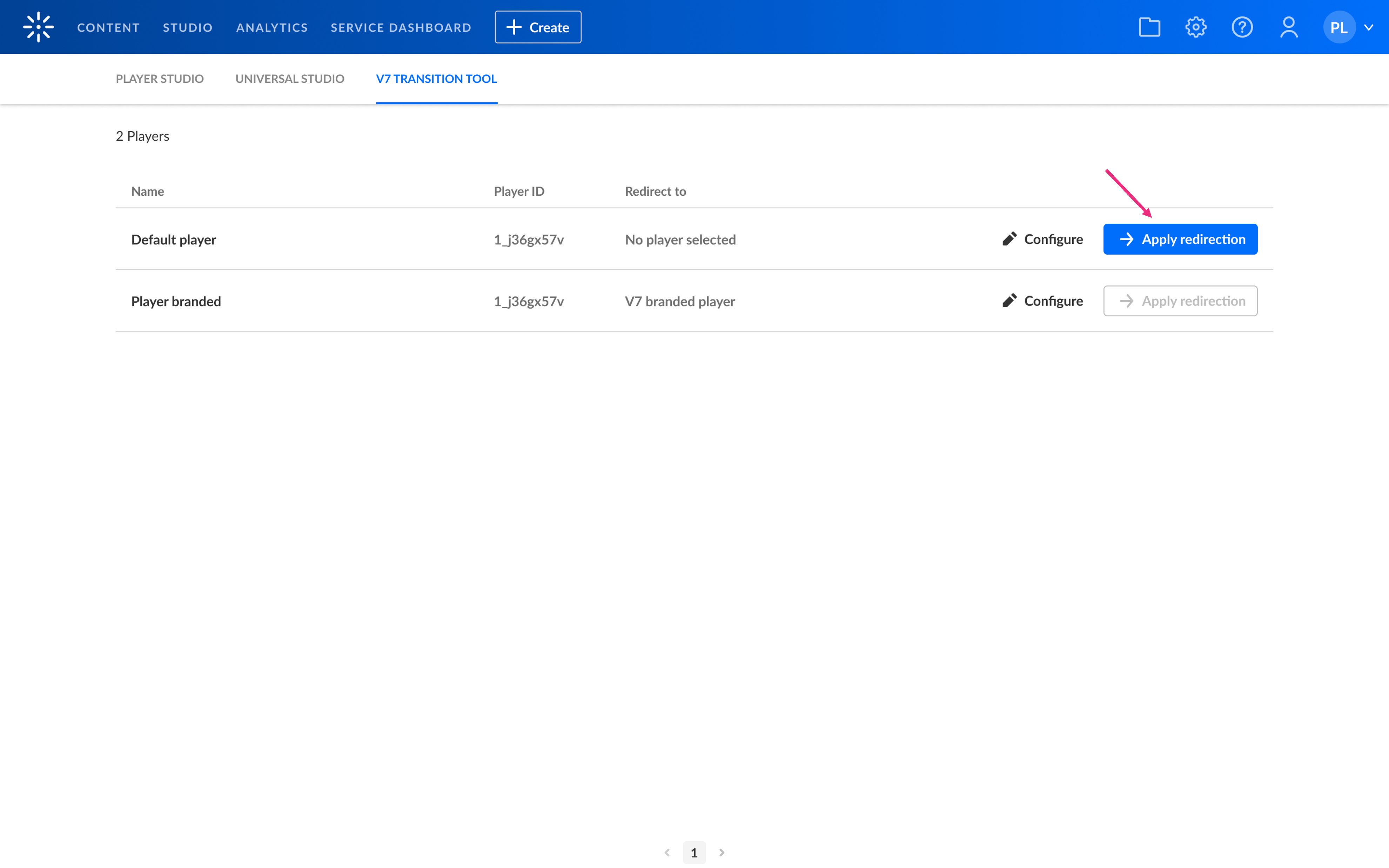
The v2 to v7 transition tool page displays.

On the left, the page lists the v2 players configured for the account and their IDs.
Configure redirection
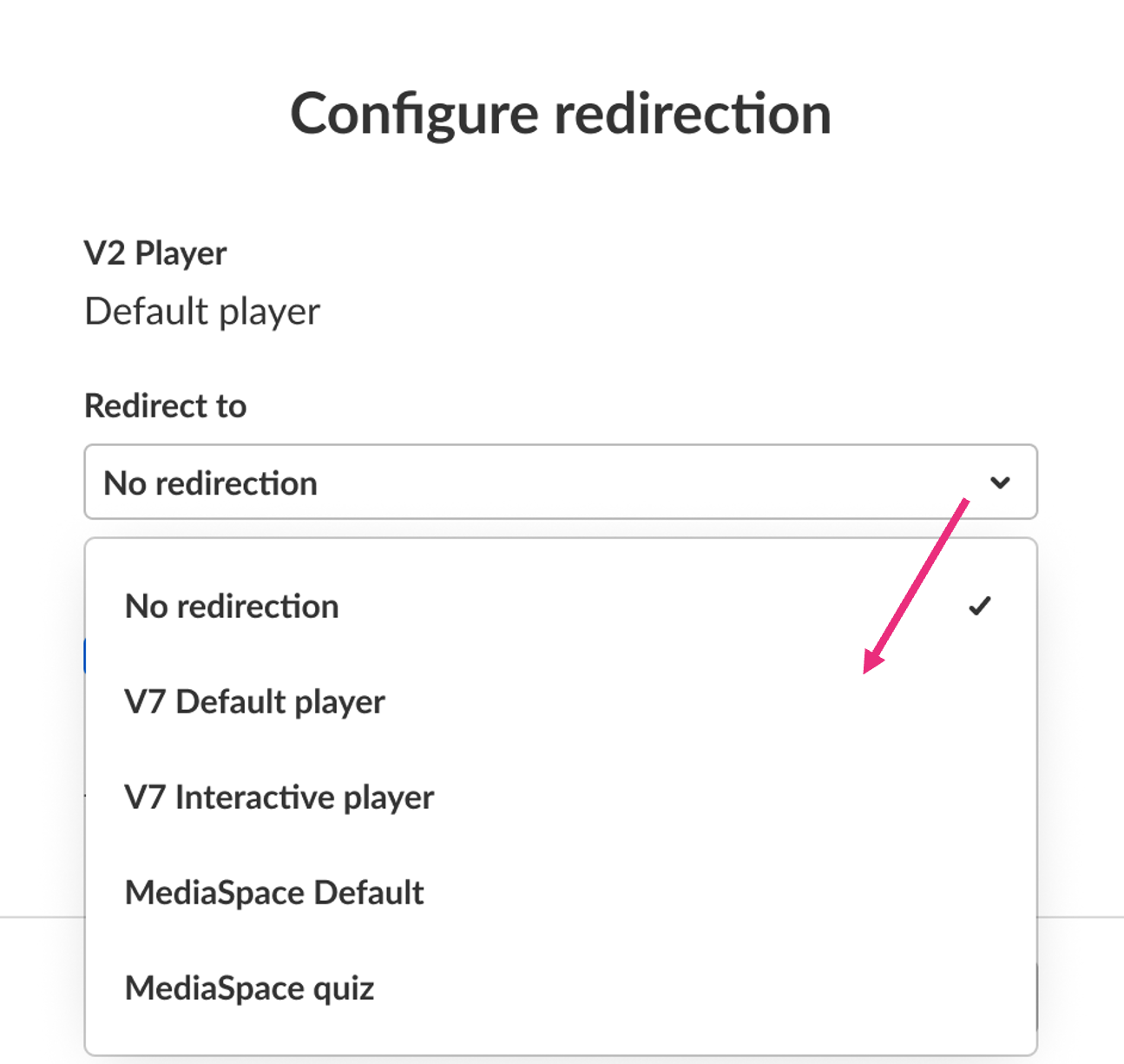
- Click Configure next to the v2 player you want to redirect.
- Select the corresponding v7 player from the Redirect to dropdown list.
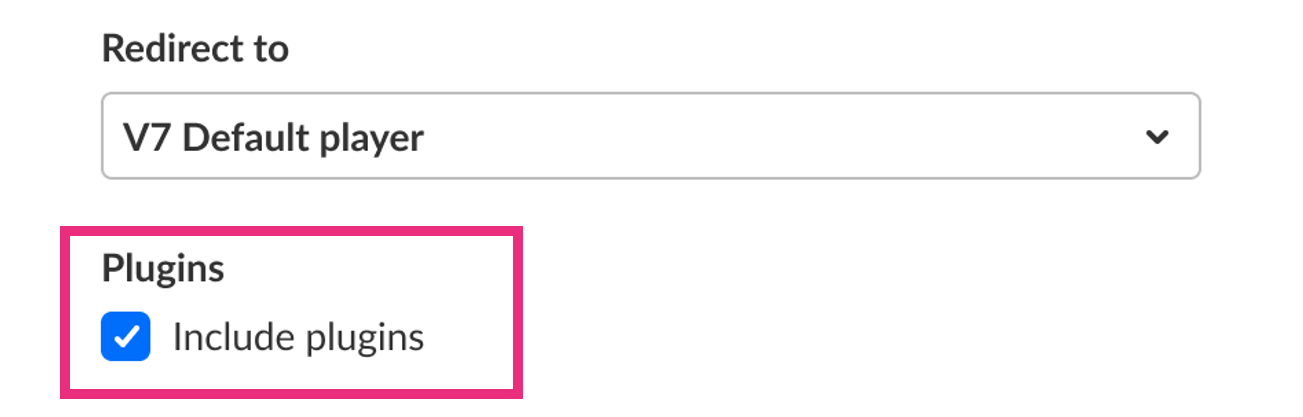
- To transfer supported plugins, select the Include plugins checkbox.
- Click Save.

The Configure redirection window opens.

The Include plugins option works only with iframe embeds.
When you select Include plugins, the tool attempts to translate v2 plugins in the iframe embed code to their v7 equivalents. For a list of supported plugins, see Supported plugins.
If the tool can't match a plugin, it reverts to the v2 player. To avoid this, configure the plugins in your v7 player manually and leave Include plugins unselected.
If you haven't installed the preview extension, click Download here to get it. The extension lets you preview how the v7 player will replace the v2 player on your pages without affecting live content.


A confirmation message displays: The configuration was successfully updated.
If you haven't installed the preview extension, the confirmation window includes a link to download it.

5. Click Got it to continue.

Test with the preview extension
After you configure the v7 player redirect, use the Kaltura v2 to v7 preview extension to test it. Preview your pages to check the player, plugins, and custom API calls before applying the redirect.
The Chrome extension doesn't require additional setup:
- Turn on the extension.
- Preview v2 embeds that are configured with a matching v7 player.
- Turn off the extension when you're done testing.
After you confirm that everything works as expected, apply the redirect. If an embedded player doesn't work properly, replace the embed manually.
Apply and manage redirection
- After testing the redirect, click Apply redirection for the player.
An Apply redirection confirmation window displays this message: Redirect [v2 player name] to [v7 player name]. This action will redirect all users of [v2 player name].

- Click Apply redirection to continue.
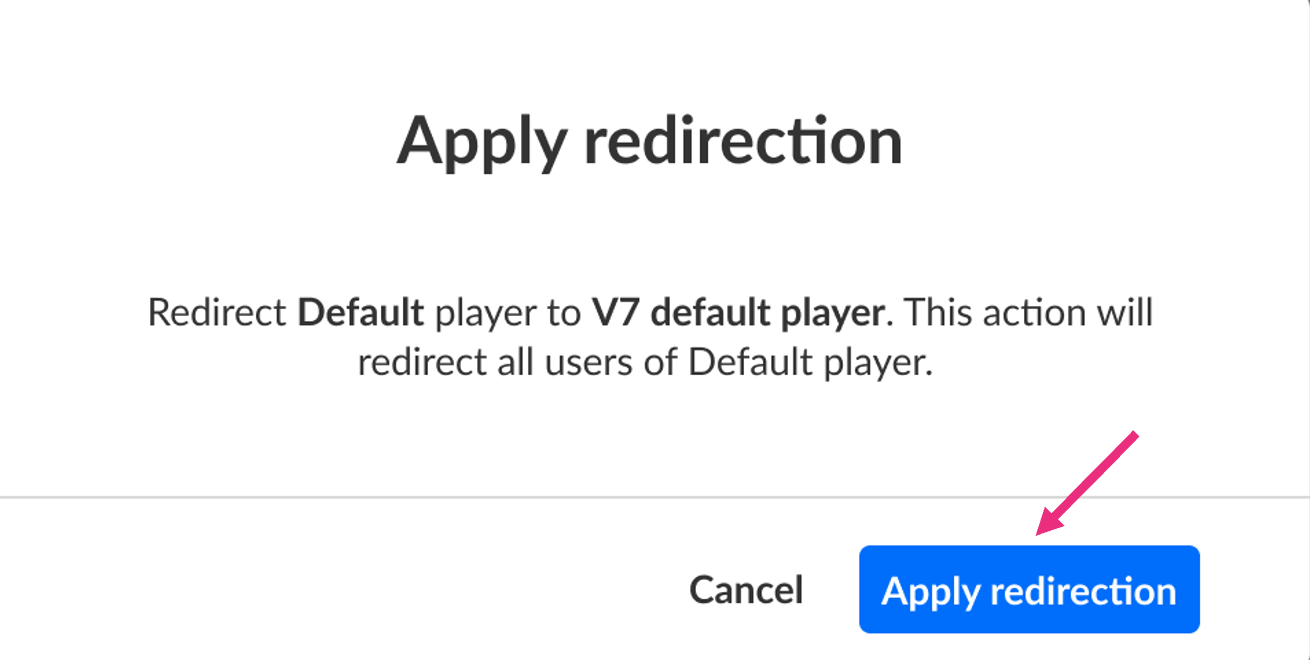
This activates the redirect for all embeds that use the selected v2 player.
Changes can take up to 10 minutes to appear because of player caching at the CDN level.
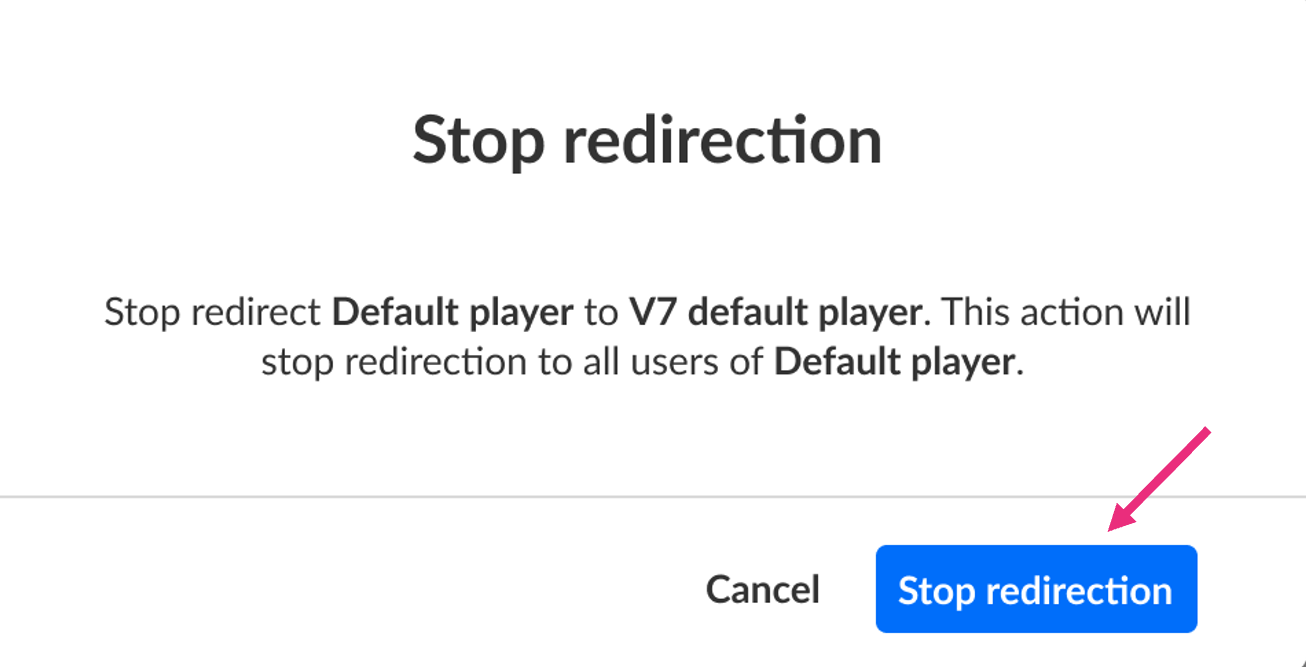
To stop the redirect, click Stop redirection.

A confirmation window displays.

- Click Stop redirection to confirm.
A confirmation message displays: The configuration was successfully updated.

- Click Got it to continue.
The redirect is suspended for all users.
Supported plugins
The tool can automatically translate some plugins to their v7 equivalents:
playkitscreenquizmoderationplaylistAPIliveStatusrelatedbumperdualScreenvideo360raptMedia(Kaltura Interactive Video Paths)transcript- Q&A
infoscreen
Things to keep in mind
- Flash vars are applied when supported.
- The tool translates v2 API calls to v7 equivalents when possible. Test custom API calls in preview mode.
- Some configurations or embed parameters can prevent the redirect from working. Test your setup before applying the redirect.
- The redirect also affects v2 embeds in third-party LMS and CMS environments. To manage those upgrades separately, see Upgrade v2 players to v7 in LMS embeds.
Kaltura welcomes feedback about the redirect process and prioritizes updates based on customer requests.
