About
Captions provide a text version of spoken dialogue in a video. They appear in the same language as the video and help make content accessible for viewers who are deaf or hard of hearing, or for those who prefer watching without sound.
Media must be at least 10 seconds long for caption processing.
Captions are not translations. If you need captions in a different language, use the translation service. For more information, see our article Order translations.
If Content Lab is available on your account, you can also order REACH services through Content Lab. See Accessibility and localization.
Captioning options
Kaltura provides two options for captioning:
Professional: Uses human transcribers to provide full-service captioning with 99% accuracy, meeting Closed Captions laws and media standards. Ideal for public-facing content like marketing, learning, and training videos.
Machine (ASR): Achieves an average accuracy of 85%. It enables searchable video content, transcript editing, and resubmission for alignment. The engine improves over time and supports custom vocabularies for enhanced accuracy, along with dictionary use.
Want captions to be ordered automatically? Check out our article Create captioning & enrichment rules in Rich Media CMS.
Access the Caption & enrich service
Via My Media
- Go to your My Media.
- Select the checkbox next to one or more videos.
- Click the Actions menu at the top right of the page and select Caption & Enrich.

Via the media page
- Open the media page of a video.
- From the Actions menu, select Caption & Enrich.

Order captions
After selecting Captions & Enrich from the menu, the Order Captions & Enrichment Services screen displays.
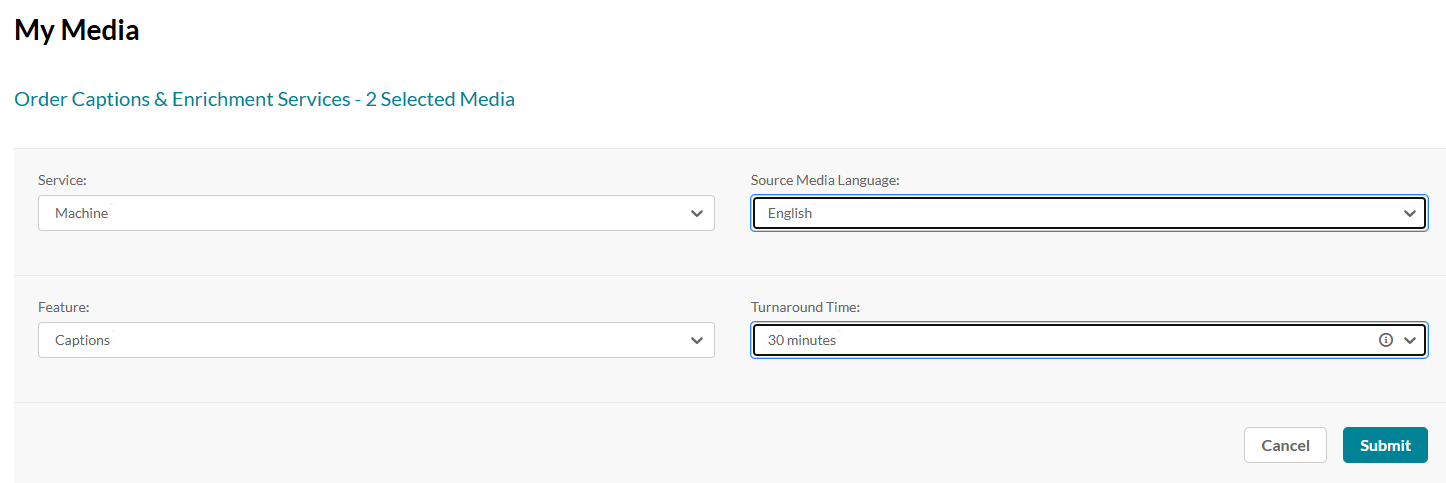
Machine captions
- Complete the following fields:
- Service - Select 'Machine'.
- Source Media Language - Select the source language of the video. The available options depend on your REACH plan. (If available on your plan, you may also see an Auto-detect option. This uses AI to automatically identify the video’s spoken language and generate captions.)
- Please note that captions must be ordered in the same language as the video's source language. For example, if the video is in English, you can only order English captions.
- Captions are not the same as translations. For details on ordering translations, see our article Order translations.
- Feature - Select 'Captions'.
- Turnaround Time - Select an option. The options available are dependent on your REACH plan.
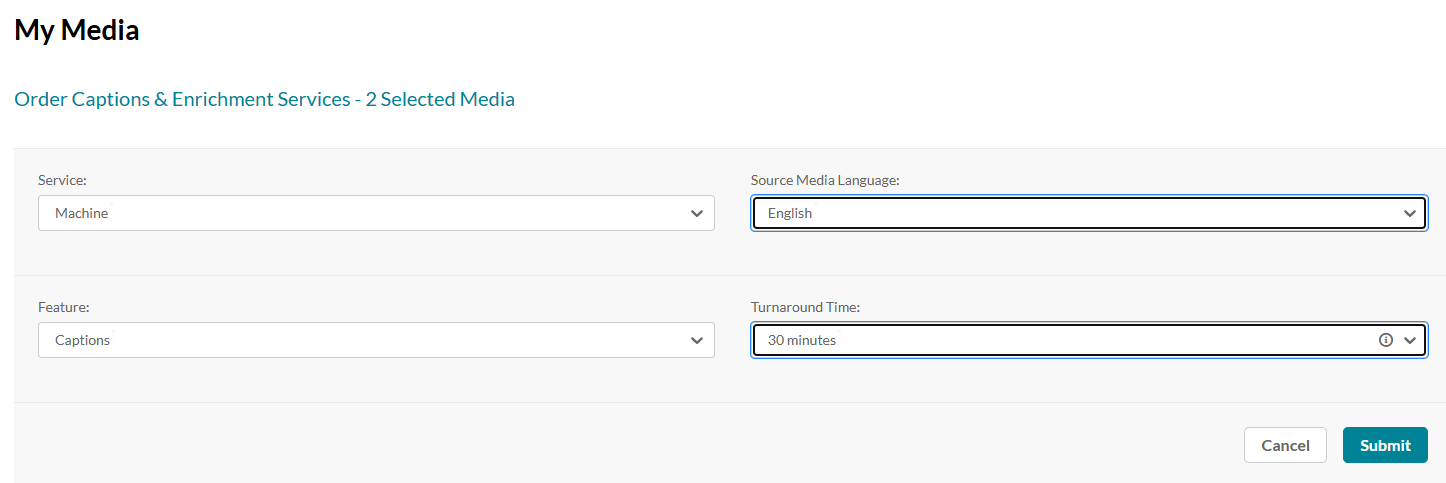
- Click Submit.
A confirmation message displays: Your request has been received. Your video will automatically be updated upon completion.
The order displays at the top of the screen.

Professional captioning
- Complete the following fields:
- Service - Select 'Professional'.
- Source Media Language - Select the source media language (the language of the video). The options in the menu are dependent on your REACH plan.
- Feature - Select 'Captions'.
- Turnaround time - Select an option. The options available are dependent on your REACH plan.
- Speaker Names - (Optional) Check to add the speaker's name(s) at the beginning of the captions. This feature must be enabled by your system administrator.
- Instructions & Notes - (Optional) This box is relevant for professional captions only, and is used for adding notes for the attention of human editors and reviewers.
Please note that captions must be ordered in the same language as the video's source language. For example, if the video is in English, you can only order English captions. Captions are not the same as translations. For details on ordering translations, see our article Order translations.
The general best practice for Instructions & Notes is to use them for unique terminology and names that are relevant for that file, and not, for example, a 1,000-word glossary.
In addition, comments like "Please pay extra attention to the following X, Y, Z in the first five minutes of the video..." aren't effective because transcribers typically receive only portions of the file.

2. Click Submit.
A confirmation message displays: Your request has been received. Your video will automatically be updated upon completion.
The order displays at the top of the screen.

View orders
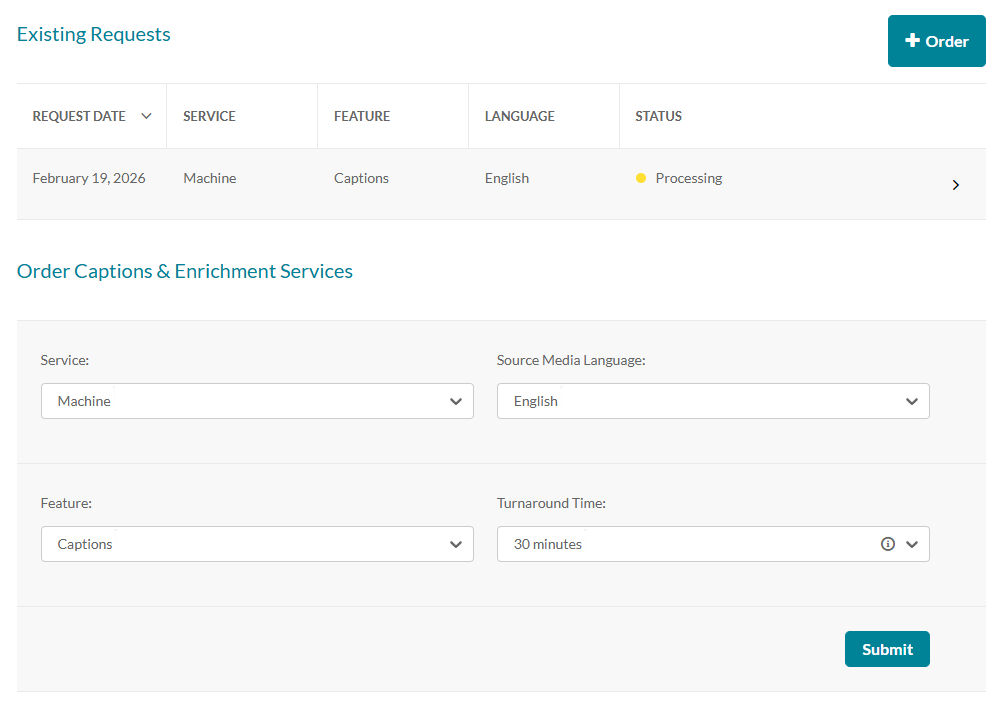
Existing requests
If there are no existing requests, a message displays: No requests were found.

If there are existing requests, they are displayed in the Existing Requests section. (Clicking +Order will take you to the Order Captions & Enrichment Services section to create another order.)
Status types
The following statuses are available for captions requests:
- Pending - when generating new request
- Pending for Moderation - requests in approval queue
- Rejected - requests that were rejected on moderation. This status must include reject reason.
- Processing - sent to the vendor and vendor received request
You cannot cancel a request when the status is Processing - Ready - when caption was received back from the vendor
- Error - an error was sent from the vendor. This status includes the reason for rejection.
- Aborted
Use the arrow at the side of the request to display more details about the order.
Duplicated requests
If you submit and identical order to one that exists, the following message is displayed: Service was already done for this video. Are you sure you want to resubmit?
Click Resubmit to continue.
Cancel a request
To cancel a Pending request, click on the trash can icon in the request line. Note, any action items associated with the request will be canceled.

A confirmation message is displayed to confirm your selection.
If you try to delete a request that's already in progress, a message displays: The request is already in progress, therefore cannot be canceled.
View the captions
When the captions are ready, they are automatically added to the media. Depending on your administrator's configuration, a toggle CC button may appear on the bottom bar, allowing you to instantly show or hide default captions.
The administrator can also choose whether to have captions displayed on the player by default when the user starts playing the video.

Users can access different caption languages, if available, by using the captions sub-menu within the settings menu.

To learn more about how captions display on the player, visit our articles Captions and audio tracks and Player accessibility.
Tags are automatically added to the video when captions are added. To learn how to edit the tags and other metadata, visit our article Edit metadata.
You can resubmit REACH orders in certain cases, such as for updated media content or new profile settings. For details on how and when to use the resubmissions feature, see our article Resubmissions for REACH services.
