About
This article explains how to create role-based rules for captioning and enrichment services for categories.
These rules automatically trigger service requests (such as captions, translations, audio descriptions, or chaptering) for entries that meet the defined criteria.
To learn more about roles and permissions, visit our article User roles and permissions in legacy Video Portal.
Access the service rule page
- Log into your Rich Media CMS. The Entries page displays by default.
- Click the Categories tab.
- Locate the desired category and click the three dots to the far right, then select Add Service Rule.


The 'Create Rule for Ordering' page displays.

Create a rule
Machine captions
This service provides captions in the video source language.

- Complete the following fields:
- Apply to content published by the following role - Select a role from the drop-down list. The rule will apply to all content published by users with the chosen role or higher permissions. Available options include:
- manager
- moderator (and higher)
- contributor (and higher)
- member (and higher)
- anyone
- Service - Select 'Machine'.
- Source Media Language - Select the source media language from the drop-down menu (the language of the original video). The options in the menu are dependent on your REACH plan.
- Feature - Select 'Captions'.
2. Click Submit.
There is no moderation process for automatic captions’ requests. Notifications will not be generated for automatic rules. (The user will not receive a message that their order has been received.) History content will not be automatically captioned.
Professional captions
Professional captioning is a service that uses expert human transcribers to deliver fully accurate, high-quality captions.

- Complete the following fields:
- Apply to content published by the following role - Choose the role from the drop-down list. The rule will be applied to all content published by the selected role (or higher permissions). Choose from the following options:
- manager
- moderator (and higher)
- contributor (and higher)
- member (and higher)
- anyone
- Service - Select 'Professional'.
- Source Media Language - Select the source media language from the drop down menu (this is the language the video is currently in). The options in the drop-down menu are dependent on your REACH plan.
- Feature - Select 'Captions'.
- Turnaround time - Select the turnaround time from the drop-down menu. The turnaround time options available in the menu are dependent on your REACH plan.
- Instructions & Notes - (Optional) This box is relevant for professional captions only, and is used for adding notes for the attention of human editors and reviewers.
The general best practice for Instructions & Notes is to use them for unique terminology and names that are relevant for that file, and not, for example, a 1,000-word glossary. In addition, comments like "Please pay extra attention to the following X, Y, Z in the first five minutes of the video..." aren't effective because transcribers typically receive only portions of the file.
2. Click Submit.
Machine chaptering
The chaptering service automatically generates chapters for a video, embedding chapter cue points as metadata, similar to manually created chapters. It accepts video or audio files as input and adds the chapter markers directly to the entry.

- Complete the following fields:
- Apply to content published by the following role - Select a role from the drop-down list. The rule will apply to all content published by users with the chosen role or higher permissions. Available options include:
- manager
- moderator (and higher)
- contributor (and higher)
- member (and higher)
- anyone
- Service - Select 'Machine'.
- Source Media Language - Select the source media language (the language of the original video) from the drop-down menu. Available options depend on your REACH plan.
- Feature - Select 'Chaptering'.
2. Click Submit.
Machine dubbing
The dubbing service adds an extra audio track to the video entry without replacing the default audio track.

- Complete the following fields:
- Apply to content published by the following role- Select a role from the drop-down list. The rule will apply to all content published by users with the chosen role or higher permissions. Available options include:
- manager
- moderator (and higher)
- contributor (and higher)
- member (and higher)
- anyone
- Service - Select 'Machine'.
- Source Media Language - Select the source media language (the language of the video) from the drop-down menu. Available options depend on your REACH plan.
- Feature - Select 'Dubbing'.
- Target translation language - Select the language you want for the dubbed audio track.
2. Click Submit.
OCR
OCR (Optical Character Recognition) makes it easy to search for text within a video, like titles, slide content, labels on graphs, or other on-screen text.

- Complete the following fields:
- Apply to content published by the following role - Select a role from the drop-down list. The rule will apply to all content published by users with the chosen role or higher permissions. Available options include:
- manager
- moderator (and higher)
- contributor (and higher)
- member (and higher)
- anyone
- Service - Select 'Machine'
- Source Media Language - Leave as-is (it does not affect the OCR request)
- Feature - Select 'OCR'
A confirmation message displays: Your request has been received. Your video will automatically be updated upon completion.
Professional audio description

- Complete the following fields:
- Apply to content published by the following role - Choose the role from the drop-down list. The rule will be applied to all content published by the selected role (or higher permissions). Choose from the following options:
- manager
- moderator (and higher)
- contributor (and higher)
- member (and higher)
- anyone
- Service - Select 'Professional'.
- Source Media Language - Select the source media language from the drop down menu (this is the language the video is currently in). The options in the drop-down menu are dependent on your REACH plan.
- Feature - Select 'Audio Description' or 'Extended Audio Description'.
- Turnaround time - Select the turnaround time from the drop-down menu. The turnaround time options available in the menu are dependent on your REACH plan.
- Instructions & Notes - (Optional) This box is relevant for professional captions only, and is used for adding notes for the attention of human editors and reviewers.
2. Click Submit.
View ordering rules
If there are rules, they are displayed at the top of the Add Service Rule page as follows:
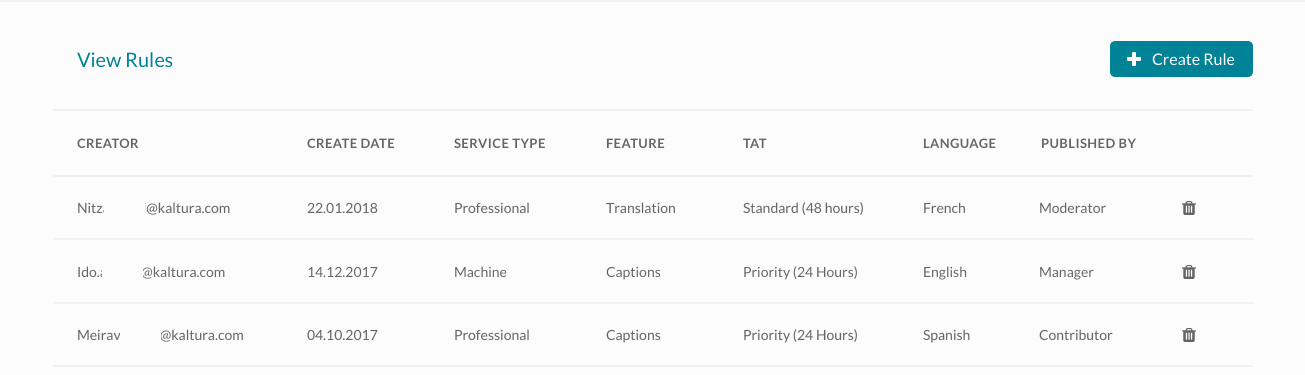
The service rules list contains the following:
- Creator - name of person who created the rule
- Create Date – date the rule was crated
- Service Type - what type of service was ordered
- Feature - what feature the rule was ordered for
- TAT - the turnaround time that was selected
- Language - language that was selected
- Published By - the role of the publisher
A trashcan icon displays for rules that are pending. You can delete service rules by clicking on the trash icon.
