About
This article explains how AEM Authors can find and embed Kaltura media on AEM (Adobe Experience Manager) pages using the Kaltura Video component.
AEM Authors can select media that has been made available to them or upload new media directly while authoring a page.
Add the Kaltura Video component to a page
- Open a page in AEM’s page editor.
- Open the Components panel on the left, and drag the Kaltura Video component onto the page.
- Select the Kaltura video component on the page, and then click the wrench icon.
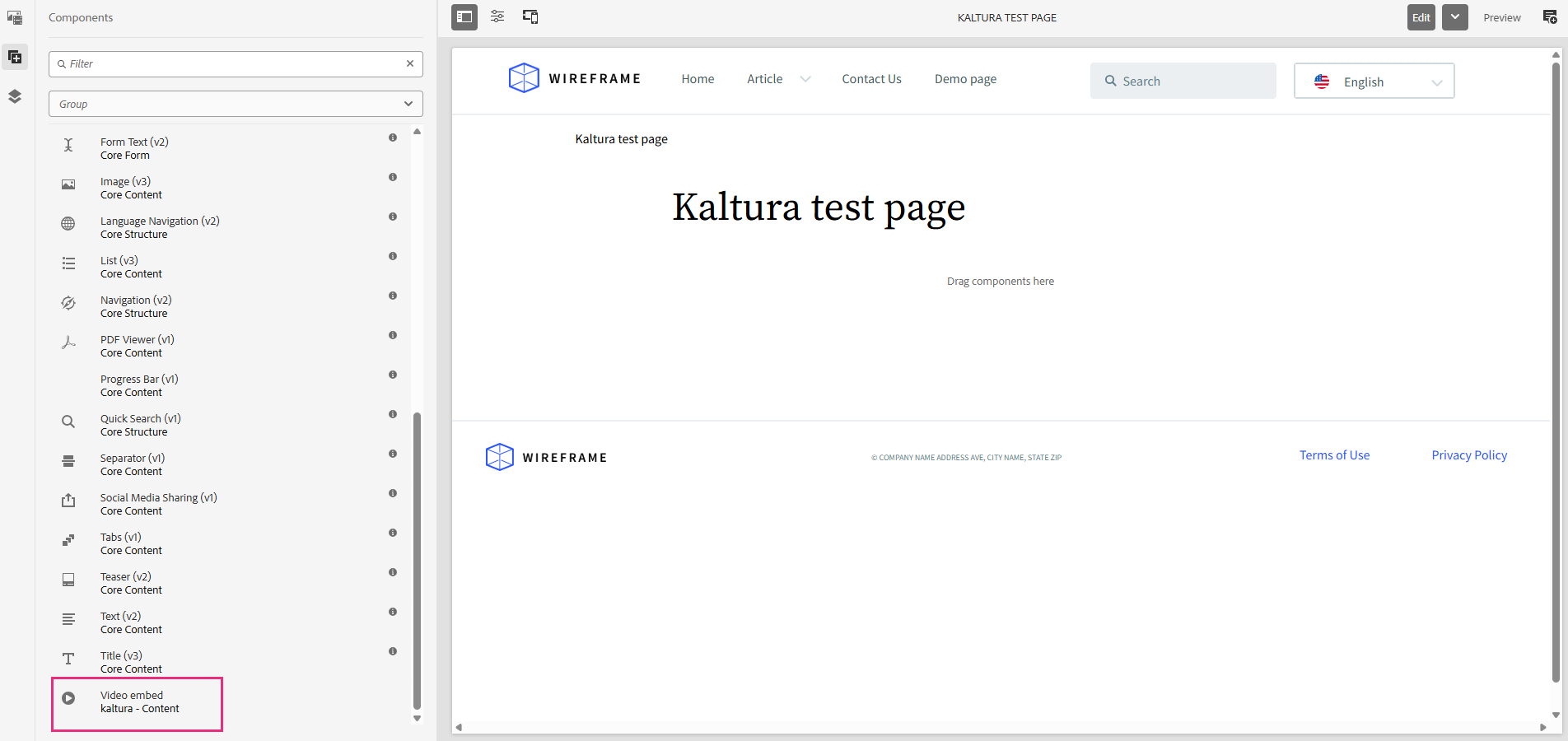
If the Kaltura Video component does not appear, it may not be enabled in the page template. See Configure Kaltura settings for AEM (Adobe Experience Manager) for guidance.
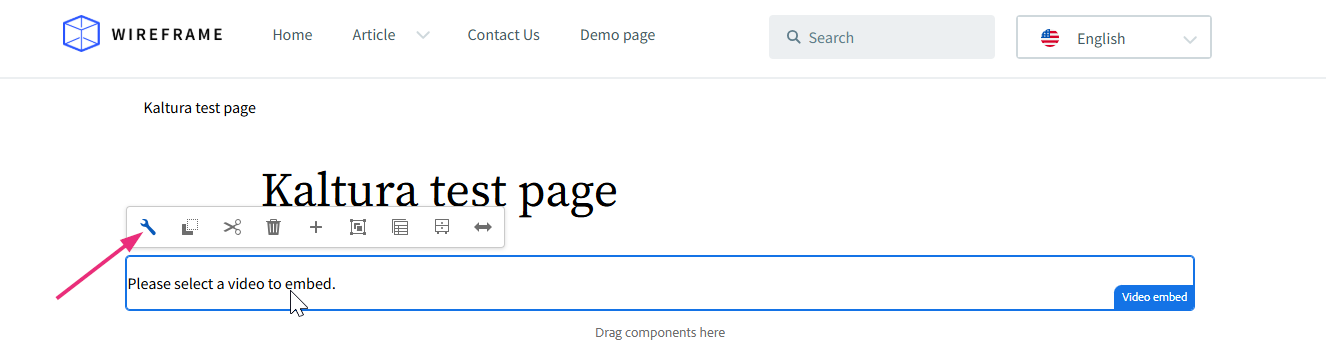
The Kaltura Video Component window opens.

Select media
In the window, you can use the search bar and filters to locate media across different repositories:
- My Media - Your personal media library. Only you can view media stored here.
- Media Gallery - Media available for the current AEM site.
- Shared Repository - Media made available to AEM Authors by Content Creators.
You can also upload or record new videos. See Add new videos below.

- Your embed window may look different depending on how it was configured.
- You can embed audio files using Kaltura’s audio player. The player is available in the list of player options in the customize embed settings (see below).
- Mandatory captions before embedding - If your administrator has enabled the 'Captions Required' setting, certain media types (like video, audio, or quizzes) must have captions in order to be embedded. Items without captions will have grayed-out buttons.
To preview more details, click the eye icon next to a media item. The sidebar opens with a playable preview (if available) and media details.

Embed media
- Click the Embed button next to the media you want to embed.
- Click Embed.

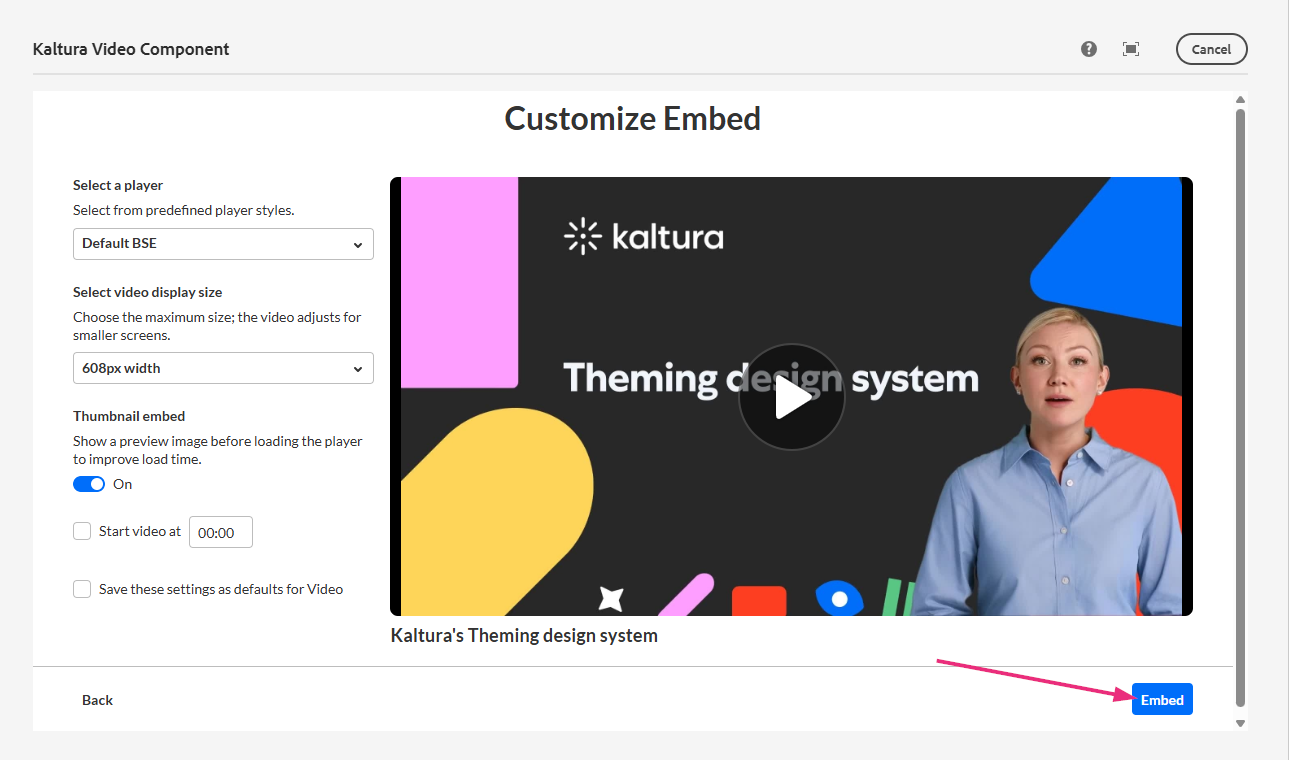
The 'Customize embed' window opens.

The content is embedded.

Customize embed settings
1. Click the customize icon next to the media you want to embed.
The Customize Embed option must be enabled by your administrator in the Browseandembed module.

The Customize embed window opens.
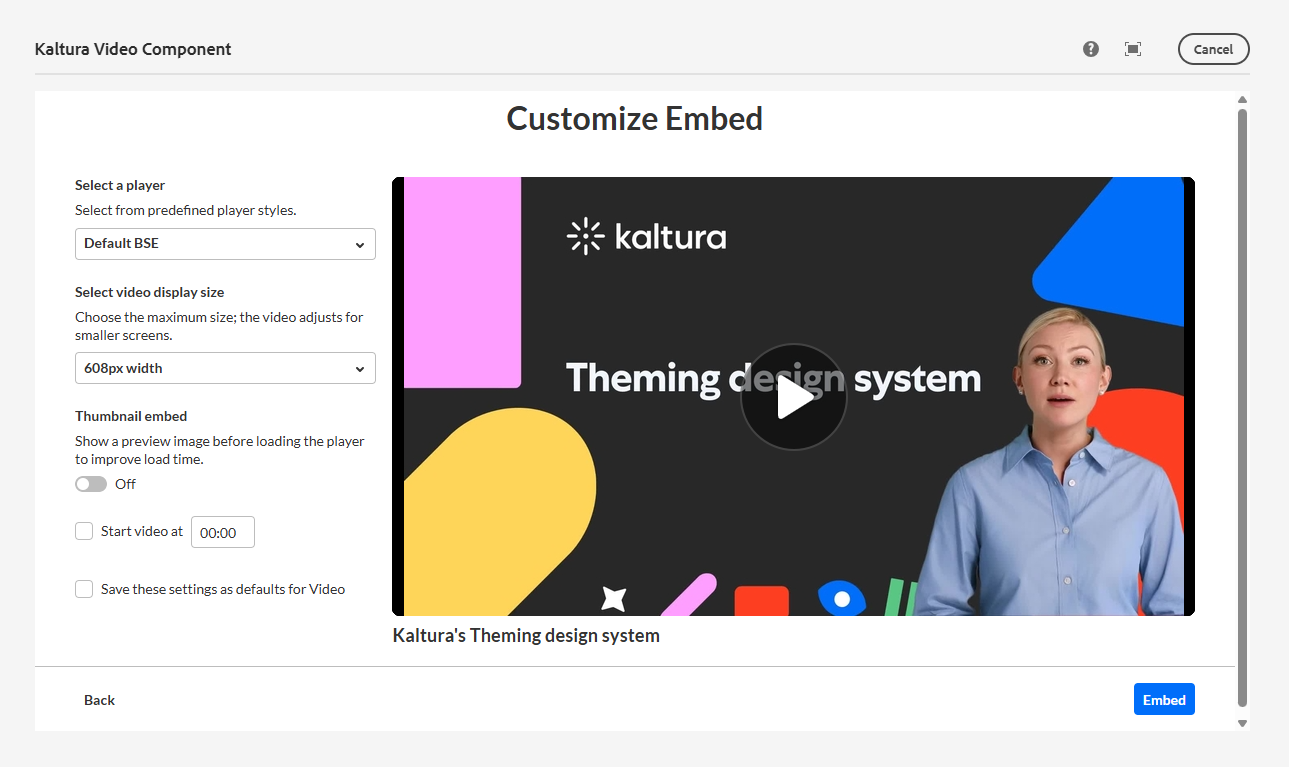
2. You can configure the following settings (when you change a setting, the preview updates automatically):
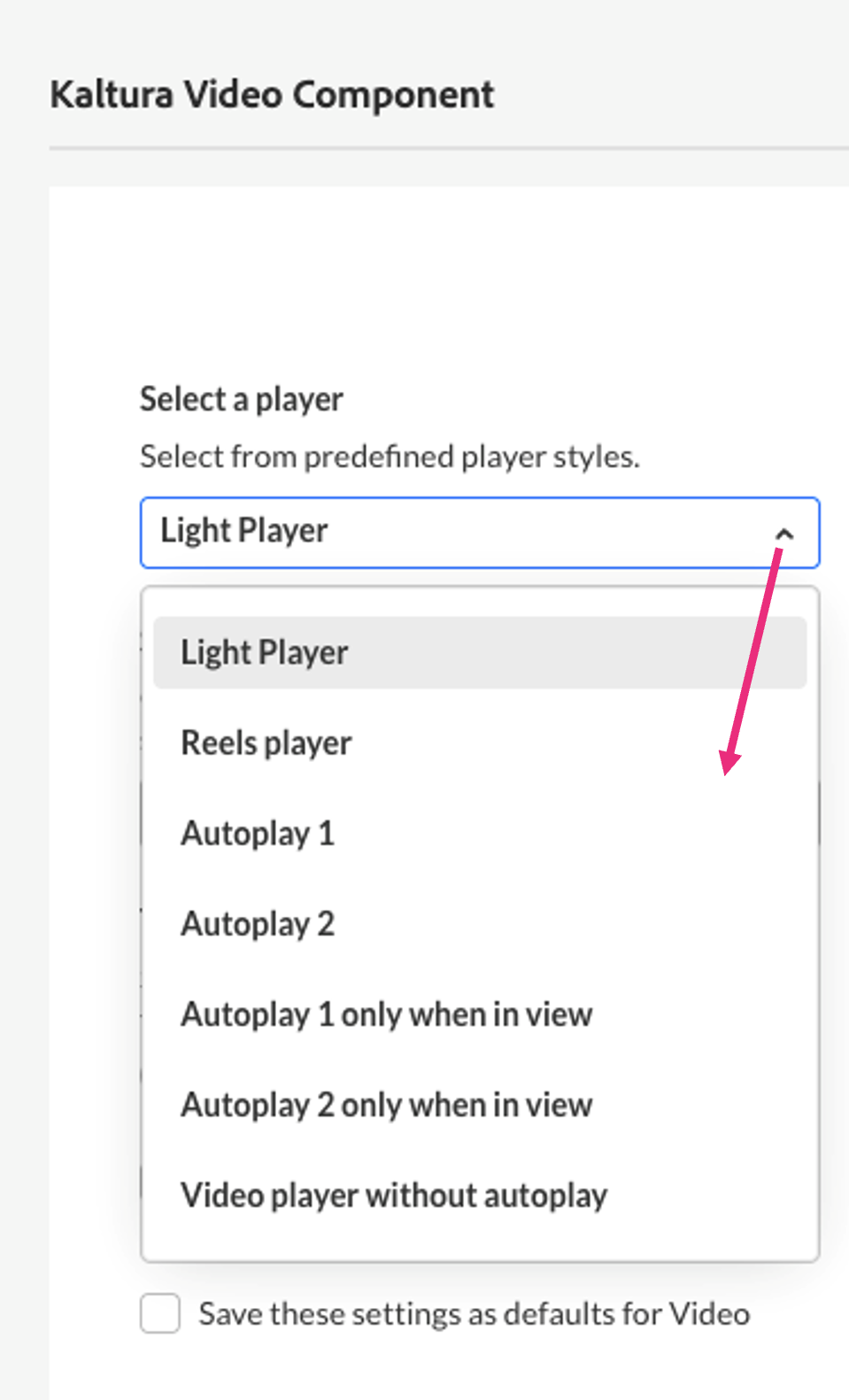
Select a player - Select from the players configured by your administrator.
Select video display size - Select the maximum display size for the embedded media.
Thumbnail embed - Display a static thumbnail instead of loading the video player immediately.
Start video at - Enter the time when you want the video to start in the format shown (00.00). For example, enter 01.30 to start the video at 1 minute and 30 seconds.
Save these settings as defaults for videos - Enable this option to apply the same settings automatically to future embeds of this media type.
3. Once you’re ready, click Embed.
The content is embedded.
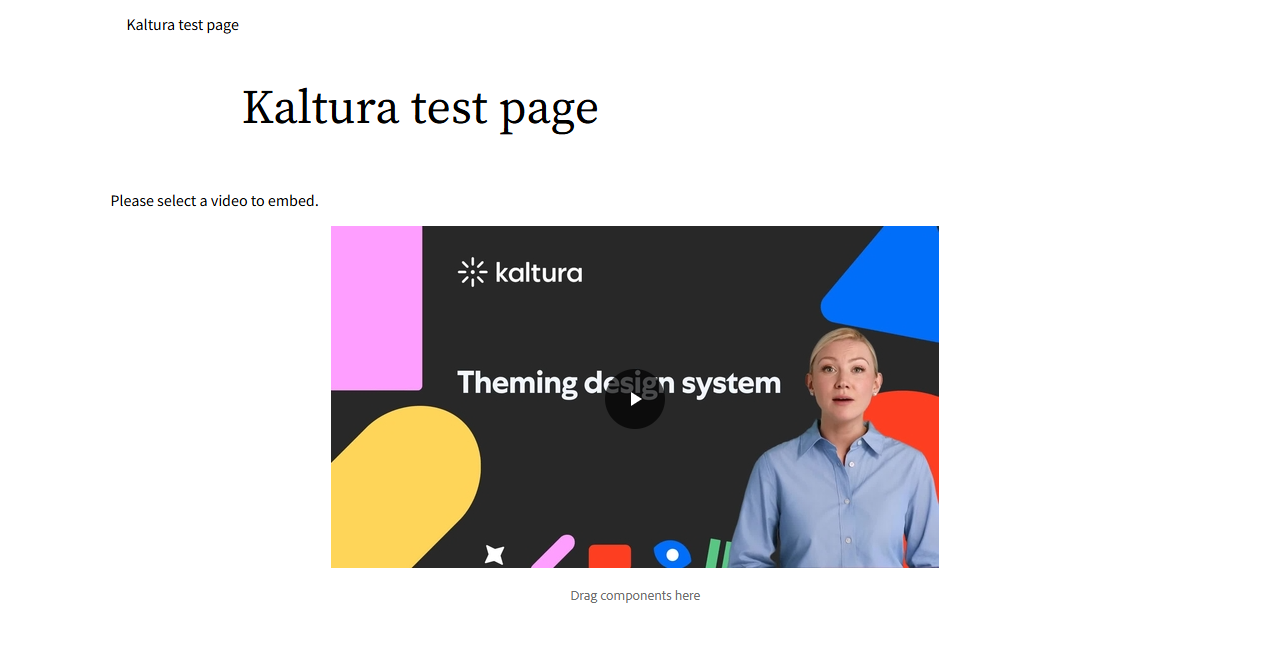
You can add multiple Kaltura Video components to the same page and embed different videos in each component.
Upload or record new media
You can also upload or record media directly while authoring an AEM page.
- Upload - Upload one or more files. For more information, see Upload media.
- Express Capture - Record directly from your webcam. For more information, see Create a recording with Express Capture.
If you don't see the Upload or Express Capture option, contact your administrator.

Once the upload is complete, click the customize icon to adjust embed options (see Customize embed settings).
If your administrator has required metadata fields (such as tags or descriptions), you must complete them before embedding.
Watch a quick tutorial: Upload and embed a Kaltura video
Replace an embedded video
You can replace a video in an existing Kaltura Video component without removing the component from the page.
- Select the existing Kaltura Video component on the page.
- Click the wrench icon.
- In the Kaltura video component window, select the video you want to use.
- Click Embed.
The newly selected video replaces the previous one, and the page layout remains unchanged. If Video Versioning is enabled, see the information below for updating a published video.
Video versioning
When enabled, the Video Versioning feature keeps published media unchanged if a Content Creator replaces the media's source file.
To update published media, open the Kaltura Video component on the AEM page and embed the updated version of the media.
Contact your administrator to find out whether Video Versioning is enabled for your AEM site.
Preview and publish the page
After embedding media, use AEM's standard Preview mode to check the page and media playback before publishing.
When you're ready, publish the page using AEM's standard publishing workflow. No additional Kaltura steps are required.
If Video Versioning is enabled and you've embedded an updated version of a video, the previously published version remains live until you publish the updated AEM page.
Accessibility notes
Accessibility features such as captions, subtitles, audio descriptions, and keyboard navigation are controlled by the selected player and the media configuration in Kaltura.
Availability depends on:
- Whether captions or audio descriptions exist for the media
- How the selected player is configured by your administrator
If required accessibility options are missing, contact your administrator.
