About
This article explains how to view media analytics for AEM (Adobe Experience Manager) sites using Kaltura Analytics.
When videos are embedded on AEM pages using the Kaltura connector, site information is automatically passed to Kaltura. This allows administrators to view analytics by site, even when multiple AEM sites share the same Kaltura environment.
How AEM site data is tracked
When media is embedded on an AEM site, the connector automatically sends the AEM site path to Kaltura as a Context ID. In Kaltura Analytics, this value is stored as a category. No manual configuration is required.
Because the site path is captured automatically, you can filter analytics data to see video performance for a specific AEM site.
View analytics for a specific AEM site
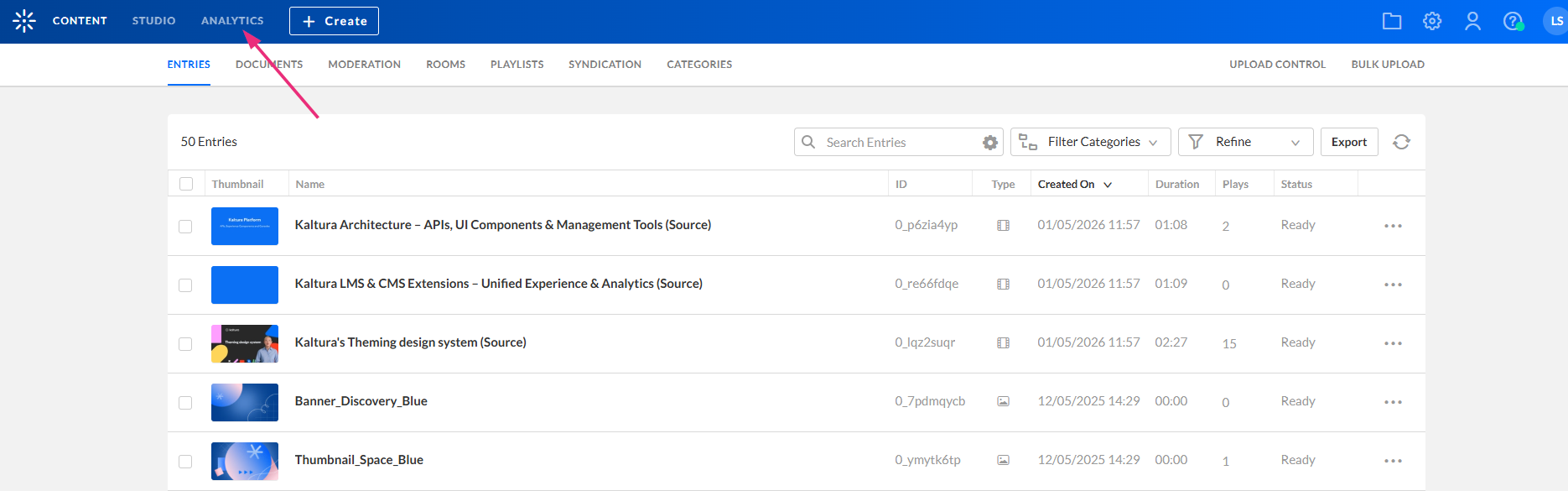
- Log into the Kaltura Management Console. The Content tab displays by default.
- In the top navigation bar, click Analytics.
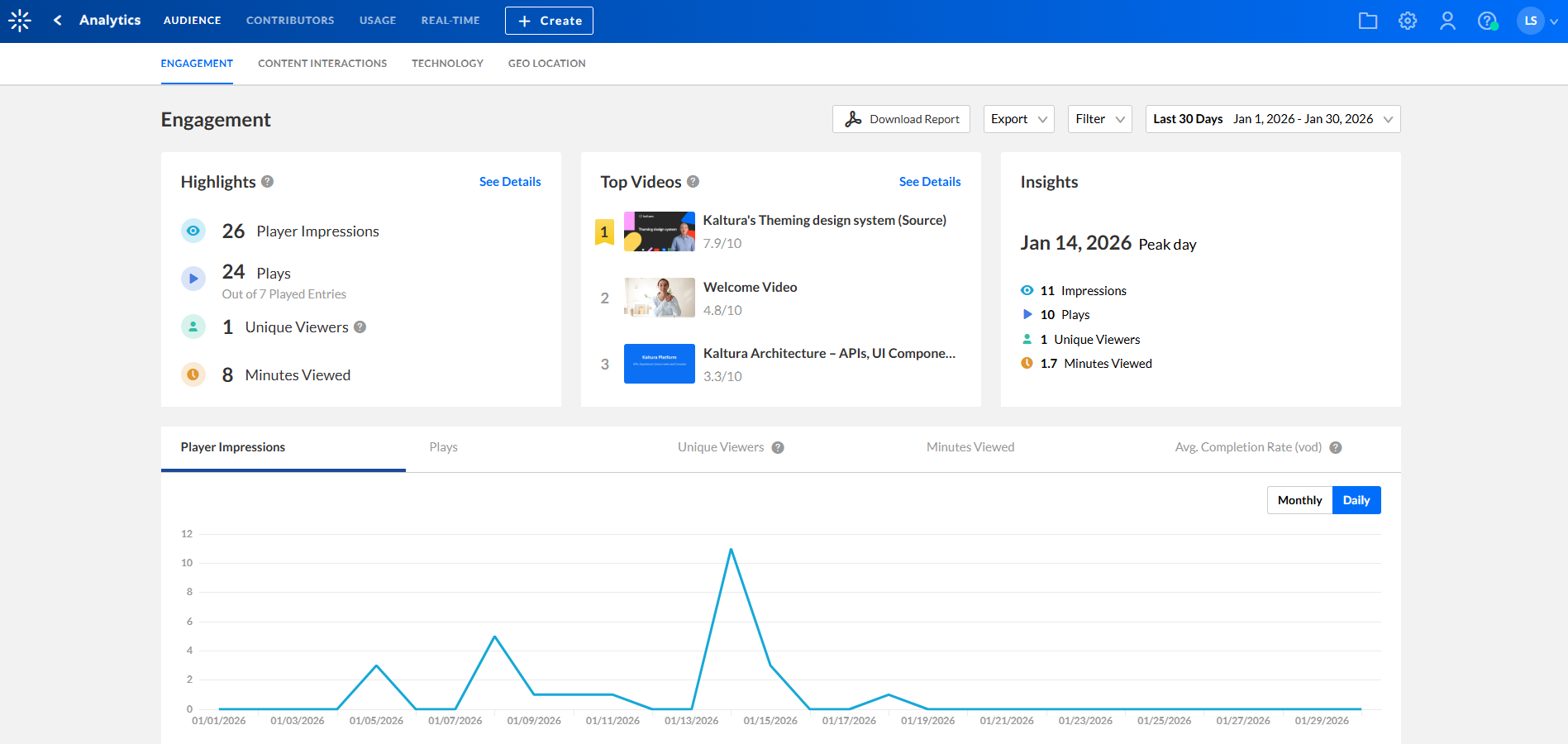
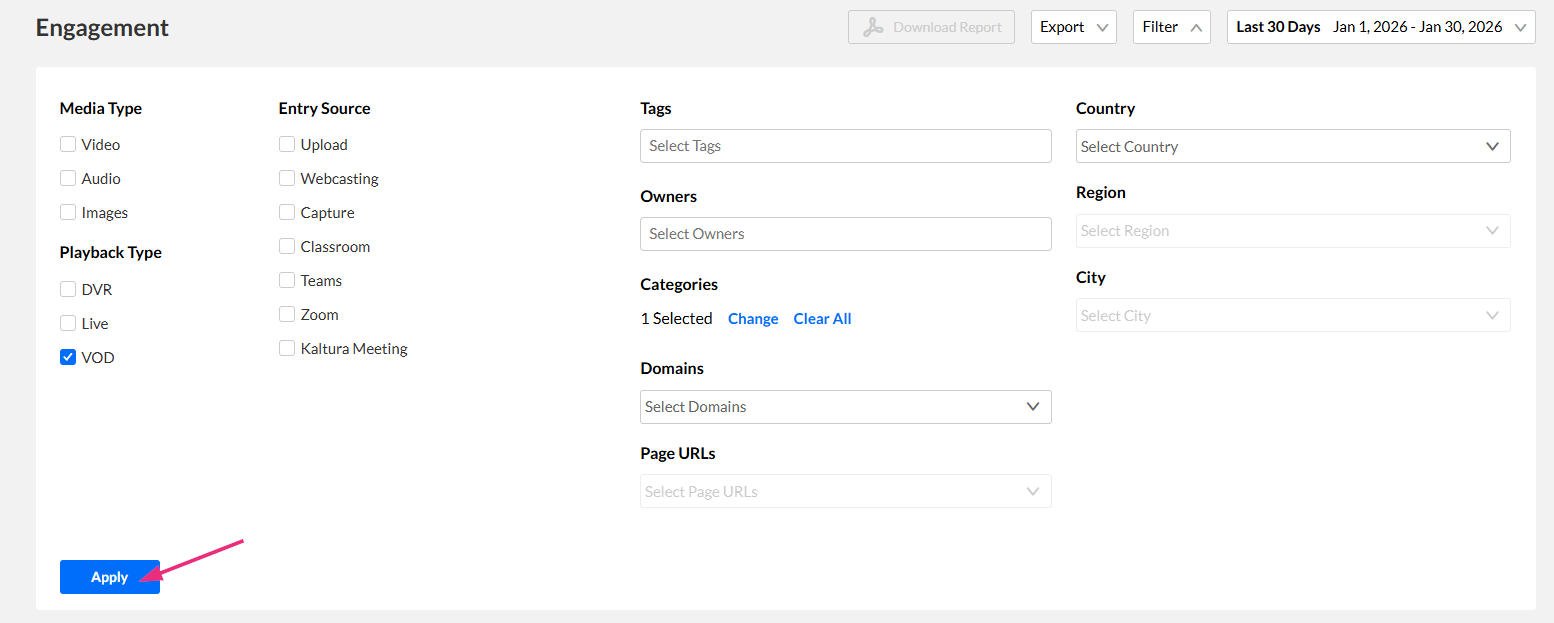
- Click Filter at the top right.
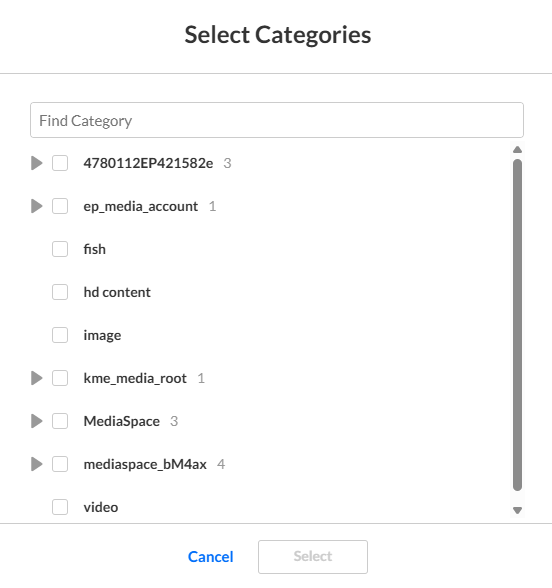
- Under Categories, click Select Categories.
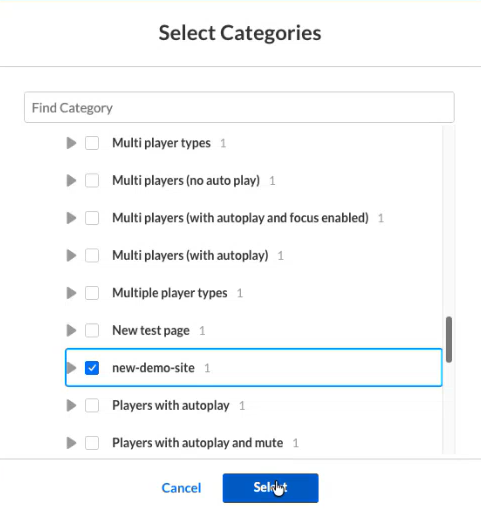
- Select the site root path from the list (you can use the search field).
- Click Select at the bottom of the window.
- After the window closes, click Apply on the main screen to apply the filter.
The 'Engagement' dashboard displays.
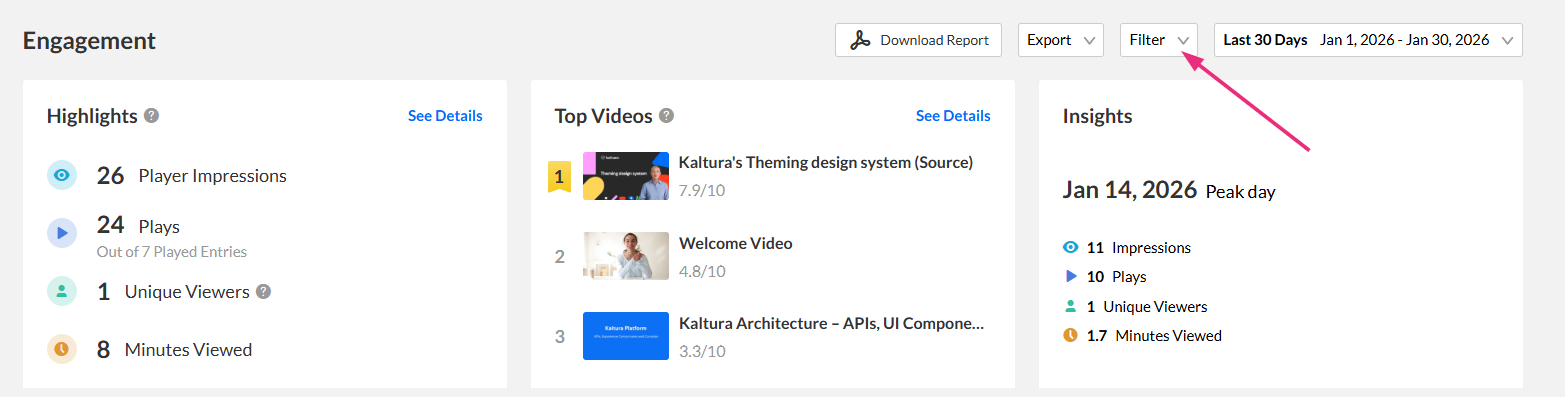
The filtering options display.

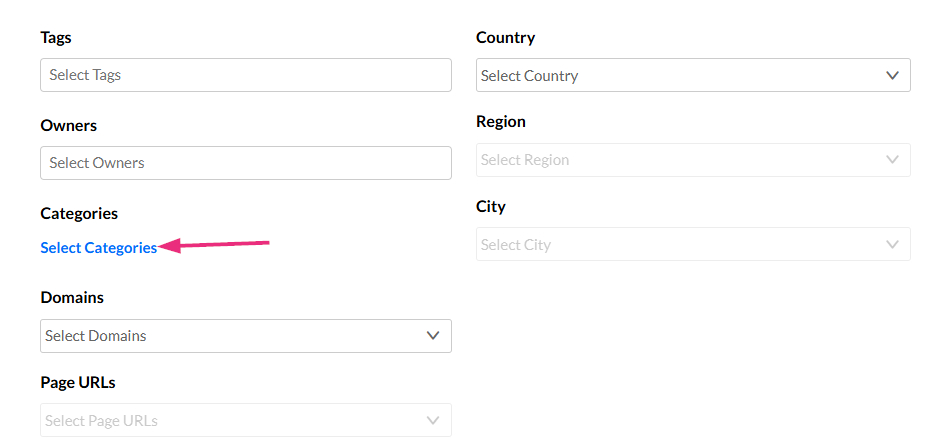
The 'Select Categories' window opens.
The dashboard updates to show analytics data only for media embedded on that AEM site.
For details about available metrics, charts, dashboards, and reporting options, see our article VOD analytics.
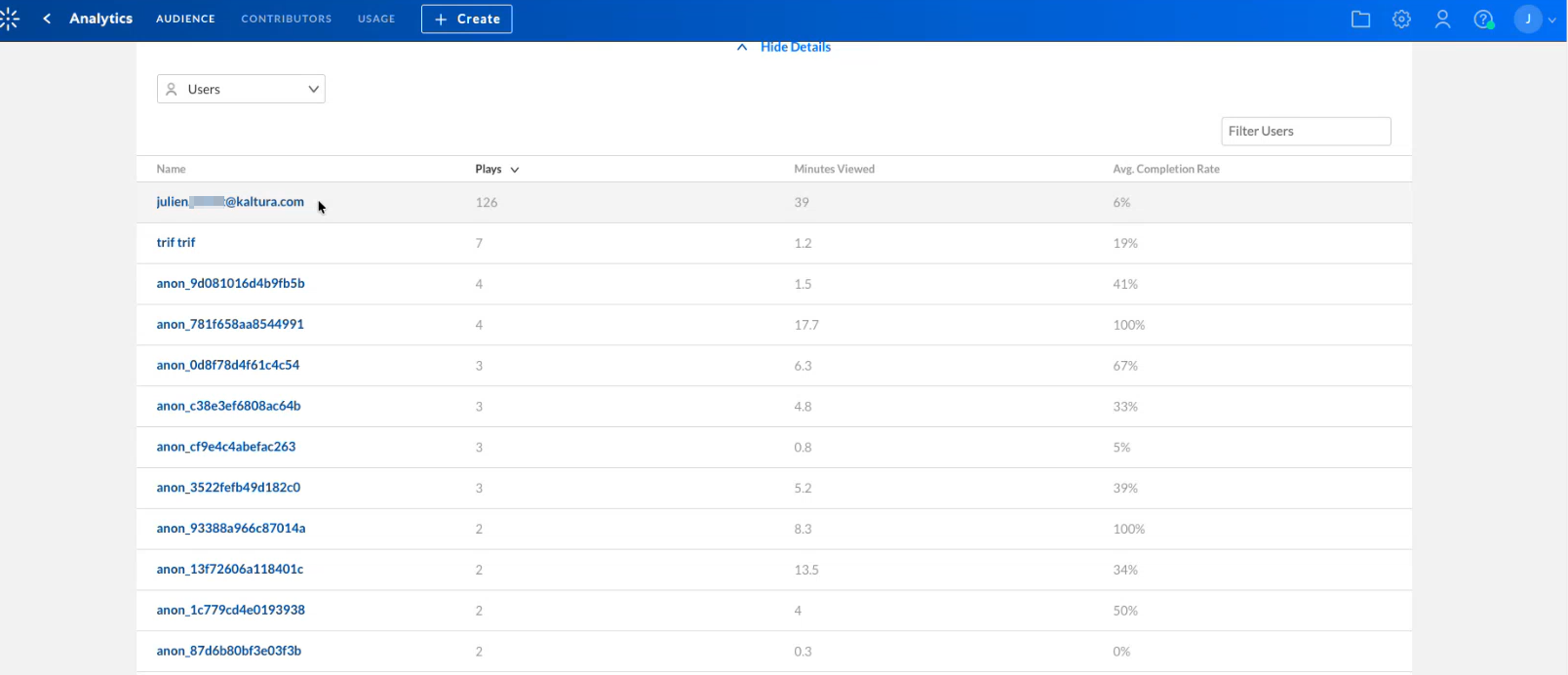
In the VOD Analytics dashboard (see VOD analytics), you can click View Engagement Per User to see viewer details.
Authenticated AEM users appear with their email address. For publicly accessible AEM pages that do not require login, anonymous viewers appear as anon.
View analytics for Top Domains
- Log into the Kaltura Management Console.
The Content tab displays by default. - In the top navigation bar, click Analytics.
- Scroll down to the 'Top Domains' area to see the engagement data by published domain name.

The 'Engagement' dashboard displays.

Filter by published domain names or pages
- Log into the Kaltura Management Console. The Content tab displays by default.
- In the top navigation bar, click Analytics.
- Click Filter at the top right.
- Click to expand the Page URLs dropdown menu.
- Select a URL to filter by published domain name or page.
The 'Engagement' dashboard displays.
The filtering options display.


