About
Lecture Capture lets you configure recording inputs, start recordings, and view scheduled recording events from the desktop application.
Launch Lecture Capture
- Click the Lecture Capture icon on your desktop.

The Lecture Capture homepage opens.
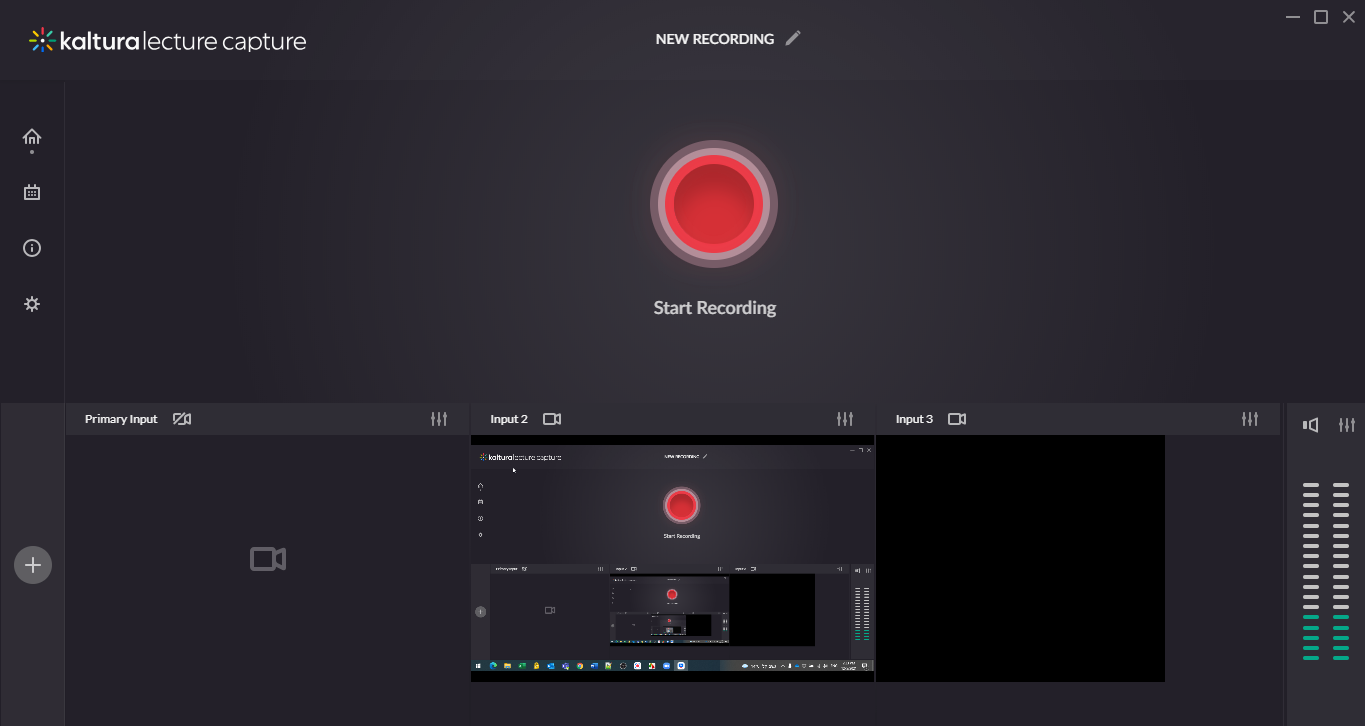

Lecture Capture homepage
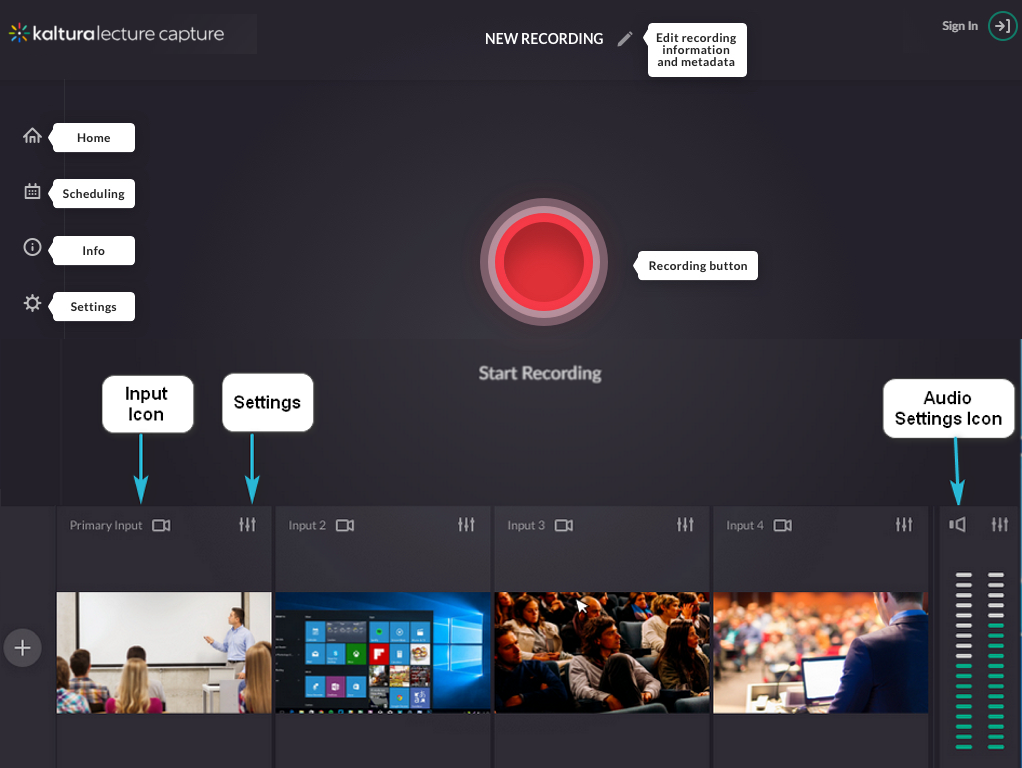
The homepage includes the following options:
- Home tab - Opens the homepage.
- Scheduling tab - Opens the agenda for scheduled events.
- Info tab - Displays information about the Lecture Capture application and version.
- Settings tab - Displays the resource name selected for the recording. You can also save your default configuration and upload application logs. For more information, see Configure a Lecture Capture resource name.
- Plus icon - Adds and configures an additional input.
- Pencil icon - Opens the recording information. See Edit recording information.
- Recording button - Starts a recording.
- Sign in - Signs you in to Lecture Capture. Your administrator configures this optional feature.
Use the Delcom USB busy light
The Delcom USB busy light provides a visual indication of the current recording status.
- Plug the Delcom USB busy light into your computer.
- Check the light to confirm the recording status:
- Red - Recording is in progress.
- Yellow - Recording is paused.
- Gray - No recording is in progress.
- Press the switch to pause or resume the recording.
Exit the application
If Lecture Capture isn’t running in the background, scheduled recordings don’t start.
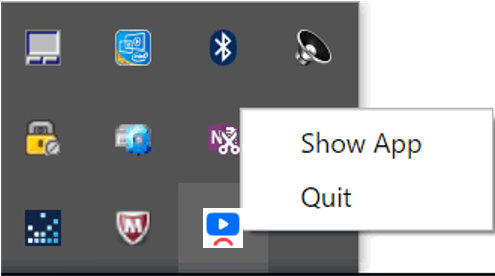
- In the taskbar, right-click the Lecture Capture icon.
- Select Quit.
Hide or show the application
In the taskbar, right-click the Lecture Capture icon, and select Show or Hide.
Hiding the application doesn’t exit it.
