About
If authentication is enabled for Lecture Capture, you can sign in from the Lecture Capture application. Your organization determines the sign-in method and credentials you use.
When authentication is enabled, the Sign In option appears in the Lecture Capture application.
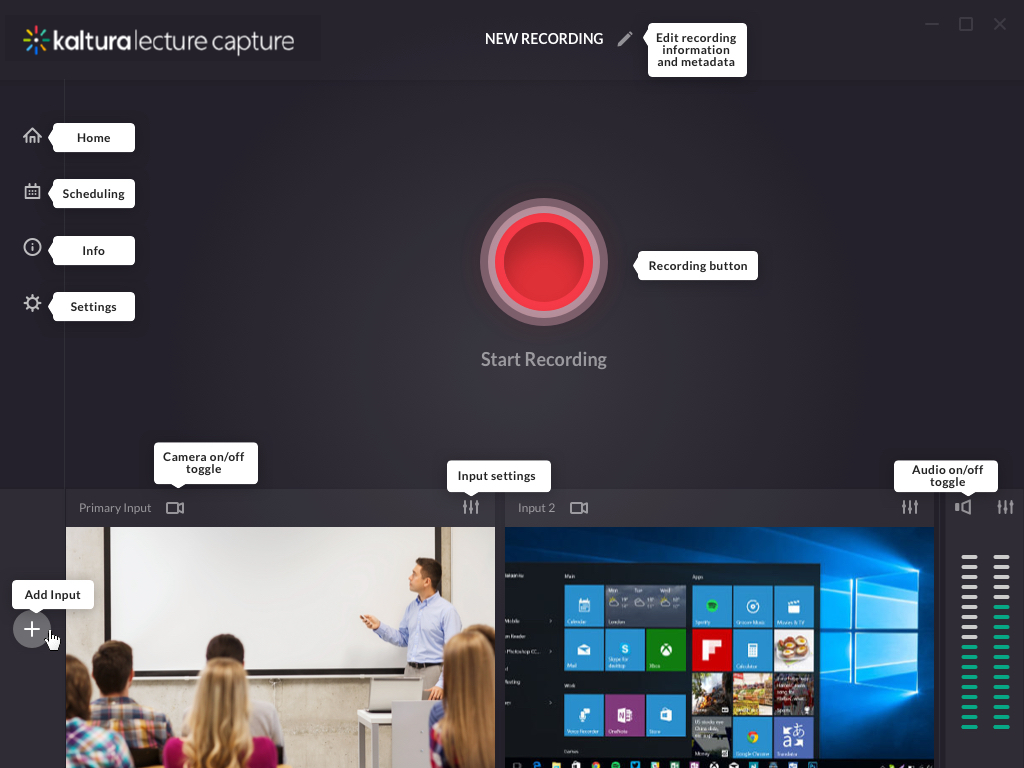
Sign in
- Click Sign In icon.

- Enter your organizational credentials to sign in.
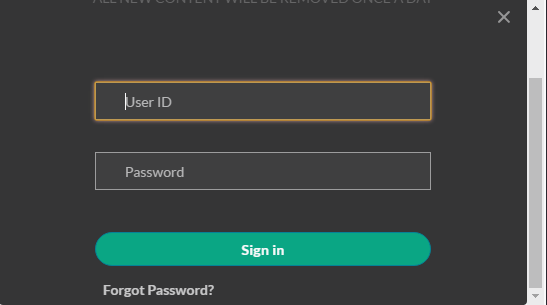
If authentication is enabled and you try to start a recording without signing in, Lecture Capture prompts you to sign in.
Sign out
After you finish recording, click your username or the sign-out icon to sign out.

Authentication during scheduled recordings
Scheduled recordings start automatically without requiring you to sign in. Depending on your organization’s configuration, you might need to sign in to perform actions during a scheduled recording.
Automatic sign-out
Lecture Capture automatically signs you out after 15 minutes of inactivity.
