About
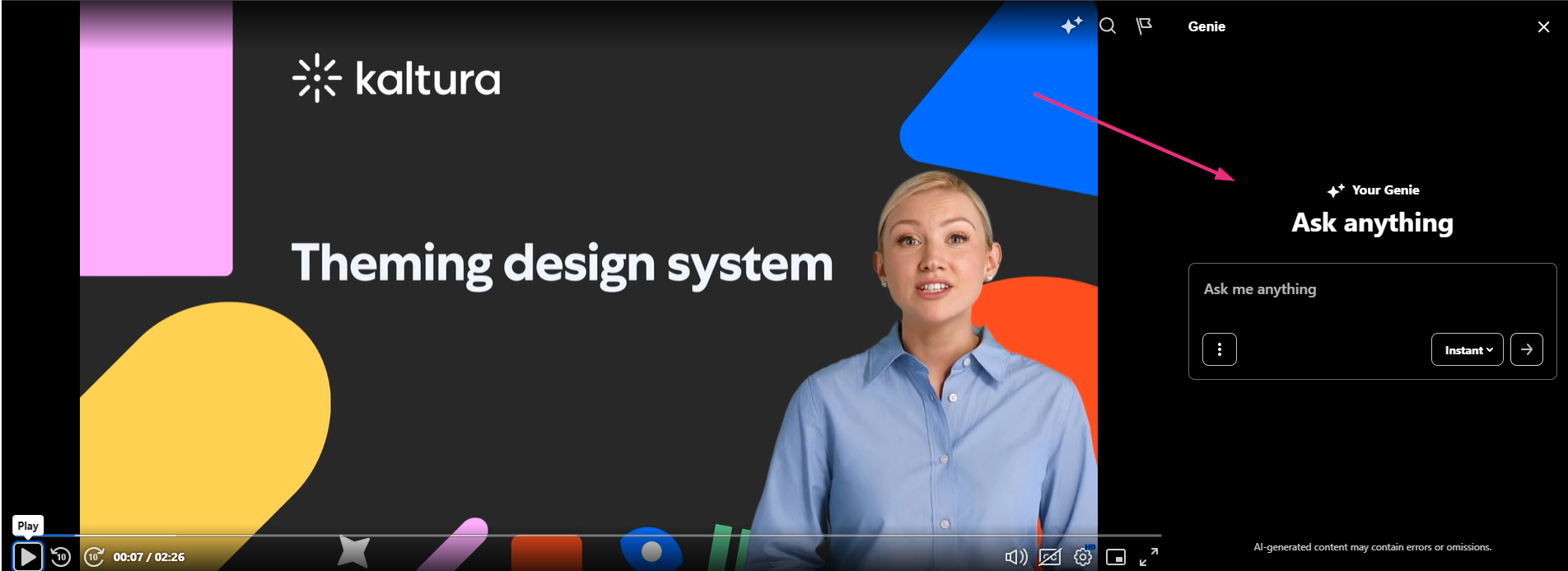
Single-video Genie adds an AI-powered chat panel to the player. Viewers can ask questions about the video and get contextual answers tied to the content they’re watching.
If Genie isn’t enabled for your account, the Genie option won’t appear in your player settings. Contact your Kaltura representative to activate it.
VOD
Access the player settings
- Log in to your Rich Media CMS and click the Studio tab.
- Click the player you want to edit from the list (or use the search bar in the top right).

The Player Studio page displays.

If you haven't created a player yet, check out our article Create a player for guidance.
The player settings display.

Enable Genie
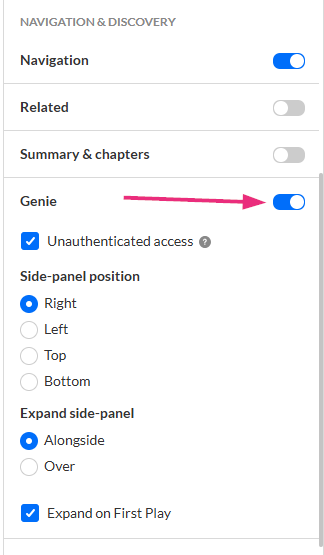
1. Scroll down to Navigation & Discovery, locate Genie and turn on the toggle.
2. (Optional) Configure additional settings:
- Unauthenticated access (default = on) - Lets unauthenticated users access Genie for the video they're watching.
- Side-panel position - Choose where the Genie panel appears on the player: right, left, top, bottom
- Expand side-panel - Choose how the panel opens when Genie is triggered - alongside or over
- Expand on first play - If enabled, the Genie panel automatically opens the first time the video is played. Viewers can close it at any time.
3. Click Save at the top right of the page.
Genie also appears in secure embedded players as long as the embedded player has the Genie plugin enabled.
For the user guide, see Genie player plugin.
