About
To make Genie available on individual videos, you’ll configure it in two places:
Agentic Avatar conversations aren’t yet available on individual videos and are planned for a future release.
Step 1: Configure the Genie player plugin
This step makes Genie available in the player.
1. Log in to your Rich Media CMS and click the Studio tab.
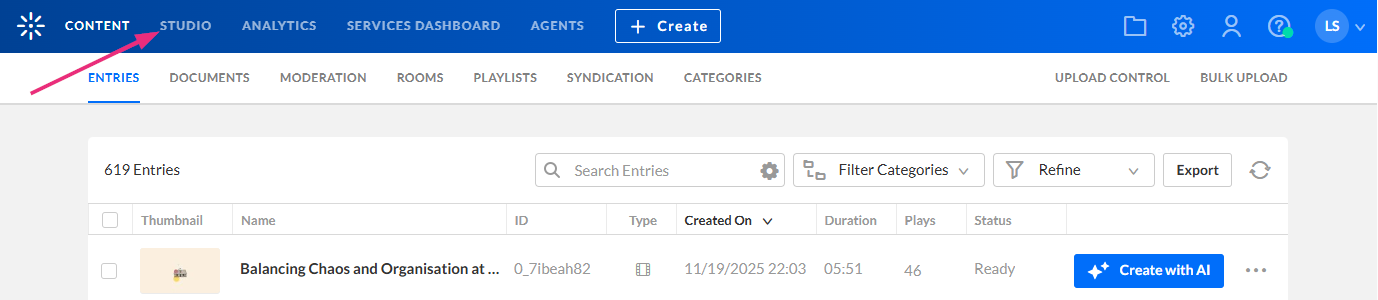
The Player studio page displays.
2. Click the player you want to use.
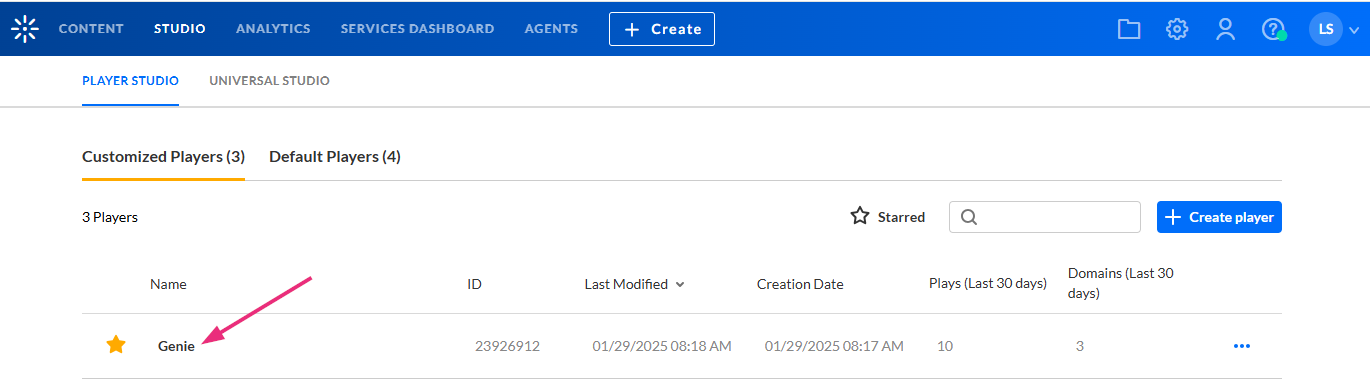
The player settings page displays.
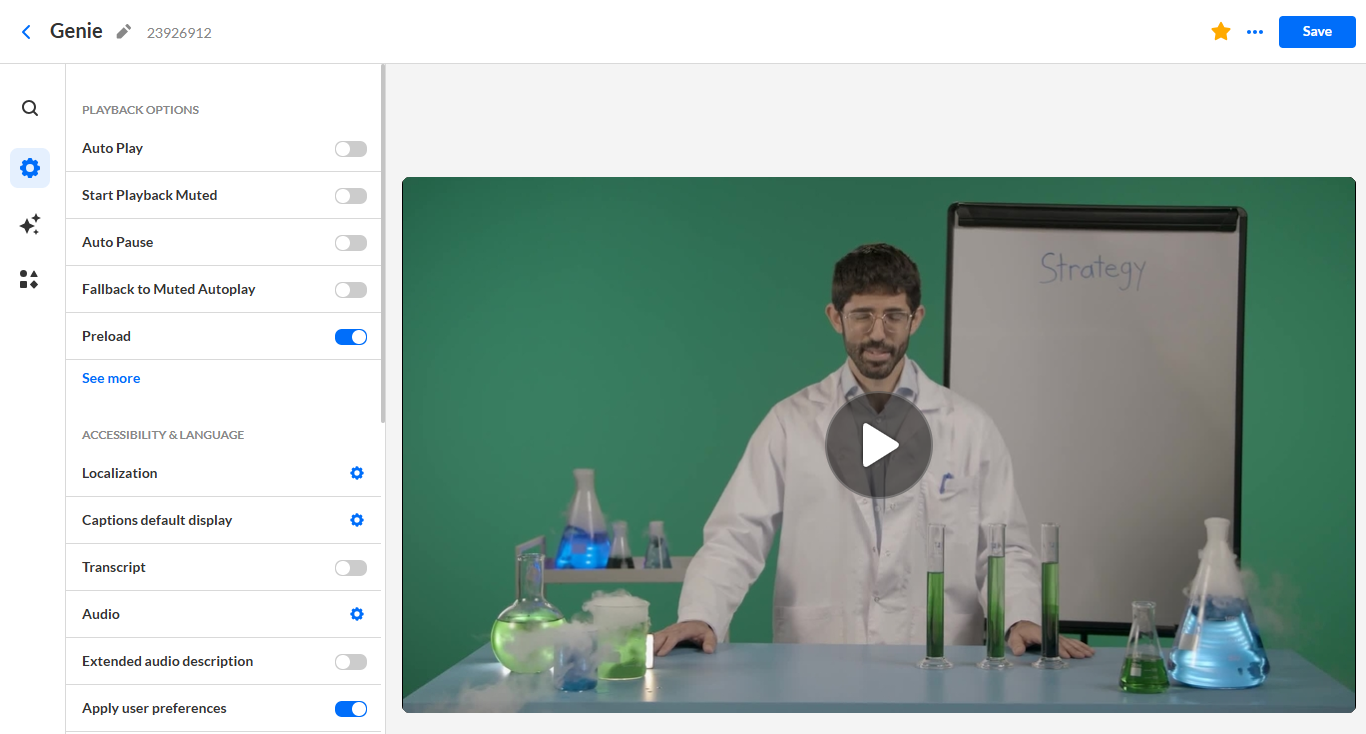
3. Scroll down to Navigation & Discovery, locate Genie and turn on the toggle.
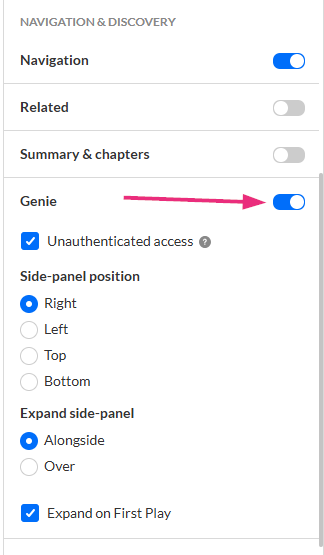
4. (Optional) Configure additional settings:
- Unauthenticated access (default = on) - Lets unauthenticated users access Genie for the video they're watching.
- Side-panel position - Choose where the Genie panel appears on the player: right, left, top, bottom
- Expand side-panel - Choose how the panel opens when Genie is triggered - alongside or over
- Expand on first play - If enabled, the Genie panel automatically opens the first time the video is played. Viewers can close it at any time.
5. Click Save at the top right of the page.
Genie also appears in secure embedded players as long as the embedded player has the Genie plugin enabled.
Step 2: Configure Genieai module
This step controls which videos show the Genie panel.
1. Go to your Configuration Management console, and navigate to the Genieai module. You can also navigate directly using a link: https://{your_video_portal_URL}/admin/config/tab/genieai.

The 'Genieai' page opens.

2. Make sure enabled is set to 'Yes'. This must be turned on for Genie to work anywhere on the site.
3. Scroll down to the GenieOnEntry field and set to 'On'.
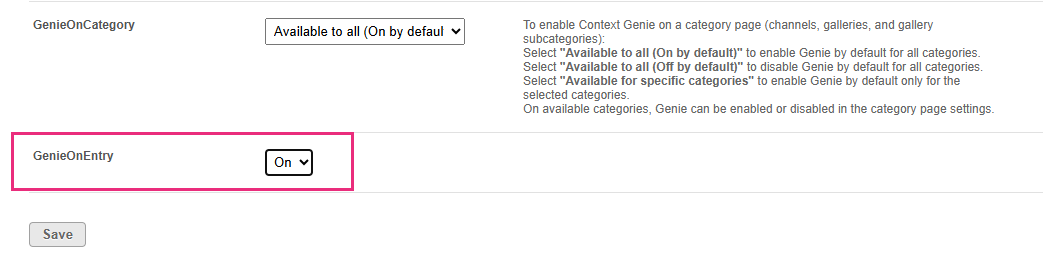
4. Click Save.
- The video must include captions for Genie to appear.
- Supported media:
- VOD
- Audio
- Playlist videos
- Recorded live sessions
- If a media item isn’t supported, Genie will not appear even if it’s enabled.
