About
Rule actions define what Automation Manager does with media entries that meet a rule’s criteria. Actions are applied when a rule runs and can update metadata, manage categories and tags, change ownership, delete entries, or trigger agents.
Each rule can include one action or a combination of actions, depending on the selected options.
How actions work
- Actions are applied only to entries that meet all rule criteria.
- Actions can run automatically or require approval, based on the rule’s review settings.
- Some actions can be combined in the same rule, depending on the action type.
A single rule can’t manage multiple lifecycle stages over time. While you can configure multiple actions within a rule, they are applied together when the rule runs. To apply different actions at different points (for example, archive content first and delete it later), you must configure separate rules for each stage.
Access the actions tab
- Log into your Rich Media CMS.
- In the top navigation menu, click the settings icon at the far right.

The Account settings page opens.
- Click the Automation Manager tab at the far right.
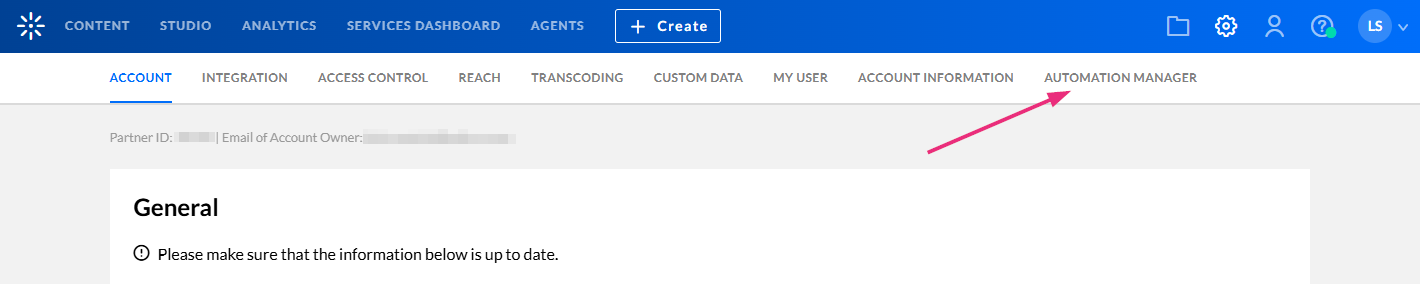
If you don't see the automation manager tab, you need to enable it on your account. In addition, only users with certain roles can access the automation manager.
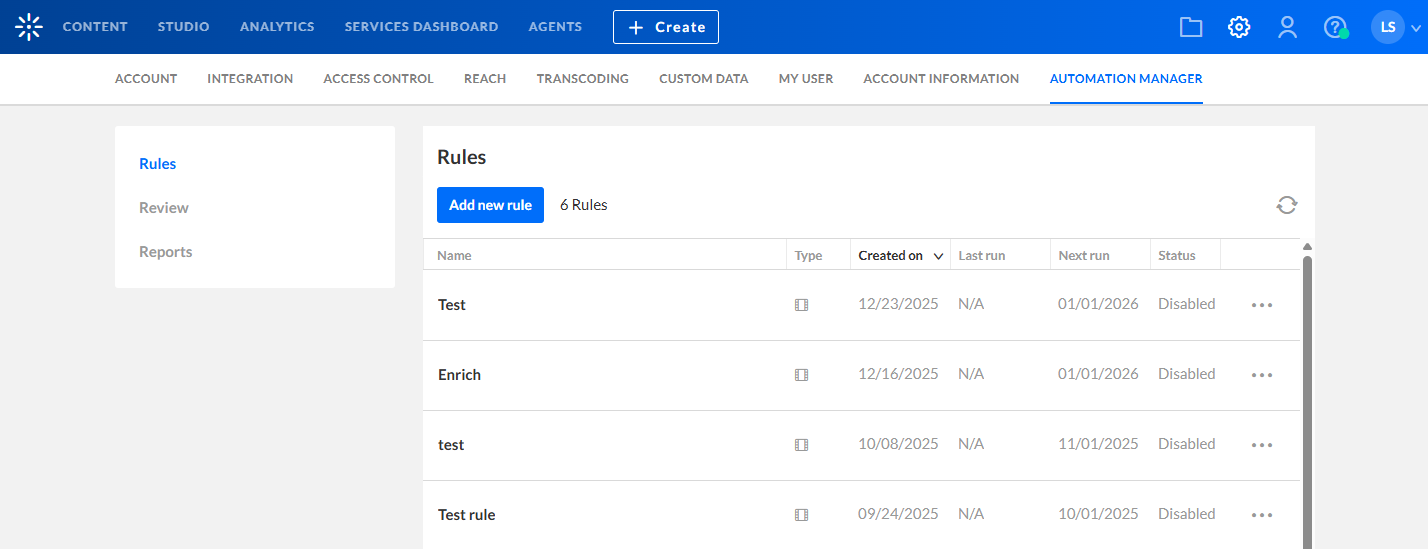
The Rules page displays. Here you can view any rules that have already been set up on your account.
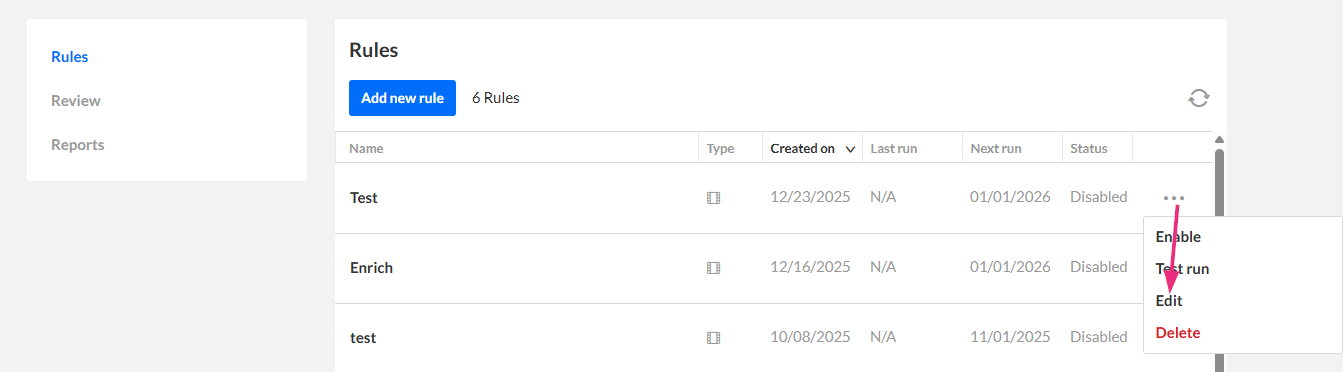
On the Rules page, click the three dots at the end of the row of an existing rule and select Edit.
- In the left navigation panel, click Actions.
The rule configuration screen opens with the General tab selected by default.

The 'Actions' page opens.

Add actions to a rule
Actions define what happens to entries that match the rule criteria.
1. On the Actions page, select the desired criterion from the Add actions drop-down menu (if the action includes sub-options, select the required option).

The available actions are as follows:
- Keep selected flavors - This action will delete all flavors on the entry except those selected. Use this action to reduce storage usage or standardize available flavors.
- Add / remove categories - Adds entries to categories or removes them from selected categories:
- Add categories - select the categories where the entry should be published
- Remove categories - select the categories from which the entry should be removed
- Add / remove tags - Adds or removes tags from selected entries:
- Add tags - type in the tags that should be added to the entry
- Remove tags - type in the tags that should be removed from the entry
- Change owner - Changes the owner of the selected entries. Use this action to transfer ownership or align entries with organizational changes.
- Trigger an agent - Runs a preconfigured agent on all entries matched by the rule. This action lets you deploy a full agent workflow on existing content at scale, for example captioning workflows. For details on creating and configuring agents, see Create a Kaltura agent.
- Delete entry - When deleting an entry, you can also choose how to handle any linked entries:
- For VOD rules: Select an action from the dropdown:
- Delete secondary entries (default) - Removes the linked secondary entries with the parent entry.
- Save as standalone entries - Keeps the secondary entries as independent media assets.
- For Live rules: Select an action from the dropdown:
- Delete live and VOD recordings - Deletes both the live entry and its recording.
- Delete live entry and expose VOD recordings - Deletes the live entry but makes the recording visible and searchable.
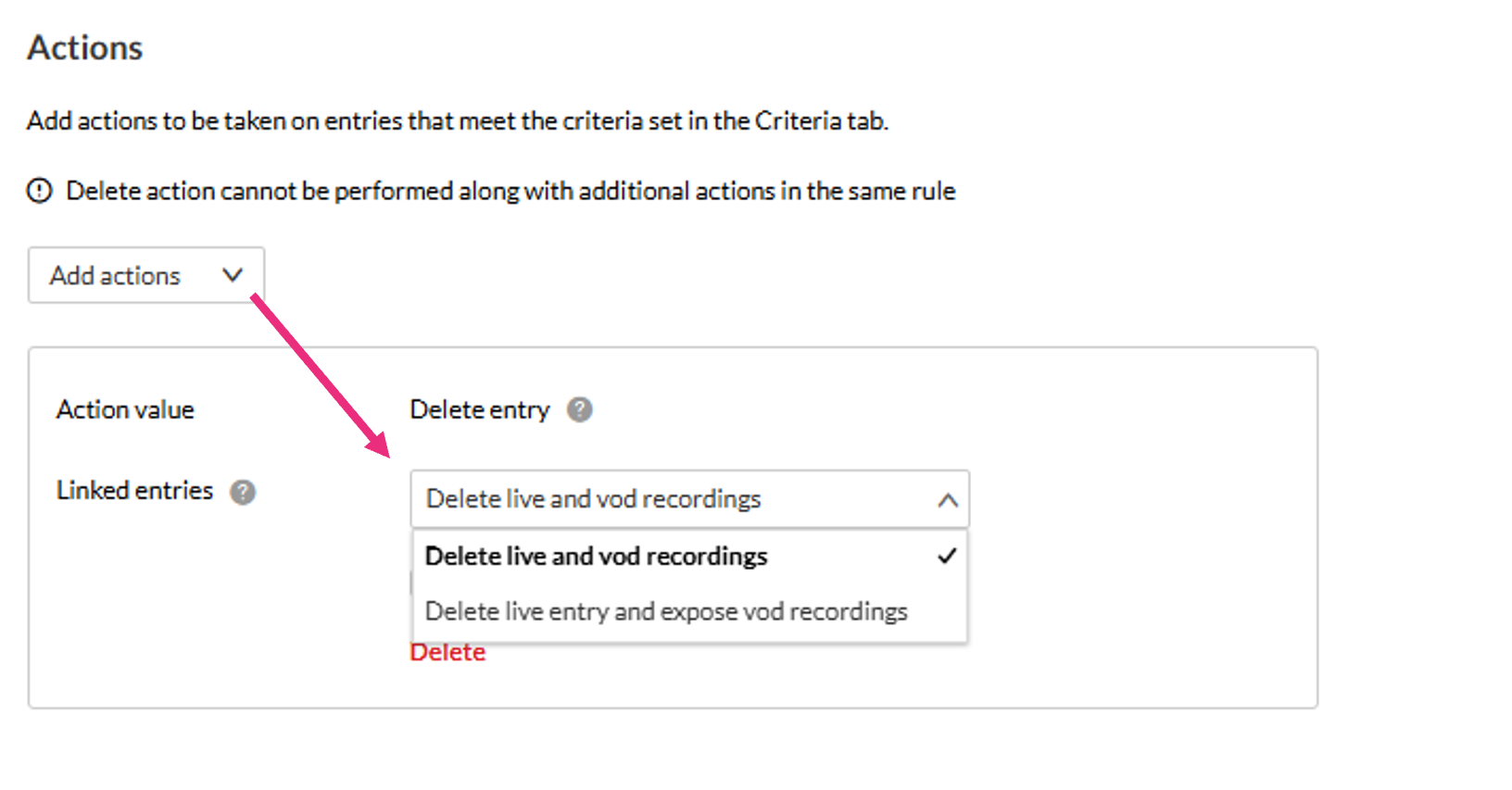
If the recycle bin is enabled, you'll see the Move to recycle bin option. Selecting it moves the entry there. If you don't select it, the entry is permanently deleted.
When using Trigger an agent, review your rule criteria carefully. If criteria are too broad, the agent may run on more entries than intended.
2. Click Save.
