About
When Automation Manager runs a rule, it scans your media and selects items that meet the rule’s criteria. This media appears on the Review page, where you can review what was selected and decide whether actions should run.
This article explains how to review selected media, approve or reject actions, and manage the review queue.
How the review process works
- Automation Manager scans media based on rule criteria.
- Media that meets the criteria appears on the Review page.
- Depending on the rule settings, actions may:
- run automatically, or
- require manual approval.
- Approved actions are performed on the scheduled execution date or when triggered manually.
Media selected by a rule appears on the Review page for a limited review period. If no action is taken during that time, the media won’t appear again in future runs of the same rule. To review it again, create a new rule with the same settings.
Access the Review page
- Log into your Rich Media CMS.
- In the top navigation menu, click the settings icon at the far right.

The Account settings page opens.
- Click the Automation Manager tab at the far right.
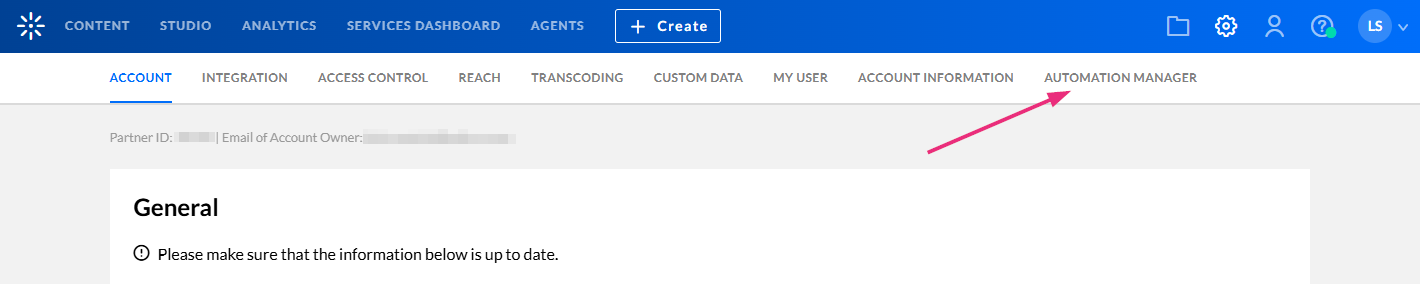
If you don't see the automation manager tab, you need to enable it on your account. In addition, only users with certain roles can access the automation manager.
The Rules page displays.
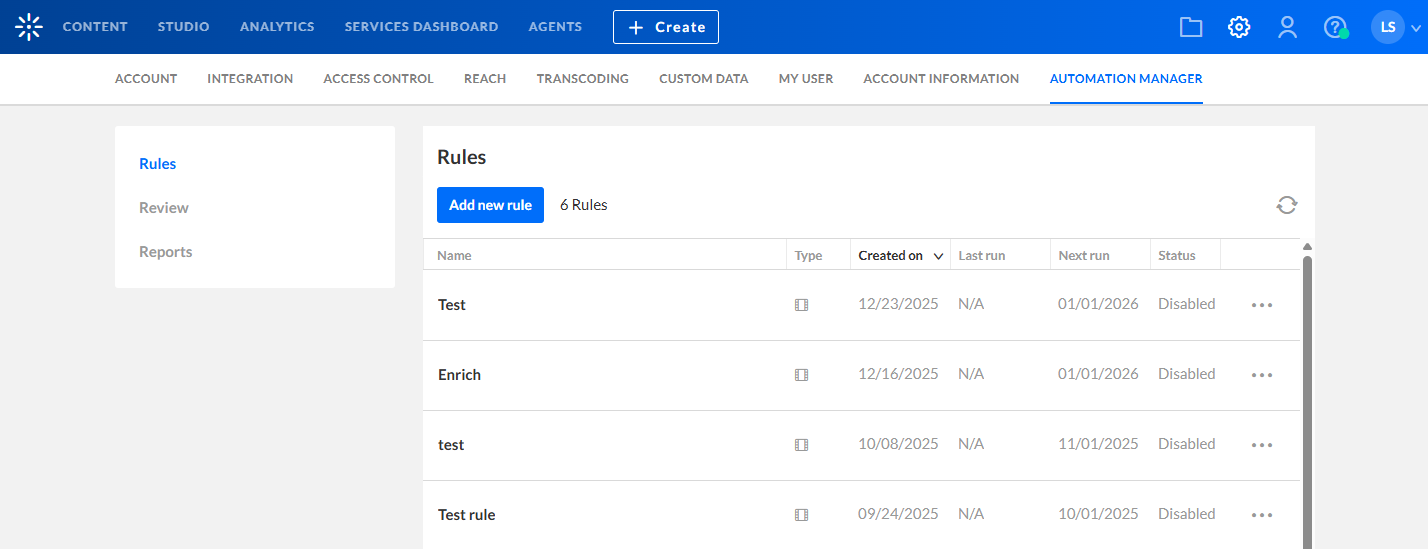
- In the left navigation panel, click Review.

The 'Review' page opens.

Review and manage entries
The Review page lists entries that met the criteria of a rule and were added to the review queue. The columns for each entry are:
- Name - entry name
- ID - entry ID
- Type - media type icon (same as in Rich Media CMS entries tab)
- Duration - media duration
- Triggering rule - the rule that triggered the entry to be added to the review queue
- Execution date - the date in which the triggering rule is planned to run
- Status - current status that indicates what will happen next. The statuses are as follows:
- Pending - Action requires manual approval before it can run.
- Auto - Action will run automatically without approval.
- Approved - Action has been approved and will run as scheduled.
- Rejected - Action won’t run for this media item.
Review media actions
Each media item has a three-dot menu at the end of the row with available actions.

The menu allows you to perform the following actions:
- Approve - Allows the configured actions to run.
- Deny - Prevents actions from running for this media item.
- Perform now - Runs the configured actions immediately.
Search, filter and refine the review queue
You can narrow down the list of media using search and filters.

Use the search field to find media by name or ID.
Refine your search using the following filters:
- Added between - enter the date the entry was added to the review queue
- Action between - enter the date the actions are planned to be performed
- Additional filters - you can refine your search using additional filters as follows:
- Media type
- Duration
- Owner
- Approval status
- Rules

Looking for an item that met the rule but no longer appears in the review queue? If an entry was flagged but no action (approve or reject) was taken during the review period, it won’t show up again in future scans of the same rule, even if it still meets the criteria. To include it again, create a new rule with the same settings.
Bulk actions
Using the More actions menu, you can select specific entries (or all entries on the page) and perform the following actions in bulk:
- Approve
- Reject
- Perform now - Executing this rule now will perform the configured actions on all selected entries.

Export
Click Export at the top right to export a CSV file with all entries based on the filtering in the Review tab at the time of export.
