About
Automation Manager provides reports and email notifications to help you track rule activity and understand what actions were performed on your media.
Use notifications to stay informed during each stage of a rule run, and use reports to review results, audit activity, or share data with other teams.
How notifications and reports work
- Notifications are sent automatically based on rule settings.
- Reports are generated each time Automation Manager scans media or performs actions.
- Notifications and reports are configured per rule.
- Reports can be downloaded as CSV files.
Configure notifications
Access the notifications tab
- Log into your Rich Media CMS.
- In the top navigation menu, click the gear icon at the far right.

The Account settings page displays.
- Click the Automation Manager tab at the far right.
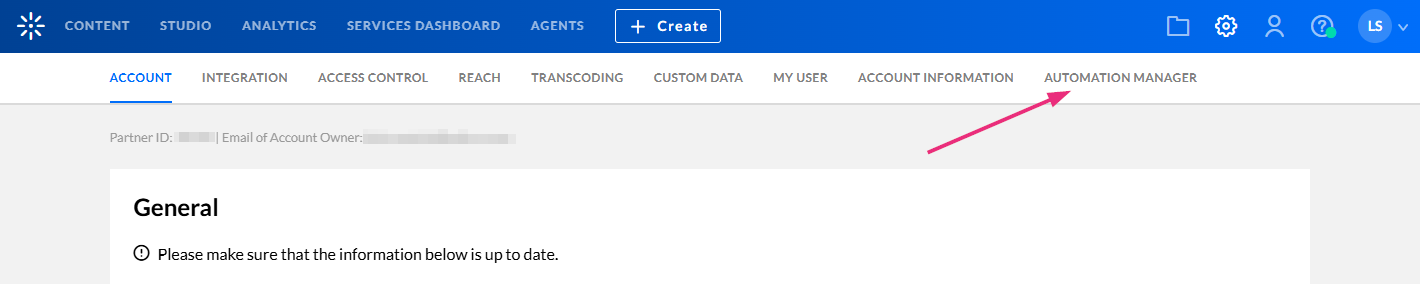
If you don't see the Automation Manager tab, contact your administrator to enable it. Access is limited to users with the required roles.
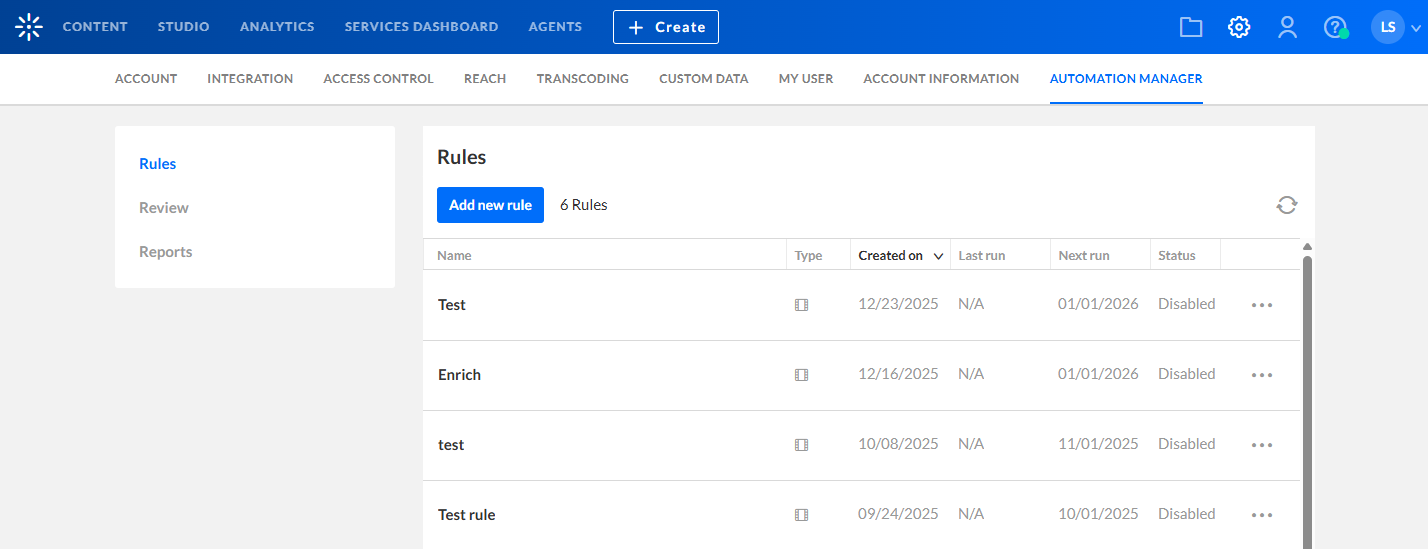
The Rules page displays. Here you can view any rules that have already been set up on your account.
-
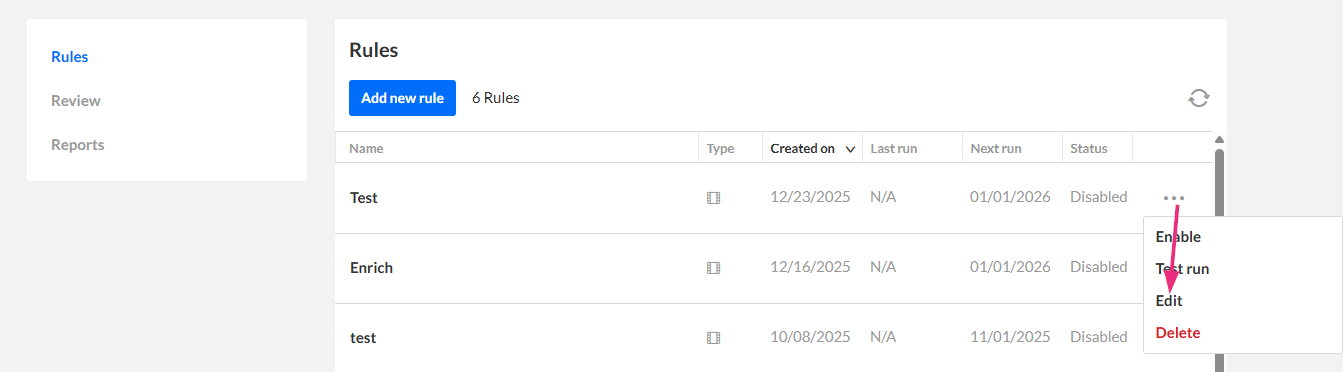
On the Rules page, click the three dots at the end of the row of a rule and select Edit.
- In the left panel, click Notifications.
The rule configuration page opens with the General tab selected by default.

The Notifications page opens.

Notification types
You can enable one or more notification types for each rule:
- Post-entries scan notification -Sent after Automation Manager scans media and identifies items that meet the rule’s criteria. Use this notification to confirm how many media items were selected.
- Pre-action notification -Sent before actions are performed, reminding you that the review period is about to end.
- Post-action notification - Sent after actions are completed so you can review the actions that were applied.
Configure notification settings
1. Click Edit next to the notification you want to edit.

The 'Edit email notifications' window opens.
 Post-entries scan notification
2. Configure the following settings:
- Email scheduling - Number of days before actions are performed (relevant to pre-action notification only).
- Send to - Check the box next to your preferred recipient:
- Rule owner - Enabled by default for every new rule
- Entry owner - Available for Post-entries scan and Pre-action notifications
- Custom list - Start typing a username, and suggestions of existing users on the account will be automatically provided.
- Email subject - Customize the subject line of the email that will be sent out.
- Email body - Customize the body line of the email that will be sent out.
3. Click Save.
Email templates can be customized for each rule and specific email. All emails support the following tokens: {user.firstName}, {scanDate}, {profileName}, {actualExecutionDate}, {plannedExecutionDate}
View and download reports
The Reports tab displays and allows you to download reports generated by the Automation Manager for your account. It shows only reports that are in 'Ready' status.
Access the reports tab
- Log into your Rich Media CMS.
- In the top navigation menu, click the gear icon at the far right.
The settings navigation menu displays.
- Click the Automation Manager tab at the far right.
If you don't see the Automation Manager tab, contact your administrator to enable it. Access is limited to users with the required roles.
The Rules page displays. Here you can view any rules that have already been set up on your account.
- In the left navigation panel, click Reports.

The 'Reports' page opens.

Reports page overview
The Reports page shows Automation Manager reports for your account. Reports are generated after a rule scan, test run, or action run.
When reports are available, the table includes the following columns:
- Rule - the name of the rule associated with the report
- Date - date the report was created
- Number of items - number of entries in the report
- Type - there are three types:
- Scan - generated every time entries are scanned
- Test - generated after a test run*. The report contains the entry IDs that match the rule criteria.
- Action - generated every time actions were performed
*A test run evaluates the rule's criteria against your media entries and generates a downloadable CSV report containing all matching entry IDs. It doesn't apply any actions, add entries to the Review queue, or wait for the rule's configured schedule.
Test runs execute immediately, allowing you to verify that the rule criteria match the expected media before enabling or running the rule.
The columns are sortable by date, number of items, and type.
You can use the filter at the top right to filter the reports by:
- Date - enter the desired date in the date picker
- Rule - filter by rule
- Type - filter by type (scan / test / action)
Download report - Click Download Report at the end of the row to download the report of that entry.
