About
Rule criteria determine which media entries Automation Manager selects when a rule runs. Criteria are used to filter entries based on metadata, usage, ownership, accessibility, and other attributes.
Only entries that meet all defined criteria are included in a rule.
How criteria work
- Criteria act as filters that narrow down which entries are selected.
- All criteria in a rule must be met for an entry to be included.
- You can add multiple criteria to the same rule.
- Removing all criteria from an enabled rule automatically disables the rule.
Access the criteria page
- Log into your Rich Media CMS.
- In the top navigation menu, click the settings (gear) icon at the far right.
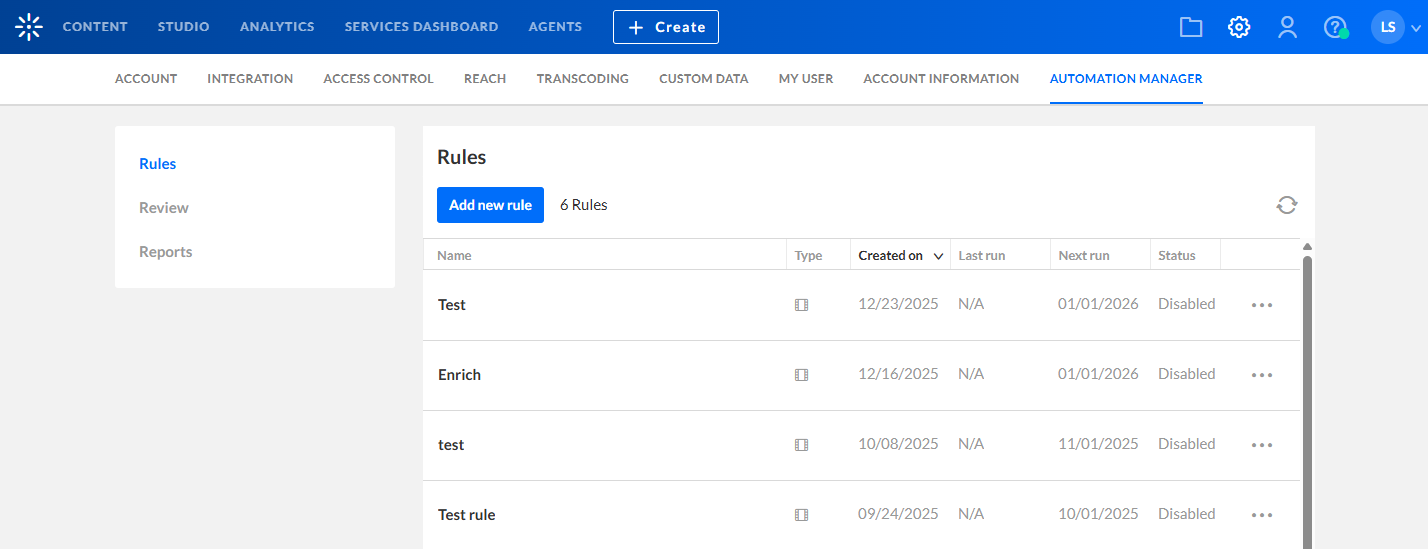
- Click the Automation Manager tab at the far right.
- On the Rules page, create a new rule or click the three dots at the end of the row of an existing rule and select Edit.
- In the left navigation panel, click Criteria.

The Account settings page opens.
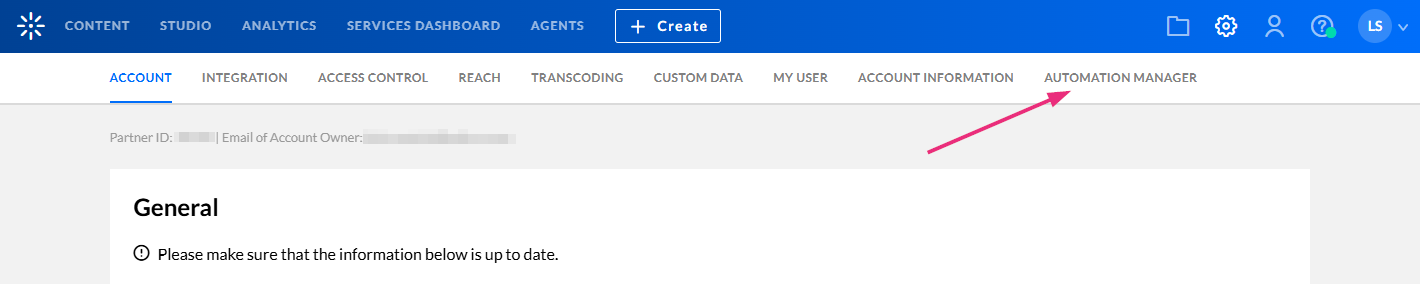
If you don't see the automation manager tab in your Rich Media CMS, you need to enable it on your account. In addition, only users with certain roles can access the automation manager.
The Rules page displays. Here you can view any rules that have already been set up on your account.
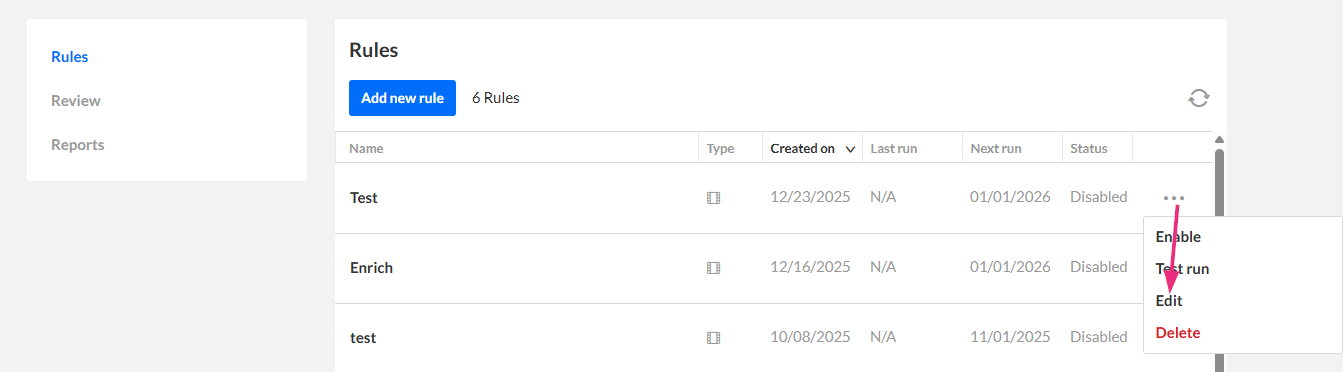
The rule configuration screen opens with the General tab selected by default.

The 'Criteria' page opens.

Set rule criteria
Use criteria to define which entries are selected by a rule. Entries must meet all criteria to be included.
Some criteria are often used together with the 'Delete' action. Make sure your rule is specific enough to avoid affecting more entries than intended.
For example, if you select 'Number of plays' = 0 without also defining a date range, newly uploaded media with no plays will also be included.
1. On the Criteria page, click Add criteria, then select a criterion from the relevant category.

Criteria are grouped into categories as follows:
Ownership & Entitlements
- Entry owner – Select the assigned owner(s) of the entry. The rule runs if the entry is owned by at least one of the selected owners.
Activity & Engagement
- Creation date – Define the minimum or maximum time that has passed since the entry was created.
- Last played date – Define the minimum or maximum time that has passed since the entry was last played.
- Number of plays – Specify the total number of plays for the entry. Select more than or less than a defined number of plays.
- Entry scheduling – Define scheduling conditions relative to the current date. You can define conditions using dates in the past (ago) or future (ahead).
- Start date – Select whether the start date is more than or less than a defined number of days, weeks, or months ago or ahead of today.
- End date – Select whether the end date is more than or less than a defined number of days, weeks, or months ago or ahead of today.
- Use Start date + more than + 30 days + ahead to identify entries scheduled further in the future.
- Use End date + less than + 7 days + ahead to identify entries scheduled to expire within the next week.
Note about Entry scheduling
The ago / ahead option lets you target entries based on past or upcoming scheduling dates. For example:
This is useful for proactive workflows such as reviewing scheduled content before publication or notifying owners before content is unpublished.

Content Classification
- Categories – Select the categories to which the rule applies. The rule runs if the entry is found in at least one of the selected categories.
- Entry tags – Select tags to which the rule applies. The rule runs if the entry contains at least one of the selected tags.
Accessibility & enrichment
- Captions – Select entries based on caption availability and accuracy.
- Standard audio description – Select entries based on standard audio description availability.
- Extended audio description – Select entries based on extended audio description availability.
Metadata & Technical Attributes
- Entry custom metadata - Select a schema and field, then define whether the field value equals or doesn’t equal a specific value. The available input options depend on the field type (text, date, entry ID list, or dropdown). To learn how to create a custom metadata schema, visit our article Create a custom metadata schema for entries.
- Media duration – Specify the duration of the media. Select more than or less than a defined length (hours, minutes, or seconds).
- Entry admin tags – Select admin tags to include or exclude. Enter exact tag names. Use commas to separate multiple tags.
2. Click Save.
Example 1: Captions with required accuracy
Use this setup to identify media that does not meet your captioning requirements. This can include entries that are missing captions in a required language or have captions that fall below an acceptable accuracy threshold.
This example targets media that does not meet the English caption requirement, helping you identify content that needs captioning or caption improvement.

This is useful when you want to:
- Include only low-quality captions
- Exclude high-accuracy captions from downstream actions
- Prepare media for publication or compliance check
Example 2: Missing standard audio description
Use this setup to identify media that is missing a required audio description track.
This example selects media that does not contain a standard audio description in a specific language (Italian).

This is useful when you want to:
- Identify gaps in accessibility coverage
- Route media for audio description creation
- Trigger an accessibility agent to add missing tracks
