About
This article describes how to generate, export via email, and download reports on your event.
The screens shown here represent a multi-session event. The same actions apply when working with single session.
Navigate to the Reports page
From the Event page, choose Reports from the Analytics tab pull-down menu.


The image above depicts a Public Q&A experience for Chat and Collaboration.
If your account administrator has enabled a non-public Q&A experience for Chat and Collaboration, Q&A activity and Q&A transcripts will display a Download button, allowing you to select a specific session.
To learn about the two experiences in the Chat and Collaboration widget, see public Q&A experience and non-public Q&A experience.
Reports page functionality
The Reports page allows you to generate, export via email, and download your event reports in CSV format.
Registration, RSVP, User activity, Interaction activity, Chat transcripts, and Attachments, and Documents reports
Click the Generate button.
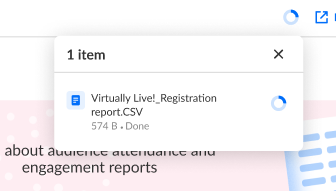
- In the case of the Registration report, the report immediately begins generating. Once the report is generated, the Download button is displayed allowing you to download the report.
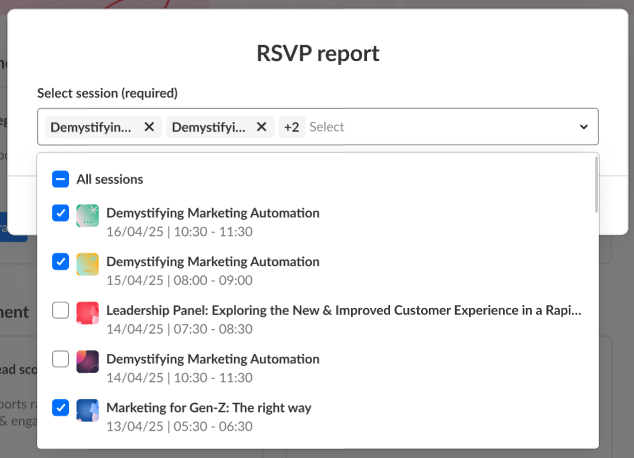
- For the RSVP report, you are prompted to choose a session, then you may generate the report.
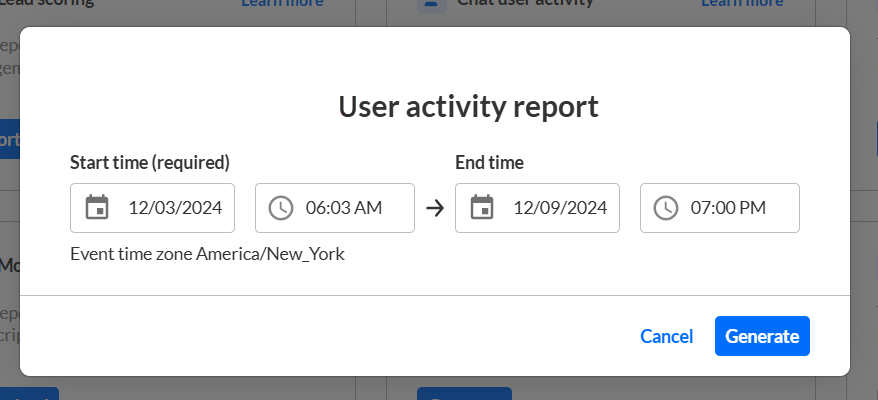
- For the User activity and Interaction activity reports, you are prompted to select start and end days/times, then you may download the CSV. Below is an example of a user generating a User activity report.
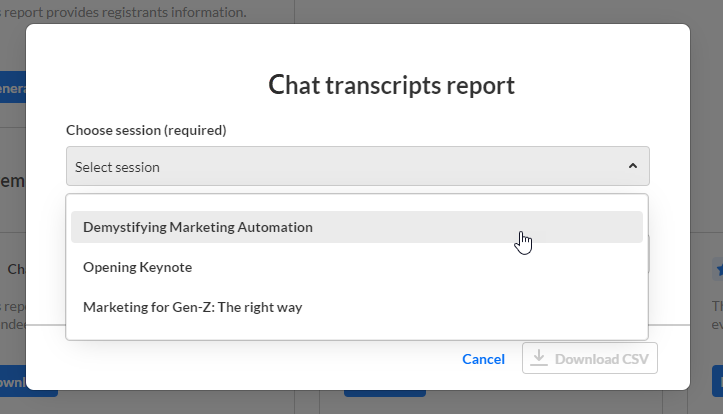
- For the Chat transcripts report, you are prompted to choose a session, then you may download the CSV.
- For the Attachments report, you are prompted to choose a session/media and start and end days/times, then you may download the CSV.
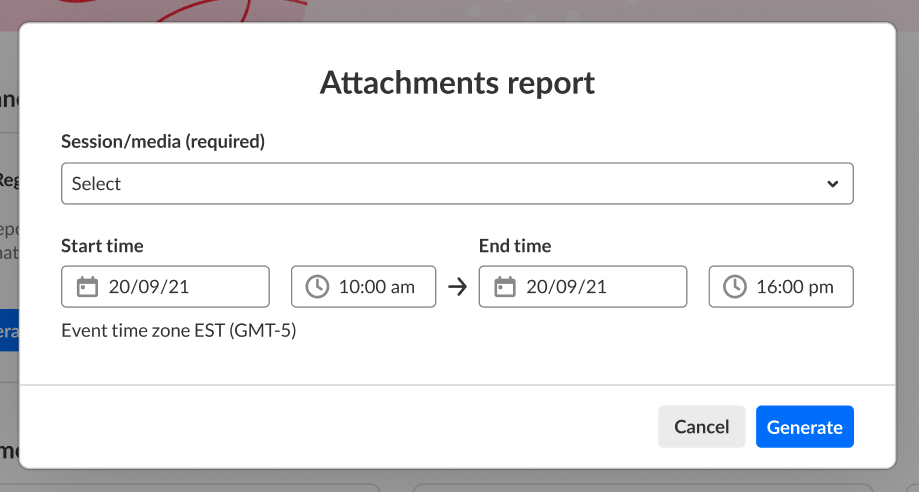
- For the Documents report, you are prompted to choose a start and end date.


Lead scoring report
Click Export via email. The report is emailed to the logged in user.
Q&A activity and Q&A transcript reports - non-public Q&A experience
Click Download. You are prompted to select start and end days/times, then you may download the CSV. Below is an example of a user generating a Q&A activity report. 
Q&A activity and Q&A transcript reports - public Q&A experience
Click Generate. You are prompted to choose a session, then you may generate the report. Below is an example of a user generating a Q&A activity report. 

Learn more
Click Learn more on any of the reports to learn more about the columns/data within that report.

The Learn more button redirects the user to the following articles:
Attendance reports
Engagement reports
Q&A activity - Public Q&A disabled
Q&A activity - Public Q&A enabled
Q&A transcripts - Public Q&A disabled
Q&A transcripts - Public Q&A enabled
