About
Moderators can use Public Q&A to review and respond to participant questions, manage conversations, and mark replies as correct during a session.
This article describes the Q&A experience when Public Q&A is enabled. If your account doesn't use Public Q&A, see Manage Q&A during a session.
Public Q&A is available only in Kaltura Virtual Events & Webinars.
Public Q&A is configured in the Chat and Collaboration module in mediaChat settings.
Open Q&A
- On the session page, click Live stage in the right navigation.
- Click the Q&A tab (question mark icon) at the top of the Live stage panel.
The Q&A area opens. Before participants submit questions, the Q&A area is empty.

After participants submit questions, they appear in the Q&A area.

A verified badge identifies users with a session management role.
View questions by status
Use the status options to find questions based on their current state:

- All – Displays all questions except deleted or archived questions.
- Pending – Displays questions that haven't received a moderator response.
- Active – Displays open questions that have received a moderator response and don't have a reply marked as correct.
- Done – Displays questions with a reply marked as correct or conversations that have been ended.
Filter and sort questions
Click the Filter icon to filter or sort the questions.

You can:
- Select My items only to display questions that you created or replied to.
- Sort questions by Newest first, Oldest first, or Most relevant.
Select Most relevant to prioritize questions with the most upvotes.
When new activity is available, a red indicator appears on the Filter icon. Click the Refresh icon to update the list with the latest activity.

Refreshing the list clears My items only and resets the sort to Newest first.
Click Clear selection to return to the complete list.

Reply to a question
- Find the question you want to answer.
- Click the Reply icon.
- Enter your response.
Replies can contain up to 500 characters. You can only reply to an open conversation.
Mark a reply as correct
- Select the reply you want to mark as correct.
- Click the three dots.
- Select Mark as correct.
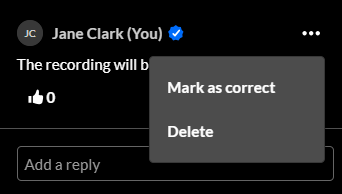
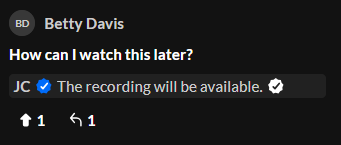
A check mark identifies the reply as correct. The question moves to Done when a reply is marked as correct.
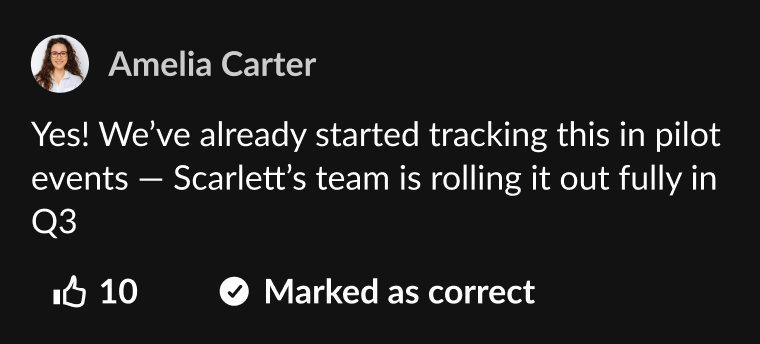
When you open the reply, Marked as correct displays.
To remove the designation, click the three dots and select Unmark as correct.
End or restart a conversation
To prevent participants from adding more replies:
- Click the three dots on the question.
- Select End conversation.
Participants can't reply to an ended conversation. The question moves to Done.
To reopen the conversation, click the three dots and select Start conversation. The question returns to Active.
Manage questions and replies
You can also:
- Click the Upvote icon to upvote a question.
- Click the Like icon to like or unlike a reply.
- Click the three dots on a question or reply and select Delete to remove it from the Q&A area.



Deleted questions and replies are hidden from participants but aren't permanently deleted. They remain available in reports.
Ask a question
Moderators can also submit questions to Public Q&A.
Enter your question in the Ask a question field, then press Enter. Questions can contain up to 500 characters.
