About
You can define available playback speeds through the player’s Advanced Settings. This configuration is not exposed in the standard Player Studio interface.
Use this setting to control which playback speeds are available in the player (for example, slow motion or fast forward). For the user guide, see Player controls.
Access the advanced settings
VOD Audio Reels
- Log in to your Rich Media CMS and click the Studio tab.
- Click the player you want to edit from the list (or use the search bar in the top right).
- Scroll to the bottom of the player settings and click Advanced Settings.

The Player Studio page displays.
If you haven't created a player yet, check out our article Create a player for guidance.

The player settings display.


The advanced settings editor opens.

Configure playback speeds
Playback speeds must be entered as an array. 1.0 represents normal speed.
Example: [0.5, 1, 1.5, 2]
- In the Advanced Settings tab, hover over the playback object then click the green + icon.
- In the box, enter playbackRates, then click the green checkmark or press 'Enter' on your keyboard.
- Hover over the setting and click the green edit icon.
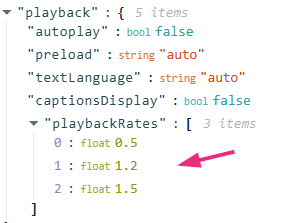
- Replace null with your desired values inside square brackets (for example: [0.5, 1, 1.5, 1.75, 2, 3]), then click the small green check mark.
- Click Save at the top right before you exit.

The Key Name box displays.

You’ll see the new setting listed.

A box containing a null value displays.

To include just one custom speed, add 1 first, for example, [1, 1.2].

The result looks like this:
Use experience
 Playback rates displayed on player