About
This document describes how to install the Kaltura Video integration for Moodle version 5.0 or later using LTI 1.3 or LTI 1.1.
Existing deployments using LTI 1.1 should continue to work. However, LTI 1.1 is deprecated by 1EdTech, and new integrations typically use LTI 1.3.
Before you start
Make sure the following is already in place:
- A Kaltura account with:
- a Partner ID (PID)
- an Admin secret (required for LTI 1.1 only)
- A KAF (Kaltura Application Framework) instance URL, e.g., https://12345.kaf.kaltura.com
- Moodle version 5.0 or later
- Access to the KAF Configuration Management console
Install the Kaltura Video plugin for Moodle
Installing the Kaltura Video plugin is required before configuration. This step does not affect active Moodle users and can be completed anytime in advance.
When you install the Kaltura Video plugin, the following features become available in Moodle:
- My Media (personal media library)
- Media Gallery (course media repository)
- Kaltura Media Assignment (legacy)*
- Kaltura Video Resource
- Kaltura Media embedding in text editors
*In addition to the legacy Kaltura Media Assignment activity, Kaltura media can also be submitted using the standard Moodle Assignment activity. For instructions, see Create a video assignment in Moodle.
To install the plugin:
- Download the latest Kaltura Video Plugin to your Moodle root directory. For the latest plugin releases, visit our official GitHub repo.
- Unzip the downloaded package and when prompted to choose an extraction location, select the Moodle root directory (the folder that contains the admin, mod, and local folders).
- Log in to your Moodle site in a web browser as an administrator. If Moodle detects the new plugin files, it automatically displays the plugin installation screen.
- When prompted, click Continue at the bottom of the welcome screen to start the plugin installation.
- Review the server checks and click Continue.
- Wait for the installation to complete, then click Continue.
- Complete the required fields and click Update profile.
- Configure the front page settings and click Save changes.
Configure the Kaltura-Moodle connection and features
After installing the Kaltura Video plugin, complete the following configuration steps to connect Kaltura to Moodle and enable features.
Step 1: Configure the Hosted module
1. Go to your Configuration Management console and click on the Hosted module. You can also navigate to it directly using a link: https://{your_site_URL}/admin/config/tab/hosted.

The 'Hosted' page displays.

2. Scroll down the page to the authMethod field and select the LTI version you plan to use.

If you select LTI 1.3, additional fields display.

- lti13PlatformOidcAuthUrl - Enter the Moodle platform OIDC authentication URL: https://{your_Moodle_domain}/local/kaltura/auth.php
- lti13AuthTokenUrl - Enter the Moodle OAuth token URL: https://{your_Moodle_domain}/mod/lti/token.php
- lti13KeysUrl - Enter the Moodle JWKS URL: https://{your_Moodle_domain}/mod/lti/certs.php
- lti13ClientId - Leave this field empty for now. You will populate it after obtaining the Client ID in Step 2.
- lti13ServicePrivateKey - Click the 'generate key pair here' link.

The 'Certificate generator' window opens and displays a private key and a public key.

4. In the Certificate Generator, click Use.
The private and public keys are automatically copied into the lti13ServicePrivateKey and lti13ServicePublicKey fields.

5. Scroll to the bottom of the page and click Save.
Step 2: Configure the Kaltura connection in Moodle
Use this page to configure the core connection between Moodle and Kaltura.
- Go to Site administration.
- Use the search field to locate Kaltura package libraries.
- Click Kaltura package libraries to open the page. The KAF configuration page displays.

This page contains the KAF connection, LTI, and optional feature settings. (The values shown in the image below are examples only.)

Core settings
1. Configure the following required settings:
- KAF URI - Enter your KAF instance URL. Format: https://{your_KAF_URL}, for example, https://123456.kaf.kaltura.com, or https://123456-1.kaf.kaltura.com, or https://kaltura.kaf.university.edu
- Server URI - Default: www.kaltura.com. In most cases, this does not need to change.
- LTI version - Select the LTI version your Moodle site uses with Kaltura. The page updates to show the fields required for that LTI version.
- Partner ID - Enter your PID (Kaltura Partner ID). You can find this value on the 'Integrations' page in the Rich Media CMS (Rich Media Content Management System). For information, see Account information in Rich Media CMS.
- Admin secret - This field displays if you are using LTI 1.1. Enter the admin secret from the 'Integrations' page in the Rich Media CMS. For information, see Account information in Rich Media CMS.
- Client ID - This field is populated automatically when using LTI 1.3. You will copy this value in Step 3.
- Enable trace logging - Checked
The "https://" is required. Do not include an ending "/".
Optional settings
- Enable Clone Submission - Controls whether submitted Kaltura media is automatically cloned when used in assignments.
- Guest support - If enabled, Moodle identifies guest and non-logged-in users and sends the Guest LTI role when launching Kaltura tools.
For assignment cloning to work, the enableAssignmentSubmission setting must also be enabled in the Browseandembed module. See Set up Kaltura's media assignment tool for Moodle for configuration steps.
2. Click Save changes.
Step 3: Complete the LTI 1.3 connection (LTI 1.3 only)
This step applies only if you selected LTI 1.3 in the previous steps. If you are using LTI 1.1, skip this step and continue to Step 4.
- In Moodle, open the Kaltura package libraries page (see above).
- Copy the Client ID value.
- Return to the Hosted module in the Configuration Management console, and paste the Client ID into the lti13ClientId field (see above).
- Scroll to the bottom of the page and click Save.


The LTI 1.3 connection between Moodle and KAF is now complete.
Step 4: Configure Kaltura features and access
After installing the integration, configure Kaltura features and user access based on how you plan to use Kaltura in Moodle.
Enable the Kaltura media filter
The Kaltura Media filter enables embedded Kaltura media to display correctly in rich-text areas.
- Go to your Moodle Site administration and select Plugins.
- Scroll down the page to the Filters section and select Manage filters.
- Locate Kaltura Media in the list.
- Enable the Kaltura Media filter and click the Settings link.
- In the Kaltura Media settings, make sure Embed Kaltura Video Links is selected.
- Click Save changes.


The Manage filters page opens.


The Kaltura Media page displays.


Add the Kaltura embed button to text editor
The Kaltura embed buttons are added automatically to the TinyMCE editor in two places. No additional setup is required.

Configure My Media placement
My Media is each user’s personal media repository in Moodle (based on their Moodle role and permissions). You can control where the My Media link appears in the Moodle interface.
Available locations include:
- Top navigation menu
- Side navigation menu
- User navigation menu
To configure where the My Media link appears:
- Go to your Moodle Site administration and select Plugins.
- On the 'Plugins' page, scroll down to the Local plugins section and select My Media.
- In the Link location dropdown, select where you want the My Media link to appear.
- Click Save changes.


The My Media link is now available to users in the selected location.
Configure the Media Gallery
The Media Gallery is a shared media repository for a Moodle course. It allows instructors and students to view and interact with media that is associated with a specific course.
Access to the Media Gallery and available actions are controlled by Moodle roles and permissions.
Configure Media Gallery navigation (Boost theme)
Boost is the default Moodle theme in Moodle 4.x and later. It uses a different navigation layout than older Moodle themes, which can affect where course links appear.
When using the Boost theme, the Media Gallery link may not appear in the standard Navigation menu. Instead, you can display the Media Gallery link in one of the following locations:
- Navigation block
- Course settings menu
To configure where the Media Gallery link appears:
- Go to your Moodle Site administration and select Plugins.
- On the 'Plugins' page, scroll down to the Local plugins section and select Kaltura Media Gallery.
- In the Link location dropdown, select where you want the Kaltura Media Gallery link to appear.
- Click Save changes.


 User experience: Example of the Media Gallery link in the Course settings menu
Add the Media Gallery as a separate block
In addition to displaying the Media Gallery link in navigation, you can add the Media Gallery as its own block within a course that appears in the course side panel.
Adding the Media Gallery block can be done regardless of the Media Gallery link location you selected.
To add the Media Gallery block:
- Open the course where you want the Media Gallery block to appear (you must have editing permissions for the course).
- In the top-right corner of the course page, toggle on Edit mode.
- Click the arrow on the right side of the page to open the block drawer.
- Select Add a block.
- Select Kaltura Media Gallery.
- Select Kaltura Media Gallery.


The 'Add a block' window opens.

The new block appears in the course side panel.

Enable Kaltura media submissions by default
You can configure the system so that the Kaltura media submissions option is automatically selected whenever a teacher creates a new assignment.
- Go to your Moodle Site administration and select Plugins.
- Under Activity modules, select Kaltura media submissions.
- Check the Enabled by default setting.
- Click Save changes.
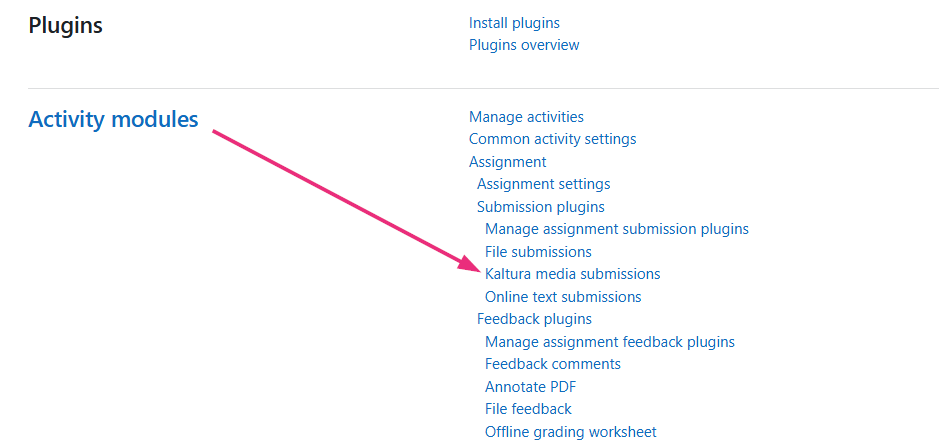
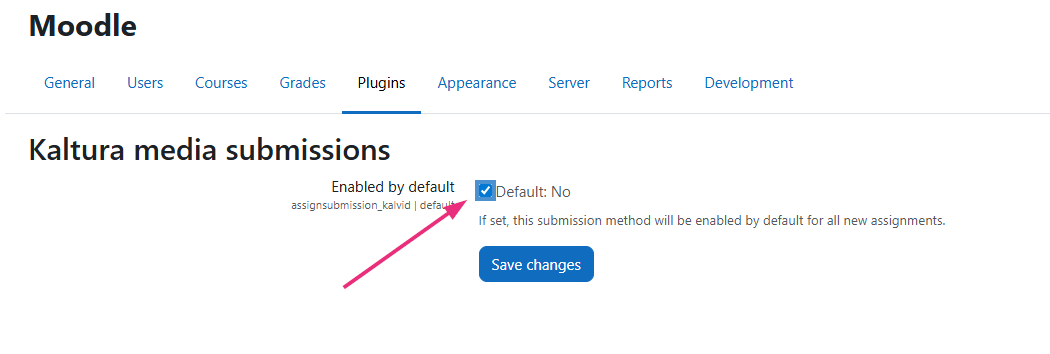
The Kaltura media submission type will be enabled by default for all new assignments.
Define roles and permissions
Moodle roles control access to Kaltura features and allowed actions.
To define roles:
- Go to your Moodle Site administration and select Users.
- On the 'Users' page, scroll down to Permissions and select Define roles.
- Locate the role you want to update and click the pencil icon at the end of the row.
- Scroll down down to the Capability section.
- In the Filter field, type Kaltura.
- Review the permissions related to the Kaltura LMS Video integration.
- Set the required permissions to Allow.
- Click Save changes.


The 'Roles' page displays with a list of the standard roles and custom roles.


The edit role page opens.


Available Kaltura permissions include:
- Block: Kaltura Media Gallery
- Add a new Kaltura Media Gallery block to Dashboard
- Kaltura package libraries (recommended for admins only)
- Download Kaltura trace logs
- Migrate Kaltura Data
- Kaltura Media Gallery
- View Kaltura Media Gallery
- Activity: Kaltura Media Assignment
- Add a Kaltura Media Assignment
- Activity: Kaltura Video Resource
- Add a Kaltura Video Resource
- Activity: Kaltura Media Assignment
- Grade video submissions
- Submit videos
- Block: Kaltura Media Gallery
- Add a new Kaltura Media Gallery block
- My Media
- View My Media page
Video Quiz integration with Gradebook
To complete your Kaltura LMS Video integration, you must configure Video Quiz gradebook integration based on the LTI version you are using.
Follow the appropriate guide:
- for LTI 1.1, see Deploy Kaltura Video Quiz Moodle Gradebook integration LTI 1.1
- for LTI 1.3, see Deploy Kaltura Video Quiz Moodle Gradebook integration LTI 1.3

