About
You can create a video assignment in Moodle using the standard assignment activity and enabling Kaltura Media as a submission type.
This method allows students to submit videos from their My Media library or upload new media through Kaltura.
- This workflow uses Moodle’s built-in assignment activity. If your course uses the legacy Kaltura Media Assignment activity, please see Create a Kaltura Media Assignment instead.
- For administrator setup instructions, see Set up Kaltura's media assignment tool for Moodle.
Create an assignment
There are several ways to add an activity in Moodle depending on your course layout and configuration. The workflow shown in this article is provided for demonstration purposes only.
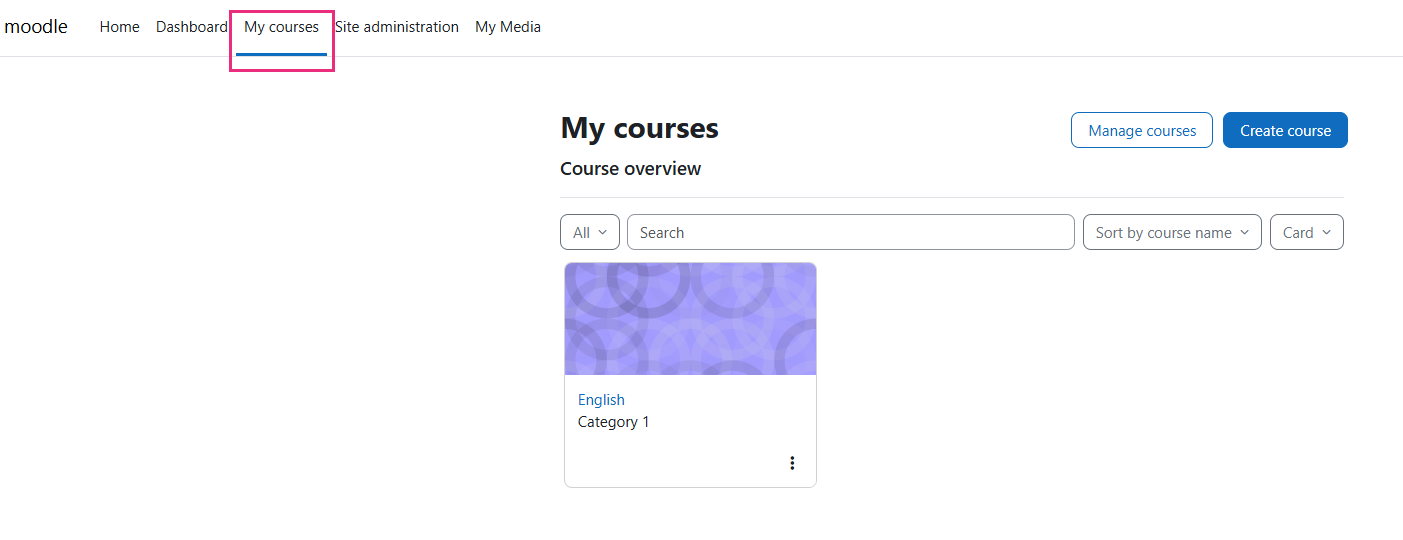
- Open the My courses page.
- Click on the course where you want to create the assignment.
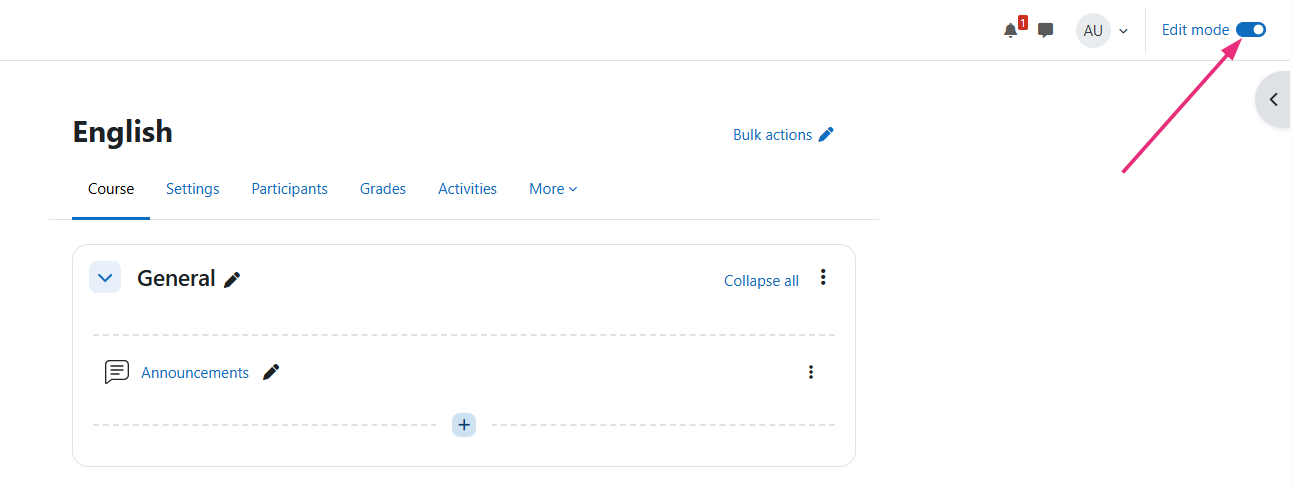
- At the top right of the page, click Edit mode to enable it.
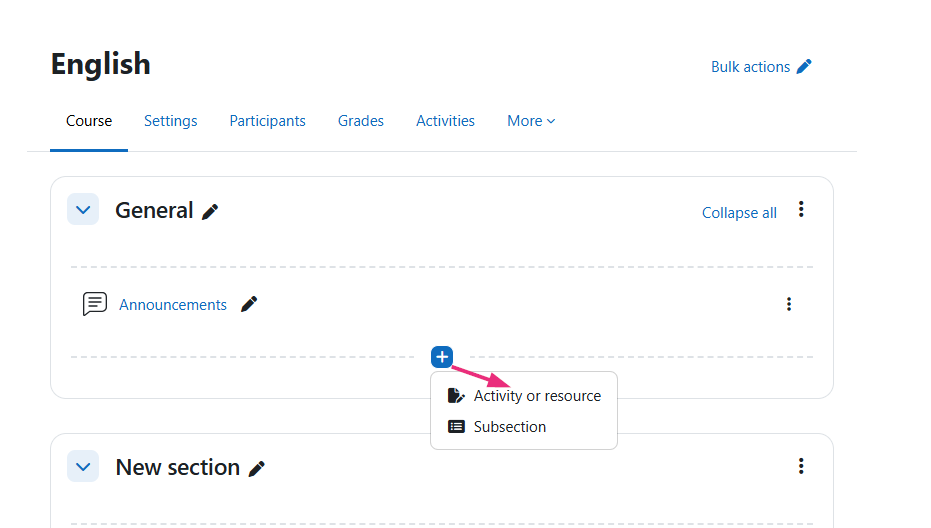
- Locate the section where you want to add the assignment, click the + icon and select +Add an activity or resource.
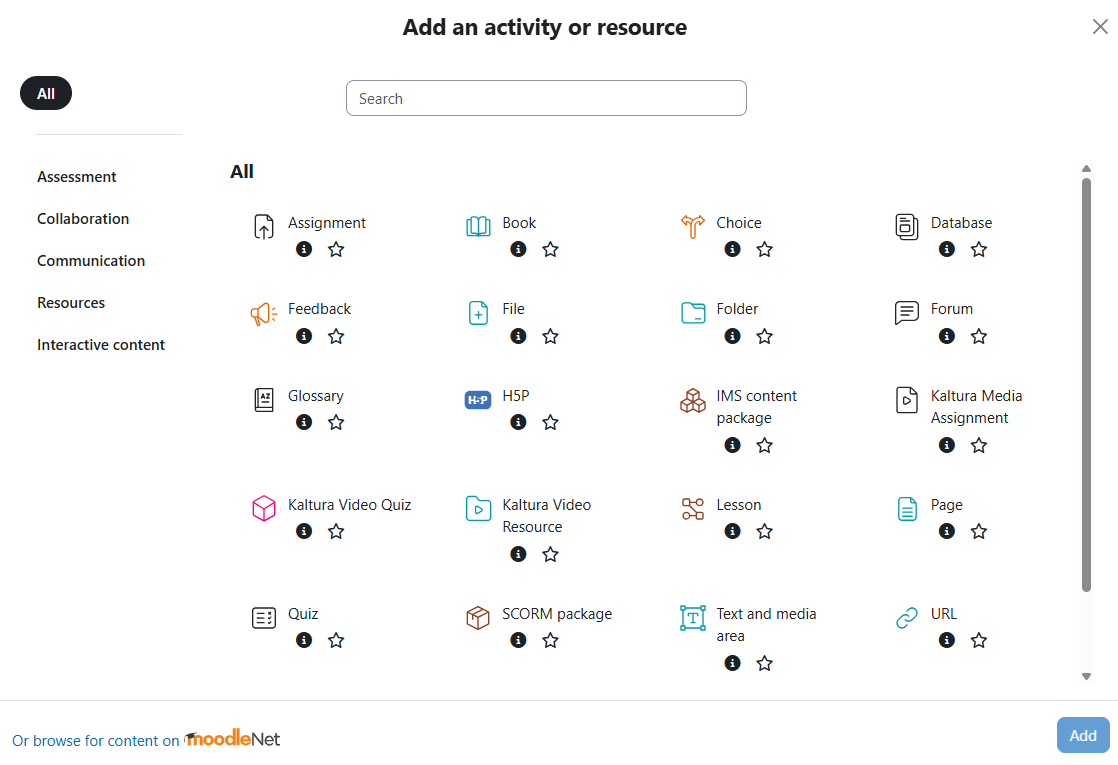
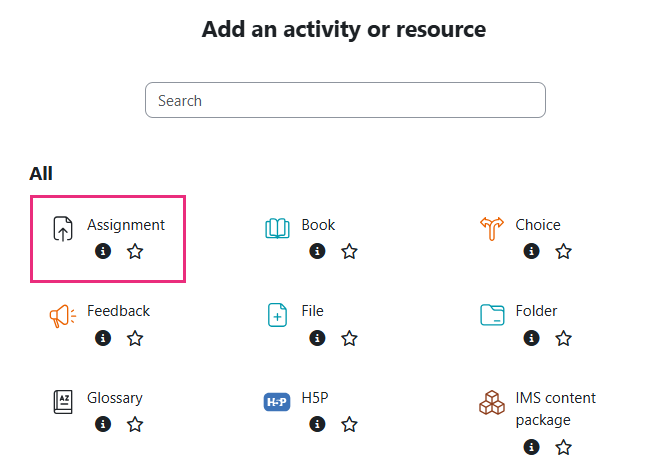
- Click Assignment.
- Click Add at the bottom right
The New Assignment page displays.
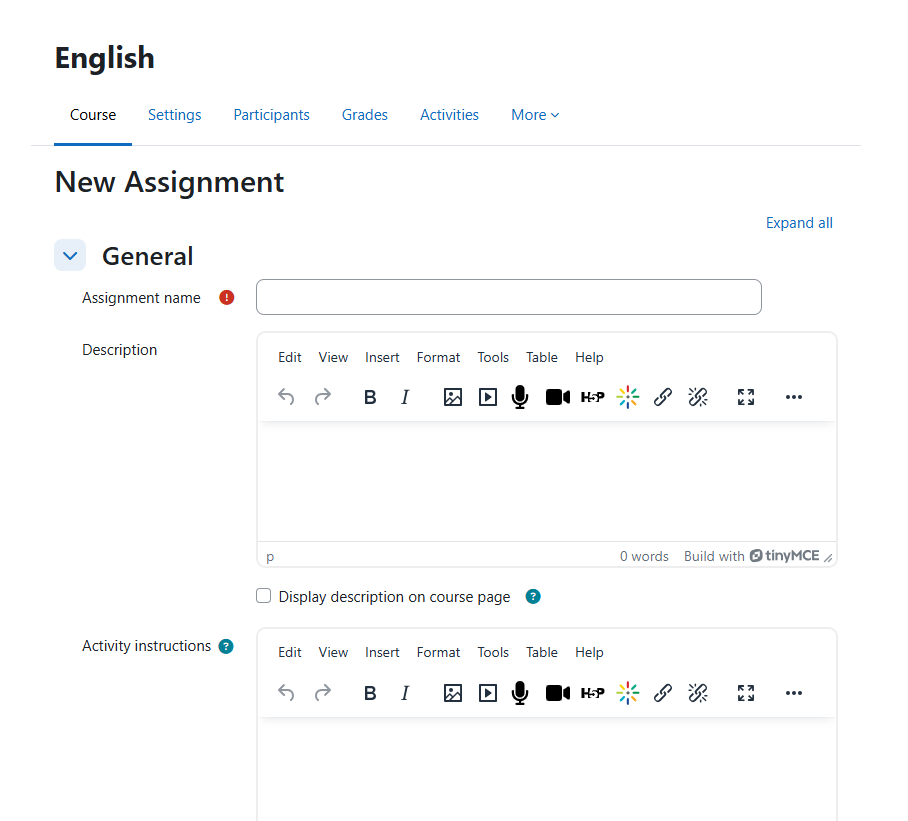
- Enter a name and description for the assignment.
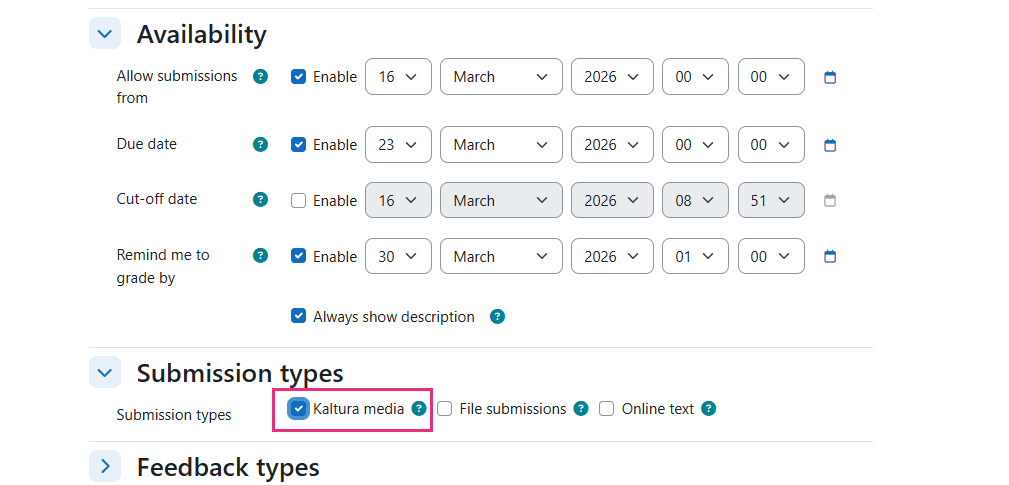
- Scroll down to the Submission types section and select the box next to Kaltura media.
- Configure the rest of the settings as you would for any other assignment. For more details on assignment settings, visit Moodle's assignment settings page.
- Scroll to the bottom and click Save and return to course.

The course page displays.
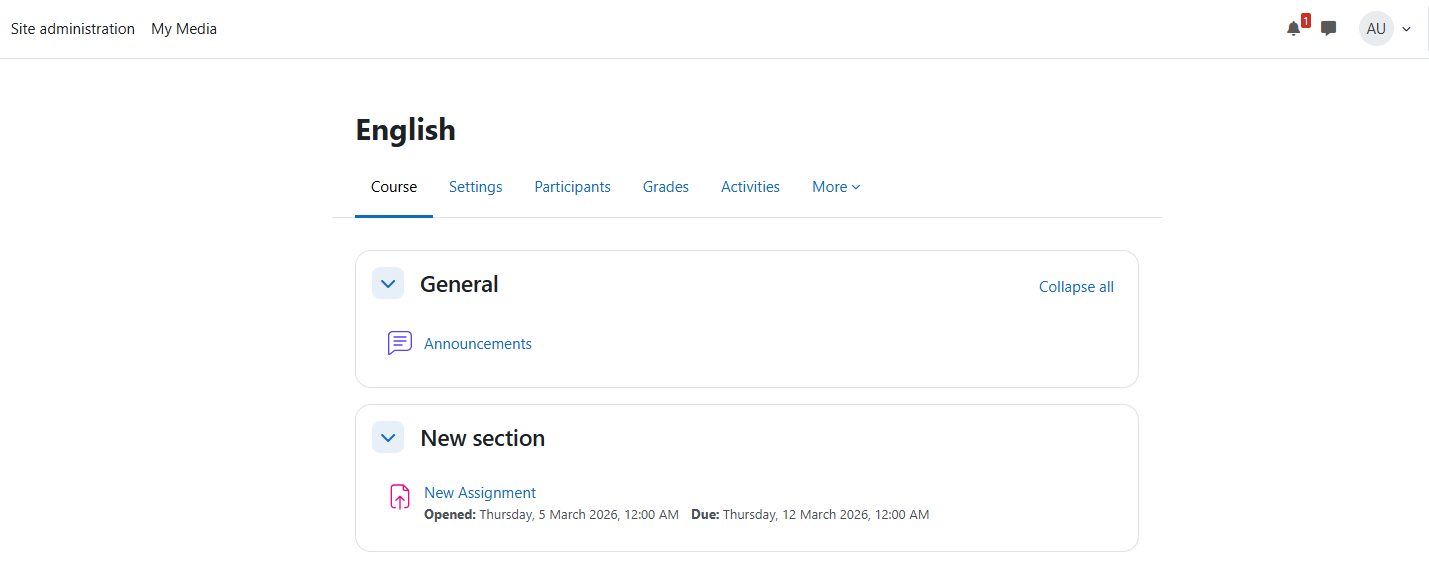
Your course page may look different from the example shown, depending on its structure (e.g., organized by topic, date, or other formats).
A window displays with the available activities and resources.
If your administrator configured Kaltura Media as a default submission type, this option may already be selected.
Your new assignment displays in the course.
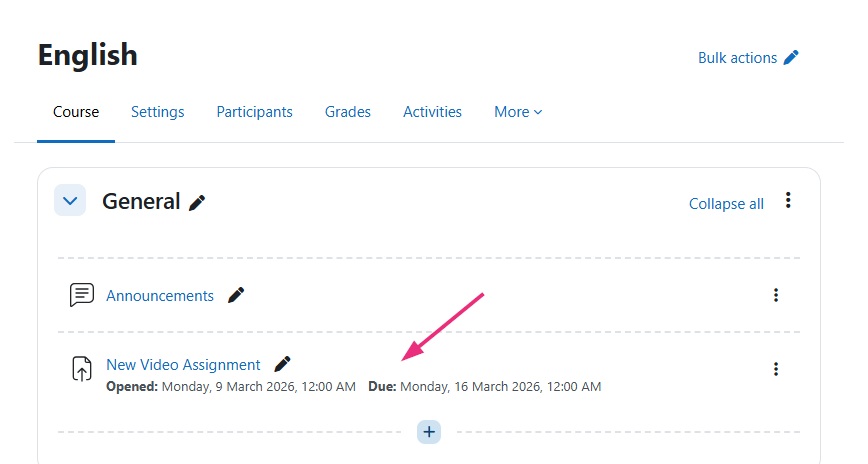
Now students can submit videos, and you can review and grade them based on your assignment settings. The submitted video will not appear in My Media.
Edit an existing media assignment
If you need to update the assignment after publishing:
- Find the assignment on your course page.
- Ensure Edit mode is on (see step 3 above).
- Click the three-dot menu next to the assignment and select Edit settings.
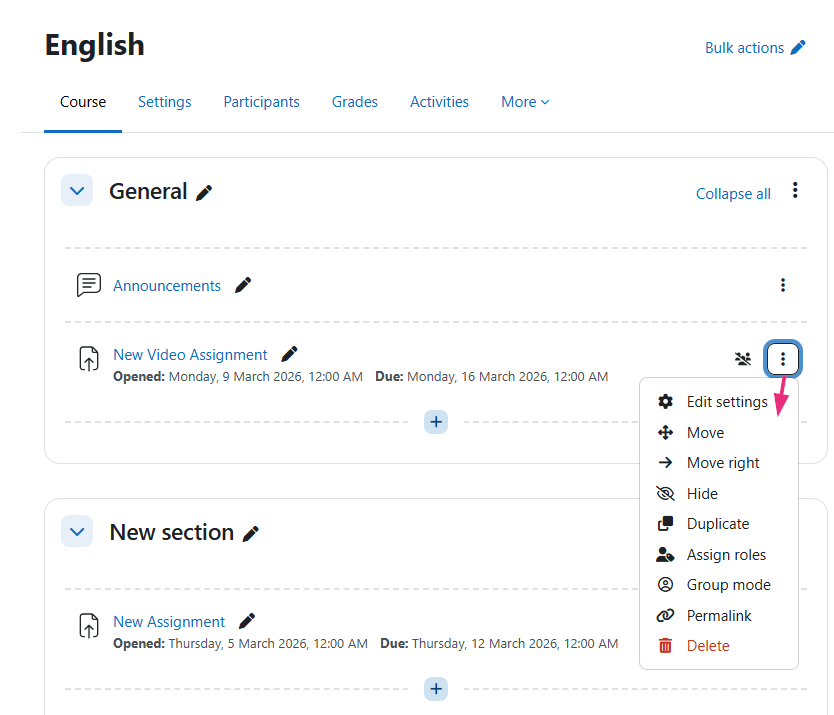
When you're done editing, click Save and return to course.
Review student submissions
After students submit their assignments, open the assignment in your course and access the Submissions page.
The Submissions page displays a table listing all student submissions. If a student submitted a Kaltura video, it appears in the Kaltura media column.

You can play the video directly from the table to review the submission.
Use Moodle’s grading tools to evaluate the assignment.
