About
The Recycle bin lets you delete media entries with the option to restore them later. When restored, the item returns to its original place with the same name, tags, metadata, and settings.
- This feature requires the following to be enabled:
- Recyclebin module
- Theming module with the 'recyclebin' feature set to 'Yes'
- The Recycle bin retention period (how long items stay before permanent deletion) is set by your account admin or Kaltura’s Customer Care team.
Move items to the Recycle bin
From My Media
- From the user menu, select My Media.
- Click on the three dots to the right of the desired entry and select Delete.
- Click Delete.

The My Media page displays.


A confirmation message displays.
Bulk action
- To delete more than one item, check the boxes on the upper left of the desired media.
- Scroll to the top of the page, and click Delete (the Delete option only displays after you have selected at least one item).
- Click Delete.

A confirmation message displays.
From the media page
- Access the media page. (You can do this by clicking on the thumbnail of the desired media.)
- Click the three dots under the player and select Delete.
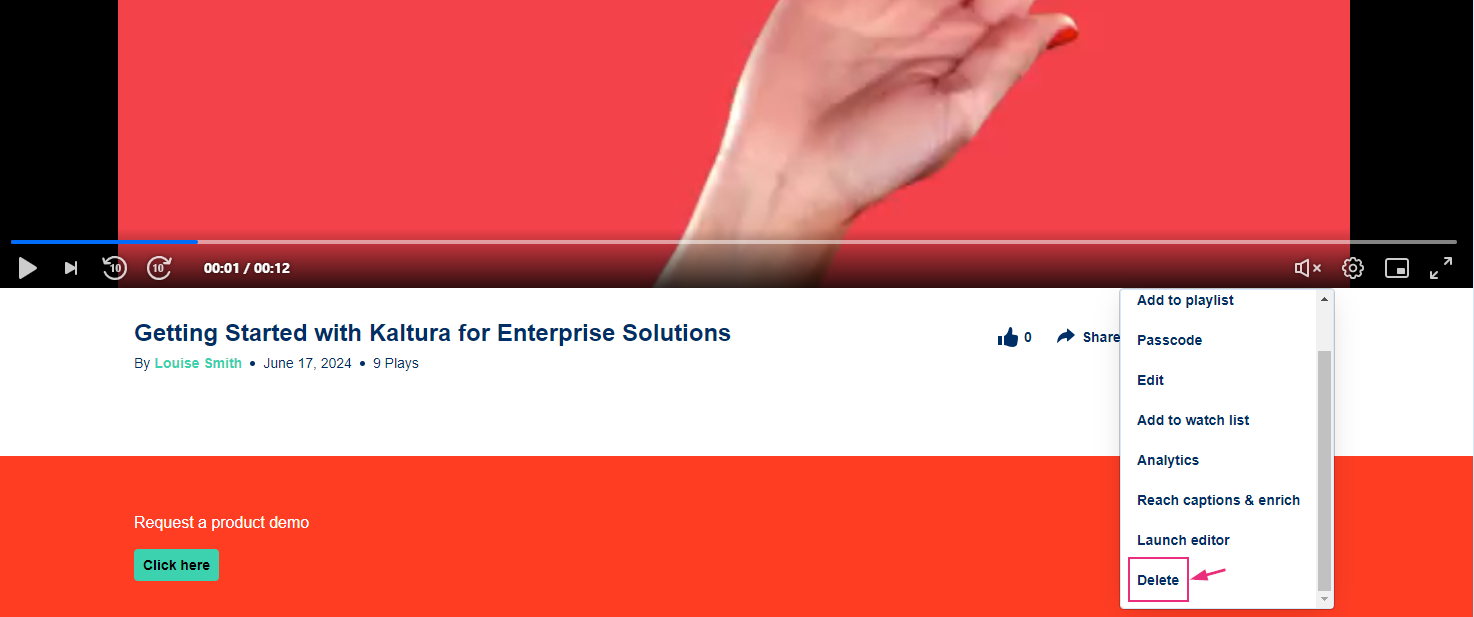
A confirmation message displays.
- Click Delete.
