About
You can restore deleted media from the recycle bin as long as it hasn't reached the configured retention period. Restored items return to the location where they were originally published.
You must have permission to restore media from the recycle bin. Only media you are allowed to access is displayed.
Captions and other REACH services can’t be processed while an item is in the recycle bin. Any pending tasks must be ordered again after restoring the item.
Restore a single item
- From the user menu, select My Recycle Bin.

- The Recycle bin page displays.

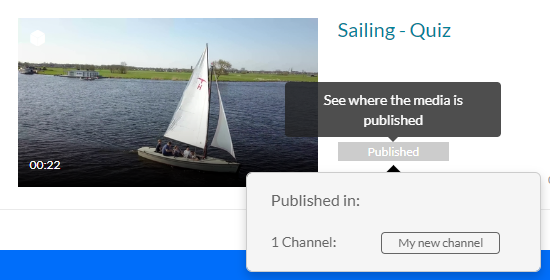
- Here you can see all the media items that have been deleted. The publish status of each item is grey. If you click on it, you can see where the media was originally published.
- To restore the item, click the three dots to the right of the item and select Restore.

A confirmation message displays.
- Click Restore. The item is recovered and restored to its original place.


Only users with content ownership are able to see the deleted media in the recycle bin. Guest users won't have access

Restore multiple items
- If there are many items in the Recycle Bin, you can use the Search and Filters function to find the items.

- Click the boxes next to each media item you want to restore.
-
Click Restore at the top of the page.
A confirmation message displays.
- Click Restore.
- The deleted items are recovered and restored to their original places.


The recycle bin retention period (number of days items stay in the recycle bin before being permanently deleted) is configured by Kaltura account management or the Customer Care team.
