About
Kaltura Virtual Events provides tools for creating, managing, and monitoring virtual events. From your Kaltura Virtual Events account, you can create events, manage event content and registration, configure the attendee experience, manage your event team, and review analytics.
This article introduces the main concepts to understand before you start creating events.
Your Kaltura Virtual Events account
Kaltura sets up your Kaltura Virtual Events instance. Customers can't create new instances themselves. After your account is set up and you have the appropriate role, you can create and manage events within it.
To request a new instance or changes to an existing one, contact your Kaltura representative.
Create events
When you create an event, you start with a template.

Preset templates include:
- Interactive session - A collaborative live session with features such as chat, polls, screen sharing, breakout rooms, and a shared whiteboard.
- Live webcast - A highly produced live stream designed for large audiences. The live broadcast automatically transitions to VOD when it ends.
- Pre-recorded live - A pre-recorded video that is scheduled and broadcast as a live experience.
- DIY live broadcast - A live broadcast streamed directly from a Kaltura Studio room. The recording is published as VOD after the broadcast ends.
- Blank template - A flexible starting point that lets you create the event first and add sessions to the agenda afterward.
If Custom templates are configured for your account, the Get started with a template page displays both Presets and Custom tabs.
Choose an event format
Kaltura Virtual Events supports two event formats: Single session and Multi-session. The format you choose determines how your event is structured and managed.
- Single session - Includes one session with one schedule and one set of event details. This format works well for webinars, one-time broadcasts, and other events built around a single presentation. Single-session events are available for Live webcast, DIY live broadcast, and Pre-recorded live events.
- Multi-session - Includes multiple sessions within one event site. Each session can have its own schedule, media, speakers, and interactive features. This format works well for conferences, summits, and events with multiple speakers, tracks, or time slots.
Interactive session events don't support the Single session format.
For details about the differences and how to choose a format, see Single-session vs multi-session events.
Manage your events
After you create an event, the Overview page opens by default. From there, you can review key event details and continue setting up your event.
 Overview page for a multi-session event
Depending on the event format and your account configuration, you can:
- Add and manage sessions.
- Invite speakers and assign event roles.
- Configure registration and attendee access.
- Customize the event site.
- Add live, interactive, and pre-recorded content.
- Configure engagement features such as chat, Q&A, polls, and reactions.
- Preview the event site before publishing.
- Review event analytics and reports.
- For more information, see Overview page for events.
- For more information about the attendee experience, see Getting to know your event site, session page, lobby page, and main stage.
Get to know the main interface
On the Kaltura Virtual Events Home page, event management features are organized into four main tabs:
- Home tab - View, search, filter, and access your events.
- Team tab - Manage team members, roles, and event responsibilities.
- Analytics tab - Review and export engagement metrics and insights across events.
- Integrations tab - Manage supported third-party integrations.

Kaltura Virtual Events uses role-based access, so the tabs and features you see depend on your assigned role.
If Agentic Avatar Studio is enabled on your account, an additional Agents tab is available.
Engage your attendees
Kaltura Virtual Events includes engagement tools that let attendees, speakers, and moderators interact during an event.
Depending on the session type, user role, and account configuration, participants can use features such as chat, Q&A, polls, updates, private chat, and reactions. Moderators have additional tools for managing interactions and session activity.
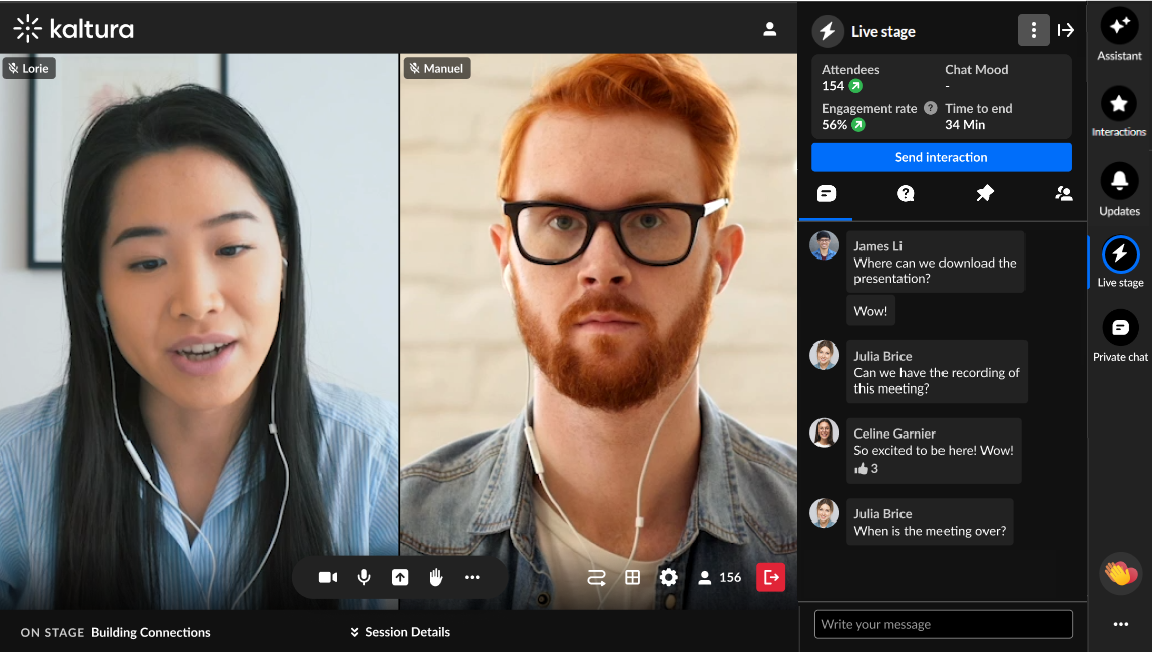 Moderator View
Interactive sessions also include collaboration features such as breakout rooms, screen sharing, and a shared whiteboard.
For more information, see Engagement and interactivity.
Review analytics and reports
Kaltura Virtual Events provides analytics and reporting tools to help you understand event registration, attendance, engagement, and content performance.

Depending on your role and account configuration, you can review analytics for individual events or across events and export available reports.
For more information, see Analytics tab.
