About
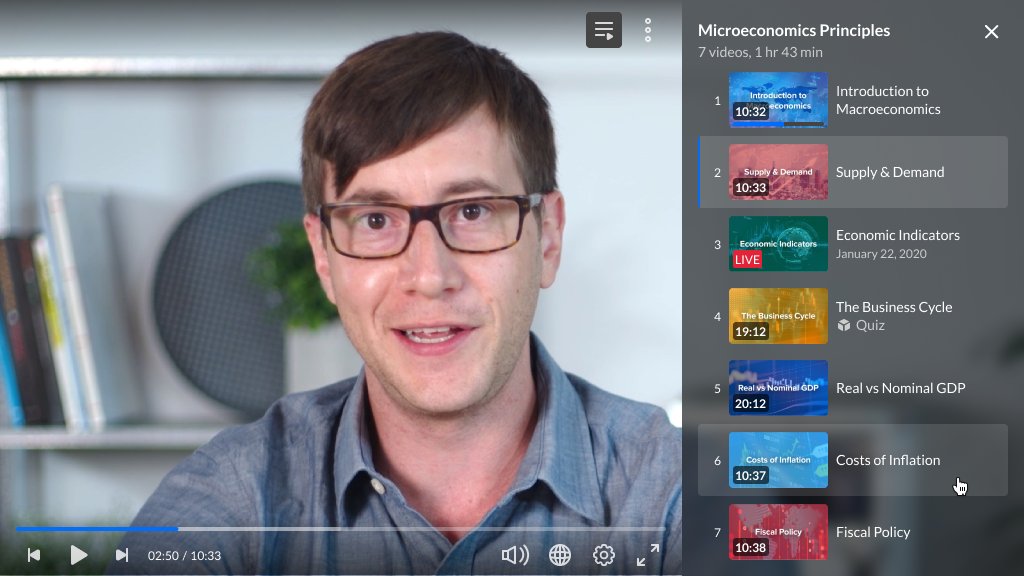
You can enable playlists and an optional side panel for navigation and auto-continue.
VOD
Access the player settings
- Log in to your Rich Media CMS and click the Studio tab.
- Click the player you want to edit from the list (or use the search bar in the top right).

The Player Studio page displays.

If you haven't created a player yet, check out our article Create a player for guidance.
The player settings display.

Set playlist display
1. Scroll down to the Navigation & discovery section, find Playlist and click the toggle to open the settings.

2. Configure the following:
- Auto continue - choose whether to continue to the next item automatically.
- Loop - choose whether to play the playlist in a loop. When selected, the playlist will play automatically, even if Auto continue is not selected.
- Countdown - choose whether to show the countdown.
In the Duration field, type how long the countdown will display.
3. Click Save at the top right of the settings page.
Set the playlist side panel
VOD
1. Scroll down to the next setting which is Playlist side panel and click the toggle to open the settings.

2. Configure the following:
- In Position, choose the position of the playlist side panel - Right, Left, Top, or Bottom.
- In Expand, choose whether to expand the playlist side panel alongside the video or over the video.
- In Expand on First Play, choose whether to expand the playlist side panel on the first play of the video.
3. Click Save at the top right of the settings page.
For the user guide, see Playlist.
