About
You can decide whether the audio controls are displayed inline in the player control bar or grouped under the settings menu. This flexibility helps you tailor the player interface to your design or accessibility needs.
VOD Reels
Access the player settings
- Log in to your Rich Media CMS and click the Studio tab.
- Click the player you want to edit from the list (or use the search bar in the top right).

The Player Studio page displays.

If you haven't created a player yet, check out our article Create a player for guidance.
The player settings display.

Set audio control placement in the player
1. Scroll down to the Accessibility & Language section, find Audio and click the gear icon next to it to open the settings.
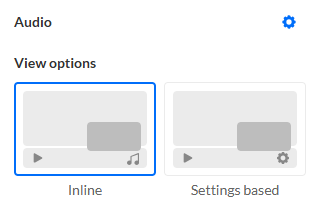
2. Configure the following:
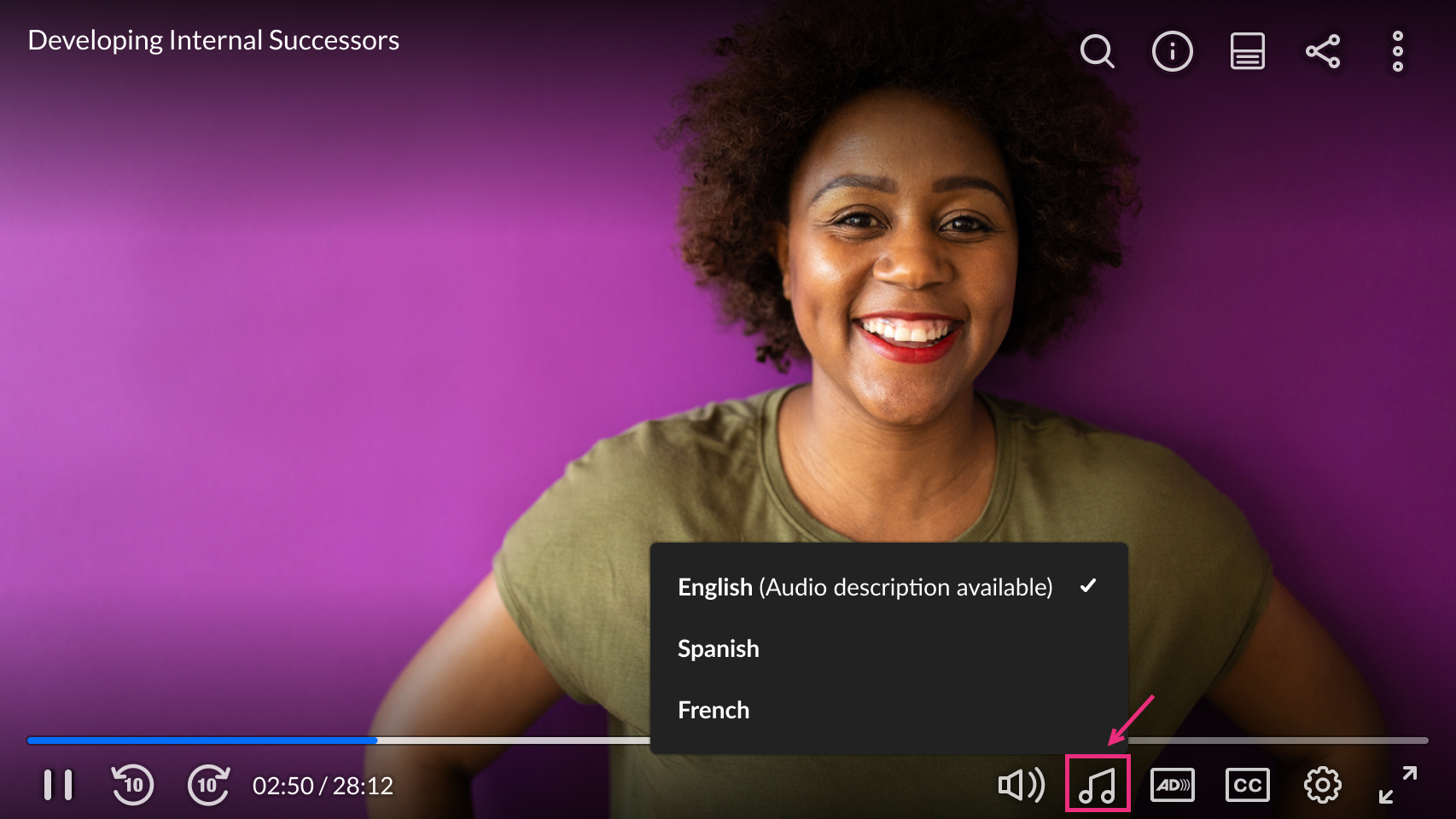
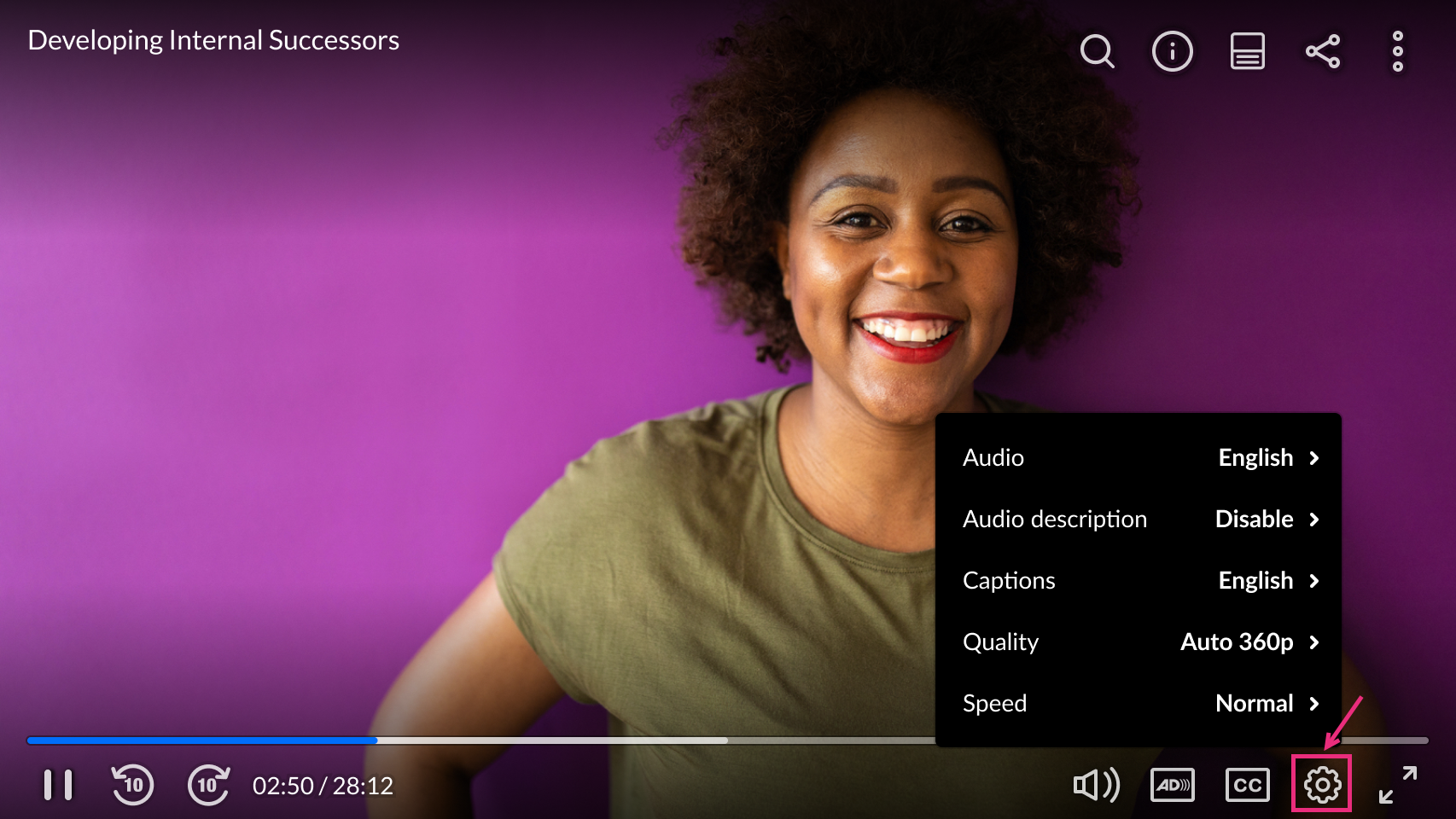
View options - Choose where the audio controls appear - either inline in the player control bar or grouped under the settings menu.
Inline in the player control bar (music icon):
Grouped under the settings menu:
3. Click Save at the top right of the settings page.
