About
Kaltura's captions editor lets you review and edit captions for your videos, whether they were generated by REACH or uploaded manually.
You can:
- Edit caption text
- Adjust caption timing
- Update speaker names
- Search and replace text
- Review captions alongside video playback
If the transcript widget is enabled, changes made in the captions editor are automatically reflected in the transcript.
The captions editor is particularly useful for reviewing and improving machine-generated captions.
Looking for more information about Content Lab? Feel free to contact your Kaltura representative.
Launch the editor
- Open Content Lab. For instructions, see Access Content Lab in your Kaltura application.
- Click Captions & Translations.
- Locate the desired captions request with a Ready status.
- Click the three dots next to the request and select Launch editor.

The closed captions editor opens.
Editor layout

The editor includes two main areas:
- Captions panel – Displays caption lines and editing tools
- Player panel – Displays the video for real-time preview
When you select a caption line, the player jumps to the relevant point in the video. The selected caption is also displayed below the player, allowing you to preview it in context while editing.
Kaltura supports dual screen inside the captions editor.
Captions panel
The captions panel includes:
- Captions dropdown – Select a different caption file if multiple files exist
- Edit details – Update caption language, accuracy, and label
- Search – Enter a term and press Enter to highlight matches
- Replace – Find and replace text across captions
- Add speaker – Add speaker names to selected rows
- Autoscroll – Automatically scroll captions during playback
- Delete caption – Delete a caption line (available on hover)
- Add caption – Add a new caption line (available on hover)
- Timestamp – Edit start and end times
- Caption text – Edit the caption content
The editor uses SMPTE time format (hh:mm:ss,mmm) for precise timing.
Player panel
The player panel lets you preview captions alongside the video.
- Playback controls and keyboard shortcuts help you fine-tune caption timing and align captions with audio and visuals
- Selecting a caption line moves the player to the correct timestamp
- The active caption is displayed below the player for easy reference during editing
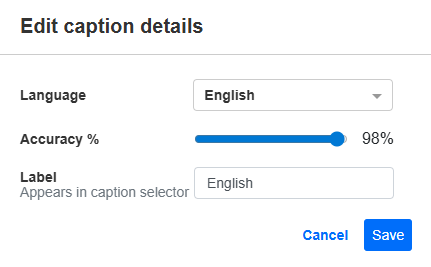
Edit caption details
- Click Edit details.
- Update the caption's language, accuracy, and label.
- Click Save. Changes are applied immediately.

The 'Edit caption details' window opens.
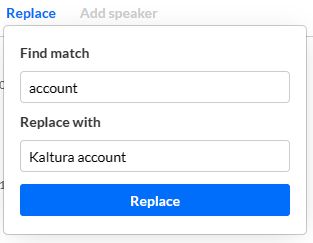
Find and replace text
- Click Replace.
- Enter the search term in the Find match field.
- Enter the replacement term in the Replace with field.
- Click Replace.
- Click Save.
- Move the slider accordingly, then click Save. The search term is replaced immediately.

You are asked to confirm captions accuracy.

Add speaker names
- Select the row(s) where you want to add the speakers, then click Add speaker.
- In the 'Speaker name' field, type the name.
- Click Add Speaker. The name is added to the selected captions.
- Click Save. You are asked to confirm captions accuracy.
- Move the slider accordingly, then click Save. The information is immediately updated.


For general information about Kaltura's player, check out our article Introduction to the Kaltura Player.
Add a caption line
- Hover over a caption row and click + Add caption.
- Click the text field and enter the new caption.
- Click Save. You are asked to confirm captions accuracy.
- Move the slider accordingly, then click Save. The information is immediately updated.

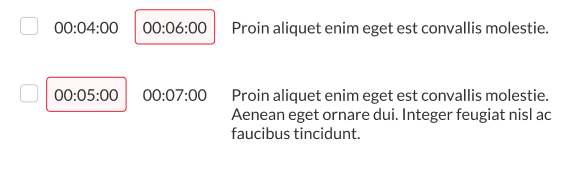
The caption is duplicated.

Adjust timing as needed. Overlapping timestamps are highlighted for correction.

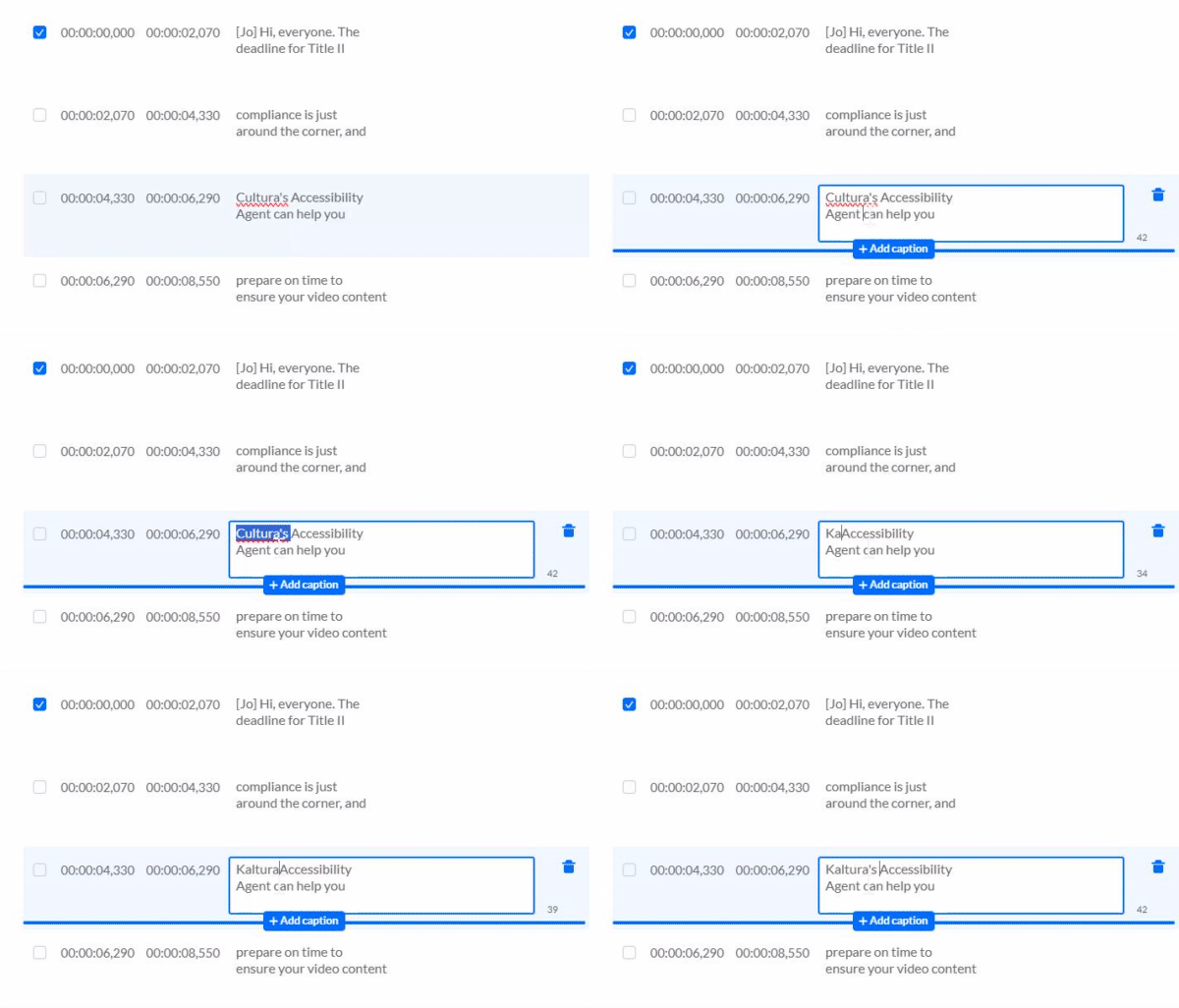
Edit a caption line
- Click a caption line.
- Update the text as needed.
- Click Save.
- Move the slider accordingly, then click Save. The information is immediately updated.

You are asked to confirm captions accuracy.

Revert or save changes
- Revert restores the last saved version
- Save applies your changes

Keyboard shortcuts
- Player seek 5S backwards = Ctrl <-
- Player seek 2S backwards = <-
- Player seek to 0 = Home and in Mac Command <-
- Player pause-play toggle = space
- Player seek 5S forward = Ctrl ->
- Player seek 2S forward = ->
