About
Enabling and configuring the Sharecdnurl module allows users to generate a CDN URL for entries in legacy Video Portal. Once embedded in an external page, allowed users can view the player in a full screen in an external browser and play the content.
This guide explains how to enable and configure the sharecdnurl module in the Configuration Management console.
This module is for both Theming and non-Theming users.
For technical support, contact Kaltura Customer Care. For all other inquiries, reach out to your Customer Success Manager.
Configure
- Log into the Configuration Management console by going to your Video Portal URL and adding /admin at the end.
- Enter your Kaltura user ID and password.
- Click Sign In.
The Configuration Management console displays.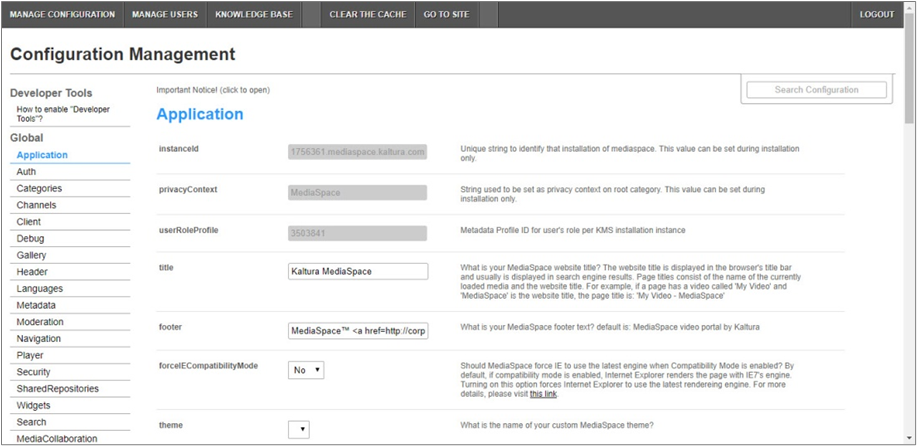
- In the list of configurable items on the left of your screen, locate and click on sharecdnurl. (The item will be crossed out because it's disabled by default.)
- The sharecdnurl window displays.
The Module Info box displays the module name, description (what enabling this module allows users to do), and version number.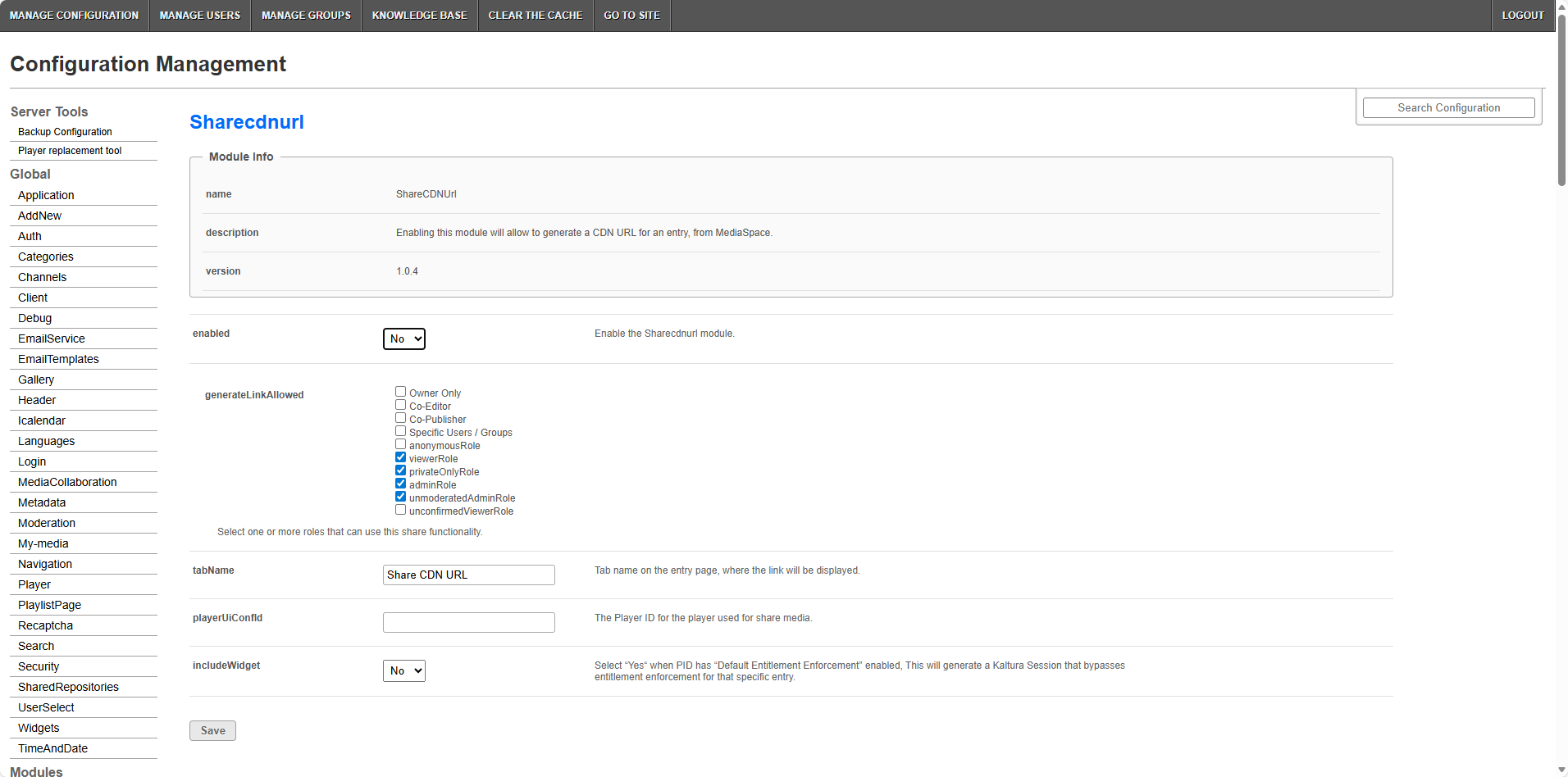
- Configure the following:
If this module is not in your KMS application, please get in touch with your Kaltura representative to inquire about adding it.
enabled - Set to 'Yes' to enable the module.
generateLinkAllowed - Select one or more roles that can use this share functionality. The options are as follows:
- Owner Only
- Co-Editor
- Co-Publisher
- Specific Users / Groups
- AnonymousRole
- ViewerRole
- PrivateOnlyRole
- AdminRole
- UnmoderatedAdminRole
- UnconfirmedViewerRole
For more information about contextual roles, visit our article legacy Video Portal and KAF roles and permissions.
tabName - Tab name on the entry page where the link will be displayed.
playerUIConfId - The player ID for the player used for share media.
includeWidget - Yes or no. Select "Yes" when PID has “Default Entitlement Enforcement” enabled. This will generate a Kaltura Session that bypasses entitlement enforcement for that specific entry.
7. Click Save.
You receive a notice that your configuration for ShareCDNURL was saved and the cache was cleared.
End user experience
Once enabled and configured, a new capability is added to the entry page that allows users to share the CDN URL. This capability is displayed for Theming users as part of the Actions menu on the Entry page, and for non-Theming users as an additional tab - ShareCDNURL - added to the Entry page.
Theming users:
Once enabled and configured, the ShareCDNURL option appears in the three dots menu on the media page for the end user.


After selecting the ShareCDNURL option in the three dots menu on the media page, the Share CDN URL screen is displayed for the user. The user may then click the Copy button to copy the Share URL. 
Non-Theming users:
Once enabled and configured for non-Theming users, the ShareCDNURL option appears as an additional tab - Share CDN URL - added to the Entry page.

After navigating to the Share CDN URL tab, the user may then click the Copy button to copy the Share URL.
This document is maintained by Kaltura’s Professional Services team. Please send comments or corrections to your Customer Success Manager. Ask them to forward it to the Professional Services team. We are committed to improving our documentation and your feedback is appreciated.
