About
Viewers can share media from the player to social networks, by email, or as a direct link, using the Share and embed plugin. They can share the whole video or start it from a specific time. The plugin appears in the top right corner of the player.
To set up the plugin on a player, see Enable sharing and embedding in the player.
Share media
Your administrator sets which share options are available. If you don't see an option, ask your administrator to enable it.
1. Click the share icon.

The share options appear.
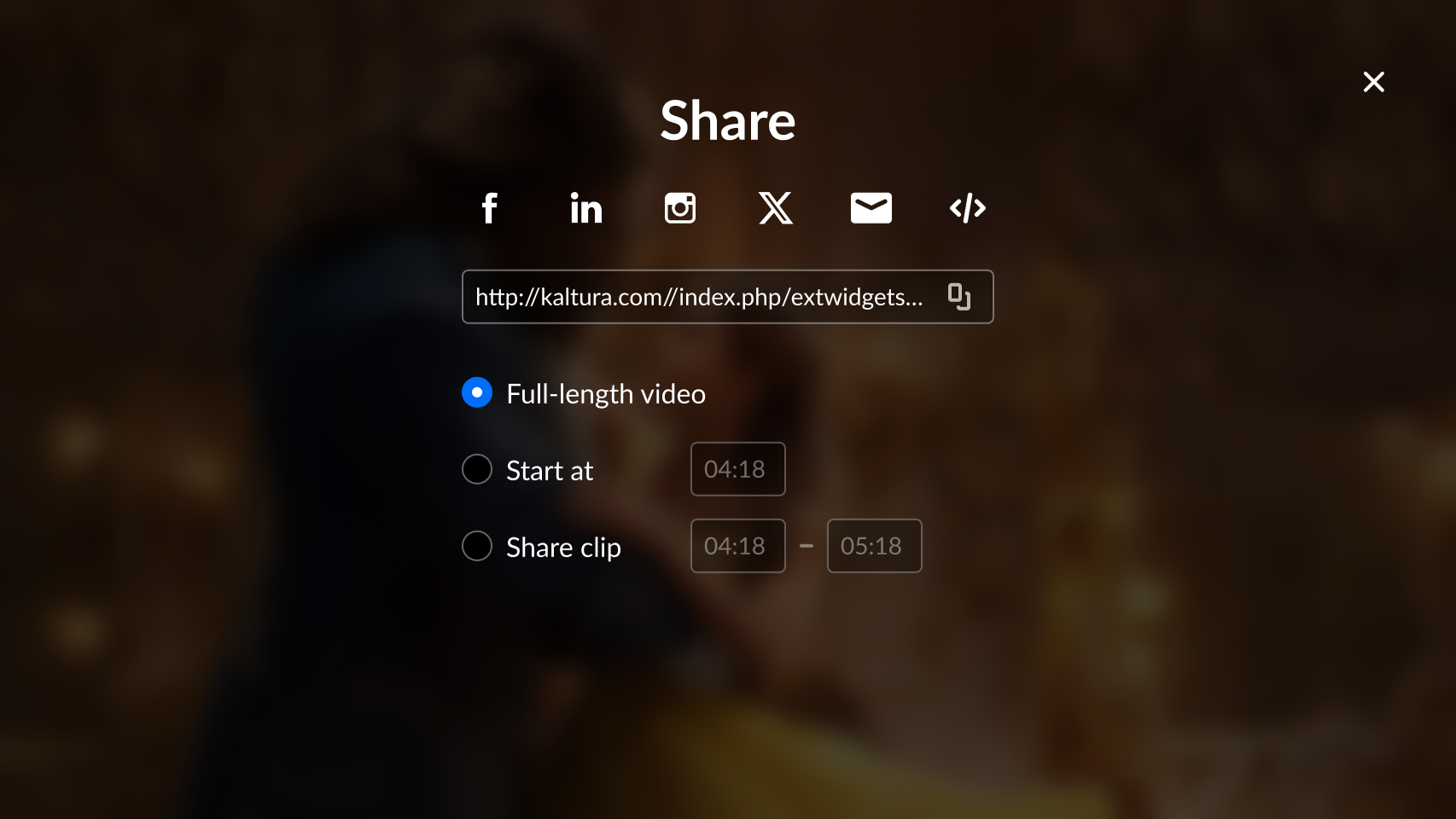
2. Select a share option, and enter the details.
Share options
- Start at - Select the Start at checkbox, and enter the time you want the video to start. The shared link starts the video at that time.
- Share clip - Select Share clip, then select the start and end of the segment you want to share.
- Use native share - Opens your device's own share options.
- Share via email
- Share via social networks - Share to networks such as Facebook, LinkedIn, and X (formerly Twitter).
Admins can also set the URLs the plugin shares:
- Share via URL - Overrides the current page URL. To link to the video that's playing, add
{entryId}to the address, for example:https://{your_site_url}/media/{entryId} - Share via embed URL - Generates a link that updates to the video that's playing:
{embedBaseUrl}/p/{partnerId}/embedPlaykitJs/uiconf_id/{uiConfId}?iframeembed=true&entry_id={entryId}
Try it out
