About
Kaltura Room managers can send a secure link that gives someone direct access to a session, including standalone and channel room sessions, without requiring them to log in through the site’s normal authentication process.
When invitees use this link, they’ll be taken to the session according to the site’s login and access rules. It’s especially useful for:
- Inviting external guests, speakers, or moderators to a room.
- Giving temporary, role-based access to someone outside your organization.
- Promoting an attendee to a higher role during a live session.
- This feature requires the following to be enabled:
- Invitetomedia module
- Theming module with the 'mediapage' feature set to 'Yes'
- You must be the room owner, co-owner, co-editor, or co-publisher to invite people.
- The Invite users option is only available for Kaltura Rooms where Chat & Collaboration (C&C) is enabled.
If you need to provide quick access for external participants without assigning roles, you can share a guest link instead. See Share a guest link to a Kaltura Room session.
Access the invitation settings
You can access the invitation settings from different locations depending on the type of room:
- For standalone Kaltura Rooms, you can open the invitation settings from the media page or from the Participants tab during a live session.
- For Channel Rooms, invitation settings are available from the Participants tab during the live session.
From the media page
- Go to the media page for your Kaltura Room.
- Click the three-dot menu below the screen and select Invite users.
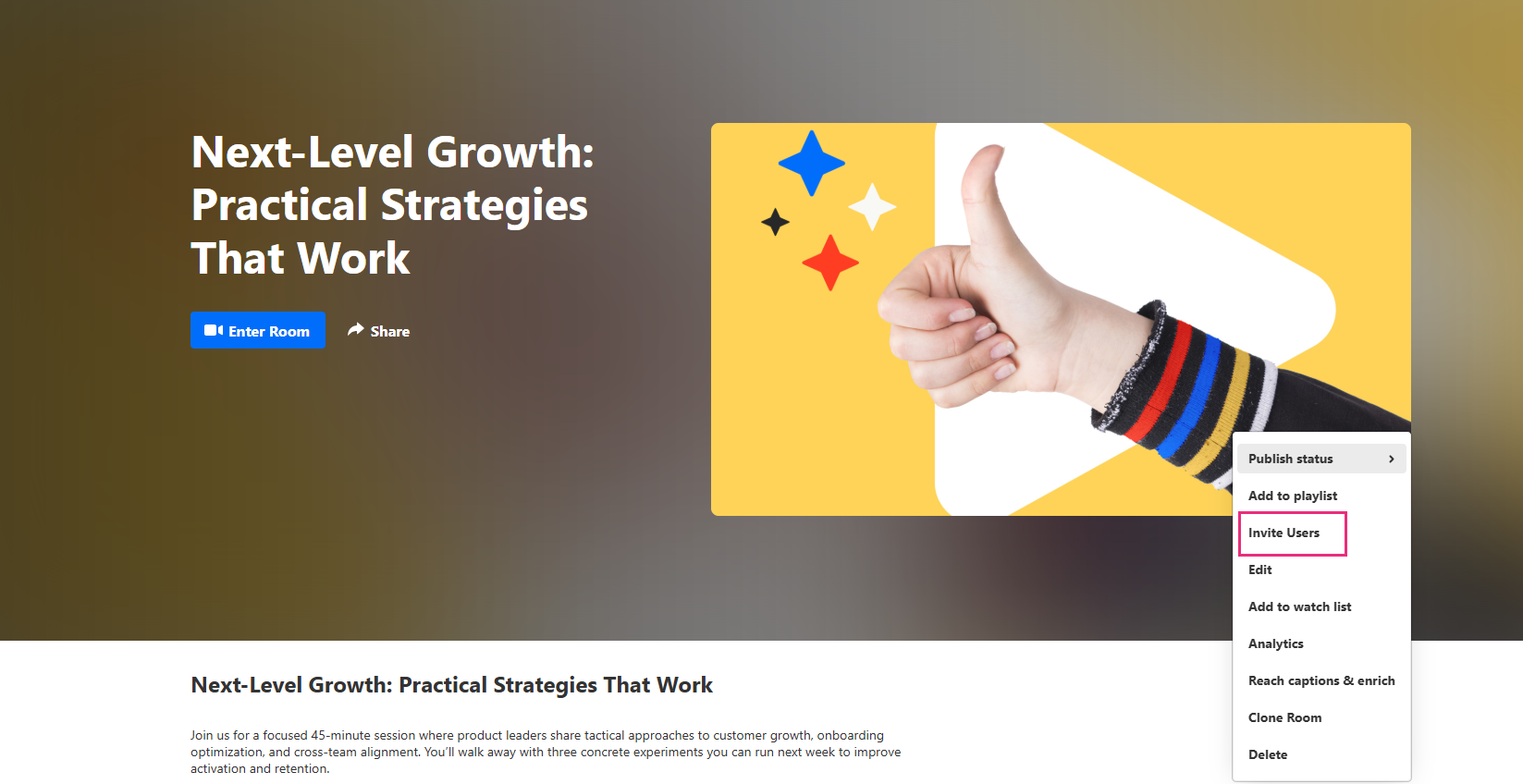
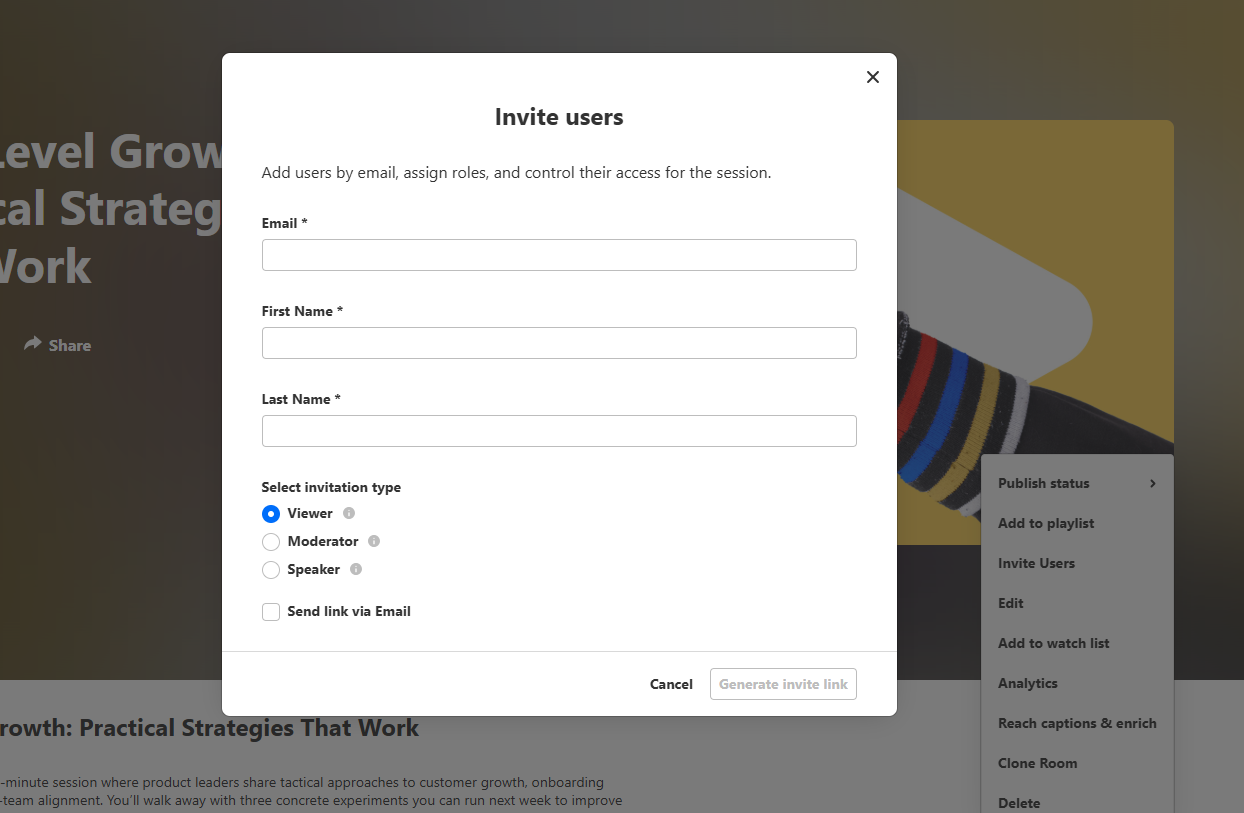
The 'Invite users' window opens.
From the Participants tab
- Navigate to the Participants tab.
- Click the three dots to the right of 'All participants' and select Invite users.


The 'Invite users' window opens.

Create an invitation link
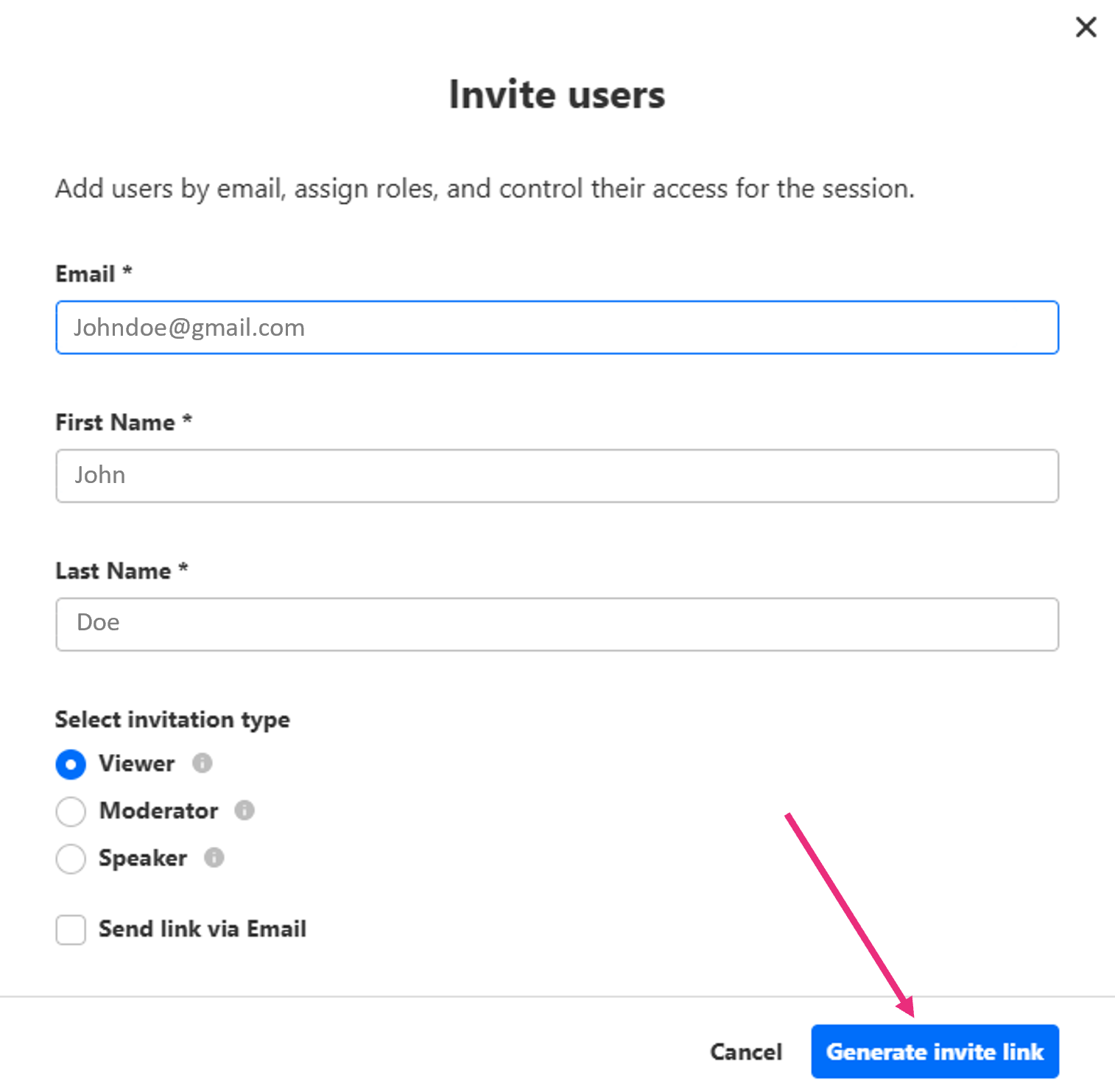
- In the 'Invite users' window, complete the following:
- Email address – (Required) Enter the invitee's email. If the email matches an existing user, the user appears in the drop-down menu.
- First and last name – (Required) Enter their name.
- Select an invitation type - Choose a role for your invitee from the options:
- Viewer – Access to chat, answer interactions, and Q&A.
- Moderator – Access to backchannel, initiate interactions, and Q&A.
- Speaker – Access to backchannel, interactions, and Q&A.
- Send link via email - Check this box if you want the system to email the invite to the user.
The email uses the template that was set up in the EmailTemplates module. If no template was configured by your admin, this option won’t appear.
4. Click Generate invite link at the bottom right.
5. Copy the generated link from the confirmation window.
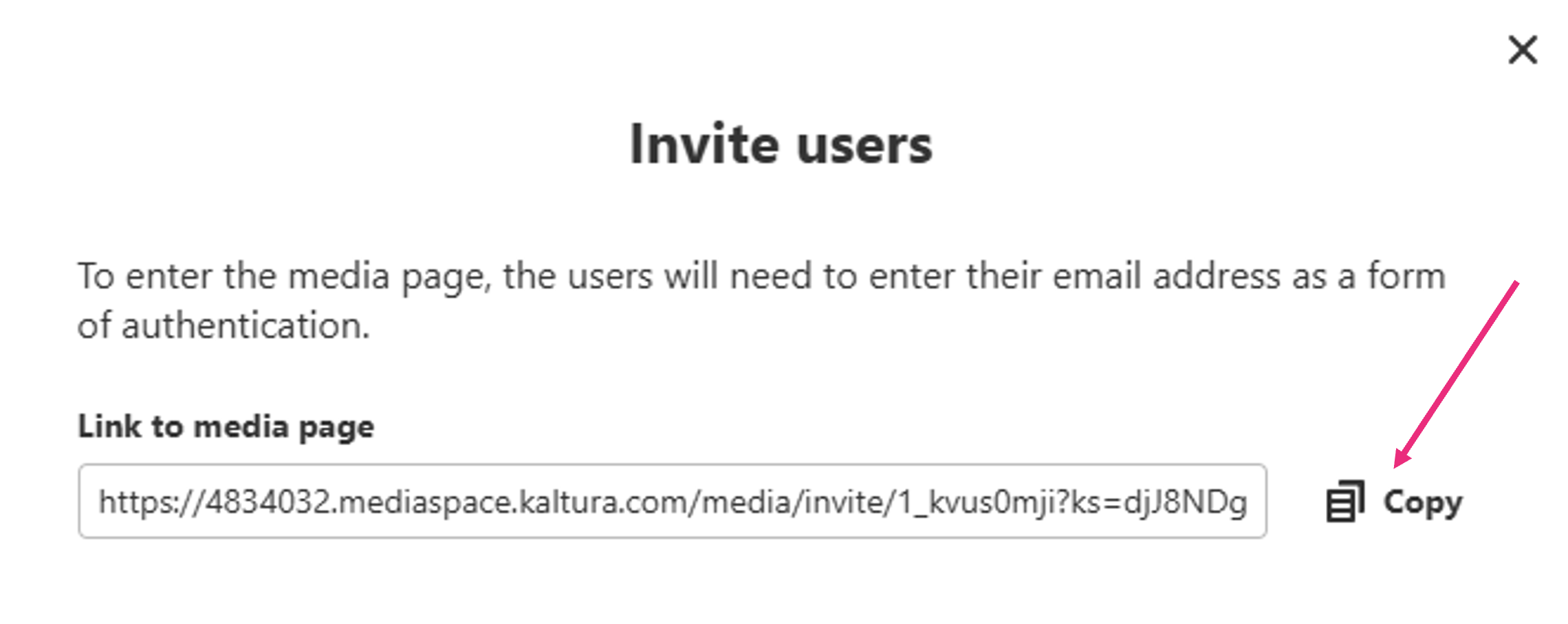
6. Share the link with the invitee using your preferred method.
For security, links can’t be reused on multiple devices.
What the invitee sees
When an invitee clicks the link, what happens depends on whether the session has started and how they’re logged in.
- If the session hasn’t started – The invitee will access the room page with event details and a countdown until the start time.
- When the session is open – If the invitee is logged in with the invited email, they’ll go directly into the room. If they’re not logged in, they’ll first see a lobby screen where they must enter the invited email.
To learn more, visit our article Join a Kaltura Room from an invitation link.
Troubleshooting
- Email doesn’t match – Make sure the invitee is logged in with, or enters, the email address that received the invitation.
- Link expired or already used – Generate a new link and share it with the invitee.
- Room deleted or invite removed – The invite will no longer work.
- Domain restrictions – If the invitee’s email domain is blocked, try a different email address or contact the admin.
- Role didn’t update – If you promoted an invitee but they don’t see their new permissions, ask them to refresh the room.
