About
You can interact with your community by adding comments to media entries, replying to existing comments, and deleting your own comments.
Only authorized users can add comments.
Comment on an entry
- Go to the media page.
- Scroll to the Comments area under the media player and enter a comment in the text field.
- Click Add.
- Play the media to the relevant point, then select Add comment at XX:XX.
- Alternatively, type a timestamp (for example, [06:22]) anywhere in the comment field.
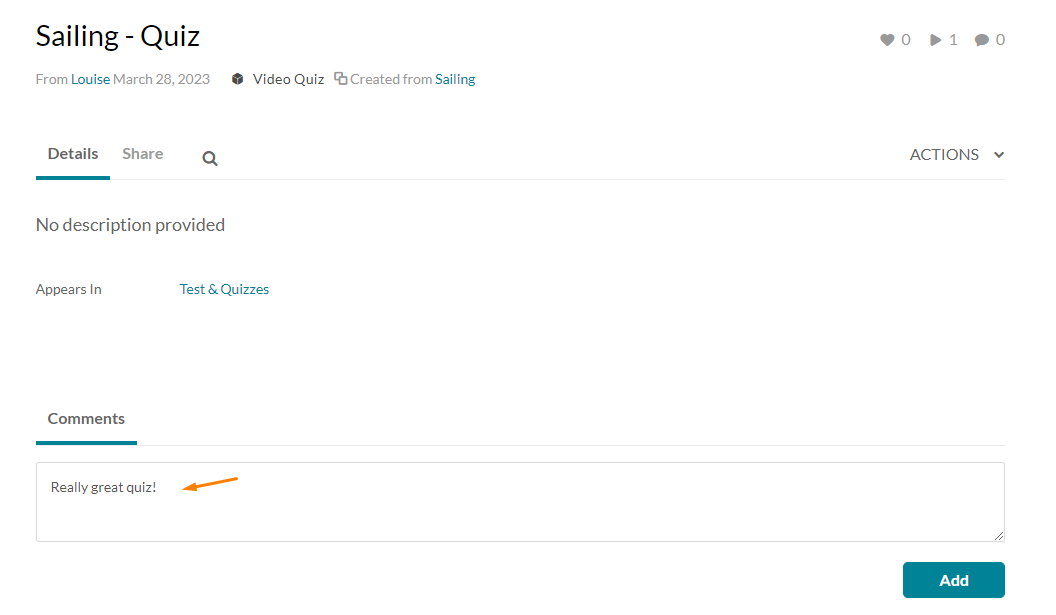
Your comment appears below the 'Comments' section.
If enabled by your administrator, you also have the ability to add a time-based comment: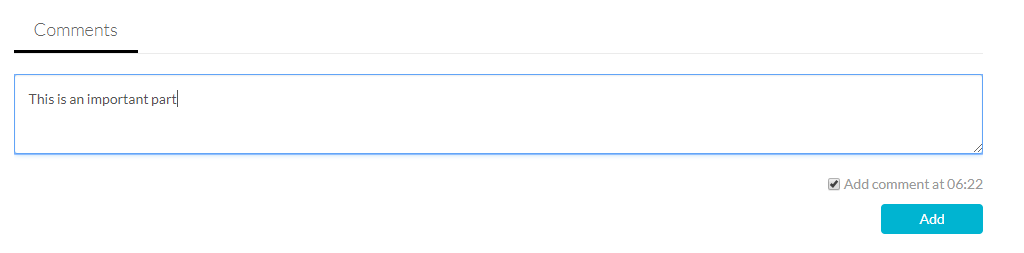
After you add a time-based comment, the timestamp appears as a clickable link that takes viewers to that moment in the media.
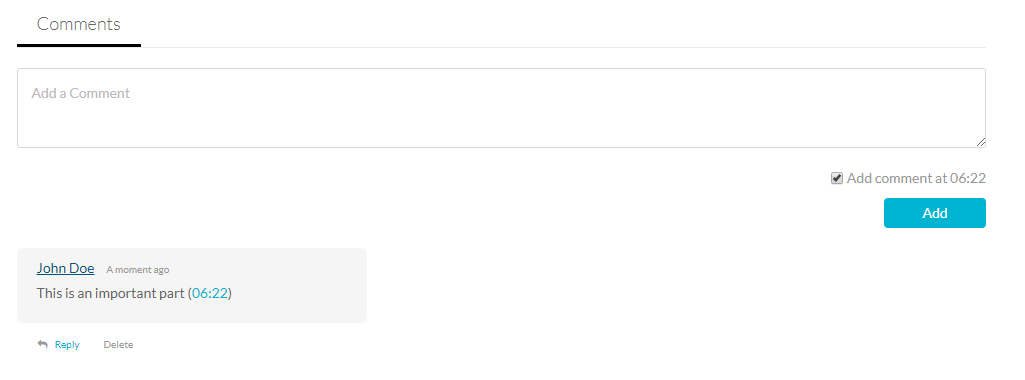
View comments
- Click on a media thumbnail or title.
- Scroll to the Comments area under the media player. Comments display below the media metadata.
If only some comments are shown, click Load more comments to view additional comments.
Reply to a comment
- Click on a media thumbnail or title.
- In the 'Comments' area under the media player, click Reply.
- Enter your reply in the comment field.
- Click Add.
Your reply appears under the original comment.
Delete a comment
- Click a media thumbnail or title.
- In the 'Comments' area under the media player, click Delete under the comment you would like to delete.
- Click Yes to confirm.
Deleting a comment also deletes replies to the comment.
You can delete a comment or reply only if you added it or if you are the media owner.
For information about disabling comments or closing discussions, see Disable Comments and Close Discussion.
