About
Kaltura Room managers can send a secure link that gives someone direct access to a session, including standalone and channel room sessions, without requiring them to log in through the site’s normal authentication process.
When invitees use this link, they’re taken to the session according to the site’s login and access rules. It’s especially useful for:
- Inviting external guests, speakers, or moderators to a room.
- Giving temporary, role-based access to someone outside your organization.
- Promoting an attendee to a higher role during a live session.
- This feature requires the Invitetomedia module to be enabled.
- The Invite users option is only available for Kaltura Rooms where Chat & Collaboration (C&C) is enabled.
If you need to provide quick access for external participants without assigning roles, you can share a guest link instead. See Share a guest link to a live session.
Access the invitation settings
You can invite people from the Participants tab during a live session. In Content Hubs and LMS Extensions, you can also invite people from the session's media page.
From the Participants tab
- Only moderators can invite users from the Participants tab.
- The Participants tab is available for live sessions held in a Kaltura Room.
- For Kaltura Events, the Participants tab is automatically included in some custom event templates. If you're using a custom event template and the Participants tab isn't visible, contact your Kaltura representative to have it added.
- On the session page, click Live stage in the right navigation.
-
Click the Participants (people) icon.
The participants list opens.

-
Click the three dots next to All Participants and select Invite users.

The Invite users window opens.


From the session's media page
- Available only in Content Hubs and LMS Extensions.
- You must be the room owner, co-owner, co-editor, or co-publisher to invite users from the media page.
- This access method requires the Theming module with
mediapageset to "Yes".
- Go to the media page for your session.
-
Click the three-dot menu below the screen and select Invite users.
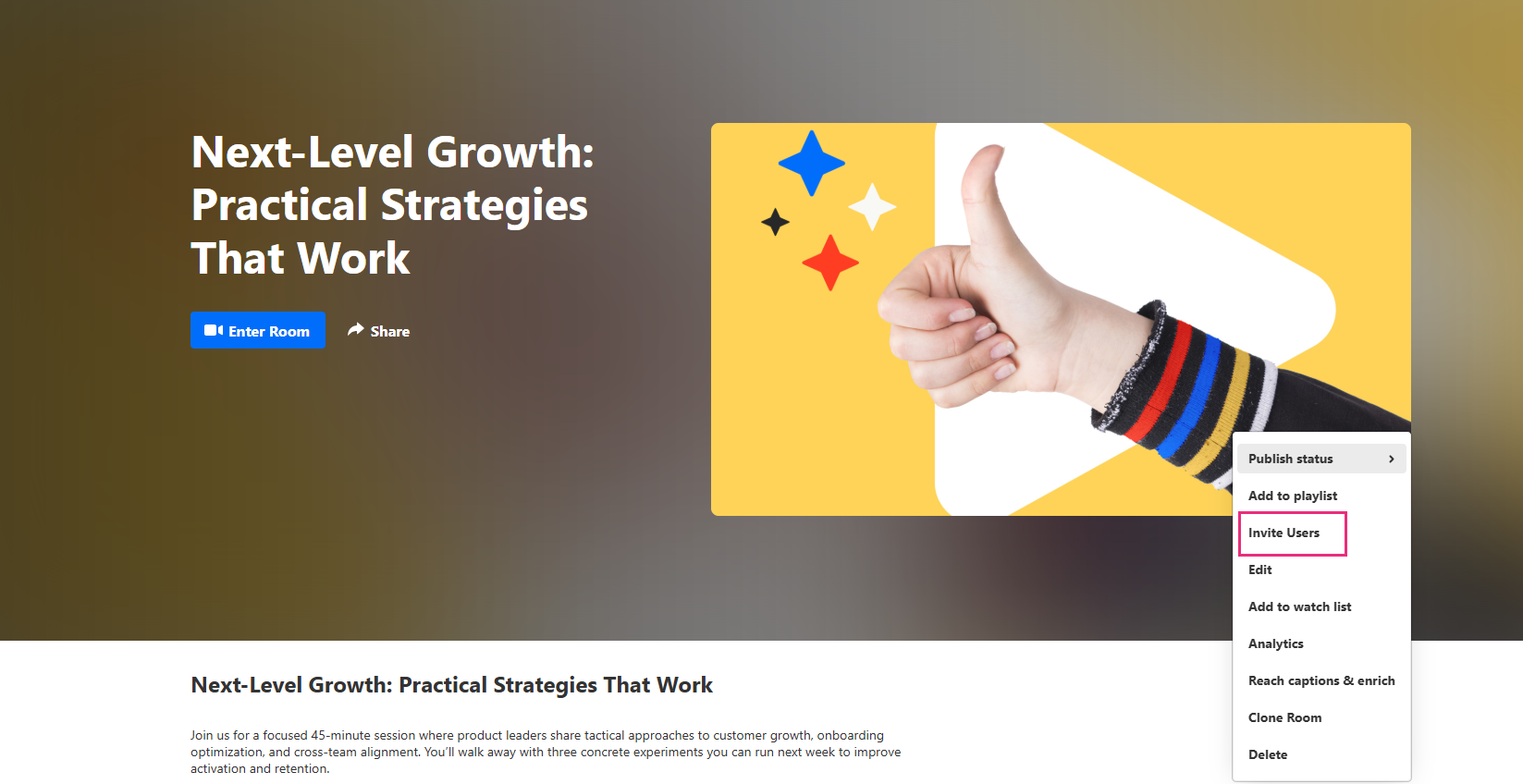
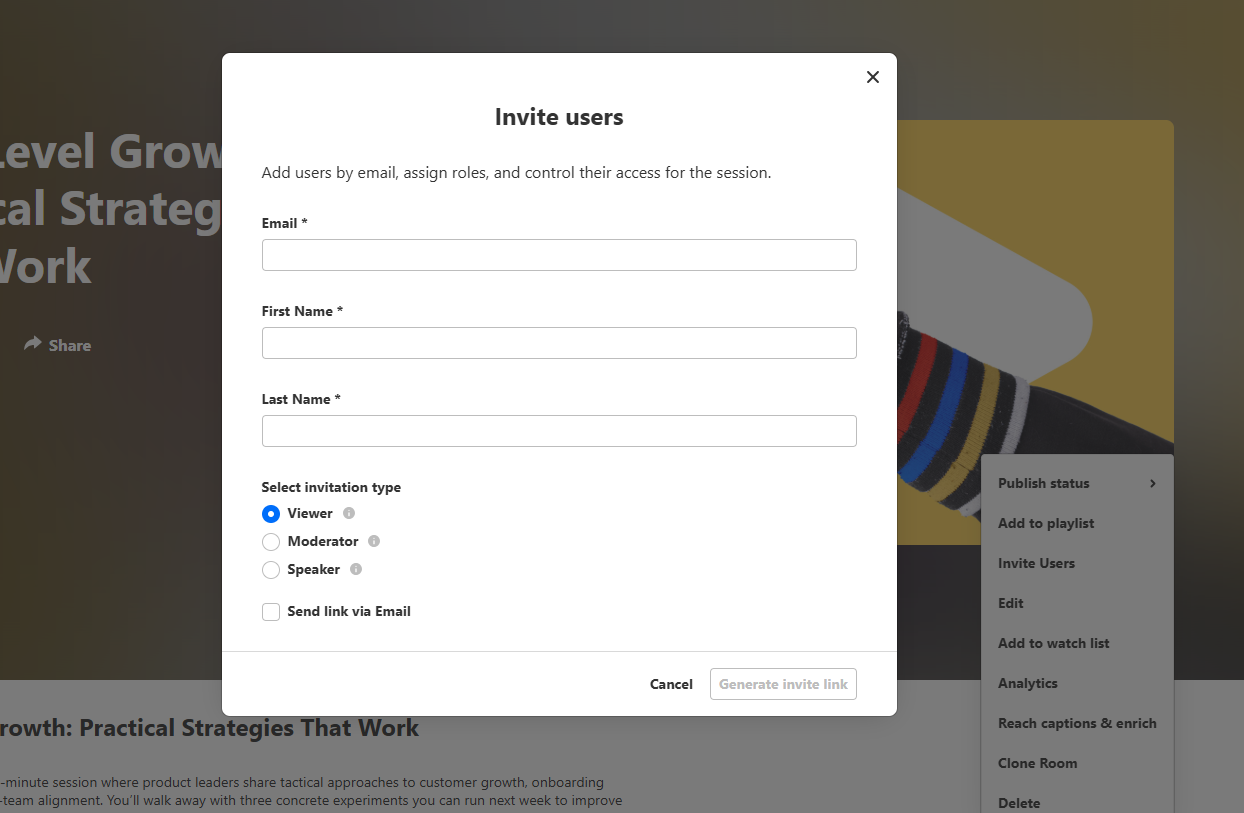
The Invite users window opens.
Create an invitation link
-
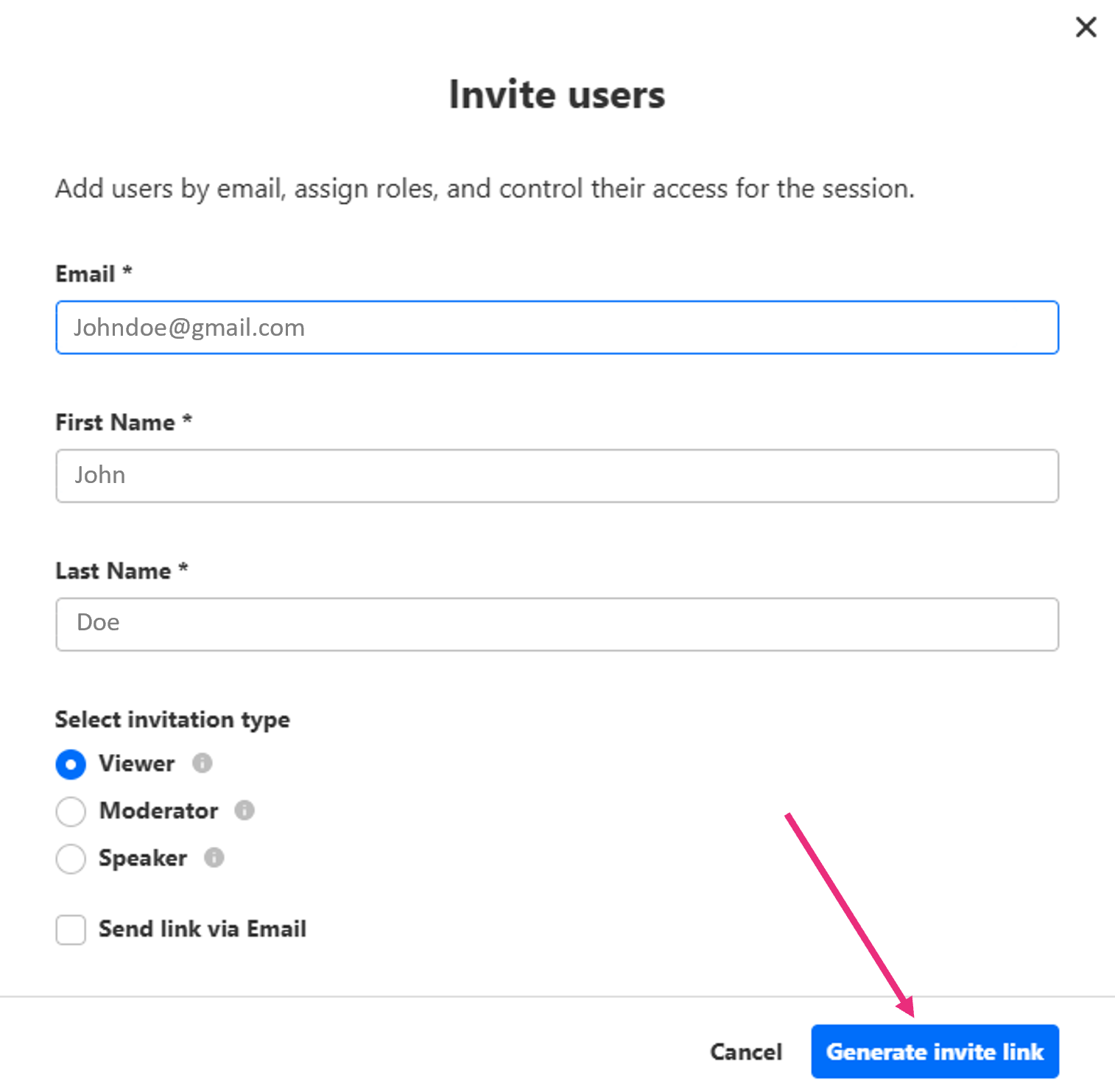
In the Invite users window, complete the following:
- Email address – Required. Enter the invitee's email. If the email matches an existing user, the user appears in the drop-down menu.
- First and last name – Required. Enter the invitee's name.
-
Select an invitation type – Choose a role for your invitee:
- Viewer – Can view the session and participate in available engagement features.
- Moderator – Can manage participants, interactions, Q&A, and other moderation features.
- Speaker – Can join the stage with audio and video and access Q&A and the backchannel.
- Send link via email – Check this box if you want the system to email the invitation to the user.
The email uses the template set up in the EmailTemplates module. If your admin hasn't configured a template, this option won't appear.
-
Click Generate invite link at the bottom right.
-
Copy the generated link from the confirmation window.
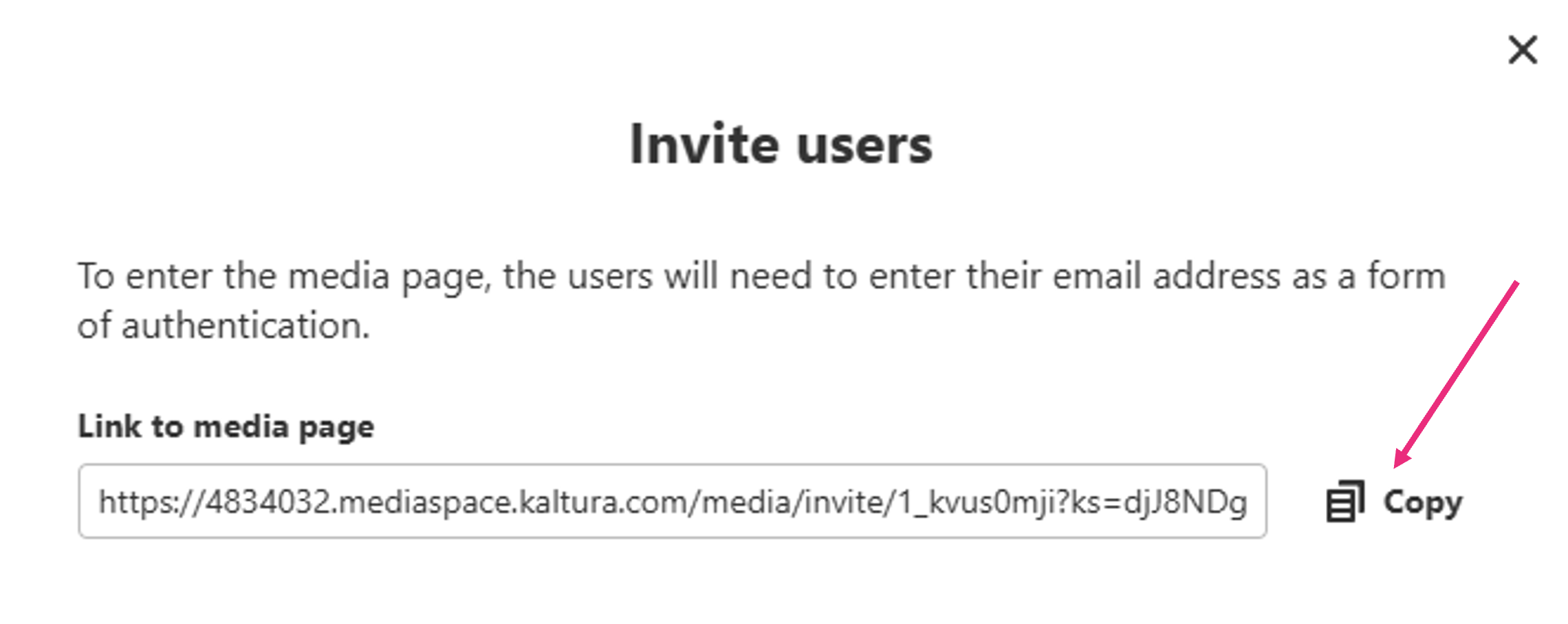
- Share the link with the invitee using your preferred method.
By default, an invitation link can be used on one device. Your administrator can configure how many times invitation links can be used and how long they remain valid.
What the invitee sees
When an invitee clicks the link, what happens depends on whether the session has started and how they're logged in.
- If the session hasn't started – The invitee sees the room page with session details and a countdown until the start time.
- When the session is open – If the invitee is logged in with the invited email, they go directly into the room. If they're not logged in, they first see a lobby screen where they must enter the invited email.
To learn more, see Join a session from an invitation link.
Troubleshooting
- Email doesn't match – Make sure the invitee is logged in with, or enters, the email address that received the invitation.
- Link expired or reached its usage limit – Generate a new link and share it with the invitee.
- Room deleted or invite removed – The invitation no longer works.
- Domain restrictions – If the invitee's email domain is blocked, try a different email address or contact the admin.
- Role didn't update – If you promoted an invitee but they don't see their new permissions, ask them to refresh the room.
