About
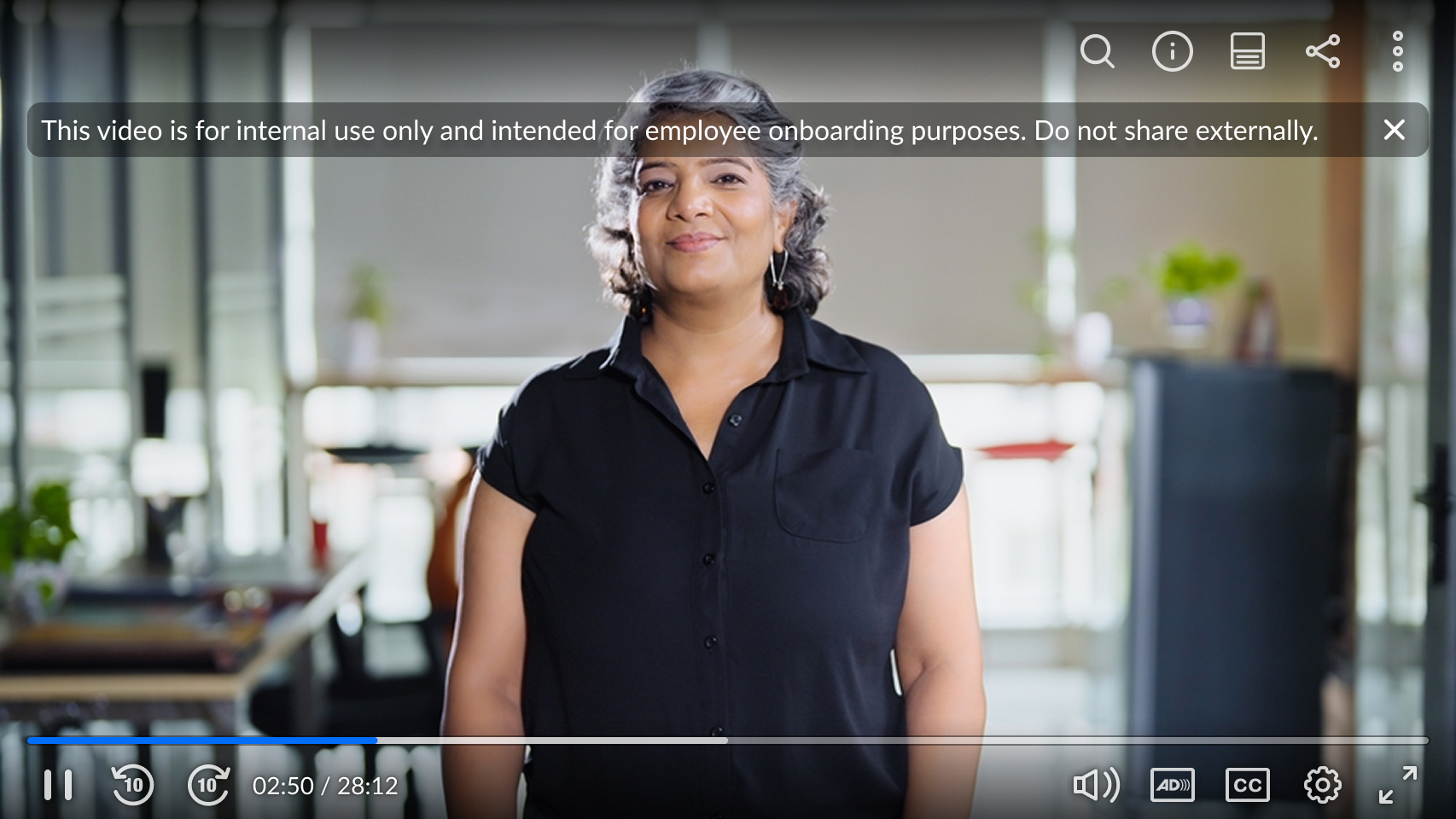
Use the banner capability to display text directly on the player. The banner appears over the video with a semi-transparent background to keep the message readable on any content.
Banners are useful for short notices such as disclaimers, promotions, or alerts.
You can configure a single banner for all entries or enable metadata-based settings to display different banners per entry.
VOD
Access the player settings
- Log in to your Rich Media CMS and click the Studio tab.
- Click the player you want to edit from the list (or use the search bar in the top right).

The Player Studio page displays.

If you haven't created a player yet, check out our article Create a player for guidance.
The player settings display.

Set banner
1. Scroll down to the Engagement & Interactivity section, find Banner and click the toggle to open the settings.

2. Configure the following:
- Banner text – Enter the message to display.
- Wrap – Check this setting to allow the text to wrap onto multiple lines. If unchecked, the text will stay on one line (may truncate).
- Alignment - Choose where to place the banner on the player
- Display duration – Set the duration (in seconds) that you want the banner to remain visible. Enter 0 for unlimited.
- Show close button – Enable viewers to close the banner while it’s displayed. If closed, it will reappear when the video is loaded again.
3. Click Save at the top right of the settings page.
Set up per-entry banner
- First configure the global banner settings as needed (see step 2 above). These settings are used as a fallback if metadata is missing.
- Enable Metadata based banner.
- In Custom banner schema ID, enter the ID of your custom metadata schema*. If left empty, the player falls back to the global banner settings.
- Click Save.

These settings map to the useConfigFromMetadata configuration, which is set to false by default.
*To configure metadata fields and values, see Create a custom metadata schema for per-entry banners in player.
Banner display logic
- If Metadata based banner is enabled and a valid schema ID is provided, the player uses banner values from entry metadata.
- If enabled but the schema ID is empty, the player falls back to the global banner settings.
- If enabled but the schema ID is invalid, the player does not load metadata-based banner settings.
- If Metadata based banner is disabled, the player always uses the global banner settings, regardless of the schema ID.
For the user guide, see Banner on player.
