About
The Embed Kaltura Media window lets you search My Media, Media Gallery, Shared Repository, and playlists, then embed media directly in any Sakai area with a rich-text editor, such as announcements, assignments, discussions, and forums.
Key features
- Embed single videos, playlists, or entire Media Galleries.
- Upload videos directly from My Media to a course or lesson.
- Send video quiz results to your grade book automatically.
This article applies to version 3 of the Kaltura embed tool.
Your administrator sets up the Kaltura embed tool in the Browseandembed module.
Open the Embed Kaltura Media window
- Click a menu item that has a rich-text editor. This example uses Announcements.
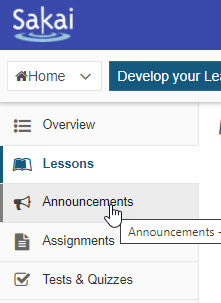
The page for that menu item opens.
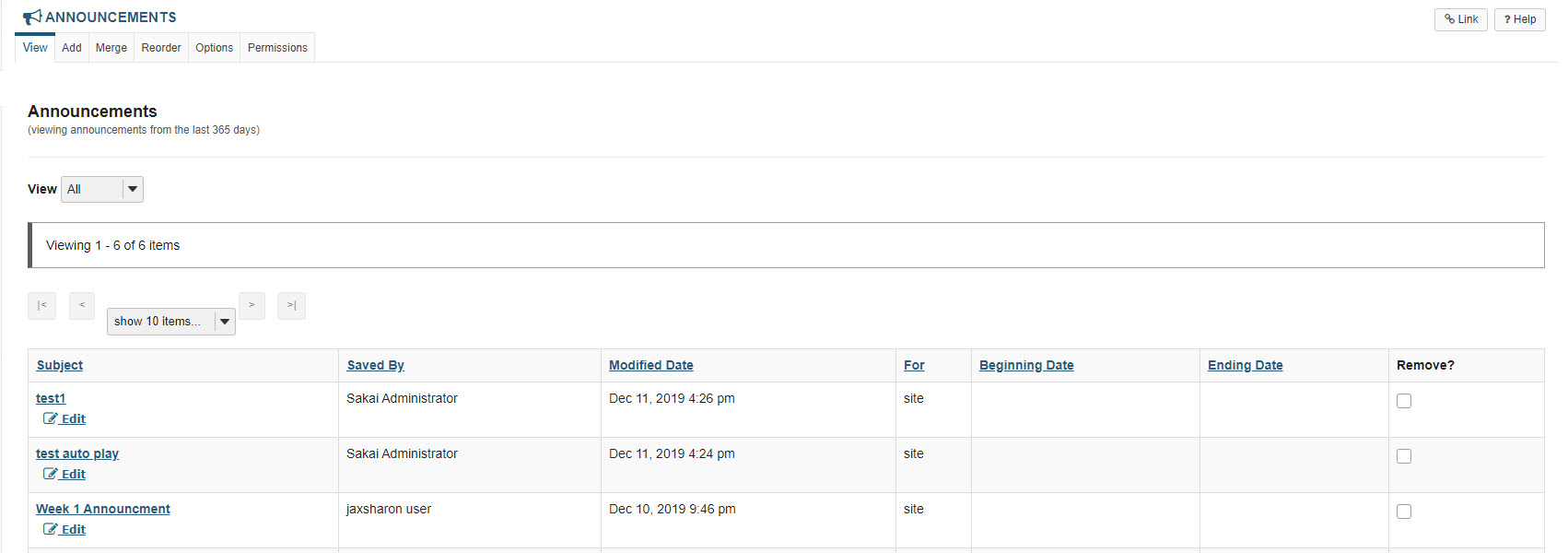
- Click the Add tab.
The rich-text editor opens.
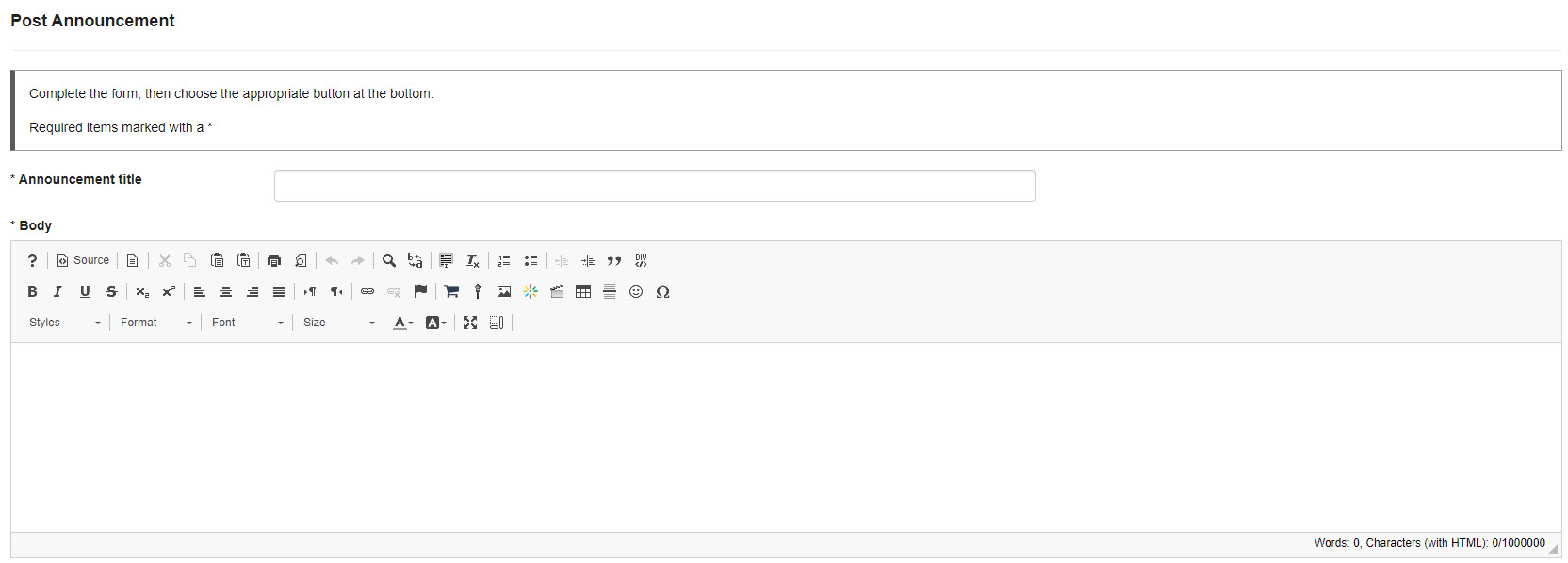
- Click Embed Kaltura Media.

The Embed Kaltura Media window opens.

About the Embed Kaltura Media window
Your window might look different, depending on which columns your administrator has configured.
Available columns include ID, Type, Tags, Plays, Views, Created At, and Updated At. Your administrator configures the columns in the Browseandembed module.

On smaller screens, the Upload, Express Capture, and YouTube tools are grouped under +Create.
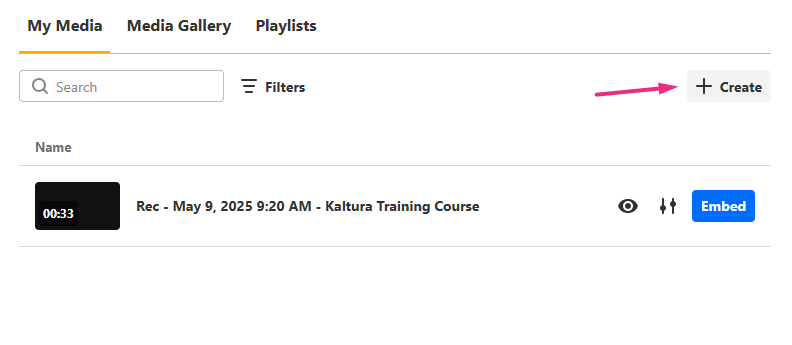 Smaller embed windows show the +Create button
If you're new to Theming, you might notice that the +Create menu has fewer options than the Add New menu without Theming. This is by design: Theming keeps uploading or recording media and embedding it quick and simple.
Find and embed media
Find media
In the Embed Kaltura Media window, you can search existing media in different repositories. You can also upload or record new media. See Add new media below.
- My Media - Media you uploaded.
- Media Gallery - By default, shows media from the current course's Media Gallery. If your administrator enables it, you can also search and embed media from any Media Gallery you own.
- Shared Repository - Media shared across your institution (if your administrator enables it).
- Playlists - Media Gallery playlists in the current course (if your administrator enables it).
You can embed audio files with Kaltura's audio player. Select it from the player list in the embed settings. See Customize embed settings below.
Captions required - If your administrator enabled the Captions Required setting, some media types, such as video, audio, and quizzes, must have captions before you can embed them. Media without captions has grayed-out buttons, and a message at the top of the window explains why.
Use the search box and filters to find media. Playlist search only covers text fields, such as name, description, and tags.

If Folders are enabled on your account, a My folders option appears in the filters. Use it to see only the media in a specific folder. Your folder selection only applies to your current session.

To see more details, click the eye icon next to a media entry. A panel opens with:
- A playable preview (if available)
- Media details, such as title, tags, and duration
- Publishing locations

Add new media
To upload or record new media, use one of the options on the far right:
- Upload - Upload one or more files. Wait for the uploads to finish before you click Save and Select. For instructions, see Upload media.
- Express Capture - Record from your webcam.
- YouTube - Link to a YouTube video.

After the upload finishes, click the settings icon to change the embed options. See Customize embed settings.
If your administrator made metadata fields required, such as tags or descriptions, fill them in before you embed.
Embed media
1. In the Embed Kaltura Media window, find the media you want, and click Embed.

The Customize Embed window opens.

2. Click Embed in the lower right. To change the settings first, see Customize embed settings below.

If you embed a playlist, it appears as one embedded block with all its items, in the same order as in the Media Gallery playlist.
Customize embed settings
Customize Embed might not be available on your site. Your administrator enables it in the Browseandembed module.
When you embed media, you can configure the following:
- Select a player - Choose from the players your administrator set up.
- Select video embed size - Set the maximum display size of the embedded media. Your administrator defines the available sizes.
- Thumbnail embed - Show a static preview image instead of loading the full player right away. This helps the page load faster and lets viewers choose when to play the video.
- Video time selection - To start the video at a specific time, select Start video at, and enter the time in the format given (
00.00). For example, to start the video at 1 minute and 30 seconds, enter01.30. - Save these settings as default - Select this option to apply the same settings to future embeds of this media type.
When you change a setting, the preview updates automatically.
When you're ready, click Embed. Your media appears in the editor.
