About
You can control which sections appear on your gallery page and choose which section opens by default from the Settings & layout tab.
- This feature requires the Theming module to be enabled, with the 'galleryedit' feature set to 'Yes'.
- To configure a gallery-specific player set, the Themingcategory module must be enabled.
- The Media player override option is available only when the Themingmedia module is enabled.
Who can use this
- Gallery owners
- Gallery managers
Access the gallery edit page
- On the top navigation bar, select the gallery you want to access.
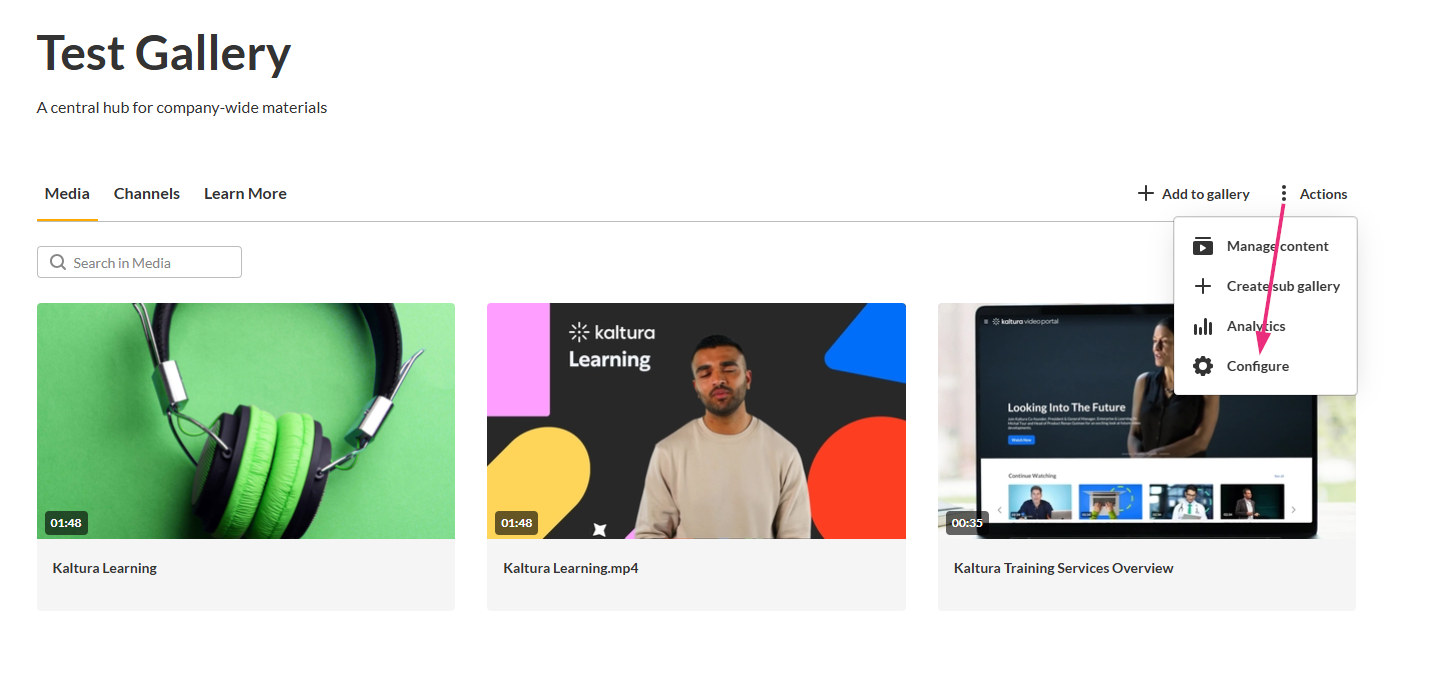
- At the far right, click the Actions menu and select Configure.
- In the left navigation panel, click Settings & layout.

The gallery page opens.

The configure page opens on the Details tab by default with a left-hand navigation.
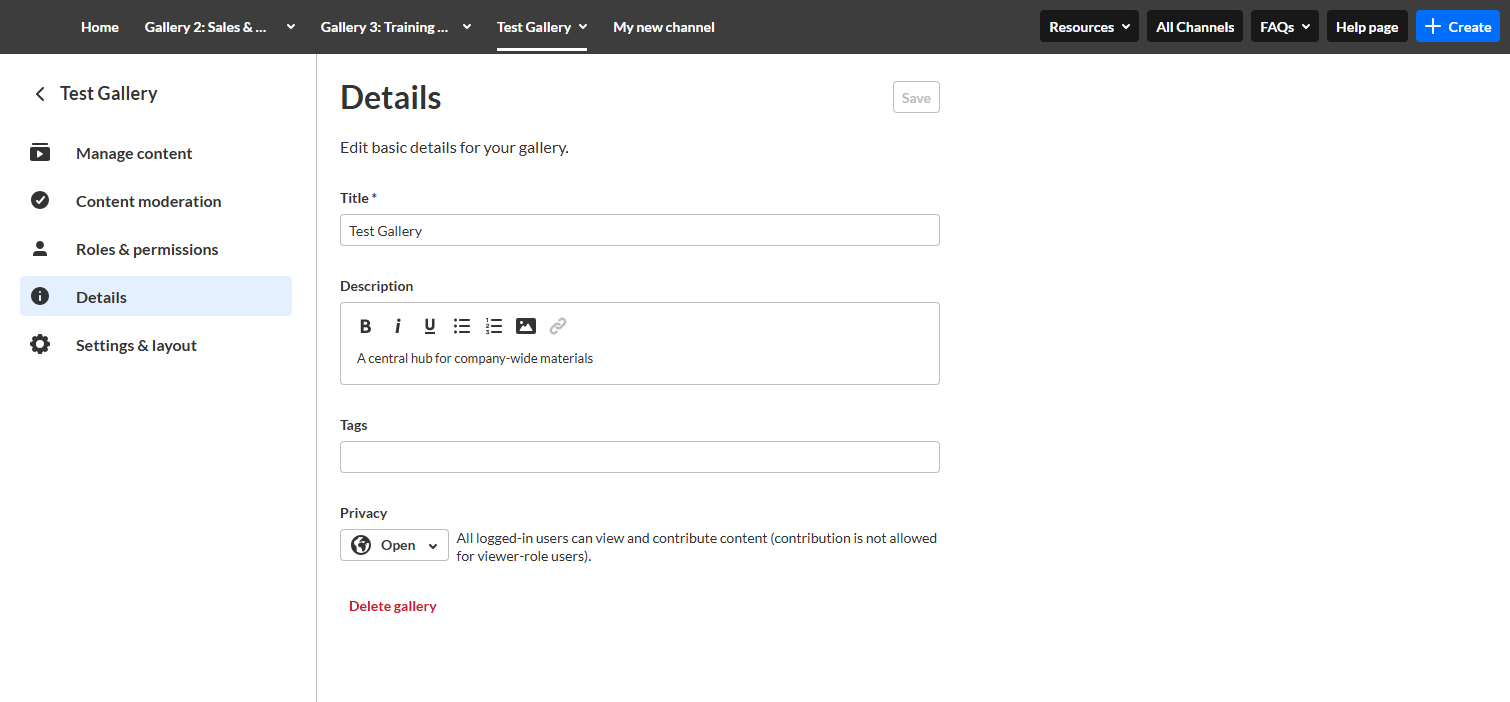

The 'Settings & layout' page displays.

Configure your gallery using the steps below. Be sure to click Save at the top right when you finish.
Available options depend on your role and admin configuration.
Configure settings & layout
Visible sections
Select which sections appear on the gallery page. Available sections include:
- Media
- Learn More
- Channels
Good to know
- Sections with no content are automatically hidden.
- Hidden sections can be re-enabled at any time.
- If Genie is enabled for your site, you will see a 'Genie' option in the Visible sections. For more information, see Add Genie to specific galleries.
Default section
Use Default section to choose which section loads first when users open the gallery.

The available options are:
- Media
- Learn More
- Channels
- Genie (if enabled on your site)
Good to know
- The default section must be a visible section (a section may not be visible if it’s turned off, has no content, or isn’t enabled on your site).
- If the selected section has no content, the gallery opens to the next available section automatically.
Media player set
The Media Player set setting allows you to use a different set of players in this channel. Player sets are configured by your administrator and can contain different players for different media types.
The available options include:
- Site Default players – Uses the site's default players*.
- An administrator-configured player set/s.
*The default players are the players configured from the corresponding modules.

Media player override
The Media player override option only appears if the Themingmedia module is enabled.
When enabled, media that has its own player set configured uses that player instead of the gallery's selected player set.
When disabled, the gallery's selected player set is used for all media in the gallery.
